1. Introduction
1.1. License
Activiti is distributed under the Apache V2 license.
1.2. Download
1.3. Sources
The distribution contains most of the sources as jar files. The source code of Activiti can be found on https://github.com/Activiti/Activiti
1.4. Required software
1.4.1. JDK 7+
Activiti runs on a JDK higher than or equal to version 7. Go to Oracle Java SE downloads and click on button "Download JDK". There are installation instructions on that page as well. To verify that your installation was successful, run java -version on the command line. That should print the installed version of your JDK.
1.4.2. IDE
Activiti development can be done with the IDE of your choice. If you would like to use the Activiti Designer then you need Eclipse Kepler or Luna.
Download the eclipse distribution of your choice from the Eclipse download page. Unzip the downloaded file and then you should be able to start it with the eclipse file in the directory eclipse.
Further in this user guide, there is a section on installing our eclipse designer plugin.
1.5. Reporting problems
Every self-respecting developer should have read How to ask questions the smart way.
After you’ve done that you can post questions and comments on the Users forum and create issues in our JIRA issue tracker.
|
Even though Activiti is hosted on GitHub, issues should not be reported using GitHub’s issue system. If you wish to report an issue, do not create a GitHub issue, but use our JIRA. |
1.6. Experimental features
Sections marked with [EXPERIMENTAL] should not be considered stable.
All classes that have .impl. in the package name are internal implementation classes and cannot be considered stable. However, if the user guide mentions those classes as configuration values, they are supported and can be considered stable.
1.7. Internal implementation classes
In the jar file, all classes in packages that have .impl. (e.g. org.activiti.engine.impl.db) in them are implementation classes and should be considered internal. No stability guarantees are given on classes or interfaces that are in implementation classes.
2. Getting Started
2.1. One minute version
After downloading the Activiti UI WAR file from the Activiti website, follow these steps to get the demo setup running with default settings. You’ll need a working Java runtime and Apache Tomcat installation (actually, any web container would work since we only rely on the servlet capability. But we test on Tomcat primarily).
-
Copy the downloaded activiti-app.war to the webapps directory of Tomcat.
-
Start Tomcat by running the startup.bat or startup.sh scripts in the bin folder of Tomcat
-
When Tomcat is started open your browser and go to http://localhost:8080/activiti-app. Login with admin and password test.
That’s it! The Activiti UI application uses an in-memory H2 database by default, if you want to use another database configuration please read the longer version.
2.2. Activiti setup
To install Activiti you’ll need a working Java runtime and Apache Tomcat installation. Also make sure that the JAVA_HOME system variable is correctly set. The way to do this depends on your operating system.
To get the Activiti UI and REST web applications running just copy the WARs downloaded from the Activiti download page to the webapps folder in your Tomcat installation directory. By default the UI application runs with an in-memory database.
Demo user:
| UserId | Password | Security roles |
|---|---|---|
admin |
test |
admin |
Now you can access following web application:
| Webapp Name | URL | Description |
|---|---|---|
Activiti UI |
The process engine user console. Use this tool to start new processes, assign tasks, view and claim tasks, etc. |
Note that the Activiti UI app demo setup is a way of showing the capabilities and functionality of Activiti as easily and as fast as possible. This does however, not mean that it is the only way of using Activiti. As Activiti is just a jar, it can be embedded in any Java environment: with swing or on a Tomcat, JBoss, WebSphere, etc. Or you could very well choose to run Activiti as a typical, standalone BPM server. If it is possible in Java, it is possible with Activiti!
2.3. Activiti database setup
As said in the one minute demo setup, the Activiti UI app runs an in-memory H2 database by default. To run the Activiti UI app with a standalone H2 or another database the activiti-app.properties in the WEB-INF/classes/META-INF/activiti-app of the Activiti UI web application should be changed.
2.4. Include the Activiti jar and its dependencies
To include the Activiti jar and its dependent libraries, we advise using Maven (or Ivy), as it simplifies dependency management on both our and your side a lot. Follow the instructions at http://www.activiti.org/community.html#maven.repository to include the necessary jars in your environment.
Alternatively, if you don’t want to use Maven you can include the jars in your project yourself. The Activiti download zip contains a folder libs which contain all the Activiti jars (and the source jars). The dependencies are not shipped this way. The required dependencies of the Activiti engine are (generated using mvn dependency:tree):
org.activiti:activiti-engine:jar:6.x
+- org.activiti:activiti-bpmn-converter:jar:6.x:compile
|  \- org.activiti:activiti-bpmn-model:jar:6.x:compile
|     +- com.fasterxml.jackson.core:jackson-core:jar:2.2.3:compile
|     \- com.fasterxml.jackson.core:jackson-databind:jar:2.2.3:compile
|        \- com.fasterxml.jackson.core:jackson-annotations:jar:2.2.3:compile
+- org.activiti:activiti-process-validation:jar:6.x:compile
+- org.activiti:activiti-image-generator:jar:6.x:compile
+- org.apache.commons:commons-email:jar:1.2:compile
|  +- javax.mail:mail:jar:1.4.1:compile
|  \- javax.activation:activation:jar:1.1:compile
+- org.apache.commons:commons-lang3:jar:3.3.2:compile
+- org.mybatis:mybatis:jar:3.3.0:compile
+- org.springframework:spring-beans:jar:4.1.6.RELEASE:compile
|  \- org.springframework:spring-core:jar:4.1.6.RELEASE:compile
+- joda-time:joda-time:jar:2.6:compile
+- org.slf4j:slf4j-api:jar:1.7.6:compile
+- org.slf4j:jcl-over-slf4j:jar:1.7.6:compile
Note: the mail jars are only needed if you are using the mail service task.
All the dependencies can easily be downloaded using mvn dependency:copy-dependencies on a module of the Activiti source code.
2.5. Next steps
Playing around with the Activiti UI web application is a good way to get familiar with the Activiti concepts and functionality. However, the main purpose of Activiti is of course to enable powerful BPM and workflow capabilities in your own application. The following chapters will help you to get familiar with how to use Activiti programmatically in your environment:
-
The chapter on configuration will teach you how to set up Activiti and how to obtain an instance of the
ProcessEngineclass which is your central access point to all the engine functionality of Activiti. *The API chapter will guide you through the services which form Activiti’s API. These services offer the Activiti engine functionality in a convenient yet powerful way and can be used in any Java environment. *Interested in getting insight on BPMN 2.0, the format in which processes for the Activiti engine are written? Then continue on to the BPMN 2.0 section.
3. Configuration
3.1. Creating a ProcessEngine
The Activiti process engine is configured through an XML file called activiti.cfg.xml. Note that this is not applicable if you’re using the Spring style of building a process engine.
The easiest way to obtain a ProcessEngine, is to use the org.activiti.engine.ProcessEngines class:
1 ProcessEngine processEngine = ProcessEngines.getDefaultProcessEngine()
This will look for an activiti.cfg.xml file on the classpath and construct an engine based on the configuration in that file. The following snippet shows an example configuration. The following sections will give a detailed overview of the configuration properties.
1
2
3
4
5
6
7
8
9
10
11
12
13
14
15
16
17
18
19
20 <beans xmlns="http://www.springframework.org/schema/beans"
xmlns:xsi="http://www.w3.org/2001/XMLSchema-instance"
xsi:schemaLocation="http://www.springframework.org/schema/beans http://www.springframework.org/schema/beans/spring-beans.xsd">
<bean id="processEngineConfiguration" class="org.activiti.engine.impl.cfg.StandaloneProcessEngineConfiguration">
<property name="jdbcUrl" value="jdbc:h2:mem:activiti;DB_CLOSE_DELAY=1000" />
<property name="jdbcDriver" value="org.h2.Driver" />
<property name="jdbcUsername" value="sa" />
<property name="jdbcPassword" value="" />
<property name="databaseSchemaUpdate" value="true" />
<property name="asyncExecutorActivate" value="false" />
<property name="mailServerHost" value="mail.my-corp.com" />
<property name="mailServerPort" value="5025" />
</bean>
</beans>
Note that the configuration XML is in fact a Spring configuration. This does not mean that Activiti can only be used in a Spring environment! We are simply leveraging the parsing and dependency injection capabilities of Spring internally for building up the engine.
The ProcessEngineConfiguration object can also be created programmatically using the configuration file. It is also possible to use a different bean id (e.g. see line 3).
1
2
3
4
5 ProcessEngineConfiguration.createProcessEngineConfigurationFromResourceDefault();
ProcessEngineConfiguration.createProcessEngineConfigurationFromResource(String resource);
ProcessEngineConfiguration.createProcessEngineConfigurationFromResource(String resource, String beanName);
ProcessEngineConfiguration.createProcessEngineConfigurationFromInputStream(InputStream inputStream);
ProcessEngineConfiguration.createProcessEngineConfigurationFromInputStream(InputStream inputStream, String beanName);
It is also possible not to use a configuration file, and create a configuration based on defaults (see the different supported classes for more information).
1
2 ProcessEngineConfiguration.createStandaloneProcessEngineConfiguration();
ProcessEngineConfiguration.createStandaloneInMemProcessEngineConfiguration();
All these ProcessEngineConfiguration.createXXX() methods return a ProcessEngineConfiguration that can further be tweaked if needed. After calling the buildProcessEngine() operation, a ProcessEngine is created:
1
2
3
4
5 ProcessEngine processEngine = ProcessEngineConfiguration.createStandaloneInMemProcessEngineConfiguration()
.setDatabaseSchemaUpdate(ProcessEngineConfiguration.DB_SCHEMA_UPDATE_FALSE)
.setJdbcUrl("jdbc:h2:mem:my-own-db;DB_CLOSE_DELAY=1000")
.setAsyncExecutorActivate(false)
.buildProcessEngine();
3.2. ProcessEngineConfiguration bean
The activiti.cfg.xml must contain a bean that has the id 'processEngineConfiguration'.
1 <bean id="processEngineConfiguration" class="org.activiti.engine.impl.cfg.StandaloneProcessEngineConfiguration">
This bean is then used to construct the ProcessEngine. There are multiple classes available that can be used to define the processEngineConfiguration. These classes represent different environments, and set defaults accordingly. It’s a best practice to select the class the matches (the most) your environment, to minimalise the number of properties needed to configure the engine. The following classes are currently available (more will follow in future releases):
-
org.activiti.engine.impl.cfg.StandaloneProcessEngineConfiguration: the process engine is used in a standalone way. Activiti will take care of the transactions. By default, the database will only be checked when the engine boots (and an exception is thrown if there is no Activiti schema or the schema version is incorrect).
-
org.activiti.engine.impl.cfg.StandaloneInMemProcessEngineConfiguration: this is a convenience class for unit testing purposes. Activiti will take care of the transactions. An H2 in-memory database is used by default. The database will be created and dropped when the engine boots and shuts down. When using this, probably no additional configuration is needed (except when using for example the job executor or mail capabilities).
-
org.activiti.spring.SpringProcessEngineConfiguration: To be used when the process engine is used in a Spring environment. See the Spring integration section for more information.
-
org.activiti.engine.impl.cfg.JtaProcessEngineConfiguration: To be used when the engine runs in standalone mode, with JTA transactions.
3.3. Database configuration
There are two ways to configure the database that the Activiti engine will use. The first option is to define the JDBC properties of the database:
-
jdbcUrl: JDBC URL of the database.
-
jdbcDriver: implementation of the driver for the specific database type.
-
jdbcUsername: username to connect to the database.
-
jdbcPassword: password to connect to the database.
The data source that is constructed based on the provided JDBC properties will have the default MyBatis connection pool settings. The following attributes can optionally be set to tweak that connection pool (taken from the MyBatis documentation):
-
jdbcMaxActiveConnections: The number of active connections that the connection pool at maximum at any time can contain. Default is 10.
-
jdbcMaxIdleConnections: The number of idle connections that the connection pool at maximum at any time can contain.
-
jdbcMaxCheckoutTime: The amount of time in milliseconds a connection can be checked out from the connection pool before it is forcefully returned. Default is 20000 (20 seconds).
-
jdbcMaxWaitTime: This is a low level setting that gives the pool a chance to print a log status and re-attempt the acquisition of a connection in the case that it is taking unusually long (to avoid failing silently forever if the pool is misconfigured) Default is 20000 (20 seconds).
Example database configuration:
1
2
3
4 <property name="jdbcUrl" value="jdbc:h2:mem:activiti;DB_CLOSE_DELAY=1000" />
<property name="jdbcDriver" value="org.h2.Driver" />
<property name="jdbcUsername" value="sa" />
<property name="jdbcPassword" value="" />
Our benchmarks have shown that the MyBatis connection pool is not the most efficient or resilient when dealing with a lot of concurrent requests. As such, it is advised to us a javax.sql.DataSource implementation and inject it into the process engine configuration (For example DBCP, C3P0, Hikari, Tomcat Connection Pool, etc.):
1
2
3
4
5
6
7
8
9
10
11
12 <bean id="dataSource" class="org.apache.commons.dbcp.BasicDataSource" >
<property name="driverClassName" value="com.mysql.jdbc.Driver" />
<property name="url" value="jdbc:mysql://localhost:3306/activiti" />
<property name="username" value="activiti" />
<property name="password" value="activiti" />
<property name="defaultAutoCommit" value="false" />
</bean>
<bean id="processEngineConfiguration" class="org.activiti.engine.impl.cfg.StandaloneProcessEngineConfiguration">
<property name="dataSource" ref="dataSource" />
...
Note that Activiti does not ship with a library that allows to define such a data source. So you have to make sure that the libraries are on your classpath.
The following properties can be set, regardless of whether you are using the JDBC or data source approach:
-
databaseType: it’s normally not necessary to specify this property as it is automatically analyzed from the database connection metadata. Should only be specified in case automatic detection fails. Possible values: {h2, mysql, oracle, postgres, mssql, db2}. This setting will determine which create/drop scripts and queries will be used. See the supported databases section for an overview of which types are supported.
-
databaseSchemaUpdate: allows to set the strategy to handle the database schema on process engine boot and shutdown.
-
false(default): Checks the version of the DB schema against the library when the process engine is being created and throws an exception if the versions don’t match. -
true: Upon building the process engine, a check is performed and an update of the schema is performed if it is necessary. If the schema doesn’t exist, it is created. -
create-drop: Creates the schema when the process engine is being created and drops the schema when the process engine is being closed.
-
3.4. JNDI Datasource Configuration
By default, the database configuration for Activiti is contained within the db.properties files in the WEB-INF/classes of each web application. This isn’t always ideal because it requires users to either modify the db.properties in the Activiti source and recompile the war file, or explode the war and modify the db.properties on every deployment.
By using JNDI (Java Naming and Directory Interface) to obtain the database connection, the connection is fully managed by the Servlet Container and the configuration can be managed outside the war deployment. This also allows more control over the connection parameters than what is provided by the db.properties file.
3.4.1. Configuration
Configuration of the JNDI datasource will differ depending on what servlet container application you are using. The instructions below will work for Tomcat, but for other container applications, please refer to the documentation for your container app.
If using Tomcat, the JNDI resource is configured within $CATALINA_BASE/conf/[enginename]/[hostname]/[warname].xml (for the Activiti UI this will usually be $CATALINA_BASE/conf/Catalina/localhost/activiti-app.xml). The default context is copied from the Activiti war file when the application is first deployed, so if it already exists, you will need to replace it. To change the JNDI resource so that the application connects to MySQL instead of H2, for example, change the file to the following:
1
2
3
4
5
6
7
8
9
10
11
12
13
14
15
16 <?xml version="1.0" encoding="UTF-8"?>
<Context antiJARLocking="true" path="/activiti-app">
<Resource auth="Container"
name="jdbc/activitiDB"
type="javax.sql.DataSource"
description="JDBC DataSource"
url="jdbc:mysql://localhost:3306/activiti"
driverClassName="com.mysql.jdbc.Driver"
username="sa"
password=""
defaultAutoCommit="false"
initialSize="5"
maxWait="5000"
maxActive="120"
maxIdle="5"/>
</Context>
3.4.2. JNDI properties
To configure a JNDI Datasource, use following properties in the properties file for the Activiti UI:
-
datasource.jndi.name: the JNDI name of the Datasource.
-
datasource.jndi.resourceRef: Set whether the lookup occurs in a J2EE container, i.e. if the prefix "java:comp/env/" needs to be added if the JNDI name doesn’t already contain it. Default is "true".
3.5. Supported databases
Listed below are the types (case sensitive!) that Activiti uses to refer to databases.
| Activiti database type | Example JDBC URL | Notes |
|---|---|---|
h2 |
jdbc:h2:tcp://localhost/activiti |
Default configured database |
mysql |
jdbc:mysql://localhost:3306/activiti?autoReconnect=true |
Tested using mysql-connector-java database driver |
oracle |
jdbc:oracle:thin:@localhost:1521:xe |
|
postgres |
jdbc:postgresql://localhost:5432/activiti |
|
db2 |
jdbc:db2://localhost:50000/activiti |
|
mssql |
jdbc:sqlserver://localhost:1433;databaseName=activiti (jdbc.driver=com.microsoft.sqlserver.jdbc.SQLServerDriver) OR jdbc:jtds:sqlserver://localhost:1433/activiti (jdbc.driver=net.sourceforge.jtds.jdbc.Driver) |
Tested using Microsoft JDBC Driver 4.0 (sqljdbc4.jar) and JTDS Driver |
3.6. Creating the database tables
The easiest way to create the database tables for your database is to:
-
Add the activiti-engine jars to your classpath
-
Add a suitable database driver
-
Add an Activiti configuration file (activiti.cfg.xml) to your classpath, pointing to your database (see database configuration section)
-
Execute the main method of the DbSchemaCreate class
However, often only database administrators can execute DDL statements on a database. On a production system, this is also the wisest of choices. The SQL DDL statements can be found on the Activiti downloads page or inside the Activiti distribution folder, in the database subdirectory. The scripts are also in the engine jar (activiti-engine-x.jar), in the package org/activiti/db/create (the drop folder contains the drop statements). The SQL files are of the form
activiti.{db}.{create|drop}.{type}.sql
Where db is any of the supported databases and type is
-
engine: the tables needed for engine execution. Required.
-
identity: the tables containing users, groups and memberships of users to groups. These tables are optional and should be used when using the default identity management as shipped with the engine.
-
history: the tables that contain the history and audit information. Optional: not needed when history level is set to none. Note that this will also disable some features (such as commenting on tasks) which store the data in the history database.
Note for MySQL users: MySQL version lower than 5.6.4 has no support for timestamps or dates with millisecond precision. To make things even worse, some version will throw an exception when trying to create such a column but other versions don’t. When doing auto-creation/upgrade, the engine will change the DDL when executing it. When using the DDL file approach, both a regular version and a special file with mysql55 in it are available (this applies on anything lower than 5.6.4). This latter file will have column types with no millisecond precision in it.
Concretely, the following applies for MySQL version
-
<5.6: No millisecond precision available. DDL files available (look for files containing mysql55). Auto creation/update will work out of the box.
-
5.6.0 - 5.6.3: No millisecond precision available. Auto creation/update will NOT work. It is advised to upgrade to a newer database version anyway. DDL files for mysql 5.5 could be used if really needed.
-
5.6.4+: Millisecond precision available. DDL files available (default file containing mysql). Auto creation/update works out of the box.
Do note that in the case of upgrading the MySQL database later on and the Activiti tables are already created/upgraded, the column type change will have to be done manually!
3.7. Database table names explained
The database names of Activiti all start with ACT_. The second part is a two-character identification of the use case of the table. This use case will also roughly match the service API.
-
ACT_RE_*: RE stands for
repository. Tables with this prefix contain static information such as process definitions and process resources (images, rules, etc.). -
ACT_RU_*: RU stands for
runtime. These are the runtime tables that contain the runtime data of process instances, user tasks, variables, jobs, etc. Activiti only stores the runtime data during process instance execution, and removes the records when a process instance ends. This keeps the runtime tables small and fast. -
ACT_ID_*: ID stands for
identity. These tables contain identity information, such as users, groups, etc. -
ACT_HI_*: HI stands for
history. These are the tables that contain historic data, such as past process instances, variables, tasks, etc. -
ACT_GE_*:
generaldata, which is used in various use cases.
3.8. Database upgrade
Make sure you make a backup of your database (using your database backup capabilities) before you run an upgrade.
By default, a version check will be performed each time a process engine is created. This typically happens once at boot time of your application or of the Activiti webapps. If the Activiti library notices a difference between the library version and the version of the Activiti database tables, then an exception is thrown.
To upgrade, you have to start with putting the following configuration property in your activiti.cfg.xml configuration file:
1
2
3
4
5
6
7
8
9 <beans >
<bean id="processEngineConfiguration" class="org.activiti.engine.impl.cfg.StandaloneProcessEngineConfiguration">
<!-- ... -->
<property name="databaseSchemaUpdate" value="true" />
<!-- ... -->
</bean>
</beans>
Also, include a suitable database driver for your database to the classpath. Upgrade the Activiti libraries in your application. Or start up a new version of Activiti and point it to a database that contains an older version. With databaseSchemaUpdate set to true, Activiti will automatically upgrade the DB schema to the newer version the first time when it notices that libraries and DB schema are out of sync.
As an alternative you can also run the upgrade DDL statements. It’s also possible to run the upgrade database scripts, available on the Activiti downloads page.
3.9. Job Executor (since version 6.0.0)
The async executor of Activiti 5 is the only available job executor in Activiti 6 as it is a more performant and more database friendly way of executing asynchronous jobs in the Activiti Engine. The old job executor of Activiti 5 is removed. More information can be found in the advanced section of the user guide.
Moreover, if running under Java EE 7, JSR-236 compliant ManagedAsyncJobExecutor can be used for letting the container manage the threads. In order to enable them, the thread factory should be passed in the configuration as follows:
1
2
3
4
5
6
7
8
9 <bean id="threadFactory" class="org.springframework.jndi.JndiObjectFactoryBean">
<property name="jndiName" value="java:jboss/ee/concurrency/factory/default" />
</bean>
<bean id="customJobExecutor" class="org.activiti.engine.impl.jobexecutor.ManagedAsyncJobExecutor">
<!-- ... -->
<property name="threadFactory" ref="threadFactory" />
<!-- ... -->
</bean>
The managed implementation fall back to their default counterparts if the thread factory is not specified.
3.10. Job executor activation
The AsyncExecutor is a component that manages a thread pool to fire timers and other asynchronous tasks. Other implementations are possible (for example using a message queue, see the advanced section of the user guide).
By default, the AsyncExecutor is not activated and not started. With the following configuration the async executor can be started together with the Activiti Engine.
1 <property name="asyncExecutorActivate" value="true" />
The property asyncExecutorActivate instructs the Activiti Engine to startup the Async executor at startup.
3.11. Mail server configuration
Configuring a mail server is optional. Activiti supports sending e-mails in business processes. To actually send an e-mail, a valid SMTP mail server configuration is required. See the e-mail task for the configuration options.
3.12. History configuration
Customizing the configuration of history storage is optional. This allows you to tweak settings that influence the history capabilities of the engine. See history configuration for more details.
1 <property name="history" value="audit" />
3.13. Exposing configuration beans in expressions and scripts
By default, all beans that you specify in the activiti.cfg.xml configuration or in your own Spring configuration file are available to expressions and in the scripts. If you want to limit the visibility of beans in your configuration file, you can configure a property called beans in your process engine configuration. The beans property in ProcessEngineConfiguration is a map. When you specify that property, only beans specified in that map will be visible to expressions and scripts. The exposed beans will be exposed with the names as you specify in that map.
3.14. Deployment cache configuration
All process definition are cached (after they’re parsed) to avoid hitting the database every time a process definition is needed and because process definition data doesn’t change. By default, there is no limit on this cache. To limit the process definition cache, add following property
1 <property name="processDefinitionCacheLimit" value="10" />
Setting this property will swap the default hashmap cache with a LRU cache that has the provided hard limit. Of course, the best value of this property depends on the total amount of process definitions stored and the number of process definitions actually used at runtime by all the runtime process instances.
You can also inject your own cache implementation. This must be a bean that implements the org.activiti.engine.impl.persistence.deploy.DeploymentCache interface:
1
2
3 <property name="processDefinitionCache">
<bean class="org.activiti.MyCache" />
</property>
There is a similar property called knowledgeBaseCacheLimit and knowledgeBaseCache for configuring the rules cache. This is only needed when you use the rules task in your processes.
3.15. Logging
All logging (activiti, spring, mybatis, …) is routed through SLF4J and allows for selecting the logging-implementation of your choice.
By default no SFL4J-binding jar is present in the activiti-engine dependencies, this should be added in your project in order to use the logging framework of your choice. If no implementation jar is added, SLF4J will use a NOP-logger, not logging anything at all, other than a warning that nothing will be logged. For more info on these bindings http://www.slf4j.org/codes.html#StaticLoggerBinder.
With Maven, add for example a dependency like this (here using log4j), note that you still need to add a version:
1
2
3
4 <dependency>
<groupId>org.slf4j</groupId>
<artifactId>slf4j-log4j12</artifactId>
</dependency>
The activiti-ui and activiti-rest webapps are configured to use Log4j-binding. Log4j is also used when running the tests for all the activiti-* modules.
Important note when using a container with commons-logging in the classpath: In order to route the spring-logging through SLF4J, a bridge is used (see http://www.slf4j.org/legacy.html#jclOverSLF4J). If your container provides a commons-logging implementation, please follow directions on this page: http://www.slf4j.org/codes.html#release to ensure stability.
Example when using Maven (version omitted):
1
2
3
4 <dependency>
<groupId>org.slf4j</groupId>
<artifactId>jcl-over-slf4j</artifactId>
</dependency>
3.16. Mapped Diagnostic Contexts
Activiti supports Mapped Diagnostic Contexts feature of SLF4j. These basic information are passed to the underlying logger along with what is going to be logged:
-
processDefinition Id as mdcProcessDefinitionID
-
processInstance Id as mdcProcessInstanceID
-
execution Id as mdcExecutionId
None of these information are logged by default. The logger can be configured to show them in desired format, extra to the usual logged messages. For example in Log4j the following sample layout definition causes the logger to show the above mentioned information:
1
2 log4j.appender.consoleAppender.layout.ConversionPattern=ProcessDefinitionId=%X{mdcProcessDefinitionID}
executionId=%X{mdcExecutionId} mdcProcessInstanceID=%X{mdcProcessInstanceID} mdcBusinessKey=%X{mdcBusinessKey} %m%n
This is useful when the logs contain information that needs to checked in real time, by means of a log analyzer for example.
3.17. Event handlers
The event mechanism in the Activiti engine allows you to get notified when various events occur within the engine. Take a look at all supported event types for an overview of the events available.
It’s possible to register a listener for certain types of events as opposed to getting notified when any type of event is dispatched. You can either add engine-wide event listeners through the configuration, add engine-wide event listeners at runtime using the API or add event-listeners to specific process definitions in the BPMN XML.
All events dispatched are a subtype of org.activiti.engine.delegate.event.ActivitiEvent. The event exposes (if available) the type, executionId, processInstanceId and processDefinitionId. Certain events contain additional context related to the event that occurred, additional information about additional payload can be found in the list of all supported event types.
3.17.1. Event listener implementation
The only requirement an event-listener has, is to implement org.activiti.engine.delegate.event.ActivitiEventListener. Below is an example implementation of a listener, which outputs all events received to the standard-out, with exception of events related to job-execution:
1
2
3
4
5
6
7
8
9
10
11
12
13
14
15
16
17
18
19
20
21
22
23
24
25
26 public class MyEventListener implements ActivitiEventListener {
@Override
public void onEvent(ActivitiEvent event) {
switch (event.getType()) {
case JOB_EXECUTION_SUCCESS:
System.out.println("A job well done!");
break;
case JOB_EXECUTION_FAILURE:
System.out.println("A job has failed...");
break;
default:
System.out.println("Event received: " + event.getType());
}
}
@Override
public boolean isFailOnException() {
// The logic in the onEvent method of this listener is not critical, exceptions
// can be ignored if logging fails...
return false;
}
}
The isFailOnException() method determines the behaviour in case the onEvent(..) method throws an exception when an event is dispatched. In case false is returned, the exception is ignored. When true is returned, the exception is not ignored and bubbles up, effectively failing the current ongoing command. In case the event was part of an API-call (or any other transactional operation, e.g. job-execution), the transaction will be rolled back. In case the behaviour in the event-listener is not business-critical, it’s recommended to return false.
There are a few base implementations provided by Activiti to facilitate common use cases of event-listeners. These can be used as base-class or as an example listener implementation:
-
org.activiti.engine.delegate.event.BaseEntityEventListener: An event-listener base-class that can be used to listen for entity-related events for a specific type of entity or for all entities. It hides away the type-checking and offers 4 methods that should be overridden:
onCreate(..),onUpdate(..)andonDelete(..)when an entity is created, updated or deleted. For all other entity-related events, theonEntityEvent(..)is called.
3.17.2. Configuration and setup
If an event-listener is configured in the process engine configuration, it will be active when the process engine starts and will remain active after subsequent reboots of the engine.
The property eventListeners expects a list of org.activiti.engine.delegate.event.ActivitiEventListener instances. As usual, you can either declare an inline bean definition or use a ref to an existing bean instead. The snippet below adds an event-listener to the configuration that is notified when any event is dispatched, regardless of its type:
1
2
3
4
5
6
7
8 <bean id="processEngineConfiguration" class="org.activiti.engine.impl.cfg.StandaloneProcessEngineConfiguration">
...
<property name="eventListeners">
<list>
<bean class="org.activiti.engine.example.MyEventListener" />
</list>
</property>
</bean>
To get notified when certain types of events get dispatched, use the typedEventListeners property, which expects a map. The key of a map-entry is a comma-separated list of event-names (or a single event-name). The value of a map-entry is a list of org.activiti.engine.delegate.event.ActivitiEventListener instances. The snippet below adds an event-listener to the configuration, that is notified when a job execution was successful or failed:
1
2
3
4
5
6
7
8
9
10
11
12 <bean id="processEngineConfiguration" class="org.activiti.engine.impl.cfg.StandaloneProcessEngineConfiguration">
...
<property name="typedEventListeners">
<map>
<entry key="JOB_EXECUTION_SUCCESS,JOB_EXECUTION_FAILURE" >
<list>
<bean class="org.activiti.engine.example.MyJobEventListener" />
</list>
</entry>
</map>
</property>
</bean>
The order of dispatching events is determined on the order the listeners were added. First, all normal event-listeners are called (eventListeners property) in the order they are defined in the list. After that, all typed event listeners (typedEventListeners properties) are called, if an event of the right type is dispatched.
3.17.3. Adding listeners at runtime
It’s possible to add and remove additional event-listeners to the engine by using the API (RuntimeService):
1
2
3
4
5
6
7
8
9
10
11
12
13
14
15
16
17
18
19 /**
* Adds an event-listener which will be notified of ALL events by the dispatcher.
* @param listenerToAdd the listener to add
*/
void addEventListener(ActivitiEventListener listenerToAdd);
/**
* Adds an event-listener which will only be notified when an event occurs, which type is in the given types.
* @param listenerToAdd the listener to add
* @param types types of events the listener should be notified for
*/
void addEventListener(ActivitiEventListener listenerToAdd, ActivitiEventType... types);
/**
* Removes the given listener from this dispatcher. The listener will no longer be notified,
* regardless of the type(s) it was registered for in the first place.
* @param listenerToRemove listener to remove
*/
void removeEventListener(ActivitiEventListener listenerToRemove);
Please note that the listeners added at runtime are not retained when the engine is rebooted.
3.17.4. Adding listeners to process definitions
It’s possible to add listeners to a specific process-definition. The listeners will only be called for events related to the process definition and to all events related to process instances that are started with that specific process definition. The listener implementations can be defined using a fully qualified classname, an expression that resolves to a bean that implements the listener interface or can be configured to throw a message/signal/error BPMN event.
Listeners executing user-defined logic
The snippet below adds 2 listeners to a process-definition. The first listener will receive events of any type, with a listener implementation based on a fully-qualified class name. The second listener is only notified when a job is successfully executed or when it failed, using a listener that has been defined in the beans property of the process engine configuration.
1
2
3
4
5
6
7
8
9 <process id="testEventListeners">
<extensionElements>
<activiti:eventListener class="org.activiti.engine.test.MyEventListener" />
<activiti:eventListener delegateExpression="${testEventListener}" events="JOB_EXECUTION_SUCCESS,JOB_EXECUTION_FAILURE" />
</extensionElements>
...
</process>
For events related to entities, it’s also possible to add listeners to a process-definition that get only notified when entity-events occur for a certain entity type. The snippet below shows how this can be achieved. It can be used along for ALL entity-events (first example) or for specific event types only (second example).
1
2
3
4
5
6
7
8
9 <process id="testEventListeners">
<extensionElements>
<activiti:eventListener class="org.activiti.engine.test.MyEventListener" entityType="task" />
<activiti:eventListener delegateExpression="${testEventListener}" events="ENTITY_CREATED" entityType="task" />
</extensionElements>
...
</process>
Supported values for the entityType are: attachment, comment, execution, identity-link, job, process-instance, process-definition, task.
Listeners throwing BPMN events
Another way of handling events being dispatched is to throw a BPMN event. Please bear in mind that it only makes sense to throw BPMN-events with certain kinds of Activiti event types. For example, throwing a BPMN event when the process-instance is deleted will result in an error. The snippet below shows how to throw a signal inside process-instance, throw a signal to an external process (global), throw a message-event inside the process-instance and throw an error-event inside the process-instance. Instead of using the class or delegateExpression, the attribute throwEvent is used, along with an additional attribute, specific to the type of event being thrown.
1
2
3
4
5 <process id="testEventListeners">
<extensionElements>
<activiti:eventListener throwEvent="signal" signalName="My signal" events="TASK_ASSIGNED" />
</extensionElements>
</process>
1
2
3
4
5 <process id="testEventListeners">
<extensionElements>
<activiti:eventListener throwEvent="globalSignal" signalName="My signal" events="TASK_ASSIGNED" />
</extensionElements>
</process>
1
2
3
4
5 <process id="testEventListeners">
<extensionElements>
<activiti:eventListener throwEvent="message" messageName="My message" events="TASK_ASSIGNED" />
</extensionElements>
</process>
1
2
3
4
5 <process id="testEventListeners">
<extensionElements>
<activiti:eventListener throwEvent="error" errorCode="123" events="TASK_ASSIGNED" />
</extensionElements>
</process>
If additional logic is needed to decide whether or not to throw the BPMN-event, it’s possible to extend the listener-classes provided by Activiti. By overriding the isValidEvent(ActivitiEvent event) in your subclass, the BPMN-event throwing can be prevented. The classes involved are +org.activiti.engine.test.api.event.SignalThrowingEventListenerTest, org.activiti.engine.impl.bpmn.helper.MessageThrowingEventListener and org.activiti.engine.impl.bpmn.helper.ErrorThrowingEventListener.
Notes on listeners on a process-definition
-
Event-listeners can only be declared on the
processelement, as a child-element of theextensionElements. Listeners cannot be defined on individual activities in the process. -
Expressions used in the
delegateExpressiondo not have access to the execution-context, as other expressions (e.g. in gateways) have. They can only reference beans defined in thebeansproperty of the process engine configuration or when using spring (and the beans property is absent) to any spring-bean that implements the listener interface. -
When using the
classattribute of a listener, there will only be a single instance of that class created. Make sure the listener implementations do not rely on member-fields or ensure safe usage from multiple threads/contexts. -
When an illegal event-type is used in the
eventsattribute or illegalthrowEventvalue is used, an exception will be thrown when the process-definition is deployed (effectively failing the deployment). When an illegal value forclassordelegateExecutionis supplied (either a nonexistent class, a nonexistent bean reference or a delegate not implementing listener interface), an exception will be thrown when the process is started (or when the first valid event for that process-definition is dispatched to the listener). Make sure the referenced classes are on the classpath and that the expressions resolve to a valid instance.
3.17.5. Dispatching events through API
We opened up the event-dispatching mechanism through the API, to allow you to dispatch custom events to any listeners that are registered in the engine. It’s recommended (although not enforced) to only dispatch ActivitiEvents with type CUSTOM. Dispatching the event can be done using the RuntimeService:
1
2
3
4
5
6
7
8
9 /**
* Dispatches the given event to any listeners that are registered.
* @param event event to dispatch.
*
* @throws ActivitiException if an exception occurs when dispatching the event or when the {@link ActivitiEventDispatcher}
* is disabled.
* @throws ActivitiIllegalArgumentException when the given event is not suitable for dispatching.
*/
void dispatchEvent(ActivitiEvent event);
3.17.6. Supported event types
Listed below are all event types that can occur in the engine. Each type corresponds to an enum value in the org.activiti.engine.delegate.event.ActivitiEventType.
| Event name | Description | Event classes |
|---|---|---|
ENGINE_CREATED |
The process-engine this listener is attached to, has been created and is ready for API-calls. |
|
ENGINE_CLOSED |
The process-engine this listener is attached to, has been closed. API-calls to the engine are no longer possible. |
|
ENTITY_CREATED |
A new entity is created. The new entity is contained in the event. |
|
ENTITY_INITIALIZED |
A new entity has been created and is fully initialized. If any children are created as part of the creation of an entity, this event will be fired AFTER the create/initialisation of the child entities as opposed to the |
|
ENTITY_UPDATED |
An existing is updated. The updated entity is contained in the event. |
|
ENTITY_DELETED |
An existing entity is deleted. The deleted entity is contained in the event. |
|
ENTITY_SUSPENDED |
An existing entity is suspended. The suspended entity is contained in the event. Will be dispatched for ProcessDefinitions, ProcessInstances and Tasks. |
|
ENTITY_ACTIVATED |
An existing entity is activated. The activated entity is contained in the event. Will be dispatched for ProcessDefinitions, ProcessInstances and Tasks. |
|
JOB_EXECUTION_SUCCESS |
A job has been executed successfully. The event contains the job that was executed. |
|
JOB_EXECUTION_FAILURE |
The execution of a job has failed. The event contains the job that was executed and the exception. |
|
JOB_RETRIES_DECREMENTED |
The number of job retries have been decremented due to a failed job. The event contains the job that was updated. |
|
TIMER_FIRED |
A timer has been fired. The event contains the job that was executed? |
|
JOB_CANCELED |
A job has been canceled. The event contains the job that was canceled. Job can be canceled by API call, task was completed and associated boundary timer was canceled, on the new process definition deployment. |
|
ACTIVITY_STARTED |
An activity is starting to execute |
|
ACTIVITY_COMPLETED |
An activity is completed successfully |
|
ACTIVITY_CANCELLED |
An activity is going to be cancelled. There can be three reasons for activity cancellation (MessageEventSubscriptionEntity, SignalEventSubscriptionEntity, TimerEntity). |
|
ACTIVITY_SIGNALED |
An activity received a signal |
|
ACTIVITY_MESSAGE_RECEIVED |
An activity received a message. Dispatched before the activity receives the message. When received, a |
|
ACTIVITY_ERROR_RECEIVED |
An activity has received an error event. Dispatched before the actual error has been handled by
the activity. The event’s |
|
UNCAUGHT_BPMN_ERROR |
An uncaught BPMN error has been thrown. The process did not have any handlers for that specific error. The event’s |
|
ACTIVITY_COMPENSATE |
An activity is about to be compensated. The event contains the id of the activity that is will be executed for compensation. |
|
VARIABLE_CREATED |
A variable has been created. The event contains the variable name, value and related execution and task (if any). |
|
VARIABLE_UPDATED |
An existing variable has been updated. The event contains the variable name, updated value and related execution and task (if any). |
|
VARIABLE_DELETED |
An existing variable has been deleted. The event contains the variable name, last known value and related execution and task (if any). |
|
TASK_ASSIGNED |
A task has been assigned to a user. The event contains the task |
|
TASK_CREATED |
A task has been created. This is dispatched after the |
|
TASK_COMPLETED |
A task has been completed. This is dispatched before the |
|
PROCESS_COMPLETED |
A process has been completed. Dispatched after the last activity |
|
PROCESS_CANCELLED |
A process has been cancelled. Dispatched before the process instance is deleted from runtime. Process instance is cancelled by API call |
|
MEMBERSHIP_CREATED |
A user has been added to a group. The event contains the ids of the user and group involved. |
|
MEMBERSHIP_DELETED |
A user has been removed from a group. The event contains the ids of the user and group involved. |
|
MEMBERSHIPS_DELETED |
All members will be removed from a group. The event is thrown before the members are removed, so they are still accessible. No individual
|
|
All ENTITY_\* events are related to entities inside the engine. The list below show an overview of what entity-events are dispatched for which entities:
-
ENTITY_CREATED, ENTITY_INITIALIZED, ENTITY_DELETED: Attachment, Comment, Deployment, Execution, Group, IdentityLink, Job, Model, ProcessDefinition, ProcessInstance, Task, User. -
ENTITY_UPDATED: Attachment, Deployment, Execution, Group, IdentityLink, Job, Model, ProcessDefinition, ProcessInstance, Task, User. -
ENTITY_SUSPENDED, ENTITY_ACTIVATED: ProcessDefinition, ProcessInstance/Execution, Task.
3.17.7. Additional remarks
Only listeners are notified in the engine the events are dispatched from. So in case you have different engines - running against the same database - only events that originated in the engine the listener is registered for, are dispatched to that listener. The events that occur in the other engine are not dispatched to the listeners, regardless of the fact they are running in the same JVM or not.
Certain event-types (related to entities) expose the targeted entity. Depending on the type or event, these entities cannot be updated anymore (e.g. when the entity is deleted). If possible, use the EngineServices exposed by the event to interact in a safe way with the engine. Even then, you need to be cautious with updates/operations on entities that are involved in the dispatched event.
No entity-events are dispatched related to history, as they all have a runtime-counterpart which have their events dispatched.
4. The Activiti API
4.1. The Process Engine API and services
The engine API is the most common way of interacting with Activiti. The central starting point is the ProcessEngine, which can be created in several ways as described in the configuration section. From the ProcessEngine, you can obtain the various services that contain the workflow/BPM methods. ProcessEngine and the services objects are thread safe. So you can keep a reference to 1 of those for a whole server.
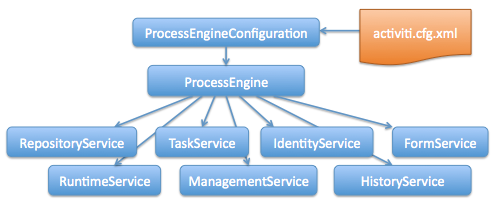
1
2
3
4
5
6
7
8
9
10 ProcessEngine processEngine = ProcessEngines.getDefaultProcessEngine();
RuntimeService runtimeService = processEngine.getRuntimeService();
RepositoryService repositoryService = processEngine.getRepositoryService();
TaskService taskService = processEngine.getTaskService();
ManagementService managementService = processEngine.getManagementService();
IdentityService identityService = processEngine.getIdentityService();
HistoryService historyService = processEngine.getHistoryService();
FormService formService = processEngine.getFormService();
DynamicBpmnService dynamicBpmnService = processEngine.getDynamicBpmnService();
ProcessEngines.getDefaultProcessEngine() will initialize and build a process engine the first time it is called and afterwards always return the same process engine. Proper creation and closing of all process engines can be done with ProcessEngines.init() and ProcessEngines.destroy().
The ProcessEngines class will scan for all activiti.cfg.xml and activiti-context.xml files. For all activiti.cfg.xml files, the process engine will be built in the typical Activiti way: ProcessEngineConfiguration.createProcessEngineConfigurationFromInputStream(inputStream).buildProcessEngine(). For all activiti-context.xml files, the process engine will be built in the Spring way: First the Spring application context is created and then the process engine is obtained from that application context.
All services are stateless. This means that you can easily run Activiti on multiple nodes in a cluster, each going to the same database, without having to worry about which machine actually executed previous calls. Any call to any service is idempotent regardless of where it is executed.
The RepositoryService is probably the first service needed when working with the Activiti engine. This service offers operations for managing and manipulating deployments and process definitions. Without going into much detail here, a process definition is a Java counterpart of BPMN 2.0 process. It is a representation of the structure and behaviour of each of the steps of a process. A deployment is the unit of packaging within the Activiti engine. A deployment can contain multiple BPMN 2.0 xml files and any other resource. The choice of what is included in one deployment is up to the developer. It can range from a single process BPMN 2.0 xml file to a whole package of processes and relevant resources (for example the deployment hr-processes could contain everything related to hr processes). The RepositoryService allows to deploy such packages. Deploying a deployment means it is uploaded to the engine, where all processes are inspected and parsed before being stored in the database. From that point on, the deployment is known to the system and any process included in the deployment can now be started.
Furthermore, this service allows to
-
Query on deployments and process definitions known to the engine.
-
Suspend and activate deployments as a whole or specific process definitions. Suspending means no further operations can be done on them, while activation is the opposite operation.
-
Retrieve various resources such as files contained within the deployment or process diagrams that were auto generated by the engine.
-
Retrieve a POJO version of the process definition which can be used to introspect the process using Java rather than xml.
While the RepositoryService is rather about static information (i.e. data that doesn’t change, or at least not a lot), the RuntimeService is quite the opposite. It deals with starting new process instances of process definitions. As said above, a process definition defines the structure and behaviour of the different steps in a process. A process instance is one execution of such a process definition. For each process definition there typically are many instances running at the same time. The RuntimeService also is the service which is used to retrieve and store process variables. This is data which is specific to the given process instance and can be used by various constructs in the process (e.g. an exclusive gateway often uses process variables to determine which path is chosen to continue the process). The Runtimeservice also allows to query on process instances and executions. Executions are a representation of the 'token' concept of BPMN 2.0. Basically an execution is a pointer pointing to where the process instance currently is. Lastly, the RuntimeService is used whenever a process instance is waiting for an external trigger and the process needs to be continued. A process instance can have various wait states and this service contains various operations to signal the instance that the external trigger is received and the process instance can be continued.
Tasks that need to be performed by actual human users of the system are core to a BPM engine such as Activiti. Everything around tasks is grouped in the TaskService, such as
-
Querying tasks assigned to users or groups
-
Creating new standalone tasks. These are tasks that are not related to a process instances.
-
Manipulating to which user a task is assigned or which users are in some way involved with the task.
-
Claiming and completing a task. Claiming means that someone decided to be the assignee for the task, meaning that this user will complete the task. Completing means doing the work of the tasks. Typically this is filling in a form of sorts.
The IdentityService is pretty simple. It allows the management (creation, update, deletion, querying, …) of groups and users. It is important to understand that Activiti actually doesn’t do any checking on users at runtime. For example, a task could be assigned to any user, but the engine does not verify if that user is known to the system. This is because the Activiti engine can also be used in conjunction with services such as LDAP, Active Directory, etc.
The FormService is an optional service. Meaning that Activiti can perfectly be used without it, without sacrificing any functionality. This service introduces the concept of a start form and a task form. A start form is a form that is shown to the user before the process instance is started, while a task form is the form that is displayed when a user wants to complete a form. Activiti allows to define these forms in the BPMN 2.0 process definition. This service exposes this data in an easy way to work with. But again, this is optional as forms don’t need to be embedded in the process definition.
The HistoryService exposes all historical data gathered by the Activiti engine. When executing processes, a lot of data can be kept by the engine (this is configurable) such as process instance start times, who did which tasks, how long it took to complete the tasks, which path was followed in each process instance, etc. This service exposes mainly query capabilities to access this data.
The ManagementService is typically not needed when coding custom application using Activiti. It allows to retrieve information about the database tables and table metadata. Furthermore, it exposes query capabilities and management operations for jobs. Jobs are used in Activiti for various things such as timers, asynchronous continuations, delayed suspension/activation, etc. Later on, these topics will be discussed in more detail.
The DynamicBpmnService can be used to change part of the process definition without needing to redeploy it. You can for example change the assignee definition for a user task in a process definition, or change the class name of a service task.
For more detailed information on the service operations and the engine API, see the javadocs.
4.2. Exception strategy
The base exception in Activiti is the org.activiti.engine.ActivitiException, an unchecked exception. This exception can be thrown at all times by the API, but expected exceptions that happen in specific methods are documented in the the javadocs. For example, an extract from TaskService:
1
2
3
4
5
6 /**
* Called when the task is successfully executed.
* @param taskId the id of the task to complete, cannot be null.
* @throws ActivitiObjectNotFoundException when no task exists with the given id.
*/
void complete(String taskId);
In the example above, when an id is passed for which no task exists, an exception will be thrown. Also, since the javadoc explicitly states that taskId cannot be null, an ActivitiIllegalArgumentException will be thrown when null is passed.
Even though we want to avoid a big exception hierarchy, the following subclasses were added which are thrown in specific cases. All other errors that occur during process-execution or API-invocation that don’t fit into the possible exceptions below, are thrown as regular ActivitiExceptionss.
-
ActivitiWrongDbException: Thrown when the Activiti engine discovers a mismatch between the database schema version and the engine version. -
ActivitiOptimisticLockingException: Thrown when an optimistic locking occurs in the data store caused by concurrent access of the same data entry. -
ActivitiClassLoadingException: Thrown when a class requested to load was not found or when an error occurred while loading it (e.g. JavaDelegates, TaskListeners, …). -
ActivitiObjectNotFoundException: Thrown when an object that is requested or action on does not exist. -
ActivitiIllegalArgumentException: An exception indicating that an illegal argument has been supplied in an Activiti API-call, an illegal value was configured in the engine’s configuration or an illegal value has been supplied or an illegal value is used in a process-definition. -
ActivitiTaskAlreadyClaimedException: Thrown when a task is already claimed, when thetaskService.claim(…)is called.
4.3. Working with the Activiti services
As described above, the way to interact with the Activiti engine is through the services exposed by an instance of the org.activiti.engine.ProcessEngine class. The following code snippets assume you have a working Activiti environment, i.e. you have access to a valid org.activiti.engine.ProcessEngine. If you simply want to try out the code below, you can download or clone the Activiti unit test template, import it in your IDE and add a testUserguideCode() method to the org.activiti.MyUnitTest unit test.
The end goal of this little tutorial will be to have a working business process which mimics a simplistic vacation request process at a company:
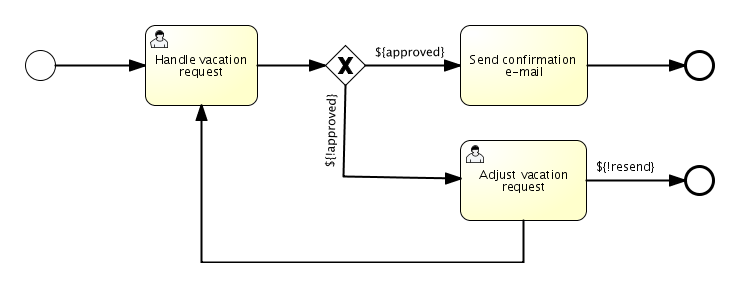
4.3.1. Deploying the process
Everything that is related to static data (such as process definitions) are accessed through the RepositoryService. Conceptually, every such static piece of data is content of the repository of the Activiti engine.
Create a new xml file VacationRequest.bpmn20.xml in the src/test/resources/org/activiti/test resource folder (or anywhere else if you’re not using the unit test template) with the following content. Note that this section won’t explain the xml constructs being used in the example above. Please read the BPMN 2.0 chapter to become familiar with these constructs first if needed.
1
2
3
4
5
6
7
8
9
10
11
12
13
14
15
16
17
18
19
20
21
22
23
24
25
26
27
28
29
30
31
32
33
34
35
36
37
38
39
40
41
42
43
44
45
46
47
48
49
50
51
52
53
54
55
56
57
58
59
60
61
62
63
64
65
66
67
68
69
70
71
72
73
74
75
76
77
78
79
80
81
82
83
84
85 <?xml version="1.0" encoding="UTF-8" ?>
<definitions id="definitions"
targetNamespace="http://activiti.org/bpmn20"
xmlns="http://www.omg.org/spec/BPMN/20100524/MODEL"
xmlns:xsi="http://www.w3.org/2001/XMLSchema-instance"
xmlns:activiti="http://activiti.org/bpmn">
<process id="vacationRequest" name="Vacation request">
<startEvent id="request" activiti:initiator="employeeName">
<extensionElements>
<activiti:formProperty id="numberOfDays" name="Number of days" type="long" value="1" required="true"/>
<activiti:formProperty id="startDate" name="First day of holiday (dd-MM-yyy)" datePattern="dd-MM-yyyy hh:mm" type="date" required="true" />
<activiti:formProperty id="vacationMotivation" name="Motivation" type="string" />
</extensionElements>
</startEvent>
<sequenceFlow id="flow1" sourceRef="request" targetRef="handleRequest" />
<userTask id="handleRequest" name="Handle vacation request" >
<documentation>
${employeeName} would like to take ${numberOfDays} day(s) of vacation (Motivation: ${vacationMotivation}).
</documentation>
<extensionElements>
<activiti:formProperty id="vacationApproved" name="Do you approve this vacation" type="enum" required="true">
<activiti:value id="true" name="Approve" />
<activiti:value id="false" name="Reject" />
</activiti:formProperty>
<activiti:formProperty id="managerMotivation" name="Motivation" type="string" />
</extensionElements>
<potentialOwner>
<resourceAssignmentExpression>
<formalExpression>management</formalExpression>
</resourceAssignmentExpression>
</potentialOwner>
</userTask>
<sequenceFlow id="flow2" sourceRef="handleRequest" targetRef="requestApprovedDecision" />
<exclusiveGateway id="requestApprovedDecision" name="Request approved?" />
<sequenceFlow id="flow3" sourceRef="requestApprovedDecision" targetRef="sendApprovalMail">
<conditionExpression xsi:type="tFormalExpression">${vacationApproved == 'true'}</conditionExpression>
</sequenceFlow>
<task id="sendApprovalMail" name="Send confirmation e-mail" />
<sequenceFlow id="flow4" sourceRef="sendApprovalMail" targetRef="theEnd1" />
<endEvent id="theEnd1" />
<sequenceFlow id="flow5" sourceRef="requestApprovedDecision" targetRef="adjustVacationRequestTask">
<conditionExpression xsi:type="tFormalExpression">${vacationApproved == 'false'}</conditionExpression>
</sequenceFlow>
<userTask id="adjustVacationRequestTask" name="Adjust vacation request">
<documentation>
Your manager has disapproved your vacation request for ${numberOfDays} days.
Reason: ${managerMotivation}
</documentation>
<extensionElements>
<activiti:formProperty id="numberOfDays" name="Number of days" value="${numberOfDays}" type="long" required="true"/>
<activiti:formProperty id="startDate" name="First day of holiday (dd-MM-yyy)" value="${startDate}" datePattern="dd-MM-yyyy hh:mm" type="date" required="true" />
<activiti:formProperty id="vacationMotivation" name="Motivation" value="${vacationMotivation}" type="string" />
<activiti:formProperty id="resendRequest" name="Resend vacation request to manager?" type="enum" required="true">
<activiti:value id="true" name="Yes" />
<activiti:value id="false" name="No" />
</activiti:formProperty>
</extensionElements>
<humanPerformer>
<resourceAssignmentExpression>
<formalExpression>${employeeName}</formalExpression>
</resourceAssignmentExpression>
</humanPerformer>
</userTask>
<sequenceFlow id="flow6" sourceRef="adjustVacationRequestTask" targetRef="resendRequestDecision" />
<exclusiveGateway id="resendRequestDecision" name="Resend request?" />
<sequenceFlow id="flow7" sourceRef="resendRequestDecision" targetRef="handleRequest">
<conditionExpression xsi:type="tFormalExpression">${resendRequest == 'true'}</conditionExpression>
</sequenceFlow>
<sequenceFlow id="flow8" sourceRef="resendRequestDecision" targetRef="theEnd2">
<conditionExpression xsi:type="tFormalExpression">${resendRequest == 'false'}</conditionExpression>
</sequenceFlow>
<endEvent id="theEnd2" />
</process>
</definitions>
To make this process known to the Activiti engine, we must deploy it first. Deploying means that the engine will parse the BPMN 2.0 xml to something executable and a new database record will be added for each process definition included in the deployment. This way, when the engine reboots, it will still know all of the deployed processes:
1
2
3
4
5
6
7 ProcessEngine processEngine = ProcessEngines.getDefaultProcessEngine();
RepositoryService repositoryService = processEngine.getRepositoryService();
repositoryService.createDeployment()
.addClasspathResource("org/activiti/test/VacationRequest.bpmn20.xml")
.deploy();
Log.info("Number of process definitions: " + repositoryService.createProcessDefinitionQuery().count());
Read more about deployment in the deployment chapter.
4.3.2. Starting a process instance
After deploying the process definition to the Activiti engine, we can start new process instances from it. For each process definition, there are typically many process instances. The process definition is the blueprint, while a process instance is a runtime execution of it.
Everything related to the runtime state of processes can be found in the RuntimeService. There are various way to start a new process instance. In the following snippet, we use the key we defined in the process definition xml to start the process instance. We’re also providing some process variables at process instance start, because the description of the first user task will use these in its expressions. Process variables are commonly used because they give meaning to the process instances for a certain process definition. Typically, the process variables are what make process instances differ from one another.
1
2
3
4
5
6
7
8
9
10 Map<String, Object> variables = new HashMap<String, Object>();
variables.put("employeeName", "Kermit");
variables.put("numberOfDays", new Integer(4));
variables.put("vacationMotivation", "I'm really tired!");
RuntimeService runtimeService = processEngine.getRuntimeService();
ProcessInstance processInstance = runtimeService.startProcessInstanceByKey("vacationRequest", variables);
// Verify that we started a new process instance
Log.info("Number of process instances: " + runtimeService.createProcessInstanceQuery().count());
4.3.3. Completing tasks
When the process starts, the first step will be a user task. This is a step that must be performed by a user of the system. Typically, such a user will have an inbox of tasks which lists all the tasks that need to be done by this user. Following code snippet shows how such a query might be performed:
1
2
3
4
5
6 // Fetch all tasks for the management group
TaskService taskService = processEngine.getTaskService();
List<Task> tasks = taskService.createTaskQuery().taskCandidateGroup("management").list();
for (Task task : tasks) {
Log.info("Task available: " + task.getName());
}
To continue the process instance, we need to finish this task. For the Activiti engine, this means you need to complete the task. Following snippet shows how this is done:
1
2
3
4
5
6 Task task = tasks.get(0);
Map<String, Object> taskVariables = new HashMap<String, Object>();
taskVariables.put("vacationApproved", "false");
taskVariables.put("managerMotivation", "We have a tight deadline!");
taskService.complete(task.getId(), taskVariables);
The process instance will now continue to the next step. In this example, the next step allows the employee to complete a form that adjusts their original vacation request. The employee can resubmit the vacation request which will cause the process to loop back to the start task.
4.3.4. Suspending and activating a process
It’s possible to suspend a process definition. When a process definition is suspended, new process instance can’t be created (an exception will be thrown). Suspending the process definition is done through the RepositoryService:
1
2
3
4
5
6 repositoryService.suspendProcessDefinitionByKey("vacationRequest");
try {
runtimeService.startProcessInstanceByKey("vacationRequest");
} catch (ActivitiException e) {
e.printStackTrace();
}
To reactivate a process definition, simply call one of the repositoryService.activateProcessDefinitionXXX methods.
It’s also possible to suspend a process instance. When suspended, the process cannot
be continued (e.g. completing a task throws an exception) and no jobs (such as timers) will executed. Suspending a process instance can be done by calling the runtimeService.suspendProcessInstance method. Activating the process instance again is done by calling the runtimeService.activateProcessInstanceXXX methods.
4.3.5. Further reading
We’ve barely scratched the surface in the previous sections regarding Activiti functionality. We will expand these sections further in the future with additional coverage of the Activiti API. Of course, as with any open source project, the best way to learn is to inspect the code and read the Javadocs!
4.4. Query API
There are two ways of querying data from the engine: The query API and native queries. The Query API allows to program completely typesafe queries with a fluent API. You can add various conditions to your queries (all of which are applied together as a logical AND) and precisely one ordering. The following code shows an example:
1
2
3
4
5 List<Task> tasks = taskService.createTaskQuery()
.taskAssignee("kermit")
.processVariableValueEquals("orderId", "0815")
.orderByDueDate().asc()
.list();
Sometimes you need more powerful queries, e.g. queries using an OR operator or restrictions you cannot express using the Query API. For these cases, we introduced native queries, which allow you to write your own SQL queries. The return type is defined by the Query object you use and the data is mapped into the correct objects, e.g. Task, ProcessInstance, Execution, etc…. Since the query will be fired at the database you have to use table and column names as they are defined in the database; this requires some knowledge about the internal data structure and it is recommended to use native queries with care. The table names can be retrieved via the API to keep the dependency as small as possible.
1
2
3
4
5
6
7
8
9 List<Task> tasks = taskService.createNativeTaskQuery()
.sql("SELECT count(*) FROM " + managementService.getTableName(Task.class) + " T WHERE T.NAME_ = #{taskName}")
.parameter("taskName", "gonzoTask")
.list();
long count = taskService.createNativeTaskQuery()
.sql("SELECT count(*) FROM " + managementService.getTableName(Task.class) + " T1, "
+ managementService.getTableName(VariableInstanceEntity.class) + " V1 WHERE V1.TASK_ID_ = T1.ID_")
.count();
4.5. Variables
Every process instance needs and uses data to execute the steps it exists of. In Activiti, this data is called variables, which are stored in the database. Variables can be used in expressions (for example to select the correct outgoing sequence flow in an exclusive gateway), in java service tasks when calling external services (for example to provide the input or store the result of the service call), etc.
A process instance can have variables (called process variables), but also executions (which are specific pointers to where the process is active) and user tasks can have variables. A process instance can have any number of variables. Each variable is stored in a row in the ACT_RU_VARIABLE database table.
Any of the startProcessInstanceXXX methods have an optional parameters to provide the variables when the process instance is created and started. For example, from the RuntimeService:
1 ProcessInstance startProcessInstanceByKey(String processDefinitionKey, Map<String, Object> variables);
Variables can be added during process execution. For example (RuntimeService):
1
2
3
4 void setVariable(String executionId, String variableName, Object value);
void setVariableLocal(String executionId, String variableName, Object value);
void setVariables(String executionId, Map<String, ? extends Object> variables);
void setVariablesLocal(String executionId, Map<String, ? extends Object> variables);
Note that variables can be set local for a given execution (remember a process instance consists of a tree of executions). The variable will only be visible on that execution, and not higher in the tree of executions. This can be useful if data shouldn’t be propagated to the process instance level, or the variable has a new value for a certain path in the process instance (for example when using parallel paths).
Variables can also be fetched again, as shown below. Note that similar methods exist on the TaskService. This means that tasks, like executions, can have local variables that are alive just for the duration of the task.
1
2
3
4
5
6 Map<String, Object> getVariables(String executionId);
Map<String, Object> getVariablesLocal(String executionId);
Map<String, Object> getVariables(String executionId, Collection<String> variableNames);
Map<String, Object> getVariablesLocal(String executionId, Collection<String> variableNames);
Object getVariable(String executionId, String variableName);
<T> T getVariable(String executionId, String variableName, Class<T> variableClass);
Variables are often used in Java delegates, expressions, execution- or tasklisteners, scripts, etc. In those constructs, the current execution or task object is available and it can be used for variable setting and/or retrieval. The simplest methods are these:
1
2
3
4
5
6 execution.getVariables();
execution.getVariables(Collection<String> variableNames);
execution.getVariable(String variableName);
execution.setVariables(Map<String, object> variables);
execution.setVariable(String variableName, Object value);
Note that a variant with local is also available for all of the above.
For historical (and backwards compatible reasons), when doing any of the calls above, behind the scenes actually all variables will be fetched from the database. This means that if you have 10 variables, and only get one through getVariable("myVariable"), behind the scenes the other 9 will be fetched and cached. This is not bad, as subsequent calls will not hit the database again. For example, when your process definition has three sequential service tasks (and thus one database transaction), using one call to fetch all variables in the first service task might be better then fetching the variables needed in each service task separately. Note that this applies both for getting and setting variables.
Of course, when using a lot of variables or simply when you want tight control on the database query and traffic, this is not appropriate. Since Activiti 5.17, new methods have been introduced to give a tighter control on this, by adding in new methods that have an optional parameter that tells the engine whether or not behind the scenes all variables need to be fetched and cached:
1
2
3 Map<String, Object> getVariables(Collection<String> variableNames, boolean fetchAllVariables);
Object getVariable(String variableName, boolean fetchAllVariables);
void setVariable(String variableName, Object value, boolean fetchAllVariables);
When using true for the parameter fetchAllVariables, the behaviour will be exactly as described above: when getting or setting a variable, all other variables will be fetched and cached.
However, when using false as value, a specific query will be used and no other variables will be fetched nor cached. Only the value of the variable in question here will be cached for subsequent use.
4.6. Transient variables
Transient variables are variables that behave like regular variables, but are not persisted. Typically, transient variables are used for advanced use cases (i.e. when in doubt, use a regular process variable).
The following applies for transient variables:
-
There is no history stored at all for transient variables.
-
Like regular variables, transient variables are put on the highest parent when set. This means that when setting a variable on an execution, the transient variable is actually stored on the process instance execution. Like regular variables, a local variant of the method exists if the variable should be set on the specific execution or task.
-
A transient variable can only be accessed until the next wait state in the process definition. After that, they are gone. The wait state means here the point in the process instance where it is persisted to the data store. Note that an async activity also is a wait state in this definition!
-
Transient variables can only be set by the setTransientVariable(name, value), but transient variables are also returned when calling getVariable(name) (a getTransientVariable(name) also exists, that only checks the transient variables). The reason for this is to make the writing of expressions easy and existing logic using variables works for both types.
-
A transient variable shadows a persistent variable with the same name. This means that when both a persistent and transient variable is set on a process instance and the getVariable("someVariable") is used, the transient variable value will be returned.
Transient variables can be got and/or set in most places where regular variables are exposed:
-
On DelegateExecution in JavaDelegate implementations
-
On DelegateExecution in ExecutionListener implementations and on DelegateTask on TaskListener implementations
-
In script task via the execution object
-
When starting a process instance via the runtime service
-
When completing a task
-
When calling the runtimeService.trigger method
The methods follow the naming convention of the regular process variables:
1
2
3
4
5
6
7
8
9
10
11
12
13 void setTransientVariable(String variableName, Object variableValue);
void setTransientVariableLocal(String variableName, Object variableValue);
void setTransientVariables(Map<String, Object> transientVariables);
void setTransientVariablesLocal(Map<String, Object> transientVariables);
Object getTransientVariable(String variableName);
Object getTransientVariableLocal(String variableName);
Map<String, Object> getTransientVariables();
Map<String, Object> getTransientVariablesLocal();
void removeTransientVariable(String variableName);
void removeTransientVariableLocal(String variableName);
Following BPMN diagram shows a typical example:
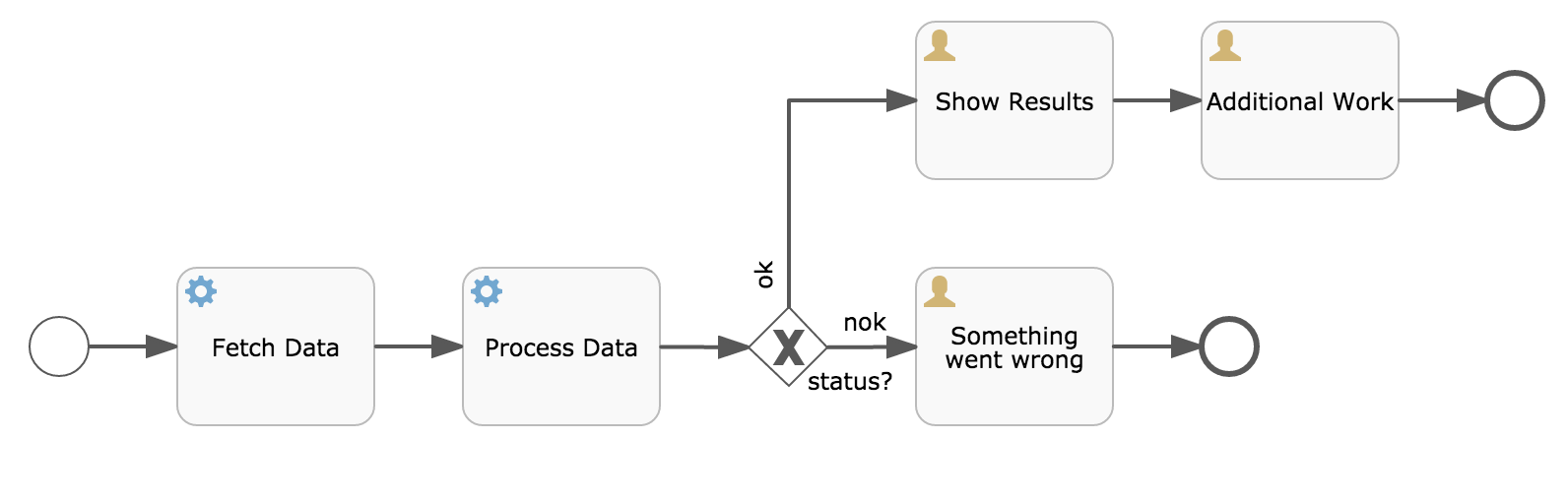
Let’s assume the Fetch Data service task calls some remote service (for example using REST). Let’s also assume some config parameters are needed and need to be provided when starting the process instance. Also, these config parameters are not important for historical audit purposes, so we pass them as transient variables:
1
2
3
4
5
6 ProcessInstance processInstance = runtimeService.createProcessInstanceBuilder()
.processDefinitionKey("someKey")
.transientVariable("configParam01", "A")
.transientVariable("configParam02", "B")
.transientVariable("configParam03", "C")
.start();
Note that the variables will be available until the user task is reached and persisted to the database. For example, in the Additional Work user task they are not available anymore. Also note that if Fetch Data would have been asynchronous, they won’t be available after that step too.
The Fetch Data (simplified) could be something like
1
2
3
4
5
6
7
8
9
10 public static class FetchDataServiceTask implements JavaDelegate {
public void execute(DelegateExecution execution) {
String configParam01 = (String) execution.getVariable(configParam01);
// ...
RestReponse restResponse = executeRestCall();
execution.setTransientVariable("response", restResponse.getBody());
execution.setTransientVariable("status", restResponse.getStatus());
}
}
The Process Data would get the response transient variable, parse it and store the relevant data in real process variables as we need them later.
The condition on the sequence flow leaving the exclusive gateway are oblivious to whether persistent or transient variables are used (in this case the status transient variable):
1 <conditionExpression xsi:type="tFormalExpression">${status == 200}</conditionExpression>
4.7. Expressions
Activiti uses UEL for expression-resolving. UEL stands for Unified Expression Language and is part of the EE6 specification (see the EE6 specification for detailed information). To support all features of latest UEL spec on ALL environments, we use a modified version of JUEL.
Expressions can be used in for example Java Service tasks, Execution Listeners, Task Listeners and Conditional sequence flows. Although there are 2 types of expressions, value-expression and method-expression, Activiti abstracts this so they can both be used where an expression is needed.
-
Value expression: resolves to a value. By default, all process variables are available to use. Also all spring-beans (if using Spring) are available to use in expressions. Some examples:
${myVar}
${myBean.myProperty}
-
Method expression: invokes a method, with or without parameters. When invoking a method without parameters, be sure to add empty parentheses after the method-name (as this distinguishes the expression from a value expression). The passed parameters can be literal values or expressions that are resolved themselves. Examples:
${printer.print()}
${myBean.addNewOrder('orderName')}
${myBean.doSomething(myVar, execution)}
Note that these expressions support resolving primitives (incl. comparing them), beans, lists, arrays and maps.
On top of all process variables, there are a few default objects available to be used in expressions:
-
execution: TheDelegateExecutionthat holds additional information about the ongoing execution. -
task: TheDelegateTaskthat holds additional information about the current Task. Note: Only works in expressions evaluated from task listeners. -
authenticatedUserId: The id of the user that is currently authenticated. If no user is authenticated, the variable is not available.
For more concrete usage and examples, check out Expressions in Spring, Java Service tasks, Execution Listeners, Task Listeners or Conditional sequence flows.
4.8. Unit testing
Business processes are an integral part of software projects and they should be tested in the same way normal application logic is tested: with unit tests. Since Activiti is an embeddable Java engine, writing unit tests for business processes is as simple as writing regular unit tests.
Activiti supports both JUnit versions 3 and 4 styles of unit testing. In the JUnit 3 style, the org.activiti.engine.test.ActivitiTestCase must be extended. This will make the ProcessEngine and the services available through protected member fields. In the setup() of the test, the processEngine will be initialized by default with the activiti.cfg.xml resource on the classpath. To specify a different configuration file, override the getConfigurationResource() method. Process engines are cached statically over multiple unit tests when the configuration resource is the same.
By extending ActivitiTestCase, you can annotate test methods with org.activiti.engine.test.Deployment. Before the test is run, a resource file of the form testClassName.testMethod.bpmn20.xml in the same package as the test class, will be deployed. At the end of the test, the deployment will be deleted, including all related process instances, tasks, etc. The Deployment annotation also supports setting the resource location explicitly. See the class itself for more information.
Taking all that in account, a JUnit 3 style test looks as follows.
1
2
3
4
5
6
7
8
9
10
11
12
13 public class MyBusinessProcessTest extends ActivitiTestCase {
@Deployment
public void testSimpleProcess() {
runtimeService.startProcessInstanceByKey("simpleProcess");
Task task = taskService.createTaskQuery().singleResult();
assertEquals("My Task", task.getName());
taskService.complete(task.getId());
assertEquals(0, runtimeService.createProcessInstanceQuery().count());
}
}
To get the same functionality when using the JUnit 4 style of writing unit tests, the org.activiti.engine.test.ActivitiRule Rule must be used. Through this rule, the process engine and services are available through getters. As with the ActivitiTestCase (see above), including this Rule will enable the use of the org.activiti.engine.test.Deployment annotation (see above for an explanation of its use and configuration) and it will look for the default configuration file on the classpath. Process engines are statically cached over multiple unit tests when using the same configuration resource.
The following code snippet shows an example of using the JUnit 4 style of testing and the usage of the ActivitiRule.
1
2
3
4
5
6
7
8
9
10
11
12
13
14
15
16
17
18
19 public class MyBusinessProcessTest {
@Rule
public ActivitiRule activitiRule = new ActivitiRule();
@Test
@Deployment
public void ruleUsageExample() {
RuntimeService runtimeService = activitiRule.getRuntimeService();
runtimeService.startProcessInstanceByKey("ruleUsage");
TaskService taskService = activitiRule.getTaskService();
Task task = taskService.createTaskQuery().singleResult();
assertEquals("My Task", task.getName());
taskService.complete(task.getId());
assertEquals(0, runtimeService.createProcessInstanceQuery().count());
}
}
4.9. Debugging unit tests
When using the in-memory H2 database for unit tests, the following instructions allow to easily inspect the data in the Activiti database during a debugging session. The screenshots here are taken in Eclipse, but the mechanism should be similar for other IDEs.
Suppose we have put a breakpoint somewhere in our unit test. In Eclipse this is done by double-clicking in the left border next to the code:

If we now run the unit test in debug mode (right-click in test class, select Run as and then JUnit test), the test execution halts at our breakpoint, where we can now inspect the variables of our test as shown in the right upper panel.
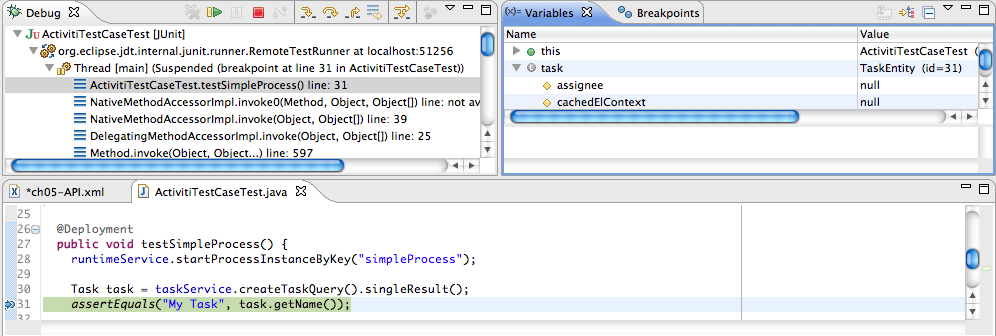
To inspect the Activiti data, open up the 'Display' window (if this window isn’t there, open Window→Show View→Other and select Display.) and type (code completion is available) org.h2.tools.Server.createWebServer("-web").start()
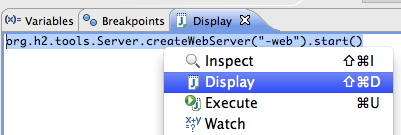
Select the line you’ve just typed and right-click on it. Now select Display (or execute the shortcut instead of right-clicking)

Now open up a browser and go to http://localhost:8082, and fill in the JDBC URL to the in-memory database (by default this is jdbc:h2:mem:activiti), and hit the connect button.
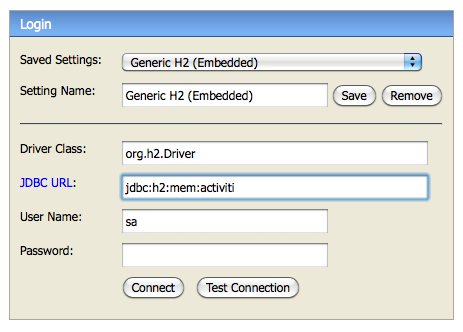
You can now see the Activiti data and use it to understand how and why your unit test is executing your process in a certain way.
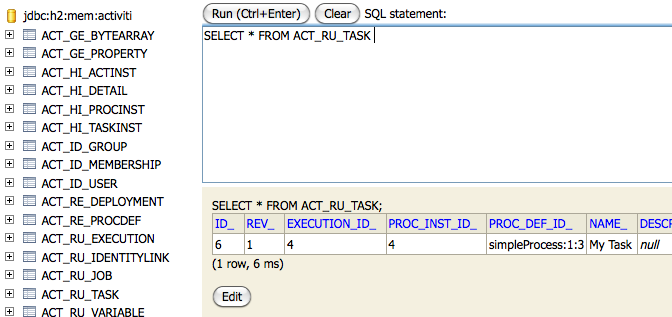
4.10. The process engine in a web application
The ProcessEngine is a thread-safe class and can easily be shared among multiple threads. In a web application, this means it is possible to create the process engine once when the container boots and shut down the engine when the container goes down.
The following code snippet shows how you can write a simple ServletContextListener to initialize and destroy process engines in a plain Servlet environment:
1
2
3
4
5
6
7
8
9
10
11 public class ProcessEnginesServletContextListener implements ServletContextListener {
public void contextInitialized(ServletContextEvent servletContextEvent) {
ProcessEngines.init();
}
public void contextDestroyed(ServletContextEvent servletContextEvent) {
ProcessEngines.destroy();
}
}
The contextInitialized method will delegate to ProcessEngines.init(). That will look for activiti.cfg.xml resource files on the classpath, and create a ProcessEngine for the given configurations (e.g. multiple jars with a configuration file). If you have multiple such resource files on the classpath, make sure they all have different names. When the process engine is needed, it can be fetched using
1 ProcessEngines.getDefaultProcessEngine()
or
1 ProcessEngines.getProcessEngine("myName");
Of course, it is also possible to use any of the variants of creating a process engine, as described in the configuration section.
The contextDestroyed method of the context-listener delegates to ProcessEngines.destroy(). That will properly close all initialized process engines.
5. Spring integration
While you can definitely use Activiti without Spring, we’ve provided some very nice integration features that are explained in this chapter.
5.1. ProcessEngineFactoryBean
The ProcessEngine can be configured as a regular Spring bean. The starting point of the integration is the class org.activiti.spring.ProcessEngineFactoryBean. That bean takes a process engine configuration and creates the process engine. This means that the creation and configuration of properties for Spring is the same as documented in the configuration section. For Spring integration the configuration and engine beans will look like this:
1
2
3
4
5
6
7 <bean id="processEngineConfiguration" class="org.activiti.spring.SpringProcessEngineConfiguration">
...
</bean>
<bean id="processEngine" class="org.activiti.spring.ProcessEngineFactoryBean">
<property name="processEngineConfiguration" ref="processEngineConfiguration" />
</bean>
Note that the processEngineConfiguration bean now uses the org.activiti.spring.SpringProcessEngineConfiguration class.
5.2. Transactions
We’ll explain the SpringTransactionIntegrationTest found in the Spring examples of the distribution step by step. Below is the Spring configuration file that we use in this example (you can find it in SpringTransactionIntegrationTest-context.xml). The section shown below contains the dataSource, transactionManager, processEngine and the Activiti Engine services.
When passing the DataSource to the SpringProcessEngineConfiguration (using property "dataSource"), Activiti uses a org.springframework.jdbc.datasource.TransactionAwareDataSourceProxy internally, which wraps the passed DataSource. This is done to make sure the SQL connections retrieved from the DataSource and the Spring transactions play well together. This implies that it’s no longer needed to proxy the dataSource yourself in Spring configuration, although it’s still allowed to pass a TransactionAwareDataSourceProxy into the SpringProcessEngineConfiguration. In this case no additional wrapping will occur.
Make sure when declaring a TransactionAwareDataSourceProxy in Spring configuration yourself, that you don’t use it for resources that are already aware of Spring-transactions (e.g. DataSourceTransactionManager and JPATransactionManager need the un-proxied dataSource).
1
2
3
4
5
6
7
8
9
10
11
12
13
14
15
16
17
18
19
20
21
22
23
24
25
26
27
28
29
30
31
32
33
34
35
36
37 <beans xmlns="http://www.springframework.org/schema/beans"
xmlns:context="http://www.springframework.org/schema/context"
xmlns:tx="http://www.springframework.org/schema/tx"
xmlns:xsi="http://www.w3.org/2001/XMLSchema-instance"
xsi:schemaLocation="http://www.springframework.org/schema/beans http://www.springframework.org/schema/beans/spring-beans.xsd
http://www.springframework.org/schema/context http://www.springframework.org/schema/context/spring-context-2.5.xsd
http://www.springframework.org/schema/tx http://www.springframework.org/schema/tx/spring-tx-3.0.xsd">
<bean id="dataSource" class="org.springframework.jdbc.datasource.SimpleDriverDataSource">
<property name="driverClass" value="org.h2.Driver" />
<property name="url" value="jdbc:h2:mem:activiti;DB_CLOSE_DELAY=1000" />
<property name="username" value="sa" />
<property name="password" value="" />
</bean>
<bean id="transactionManager" class="org.springframework.jdbc.datasource.DataSourceTransactionManager">
<property name="dataSource" ref="dataSource" />
</bean>
<bean id="processEngineConfiguration" class="org.activiti.spring.SpringProcessEngineConfiguration">
<property name="dataSource" ref="dataSource" />
<property name="transactionManager" ref="transactionManager" />
<property name="databaseSchemaUpdate" value="true" />
<property name="asyncExecutorActivate" value="false" />
</bean>
<bean id="processEngine" class="org.activiti.spring.ProcessEngineFactoryBean">
<property name="processEngineConfiguration" ref="processEngineConfiguration" />
</bean>
<bean id="repositoryService" factory-bean="processEngine" factory-method="getRepositoryService" />
<bean id="runtimeService" factory-bean="processEngine" factory-method="getRuntimeService" />
<bean id="taskService" factory-bean="processEngine" factory-method="getTaskService" />
<bean id="historyService" factory-bean="processEngine" factory-method="getHistoryService" />
<bean id="managementService" factory-bean="processEngine" factory-method="getManagementService" />
...
The remainder of that Spring configuration file contains the beans and configuration that we’ll use in this particular example:
1
2
3
4
5
6
7
8
9
10
11 <beans>
...
<tx:annotation-driven transaction-manager="transactionManager"/>
<bean id="userBean" class="org.activiti.spring.test.UserBean">
<property name="runtimeService" ref="runtimeService" />
</bean>
<bean id="printer" class="org.activiti.spring.test.Printer" />
</beans>
First the application context is created with any of the Spring ways to do that. In this example you could use a classpath XML resource to configure our Spring application context:
1
2 ClassPathXmlApplicationContext applicationContext = new ClassPathXmlApplicationContext(
"org/activiti/examples/spring/SpringTransactionIntegrationTest-context.xml");
or since it is a test:
1 @ContextConfiguration("classpath:org/activiti/spring/test/transaction/SpringTransactionIntegrationTest-context.xml")
Then we can get the service beans and invoke methods on them. The ProcessEngineFactoryBean will have added an extra interceptor to the services that applies Propagation.REQUIRED transaction semantics on the Activiti service methods. So, for example, we can use the repositoryService to deploy a process like this:
1
2
3
4
5
6
7 RepositoryService repositoryService =
(RepositoryService) applicationContext.getBean("repositoryService");
String deploymentId = repositoryService
.createDeployment()
.addClasspathResource("org/activiti/spring/test/hello.bpmn20.xml")
.deploy()
.getId();
The other way around also works. In this case, the Spring transaction will be around the userBean.hello() method and the Activiti service method invocation will join that same transaction.
1
2 UserBean userBean = (UserBean) applicationContext.getBean("userBean");
userBean.hello();
The UserBean looks like this. Remember from above in the Spring bean configuration we injected the repositoryService into the userBean.
1
2
3
4
5
6
7
8
9
10
11
12
13
14
15
16
17 public class UserBean {
/** injected by Spring */
private RuntimeService runtimeService;
@Transactional
public void hello() {
// here you can do transactional stuff in your domain model
// and it will be combined in the same transaction as
// the startProcessInstanceByKey to the Activiti RuntimeService
runtimeService.startProcessInstanceByKey("helloProcess");
}
public void setRuntimeService(RuntimeService runtimeService) {
this.runtimeService = runtimeService;
}
}
5.3. Expressions
When using the ProcessEngineFactoryBean, by default, all expressions in the BPMN processes will also see all the Spring beans. It’s possible to limit the beans you want to expose in expressions or even exposing no beans at all using a map that you can configure. The example below exposes a single bean (printer), available to use under the key "printer". To have NO beans exposed at all, just pass an empty list as beans property on the SpringProcessEngineConfiguration. When no beans property is set, all Spring beans in the context will be available.
1
2
3
4
5
6
7
8
9
10 <bean id="processEngineConfiguration" class="org.activiti.spring.SpringProcessEngineConfiguration">
...
<property name="beans">
<map>
<entry key="printer" value-ref="printer" />
</map>
</property>
</bean>
<bean id="printer" class="org.activiti.examples.spring.Printer" />
Now the exposed beans can be used in expressions: for example, the SpringTransactionIntegrationTest hello.bpmn20.xml shows how a method on a Spring bean can be invoked using a UEL method expression:
1
2
3
4
5
6
7
8
9
10
11
12
13
14
15 <definitions id="definitions">
<process id="helloProcess">
<startEvent id="start" />
<sequenceFlow id="flow1" sourceRef="start" targetRef="print" />
<serviceTask id="print" activiti:expression="#{printer.printMessage()}" />
<sequenceFlow id="flow2" sourceRef="print" targetRef="end" />
<endEvent id="end" />
</process>
</definitions>
Where Printer looks like this:
1
2
3
4
5
6 public class Printer {
public void printMessage() {
System.out.println("hello world");
}
}
And the Spring bean configuration (also shown above) looks like this:
1
2
3
4
5
6 <beans>
...
<bean id="printer" class="org.activiti.examples.spring.Printer" />
</beans>
5.4. Automatic resource deployment
Spring integration also has a special feature for deploying resources. In the process engine configuration, you can specify a set of resources. When the process engine is created, all those resources will be scanned and deployed. There is filtering in place that prevents duplicate deployments. Only when the resources actually have changed, will new deployments be deployed to the Activiti DB. This makes sense in a lot of use case, where the Spring container is rebooted often (e.g. testing).
Here’s an example:
1
2
3
4
5
6
7
8
9 <bean id="processEngineConfiguration" class="org.activiti.spring.SpringProcessEngineConfiguration">
...
<property name="deploymentResources"
value="classpath*:/org/activiti/spring/test/autodeployment/autodeploy.*.bpmn20.xml" />
</bean>
<bean id="processEngine" class="org.activiti.spring.ProcessEngineFactoryBean">
<property name="processEngineConfiguration" ref="processEngineConfiguration" />
</bean>
By default, the configuration above will group all of the resources matching the filtering into a single deployment to the Activiti engine. The duplicate filtering to prevent re-deployment of unchanged resources applies to the whole deployment. In some cases, this may not be what you want. For instance, if you deploy a set of process resources this way and only a single process definition in those resources has changed, the deployment as a whole will be considered new and all of the process definitions in that deployment will be re-deployed, resulting in new versions of each of the process definitions, even though only one was actually changed.
To be able to customize the way deployments are determined, you can specify an additional property in the SpringProcessEngineConfiguration, deploymentMode. This property defines the way deployments will be determined from the set of resources that match the filter. There are 3 values that are supported by default for this property:
-
default: Group all resources into a single deployment and apply duplicate filtering to that deployment. This is the default value and it will be used if you don’t specify a value. -
single-resource: Create a separate deployment for each individual resource and apply duplicate filtering to that deployment. This is the value you would use to have each process definition be deployed separately and only create a new process definition version if it has changed. -
resource-parent-folder: Create a separate deployment for resources that share the same parent folder and apply duplicate filtering to that deployment. This value can be used to create separate deployments for most resources, but still be able to group some by placing them in a shared folder. Here’s an example of how to specify thesingle-resourceconfiguration fordeploymentMode:
1
2
3
4
5
6 <bean id="processEngineConfiguration"
class="org.activiti.spring.SpringProcessEngineConfiguration">
...
<property name="deploymentResources" value="classpath*:/activiti/*.bpmn" />
<property name="deploymentMode" value="single-resource" />
</bean>
In addition to using the values listed above for deploymentMode, you may require customized behavior towards determining deployments. If so, you can create a subclass of SpringProcessEngineConfiguration and override the getAutoDeploymentStrategy(String deploymentMode) method. This method determines which deployment strategy is used for a certain value of the deploymentMode configuration.
5.5. Unit testing
When integrating with Spring, business processes can be tested very easily using the standard Activiti testing facilities. The following example shows how a business process is tested in a typical Spring-based unit test:
1
2
3
4
5
6
7
8
9
10
11
12
13
14
15
16
17
18
19
20
21
22
23
24
25
26 @RunWith(SpringJUnit4ClassRunner.class)
@ContextConfiguration("classpath:org/activiti/spring/test/junit4/springTypicalUsageTest-context.xml")
public class MyBusinessProcessTest {
@Autowired
private RuntimeService runtimeService;
@Autowired
private TaskService taskService;
@Autowired
@Rule
public ActivitiRule activitiSpringRule;
@Test
@Deployment
public void simpleProcessTest() {
runtimeService.startProcessInstanceByKey("simpleProcess");
Task task = taskService.createTaskQuery().singleResult();
assertEquals("My Task", task.getName());
taskService.complete(task.getId());
assertEquals(0, runtimeService.createProcessInstanceQuery().count());
}
}
Note that for this to work, you need to define a org.activiti.engine.test.ActivitiRule bean in the Spring configuration (which is injected by auto-wiring in the example above).
1
2
3 <bean id="activitiRule" class="org.activiti.engine.test.ActivitiRule">
<property name="processEngine" ref="processEngine" />
</bean>
5.6. JPA with Hibernate 4.2.x
When using Hibernate 4.2.x JPA in service task or listener logic in the Activiti Engine an additional dependency to Spring ORM is needed. This is not needed for Hibernate 4.1.x or lower. The following dependency should be added:
1
2
3
4
5 <dependency>
<groupId>org.springframework</groupId>
<artifactId>spring-orm</artifactId>
<version>${org.springframework.version}</version>
</dependency>
5.7. Spring Boot
Spring Boot is an application framework which, according to its website, makes it easy to create stand-alone, production-grade Spring based Applications that can you can "just run". It takes an opinionated view of the Spring platform and third-party libraries so you can get started with minimum fuss. Most Spring Boot applications need very little Spring configuration.
For more information on Spring Boot, see http://projects.spring.io/spring-boot/
The Spring Boot - Activiti integration is currently experimental. It has been developer together with Spring committers, but it is still early days. We welcome all to try it out and provide feedback.
5.7.1. Compatibility
Spring Boot requires a JDK 7 runtime. Please check the Spring Boot documentation.
5.7.2. Getting started
Spring Boot is all about convention over configuration. To get started, simply add the spring-boot-starters-basic dependency to your project. For example for Maven:
1
2
3
4
5 <dependency>
<groupId>org.activiti</groupId>
<artifactId>activiti-spring-boot-starter-basic</artifactId>
<version>${activiti.version}</version>
</dependency>
That’s all that’s needed. This dependency will transitively add the correct Activiti and Spring dependencies to the classpath. You can now write the Spring Boot application:
1
2
3
4
5
6
7
8
9
10
11
12
13
14
15 import org.springframework.boot.SpringApplication;
import org.springframework.boot.autoconfigure.EnableAutoConfiguration;
import org.springframework.context.annotation.ComponentScan;
import org.springframework.context.annotation.Configuration;
@Configuration
@ComponentScan
@EnableAutoConfiguration
public class MyApplication {
public static void main(String[] args) {
SpringApplication.run(MyApplication.class, args);
}
}
Activiti needs a database to store its data. If you would run the code above, it would give you an informative exception message that you need to add a database driver dependency to the classpath. For now, add the H2 database dependency:
1
2
3
4
5 <dependency>
<groupId>com.h2database</groupId>
<artifactId>h2</artifactId>
<version>1.4.183</version>
</dependency>
The application can now be started. You will see output like this:
  .   ____          _            __ _ _
 /\\ / ___'_ __ _ _(_)_ __  __ _ \ \ \ \
( ( )\___ | '_ | '_| | '_ \/ _` | \ \ \ \
 \\/  ___)| |_)| | | | | || (_| |  ) ) ) )
  '  |____| .__|_| |_|_| |_\__, | / / / /
 =========|_|==============|___/=/_/_/_/
 :: Spring Boot ::        (v1.1.6.RELEASE)

MyApplication                            : Starting MyApplication on ...
s.c.a.AnnotationConfigApplicationContext : Refreshing org.springframework.context.annotation.AnnotationConfigApplicationContext@33cb5951: startup date [Wed Dec 17 15:24:34 CET 2014]; root of context hierarchy
a.s.b.AbstractProcessEngineConfiguration : No process definitions were found using the specified path (classpath:/processes/**.bpmn20.xml).
o.activiti.engine.impl.db.DbSqlSession   : performing create on engine with resource org/activiti/db/create/activiti.h2.create.engine.sql
o.activiti.engine.impl.db.DbSqlSession   : performing create on history with resource org/activiti/db/create/activiti.h2.create.history.sql
o.activiti.engine.impl.db.DbSqlSession   : performing create on identity with resource org/activiti/db/create/activiti.h2.create.identity.sql
o.a.engine.impl.ProcessEngineImpl        : ProcessEngine default created
o.a.e.i.a.DefaultAsyncJobExecutor        : Starting up the default async job executor [org.activiti.spring.SpringAsyncExecutor].
o.a.e.i.a.AcquireTimerJobsRunnable       : {} starting to acquire async jobs due
o.a.e.i.a.AcquireAsyncJobsDueRunnable    : {} starting to acquire async jobs due
o.s.j.e.a.AnnotationMBeanExporter        : Registering beans for JMX exposure on startup
MyApplication                            : Started MyApplication in 2.019 seconds (JVM running for 2.294)
So by just adding the dependency to the classpath and using the @EnableAutoConfiguration annotation a lot has happened behind the scenes:
-
An in-memory datasource is created automatically (since the H2 driver is on the classpath) and passed to the Activiti process engine configuration
-
An Activiti ProcessEngine bean is created and exposed
-
All the Activiti services are exposed as Spring beans
-
The Spring Job Executor is created
Also, any BPMN 2.0 process definition in the processes folder would be automatically deployed. Create a folder processes and add a dummy process definition (named one-task-process.bpmn20.xml) to this folder.
1
2
3
4
5
6
7
8
9
10
11
12
13
14
15 <?xml version="1.0" encoding="UTF-8"?>
<definitions
xmlns="http://www.omg.org/spec/BPMN/20100524/MODEL"
xmlns:activiti="http://activiti.org/bpmn"
targetNamespace="Examples">
<process id="oneTaskProcess" name="The One Task Process">
<startEvent id="theStart" />
<sequenceFlow id="flow1" sourceRef="theStart" targetRef="theTask" />
<userTask id="theTask" name="my task" />
<sequenceFlow id="flow2" sourceRef="theTask" targetRef="theEnd" />
<endEvent id="theEnd" />
</process>
</definitions>
Also add following code lines to test if the deployment actually worked. The CommandLineRunner is a special kind of Spring bean that is executed when the application boots:
1
2
3
4
5
6
7
8
9
10
11
12
13
14
15
16
17
18
19
20
21
22
23
24
25
26
27
28 @Configuration
@ComponentScan
@EnableAutoConfiguration
public class MyApplication {
public static void main(String[] args) {
SpringApplication.run(MyApplication.class, args);
}
@Bean
public CommandLineRunner init(final RepositoryService repositoryService,
final RuntimeService runtimeService,
final TaskService taskService) {
return new CommandLineRunner() {
@Override
public void run(String... strings) throws Exception {
System.out.println("Number of process definitions : "
+ repositoryService.createProcessDefinitionQuery().count());
System.out.println("Number of tasks : " + taskService.createTaskQuery().count());
runtimeService.startProcessInstanceByKey("oneTaskProcess");
System.out.println("Number of tasks after process start: " + taskService.createTaskQuery().count());
}
};
}
}
The output will be as expected:
Number of process definitions : 1
Number of tasks : 0
Number of tasks after process start : 1
5.7.3. Changing the database and connection pool
As stated above, Spring Boot is about convention over configuration. By default, by having only H2 on the classpath, it created an in memory datasource and passed that to the Activiti process engine configuration.
To change the datasource, simply override the default by providing a Datasource bean. We’re using the DataSourceBuilder class here, which is a helper class from Spring Boot. If Tomcat, HikariCP or Commons DBCP are on the classpath one of them will be selected (in that order with Tomcat first). For example, to switch to a MySQL database:
1
2
3
4
5
6
7
8
9 @Bean
public DataSource database() {
return DataSourceBuilder.create()
.url("jdbc:mysql://127.0.0.1:3306/activiti-spring-boot?characterEncoding=UTF-8")
.username("alfresco")
.password("alfresco")
.driverClassName("com.mysql.jdbc.Driver")
.build();
}
Remove H2 from the Maven dependencies and add the MySQL driver and the Tomcat connection pooling to the classpath:
1
2
3
4
5
6
7
8
9
10 <dependency>
<groupId>mysql</groupId>
<artifactId>mysql-connector-java</artifactId>
<version>5.1.34</version>
</dependency>
<dependency>
<groupId>org.apache.tomcat</groupId>
<artifactId>tomcat-jdbc</artifactId>
<version>8.0.15</version>
</dependency>
When the app is now booted up, you’ll see it uses MySQL as database (and the Tomcat connection pooling framework):
org.activiti.engine.impl.db.DbSqlSession   : performing create on engine with resource org/activiti/db/create/activiti.mysql.create.engine.sql
org.activiti.engine.impl.db.DbSqlSession   : performing create on history with resource org/activiti/db/create/activiti.mysql.create.history.sql
org.activiti.engine.impl.db.DbSqlSession   : performing create on identity with resource org/activiti/db/create/activiti.mysql.create.identity.sql
When you reboot the application multiple times, you’ll see the number of tasks go up (the H2 in-memory database does not survive a shutdown, the MySQL does).
5.7.4. REST support
Often, a REST API is needed on top of the embedded Activiti engine (interacting with the different services in a company). Spring Boot makes this really easy. Add following dependency to the classpath:
1
2
3
4
5 <dependency>
<groupId>org.springframework.boot</groupId>
<artifactId>spring-boot-starter-web</artifactId>
<version>${spring.boot.version}</version>
</dependency>
Create a new class, a Spring service, and create two methods: one to start our process and one to get a task list for a given assignee. We simply wrap Activiti calls here, but in real-life scenario’s this obviously will be more complex obviously.
1
2
3
4
5
6
7
8
9
10
11
12
13
14
15
16
17
18
19
20 @Service
public class MyService {
@Autowired
private RuntimeService runtimeService;
@Autowired
private TaskService taskService;
@Transactional
public void startProcess() {
runtimeService.startProcessInstanceByKey("oneTaskProcess");
}
@Transactional
public List<Task> getTasks(String assignee) {
return taskService.createTaskQuery().taskAssignee(assignee).list();
}
}
We can now create a REST endpoint by annotating a class with @RestController. Here, we simply delegate to the service defined above.
1
2
3
4
5
6
7
8
9
10
11
12
13
14
15
16
17
18
19
20
21
22
23
24
25
26
27
28
29
30
31
32
33
34
35
36
37
38
39
40
41
42
43
44
45
46
47 @RestController
public class MyRestController {
@Autowired
private MyService myService;
@RequestMapping(value="/process", method= RequestMethod.POST)
public void startProcessInstance() {
myService.startProcess();
}
@RequestMapping(value="/tasks", method= RequestMethod.GET, produces=MediaType.APPLICATION_JSON_VALUE)
public List<TaskRepresentation> getTasks(@RequestParam String assignee) {
List<Task> tasks = myService.getTasks(assignee);
List<TaskRepresentation> dtos = new ArrayList<TaskRepresentation>();
for (Task task : tasks) {
dtos.add(new TaskRepresentation(task.getId(), task.getName()));
}
return dtos;
}
static class TaskRepresentation {
private String id;
private String name;
public TaskRepresentation(String id, String name) {
this.id = id;
this.name = name;
}
public String getId() {
return id;
}
public void setId(String id) {
this.id = id;
}
public String getName() {
return name;
}
public void setName(String name) {
this.name = name;
}
}
}
Both the @Service and the @RestController will be found by the automatic component scan (@ComponentScan) we added to our application class. Run the application class again. We can now interact with the REST API by using for example cURL:
curl http://localhost:8080/tasks?assignee=kermit
[]

curl -X POST  http://localhost:8080/process
curl http://localhost:8080/tasks?assignee=kermit
[{"id":"10004","name":"my task"}]
5.7.5. JPA support
To add in JPA support for Activiti in Spring Boot, add following dependency:
1
2
3
4
5 <dependency>
<groupId>org.activiti</groupId>
<artifactId>activiti-spring-boot-starter-jpa</artifactId>
<version>${activiti.version}</version>
</dependency>
This will add in the Spring configuration and beans for using JPA. By default the JPA provider will be Hibernate.
Let’s create a simple Entity class:
1
2
3
4
5
6
7
8
9
10
11
12
13
14
15
16
17
18
19
20
21
22
23
24
25
26
27
28
29
30
31
32
33
34
35
36
37
38
39
40
41
42
43
44
45
46
47
48
49
50
51
52
53
54
55
56
57
58
59
60
61
62
63
64
65 @Entity
class Person {
@Id
@GeneratedValue
private Long id;
private String username;
private String firstName;
private String lastName;
private Date birthDate;
public Person() {
}
public Person(String username, String firstName, String lastName, Date birthDate) {
this.username = username;
this.firstName = firstName;
this.lastName = lastName;
this.birthDate = birthDate;
}
public Long getId() {
return id;
}
public void setId(Long id) {
this.id = id;
}
public String getUsername() {
return username;
}
public void setUsername(String username) {
this.username = username;
}
public String getFirstName() {
return firstName;
}
public void setFirstName(String firstName) {
this.firstName = firstName;
}
public String getLastName() {
return lastName;
}
public void setLastName(String lastName) {
this.lastName = lastName;
}
public Date getBirthDate() {
return birthDate;
}
public void setBirthDate(Date birthDate) {
this.birthDate = birthDate;
}
}
By default, when not using an in-memory database, the tables won’t be created automatically. Create a file application.properties on the classpath and add following property:
spring.jpa.hibernate.ddl-auto=update
Add following class:
1
2
3
4
5 public interface PersonRepository extends JpaRepository<Person, Long> {
Person findByUsername(String username);
}
This is a Spring repository, which offers CRUD out of the box. We add the method to find a Person by username. Spring will automagically implement this based on conventions (i.e. the property names used).
We now enhance our service further:
-
by adding @Transactional to the class. Note that by adding the JPA dependency above, the DataSourceTransactionManager which we were using before is now automatically swapped out by a JpaTransactionManager.
-
The startProcess now gets an assignee username in, which is used to look up the Person, and put the Person JPA object as a process variable in the process instance.
-
A method to create Dummy users is added. This is used in the CommandLineRunner to populate the database.
1
2
3
4
5
6
7
8
9
10
11
12
13
14
15
16
17
18
19
20
21
22
23
24
25
26
27
28
29
30
31
32
33
34 @Service
@Transactional
public class MyService {
@Autowired
private RuntimeService runtimeService;
@Autowired
private TaskService taskService;
@Autowired
private PersonRepository personRepository;
public void startProcess(String assignee) {
Person person = personRepository.findByUsername(assignee);
Map<String, Object> variables = new HashMap<String, Object>();
variables.put("person", person);
runtimeService.startProcessInstanceByKey("oneTaskProcess", variables);
}
public List<Task> getTasks(String assignee) {
return taskService.createTaskQuery().taskAssignee(assignee).list();
}
public void createDemoUsers() {
if (personRepository.findAll().size() == 0) {
personRepository.save(new Person("jbarrez", "Joram", "Barrez", new Date()));
personRepository.save(new Person("trademakers", "Tijs", "Rademakers", new Date()));
}
}
}
The CommandLineRunner now looks like:
1
2
3
4
5
6
7
8
9
10 @Bean
public CommandLineRunner init(final MyService myService) {
return new CommandLineRunner() {
public void run(String... strings) throws Exception {
myService.createDemoUsers();
}
};
}
The RestController is also slightly changed to incorporate the changes above (only showing new methods) and the HTTP POST now has a body that contains the assignee username:
@RestController
public class MyRestController {

    @Autowired
    private MyService myService;

    @RequestMapping(value="/process", method= RequestMethod.POST)
    public void startProcessInstance(@RequestBody StartProcessRepresentation startProcessRepresentation) {
        myService.startProcess(startProcessRepresentation.getAssignee());
    }

   ...

    static class StartProcessRepresentation {

        private String assignee;

        public String getAssignee() {
            return assignee;
        }

        public void setAssignee(String assignee) {
            this.assignee = assignee;
        }
    }
And lastly, to try out the Spring-JPA-Activiti integration, we assign the task using the id of the Person JPA object in the process definition:
1 <userTask id="theTask" name="my task" activiti:assignee="${person.id}"/>
We can now start a new process instance, providing the user name in the POST body:
curl -H "Content-Type: application/json" -d '{"assignee" : "jbarrez"}' http://localhost:8080/process
And the task list is now fetched using the person id:
curl http://localhost:8080/tasks?assignee=1

[{"id":"12505","name":"my task"}]
5.7.6. Further Reading
Obviously there is a lot about Spring Boot that hasn’t been touched yet, like very easy JTA integration or building a war file that can be run on major application servers. And there is a lot more to the Spring Boot integration:
-
Actuator support
-
Spring Integration support
-
Rest API integration: boot up the Activiti Rest API embedded within the Spring application
-
Spring Security support
All these areas are a first version at the moment, but they will evolved in the future further.
6. Deployment
6.1. Business archives
To deploy processes, they have to be wrapped in a business archive. A business archive is the unit of deployment to an Activiti Engine. A business archive is equivalent to a zip file. It can contain BPMN 2.0 processes, task forms, rules and any other type of file. In general, a business archive contains a collection of named resources.
When a business archive is deployed, it is scanned for BPMN files with a .bpmn20.xml or .bpmn extension. Each of those will be parsed and may contain multiple process definitions.
|
Java classes present in the business archive will not be added to the classpath. All custom classes used in process definitions in the business archive (for example Java service tasks or event listener implementations) should be present on the Activiti Engine classpath in order to run the processes. |
6.1.1. Deploying programmatically
Deploying a business archive from a zip file can be done like this:
1
2
3
4
5
6
7 String barFileName = "path/to/process-one.bar";
ZipInputStream inputStream = new ZipInputStream(new FileInputStream(barFileName));
repositoryService.createDeployment()
.name("process-one.bar")
.addZipInputStream(inputStream)
.deploy();
It’s also possible to build a deployment from individual resources. See the javadocs for more details.
6.2. External resources
Process definitions live in the Activiti database. These process definitions can reference delegation classes when using Service Tasks or execution listeners or Spring beans from the Activiti configuration file. These classes and the Spring configuration file have to be available to all process engines that may execute the process definitions.
6.2.1. Java classes
All custom classes that are used in your process (e.g. JavaDelegates used in Service Tasks or event-listeners, TaskListeners, …) should be present on the engine’s classpath when an instance of the process is started.
During deployment of a business archive however, those classes don’t have to be present on the classpath. This means that your delegation classes don’t have to be on the classpath when deploying a new business archive with Ant.
When you are using the demo setup and you want to add your custom classes, you should add a jar containing your classes to the activiti-explorer or activiti-rest webapp lib. Don’t forget to include the dependencies of your custom classes (if any) as well. Alternatively, you can include your dependencies in the libraries directory of your Tomcat installation, ${tomcat.home}/lib.
6.2.2. Using Spring beans from a process
When expressions or scripts use Spring beans, those beans have to be available to the engine when executing the process definition. If you are building your own webapp and you configure your process engine in your context as described in the spring integration section, that is straightforward. But bear in mind that you also should update the Activiti rest webapp with that context if you use it. You can do that by replacing the activiti.cfg.xml in the activiti-rest/lib/activiti-cfg.jar JAR file with an activiti-context.xml file containing your Spring context configuration.
6.2.3. Creating a single app
Instead of making sure that all process engines have all the delegation classes on their classpath and use the right Spring configuration, you may consider including the Activiti rest webapp inside your own webapp so that there is only a single ProcessEngine.
6.3. Versioning of process definitions
BPMN doesn’t have a notion of versioning. That is actually good because the executable BPMN process file will probably live in a version control system repository (e.g. Subversion, Git or Mercurial) as part of your development project. Versions of process definitions are created during deployment. During deployment, Activiti will assign a version to the ProcessDefinition before it is stored in the Activiti DB.
For each process definition in a business archive the following steps are performed to initialize the properties key, version, name and id:
-
The process definition
idattribute in the XML file is used as the process definitionkeyproperty. -
The process definition
nameattribute in the XML file is used as the process definitionnameproperty. If the name attribute is not specified, then id attribute is used as the name. -
The first time a process with a particular key is deployed, version 1 is assigned. For all subsequent deployments of process definitions with the same key, the version will be set 1 higher than the maximum currently deployed version. The key property is used to distinguish process definitions.
-
The id property is set to {processDefinitionKey}:{processDefinitionVersion}:{generated-id}, where
generated-idis a unique number added to guarantee uniqueness of the process id for the process definition caches in a clustered environment.
Take for example the following process
1
2
3 <definitions id="myDefinitions" >
<process id="myProcess" name="My important process" >
...
When deploying this process definition, the process definition in the database will look like this:
| id | key | name | version |
|---|---|---|---|
myProcess:1:676 |
myProcess |
My important process |
1 |
Suppose we now deploy an updated version of the same process (e.g. changing some user tasks), but the id of the process definition remains the same. The process definition table will now contain the following entries:
| id | key | name | version |
|---|---|---|---|
myProcess:1:676 |
myProcess |
My important process |
1 |
myProcess:2:870 |
myProcess |
My important process |
2 |
When the runtimeService.startProcessInstanceByKey("myProcess") is called, it will now use the process definition with version 2, as this is the latest version of the process definition.
Should we create a second process, as defined below and deploy this to Activiti, a third row will be added to the table.
1
2
3 <definitions id="myNewDefinitions" >
<process id="myNewProcess" name="My important process" >
...
The table will look like this:
| id | key | name | version |
|---|---|---|---|
myProcess:1:676 |
myProcess |
My important process |
1 |
myProcess:2:870 |
myProcess |
My important process |
2 |
myNewProcess:1:1033 |
myNewProcess |
My important process |
1 |
Note how the key for the new process is different from our first process. Even though the name is the same (we should probably have changed that too), Activiti only considers the id attribute when distinguishing processes. The new process is therefore deployed with version 1.
6.4. Providing a process diagram
A process diagram image can be added to a deployment. This image will be stored in the Activiti repository and is accessible through the API. This image is also used to visualize the process in Activiti Explorer.
Suppose we have a process on our classpath, org/activiti/expenseProcess.bpmn20.xml that has a process key expense. The following naming conventions for the process diagram image apply (in this specific order):
-
If an image resource exists in the deployment that has a name of the BPMN 2.0 XML file name concatenated with the process key and an image suffix, this image is used. In our example, this would be
org/activiti/expenseProcess.expense.png(or .jpg/gif). In case you have multiple images defined in one BPMN 2.0 XML file, this approach makes most sense. Each diagram image will then have the process key in its file name. -
If no such image exists, am image resource in the deployment matching the name of the BPMN 2.0 XML file is searched for. In our example this would be
org/activiti/expenseProcess.png. Note that this means that every process definition defined in the same BPMN 2.0 file has the same process diagram image. In case there is only one process definition in each BPMN 2.0 XML file, this is obviously not a problem.
Example when deploying programmatically:
1
2
3
4
5 repositoryService.createDeployment()
.name("expense-process.bar")
.addClasspathResource("org/activiti/expenseProcess.bpmn20.xml")
.addClasspathResource("org/activiti/expenseProcess.png")
.deploy();
The image resource can be retrieved through the API afterwards:
1
2
3
4
5
6
7 ProcessDefinition processDefinition = repositoryService.createProcessDefinitionQuery()
.processDefinitionKey("expense")
.singleResult();
String diagramResourceName = processDefinition.getDiagramResourceName();
InputStream imageStream = repositoryService.getResourceAsStream(
processDefinition.getDeploymentId(), diagramResourceName);
6.5. Generating a process diagram
In case no image is provided in the deployment, as described in the previous section, the Activiti engine will generate a diagram image if the process definition contains the necessary diagram interchange information.
The resource can be retrieved in exactly the same way as when an image is provided in the deployment.
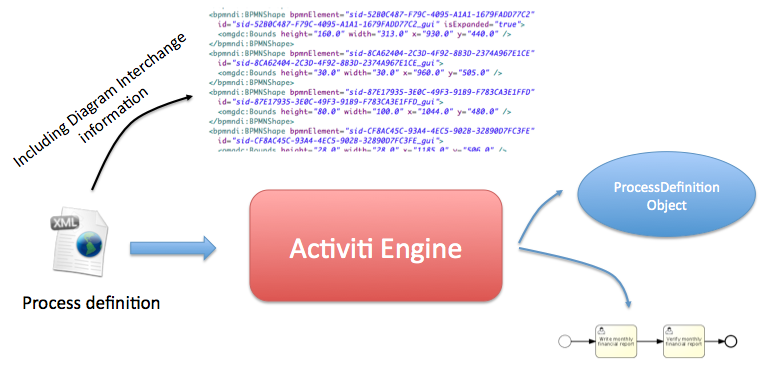
If, for some reason, it is not necessary or wanted to generate a diagram during deployment the isCreateDiagramOnDeploy property can be set on the process engine configuration:
1 <property name="createDiagramOnDeploy" value="false" />
No diagram will be generated now.
6.6. Category
Both deployments and process definitions have user defined categories. The process definition category is initialized value in attribute in the BPMN file: <definitions … targetNamespace="yourCategory" …
The deployment category can be specified in the API like this:
1
2
3
4
5 repositoryService
.createDeployment()
.category("yourCategory")
...
.deploy();
7. BPMN 2.0 Introduction
7.1. What is BPMN?
See our FAQ entry on BPMN 2.0.
7.2. Defining a process
|
This introduction is written under the assumption you are using the Eclipse IDE to create and edit files. Very little of this is specific to Eclipse, however. You can use any other tool you prefer to create XML files containing BPMN 2.0. |
Create a new XML file (right-click on any project and select New→Other→XML-XML File) and give it a name. Make sure that the file ends with .bpmn20.xml or .bpmn, since otherwise the engine won’t pick up this file for deployment.
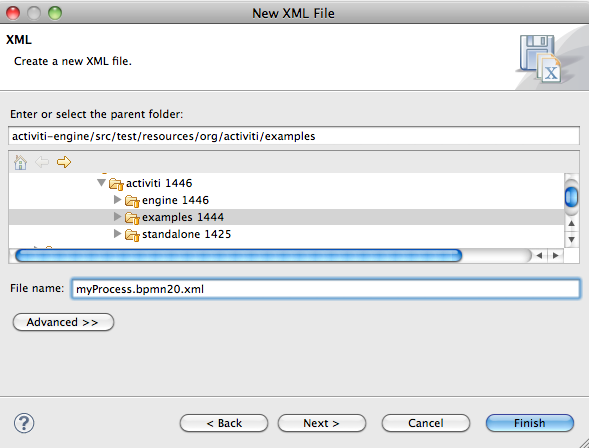
The root element of the BPMN 2.0 schema is the definitions element. Within this element, multiple process definitions can be defined (although we advise to have only one process definition in each file, since this simplifies maintenance later in the development process). An empty process definition looks as listed below. Note that the minimal definitions element only needs the xmlns and targetNamespace declaration. The targetNamespace can be anything, and is useful for categorizing process definitions.
1
2
3
4
5
6
7
8
9
10 <definitions
xmlns="http://www.omg.org/spec/BPMN/20100524/MODEL"
xmlns:activiti="http://activiti.org/bpmn"
targetNamespace="Examples">
<process id="myProcess" name="My First Process">
..
</process>
</definitions>
Optionally you can also add the online schema location of the BPMN 2.0 XML schema, as an alternative to the XML catalog configuration in Eclipse.
1
2
3 xmlns:xsi="http://www.w3.org/2001/XMLSchema-instance"
xsi:schemaLocation="http://www.omg.org/spec/BPMN/20100524/MODEL
http://www.omg.org/spec/BPMN/2.0/20100501/BPMN20.xsd
The process element has two attributes:
-
id: this attribute is required and maps to the key property of an Activiti
ProcessDefinitionobject. Thisidcan then be used to start a new process instance of the process definition, through thestartProcessInstanceByKeymethod on theRuntimeService. This method will always take the latest deployed version of the process definition.
1 ProcessInstance processInstance = runtimeService.startProcessInstanceByKey("myProcess");
-
Important to note here is that this is not the same as calling the
startProcessInstanceByIdmethod. This method expects the String id that was generated at deploy time by the Activiti engine, and can be retrieved by calling theprocessDefinition.getId()method. The format of the generated id is key:version, and the length is constrained to 64 characters. If you get anActivitiExceptionstating that the generated id is too long, limit the text in the key field of the process. -
name: this attribute is optional and maps to the name property of a
ProcessDefinition. The engine itself doesn’t use this property, so it can be used for displaying a more human-friendly name in a user interface, for example.
[[10minutetutorial]]
7.3. Getting started: 10 minute tutorial
In this section we will cover a (very simple) business process that we will use to introduce some basic Activiti concepts and the Activiti API.
7.3.1. Prerequisites
This tutorial assumes that you have the Activiti demo setup running, and that you are using a standalone H2 server. Edit db.properties and set the jdbc.url=jdbc:h2:tcp://localhost/activiti, and then run the standalone server according to H2’s documentation.
7.3.2. Goal
The goal of this tutorial is to learn about Activiti and some basic BPMN 2.0 concepts. The end result will be a simple Java SE program that deploys a process definition, and interacts with this process through the Activiti engine API. We’ll also touch some of the tooling around Activiti. Of course, what you’ll learn in this tutorial can also be used when building your own web applications around your business processes.
7.3.3. Use case
The use case is straightforward: we have a company, let’s call it BPMCorp. In BPMCorp, a financial report needs to be written every month for the company shareholders. This is the responsibility of the accountancy department. When the report is finished, one of the members of the upper management needs to approve the document before it is sent to all the shareholders.
7.3.4. Process diagram
The business process as described above can be graphically visualized using the Activiti Designer. However, for this tutorial we’ll type the XML ourselves, as we learn the most this way at this point. The graphical BPMN 2.0 notation of our process looks like this:
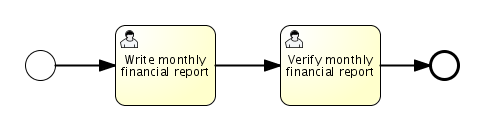
What we see is a none Start Event (circle on the left), followed by two User Tasks: 'Write monthly financial report' and 'Verify monthly financial report', ending in a none end event (circle with thick border on the right).
7.3.5. XML representation
The XML version of this business process (FinancialReportProcess.bpmn20.xml) looks as shown below. It’s easy to recognize the main elements of our process (click on the links for going to the detailed section of that BPMN 2.0 construct):
-
The (none) start event tells us what the entry point to the process is.
-
The User Tasks declarations are the representation of the human tasks of our process. Note that the first task is assigned to the accountancy group, while the second task is assigned to the management group. See the section on user task assignment for more information on how users and groups can be assigned to user tasks.
-
The process ends when the none end event is reached.
-
The elements are connected with each other through sequence flows. These sequence flows have a
sourceandtarget, defining the direction of the sequence flow.
1
2
3
4
5
6
7
8
9
10
11
12
13
14
15
16
17
18
19
20
21
22
23
24
25
26
27
28
29
30
31
32
33
34
35
36
37
38
39
40
41
42
43 <definitions id="definitions"
targetNamespace="http://activiti.org/bpmn20"
xmlns:activiti="http://activiti.org/bpmn"
xmlns="http://www.omg.org/spec/BPMN/20100524/MODEL">
<process id="financialReport" name="Monthly financial report reminder process">
<startEvent id="theStart" />
<sequenceFlow id="flow1" sourceRef="theStart" targetRef="writeReportTask" />
<userTask id="writeReportTask" name="Write monthly financial report" >
<documentation>
Write monthly financial report for publication to shareholders.
</documentation>
<potentialOwner>
<resourceAssignmentExpression>
<formalExpression>accountancy</formalExpression>
</resourceAssignmentExpression>
</potentialOwner>
</userTask>
<sequenceFlow id="flow2" sourceRef="writeReportTask" targetRef="verifyReportTask" />
<userTask id="verifyReportTask" name="Verify monthly financial report" >
<documentation>
Verify monthly financial report composed by the accountancy department.
This financial report is going to be sent to all the company shareholders.
</documentation>
<potentialOwner>
<resourceAssignmentExpression>
<formalExpression>management</formalExpression>
</resourceAssignmentExpression>
</potentialOwner>
</userTask>
<sequenceFlow id="flow3" sourceRef="verifyReportTask" targetRef="theEnd" />
<endEvent id="theEnd" />
</process>
</definitions>
7.3.6. Starting a process instance
We have now created the process definition of our business process. From such a process definition, we can create process instances. In this case, one process instance would match with the creation and verification of a single financial report for a particular month. All the process instances share the same process definition.
To be able to create process instances from a given process definition, we must first deploy this process definition. Deploying a process definition means two things:
-
The process definition will be stored in the persistent datastore that is configured for your Activiti engine. So by deploying our business process, we make sure that the engine will find the process definition after an engine reboot.
-
The BPMN 2.0 process file will be parsed to an in-memory object model that can be manipulated through the Activiti API.
More information on deployment can be found in the dedicated section on deployment.
As described in that section, deployment can happen in several ways. One way is through the API as follows. Note that all interaction with the Activiti engine happens through its services.
1
2
3 Deployment deployment = repositoryService.createDeployment()
.addClasspathResource("FinancialReportProcess.bpmn20.xml")
.deploy();
Now we can start a new process instance using the id we defined in the process definition (see process element in the XML file). Note that this id in Activiti terminology is called the key.
1 ProcessInstance processInstance = runtimeService.startProcessInstanceByKey("financialReport");
This will create a process instance that will first go through the start event. After the start event, it follows all the outgoing sequence flows (only one in this case) and the first task (write monthly financial report) is reached. The Activiti engine will now store a task in the persistent database. At this point, the user or group assignments attached to the task are resolved and also stored in the database. It’s important to note that the Activiti engine will continue process execution steps until it reaches a wait state, such as the user task. At such a wait state, the current state of the process instance is stored in the database. It remains in that state until a user decides to complete their task. At that point, the engine will continue until it reaches a new wait state or the end of the process. When the engine reboots or crashes in the meantime, the state of the process is safe and well in the database.
After the task is created, the startProcessInstanceByKey method will return since the user task activity is a wait state. In this case, the task is assigned to a group, which means that every member of the group is a candidate to perform the task.
We can now throw this all together and create a simple Java program. Create a new Eclipse project and add the Activiti JARs and dependencies to its classpath (these can be found in the libs folder of the Activiti distribution). Before we can call the Activiti services, we must first construct a ProcessEngine that gives us access to the services. Here we use the 'standalone' configuration, which constructs a ProcessEngine that uses the database also used in the demo setup.
You can download the process definition XML here. This file contains the XML as shown above, but also contains the necessary BPMN diagram interchange information to visualize the process in the Activiti tools.
1
2
3
4
5
6
7
8
9
10
11
12
13
14
15
16
17
18
19 public static void main(String[] args) {
// Create Activiti process engine
ProcessEngine processEngine = ProcessEngineConfiguration
.createStandaloneProcessEngineConfiguration()
.buildProcessEngine();
// Get Activiti services
RepositoryService repositoryService = processEngine.getRepositoryService();
RuntimeService runtimeService = processEngine.getRuntimeService();
// Deploy the process definition
repositoryService.createDeployment()
.addClasspathResource("FinancialReportProcess.bpmn20.xml")
.deploy();
// Start a process instance
runtimeService.startProcessInstanceByKey("financialReport");
}
7.3.7. Task lists
We can now retrieve this task through the TaskService by adding the following logic:
1 List<Task> tasks = taskService.createTaskQuery().taskCandidateUser("kermit").list();
Note that the user we pass to this operation needs to be a member of the accountancy group, since that was declared in the process definition:
1
2
3
4
5 <potentialOwner>
<resourceAssignmentExpression>
<formalExpression>accountancy</formalExpression>
</resourceAssignmentExpression>
</potentialOwner>
We could also use the task query API to get the same results using the name of the group. We can now add the following logic to our code:
1
2 TaskService taskService = processEngine.getTaskService();
List<Task> tasks = taskService.createTaskQuery().taskCandidateGroup("accountancy").list();
Since we’ve configured our ProcessEngine to use the same database as the demo setup is using, we can now log into Activiti Explorer. By default, no user is in the accountancy group. Login with kermit/kermit, click Groups and then "Create group". Then click Users and add the group to fozzie. Now login with fozzie/fozzie, and we will find that we can start our business process after selecting the Processes page and clicking on the 'Start Process' link in the 'Actions' column corresponding to the 'Monthly financial report' process.
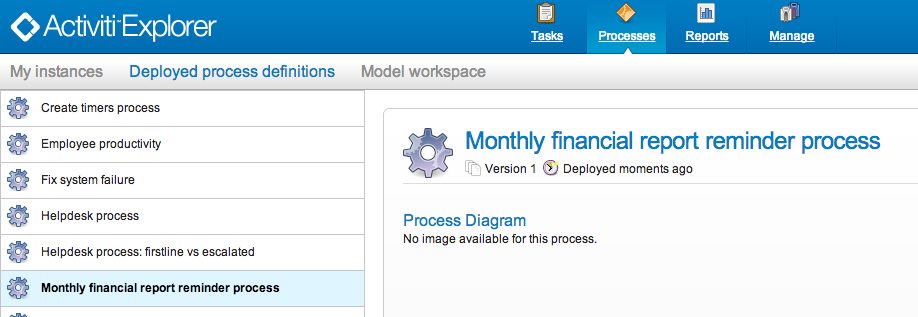
As explained, the process will execute up to the first user task. Since we’re logged in as kermit, we can see that there is a new candidate task available for him after we’ve started a process instance. Select the Tasks page to view this new task. Note that even if the process was started by someone else, the task would still be visible as a candidate task to everyone in the accountancy group.
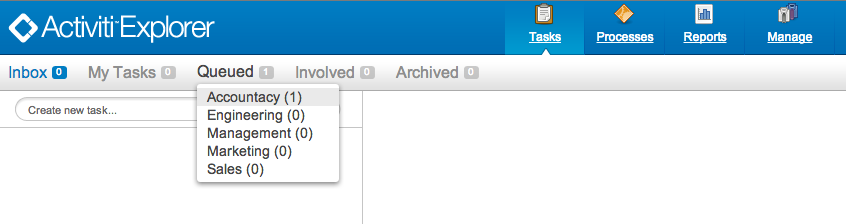
7.3.8. Claiming the task
An accountant now needs to claim the task. By claiming the task, the specific user will become the assignee of the task and the task will disappear from every task list of the other members of the accountancy group. Claiming a task is programmatically done as follows:
1 taskService.claim(task.getId(), "fozzie");
The task is now in the personal task list of the one that claimed the task.
1 List<Task> tasks = taskService.createTaskQuery().taskAssignee("fozzie").list();
In the Activiti UI App, clicking the claim button will call the same operation. The task will now move to the personal task list of the logged on user. You also see that the assignee of the task changed to the current logged in user.
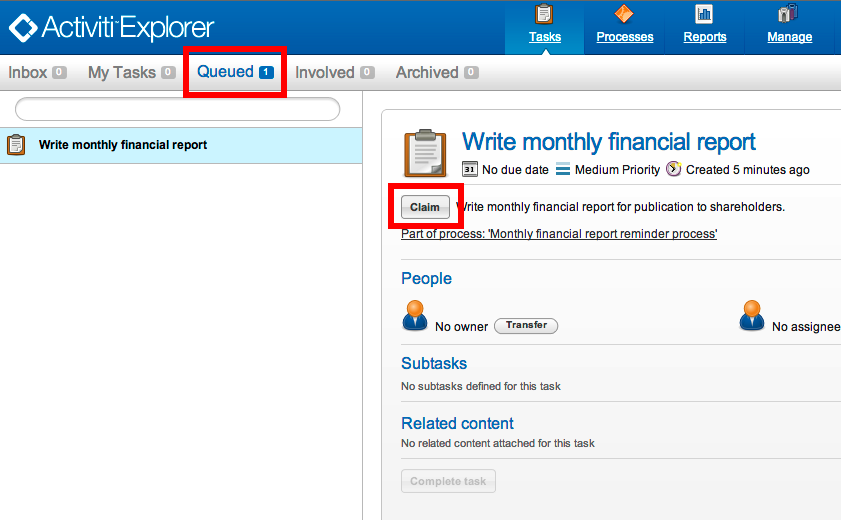
7.3.9. Completing the task
The accountant can now start working on the financial report. Once the report is finished, he can complete the task, which means that all work for that task is done.
1 taskService.complete(task.getId());
For the Activiti engine, this is an external signal that the process instance execution must be continued. The task itself is removed from the runtime data. The single outgoing transition out of the task is followed, moving the execution to the second task ('verification of the report'). The same mechanism as described for the first task will now be used to assign the second task, with the small difference that the task will be assigned to the management group.
In the demo setup, completing the task is done by clicking the complete button in the task list. Since Fozzie isn’t an accountant, we need to log out of the Activiti Explorer and login in as kermit (who is a manager). The second task is now visible in the unassigned task lists.
7.3.10. Ending the process
The verification task can be retrieved and claimed in exactly the same way as before. Completing this second task will move process execution to the end event, which finishes the process instance. The process instance and all related runtime execution data are removed from the datastore.
When you log into Activiti Explorer you can verify this, since no records will be found in the table where the process executions are stored.
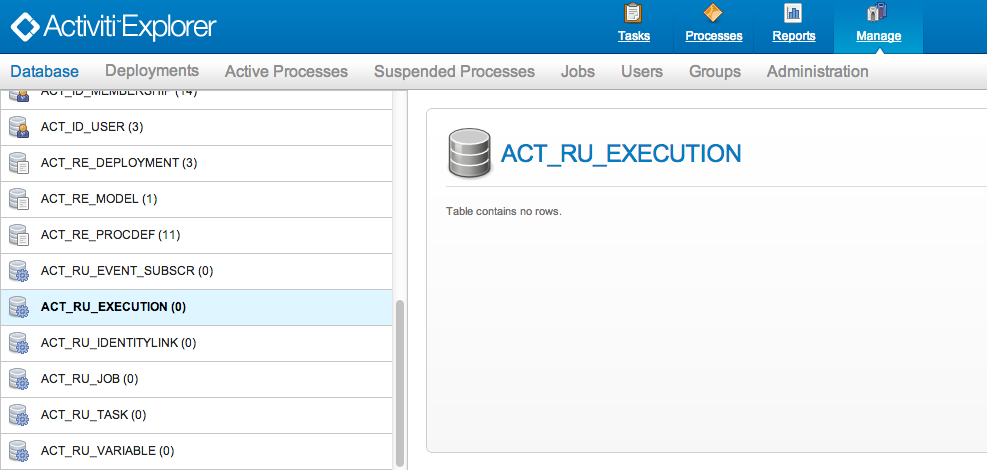
Programmatically, you can also verify that the process is ended using the historyService
1
2
3
4 HistoryService historyService = processEngine.getHistoryService();
HistoricProcessInstance historicProcessInstance =
historyService.createHistoricProcessInstanceQuery().processInstanceId(procId).singleResult();
System.out.println("Process instance end time: " + historicProcessInstance.getEndTime());
7.3.11. Code overview
Combine all the snippets from previous sections, and you should have something like this (this code takes in account that you probably will have started a few process instances through the Activiti Explorer UI. As such, it always retrieves a list of tasks instead of one task, so it always works):
1
2
3
4
5
6
7
8
9
10
11
12
13
14
15
16
17
18
19
20
21
22
23
24
25
26
27
28
29
30
31
32
33
34
35
36
37
38
39
40
41
42
43
44
45
46
47
48
49
50
51
52
53
54
55
56
57
58
59
60
61
62
63 public class TenMinuteTutorial {
public static void main(String[] args) {
// Create Activiti process engine
ProcessEngine processEngine = ProcessEngineConfiguration
.createStandaloneProcessEngineConfiguration()
.buildProcessEngine();
// Get Activiti services
RepositoryService repositoryService = processEngine.getRepositoryService();
RuntimeService runtimeService = processEngine.getRuntimeService();
// Deploy the process definition
repositoryService.createDeployment()
.addClasspathResource("FinancialReportProcess.bpmn20.xml")
.deploy();
// Start a process instance
String procId = runtimeService.startProcessInstanceByKey("financialReport").getId();
// Get the first task
TaskService taskService = processEngine.getTaskService();
List<Task> tasks = taskService.createTaskQuery().taskCandidateGroup("accountancy").list();
for (Task task : tasks) {
System.out.println("Following task is available for accountancy group: " + task.getName());
// claim it
taskService.claim(task.getId(), "fozzie");
}
// Verify Fozzie can now retrieve the task
tasks = taskService.createTaskQuery().taskAssignee("fozzie").list();
for (Task task : tasks) {
System.out.println("Task for fozzie: " + task.getName());
// Complete the task
taskService.complete(task.getId());
}
System.out.println("Number of tasks for fozzie: "
+ taskService.createTaskQuery().taskAssignee("fozzie").count());
// Retrieve and claim the second task
tasks = taskService.createTaskQuery().taskCandidateGroup("management").list();
for (Task task : tasks) {
System.out.println("Following task is available for management group: " + task.getName());
taskService.claim(task.getId(), "kermit");
}
// Completing the second task ends the process
for (Task task : tasks) {
taskService.complete(task.getId());
}
// verify that the process is actually finished
HistoryService historyService = processEngine.getHistoryService();
HistoricProcessInstance historicProcessInstance =
historyService.createHistoricProcessInstanceQuery().processInstanceId(procId).singleResult();
System.out.println("Process instance end time: " + historicProcessInstance.getEndTime());
}
}
7.3.12. Future enhancements
It’s easy to see that this business process is too simple to be usable in reality. However, as you are going through the BPMN 2.0 constructs available in Activiti, you will be able to enhance the business process by:
-
defining gateways that act as decisions. This way, a manager could reject the financial report which would recreate the task for the accountant.
-
declaring and using variables, such that we can store or reference the report so that it can be visualized in the form.
-
defining a service task at the end of the process that will send the report to every shareholder.
-
etc.
8. BPMN 2.0 Constructs
This chapter covers the BPMN 20 constructs supported by Activiti as well as custom extensions to the BPMN standard.
8.1. Custom extensions
The BPMN 2.0 standard is a good thing for all parties involved. End-users don’t suffer from a vendor lock-in that comes by depending on a proprietary solution. Frameworks, and particularly open-source frameworks such as Activiti, can implement a solution that has the same (and often better implemented ;-) features as those of a big vendor. Due to the BPMN 2.0 standard, the transition from such a big vendor solution towards Activiti is an easy and smooth path.
The downside of a standard however, is the fact that it is always the result of many discussions and compromises between different companies (and often visions). As a developer reading the BPMN 2.0 XML of a process definition, sometimes it feels like certain constructs or way to do things are too cumbersome. Since Activiti puts ease of development as a top-priority, we introduced something called the Activiti BPMN extensions. These extensions are new constructs or ways to simplify certain constructs that are not in the BPMN 2.0 specification.
Although the BPMN 2.0 specification clearly states that it was made for custom extension, we make sure that:
-
The prerequisite of such a custom extension is that there always must be a simple transformation to the standard way of doing things. So when you decide to use a custom extension, you don’t have to be afraid that there is no way back.
-
When using a custom extension, this is always clearly indicated by giving the new XML element, attribute, etc. the activiti: namespace prefix.
So whether you want to use a custom extension or not, is completely up to you. Several factors will influence this decision (graphical editor usage, company policy, etc.). We only provide them since we believe that some points in the standard can be done simpler or more efficient. Feel free to give us (positive and/or negative) feedback on our extensions, or to post new ideas for custom extensions. Who knows, some day your idea might pop up in the specification!
8.2. Events
Events are used to model something that happens during the lifetime process. Events are always visualized as a circle. In BPMN 2.0, there exist two main event categories: catching or throwing event.
-
Catching: when process execution arrives in the event, it will wait for a trigger to happen. The type of trigger is defined by the inner icon or the type declaration in the XML. Catching events are visually differentiated from a throwing event by the inner icon that is not filled (i.e. it is white).
-
Throwing: when process execution arrives in the event, a trigger is fired. The type of trigger is defined by the inner icon or the type declaration in the XML. Throwing events are visually differentiated from a catching event by the inner icon that is filled with black.
8.2.1. Event Definitions
Event definitions define the semantics of an event. Without an event definition, an event "does nothing special". For instance a start event without and event definition does not specify what exactly starts the process. If we add an event definition to the start event (like for instance a timer event definition) we declare what "type" of event starts the process (in the case of a timer event definition the fact that a certain point in time is reached).
8.2.2. Timer Event Definitions
Timer events are events which are triggered by defined timer. They can be used as start event, intermediate event or boundary event. The behavior of the time event depends on the business calendar used. Every timer event has a default business calendar, but the business calendar can also be defined on the timer event definition.
1
2
3 <timerEventDefinition activiti:businessCalendarName="custom">
...
</timerEventDefinition>
Where businessCalendarName points to business calendar in process engine configuration. When business calendar is omitted default business calendars are used.
Timer definition must have exactly one element from the following:
-
timeDate. This format specifies fixed date in ISO 8601 format, when trigger will be fired. Example:
1
2
3 <timerEventDefinition>
<timeDate>2011-03-11T12:13:14</timeDate>
</timerEventDefinition>
-
timeDuration. To specify how long the timer should run before it is fired, a timeDuration can be specified as sub-element of timerEventDefinition. The format used is the ISO 8601 format (as required by the BPMN 2.0 specification). Example (interval lasting 10 days):
1
2
3 <timerEventDefinition>
<timeDuration>P10D</timeDuration>
</timerEventDefinition>
-
timeCycle. Specifies repeating interval, which can be useful for starting process periodically, or for sending multiple reminders for overdue user task. Time cycle element can be in two formats. First is the format of recurring time duration, as specified by ISO 8601 standard. Example (3 repeating intervals, each lasting 10 hours):
There is also the possibility to specify the endDate as an optional attribute on the timeCycle or either in the end of the time expression as follows: R3/PT10H/${EndDate}.
When the endDate is reached the application will stop creating other jobs for this task.
It accepts as value either static values ISO 8601 standard for example "2015-02-25T16:42:11+00:00" or variables ${EndDate}
1
2
3 <timerEventDefinition>
<timeCycle activiti:endDate="2015-02-25T16:42:11+00:00">R3/PT10H</timeCycle>
</timerEventDefinition>
1
2
3 <timerEventDefinition>
<timeCycle>R3/PT10H/${EndDate}</timeCycle>
</timerEventDefinition>
If both are specified then the endDate specified as attribute will be used by the system.
Currently only the BoundaryTimerEvents and CatchTimerEvent supports EndDate functionality.
Additionally, you can specify time cycle using cron expressions, example below shows trigger firing every 5 minutes, starting at full hour:
0 0/5 * * * ?
Please see this tutorial for using cron expressions.
Note: The first symbol denotes seconds, not minutes as in normal Unix cron.
The recurring time duration is better suited for handling relative timers, which are calculated with respect to some particular point in time (e.g. time when user task was started), while cron expressions can handle absolute timers - which is particularly useful for timer start events.
You can use expressions for the timer event definitions, by doing so you can influence the timer definition based on process variables. The process variables must contain the ISO 8601 (or cron for cycle type) string for appropriate timer type.
1
2
3
4
5 <boundaryEvent id="escalationTimer" cancelActivity="true" attachedToRef="firstLineSupport">
<timerEventDefinition>
<timeDuration>${duration}</timeDuration>
</timerEventDefinition>
</boundaryEvent>
Note: timers are only fired when the job or async executor is enabled (i.e. jobExecutorActivate or asyncExecutorActivate needs to be set to true in the activiti.cfg.xml, since the job and async executor are disabled by default).
8.2.3. Error Event Definitions
Important note: a BPMN error is NOT the same as a Java exception. In fact, the two have nothing in common. BPMN error events are a way of modeling business exceptions. Java exceptions are handled in their own specific way.
1
2
3 <endEvent id="myErrorEndEvent">
<errorEventDefinition errorRef="myError" />
</endEvent>
8.2.4. Signal Event Definitions
Signal events are events which reference a named signal. A signal is an event of global scope (broadcast semantics) and is delivered to all active handlers (waiting process instances/catching signal events).
A signal event definition is declared using the signalEventDefinition element. The attribute signalRef references a signal element declared as a child element of the definitions root element. The following is an excerpt of a process where a signal event is thrown and caught by intermediate events.
1
2
3
4
5
6
7
8
9
10
11
12
13
14
15
16
17 <definitions... >
<!-- declaration of the signal -->
<signal id="alertSignal" name="alert" />
<process id="catchSignal">
<intermediateThrowEvent id="throwSignalEvent" name="Alert">
<!-- signal event definition -->
<signalEventDefinition signalRef="alertSignal" />
</intermediateThrowEvent>
...
<intermediateCatchEvent id="catchSignalEvent" name="On Alert">
<!-- signal event definition -->
<signalEventDefinition signalRef="alertSignal" />
</intermediateCatchEvent>
...
</process>
</definitions>
The signalEventDefinitions reference the same signal element.
Throwing a Signal Event
A signal can either be thrown by a process instance using a BPMN construct or programmatically using java API. The following methods on the org.activiti.engine.RuntimeService can be used to throw a signal programmatically:
1
2 RuntimeService.signalEventReceived(String signalName);
RuntimeService.signalEventReceived(String signalName, String executionId);
The difference between signalEventReceived(String signalName); and signalEventReceived(String signalName, String executionId); is that the first method throws the signal globally to all subscribed handlers (broadcast semantics) and the second method delivers the signal to a specific execution only.
Catching a Signal Event
A signal event can be caught by an intermediate catch signal event or a signal boundary event.
Querying for Signal Event subscriptions
It is possible to query for all executions which have subscribed to a specific signal event:
1
2
3 List<Execution> executions = runtimeService.createExecutionQuery()
      .signalEventSubscriptionName("alert")
      .list();
We could then use the signalEventReceived(String signalName, String executionId) method to deliver the signal to these executions.
Signal event scope
By default, signals are broadcast process engine wide. This means that you can throw a signal event in a process instance, and other process instances with different process definitions can react on the occurrence of this event.
However, sometimes it is wanted to react to a signal event only within the same process instance. A use case for example is a synchronization mechanism in the process instance, if two or more activities are mutually exclusive.
To restrict the scope of the signal event, add the (non-BPMN 2.0 standard!) scope attribute to the signal event definition:
1 <signal id="alertSignal" name="alert" activiti:scope="processInstance"/>
The default value for this is attribute is "global".
Signal Event example(s)
The following is an example of two separate processes communicating using signals. The first process is started if an insurance policy is updated or changed. After the changes have been reviewed by a human participant, a signal event is thrown, signaling that a policy has changed:
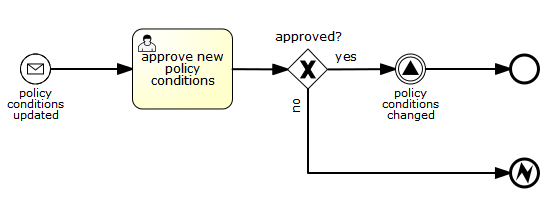
This event can now be caught by all process instances which are interested. The following is an example of a process subscribing to the event.
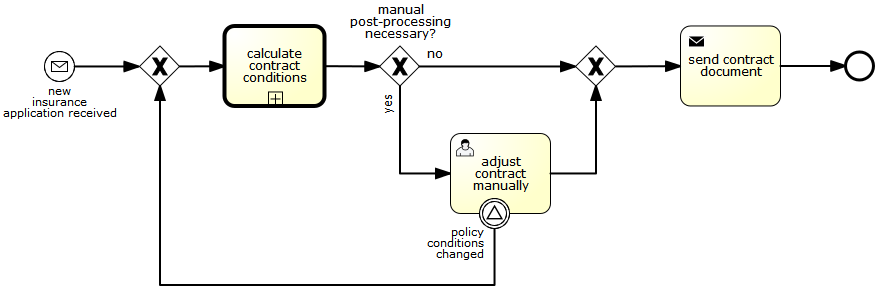
Note: it is important to understand that a signal event is broadcast to all active handlers. This means in the case of the example given above, that all instances of the process catching the signal would receive the event. In this case this is what we want. However, there are also situations where the broadcast behavior is unintended. Consider the following process:
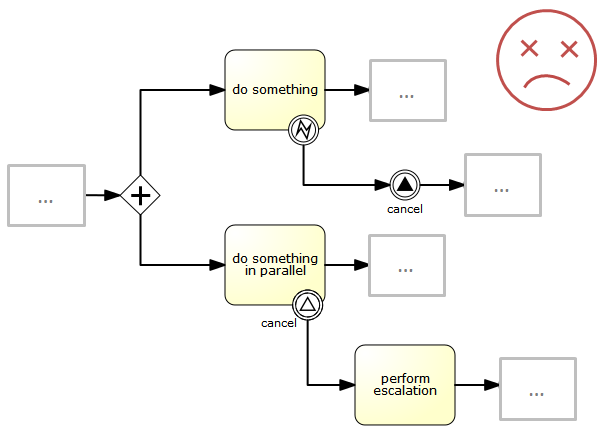
The pattern described in the process above is not supported by BPMN. The idea is that the error thrown while performing the "do something" task is caught by the boundary error event and would be propagated to the parallel path of execution using the signal throw event and then interrupt the "do something in parallel" task. So far Activiti would perform as expected. The signal would be propagated to the catching boundary event and interrupt the task. However, due to the broadcast semantics of the signal, it would also be propagated to all other process instances which have subscribed to the signal event. In this case, this might not be what we want.
Note: the signal event does not perform any kind of correlation to a specific process instance. On the contrary, it is broadcast to all process instances. If you need to deliver a signal to a specific process instance only, perform correlation manually and use signalEventReceived(String signalName, String executionId) and the appropriate query mechanisms.
Activiti does have a way to fix this, by adding the scope attribute to the signal event and set it to processInstance.
8.2.5. Message Event Definitions
Message events are events which reference a named message. A message has a name and a payload. Unlike a signal, a message event is always directed at a single receiver.
A message event definition is declared using the messageEventDefinition element. The attribute messageRef references a message element declared as a child element of the definitions root element. The following is an excerpt of a process where two message events is declared and referenced by a start event and an intermediate catching message event.
1
2
3
4
5
6
7
8
9
10
11
12
13
14
15
16
17
18
19
20
21
22 <definitions id="definitions"
xmlns="http://www.omg.org/spec/BPMN/20100524/MODEL"
xmlns:activiti="http://activiti.org/bpmn"
targetNamespace="Examples"
xmlns:tns="Examples">
<message id="newInvoice" name="newInvoiceMessage" />
<message id="payment" name="paymentMessage" />
<process id="invoiceProcess">
<startEvent id="messageStart" >
<messageEventDefinition messageRef="newInvoice" />
</startEvent>
...
<intermediateCatchEvent id="paymentEvt" >
<messageEventDefinition messageRef="payment" />
</intermediateCatchEvent>
...
</process>
</definitions>
Throwing a Message Event
As an embeddable process engine, Activiti is not concerned with actually receiving a message. This would be environment dependent and entail platform-specific activities like connecting to a JMS (Java Messaging Service) Queue/Topic or processing a Webservice or REST request. The reception of messages is therefore something you have to implement as part of the application or infrastructure into which the process engine is embedded.
After you have received a message inside your application, you must decide what to do with it. If the message should trigger the start of a new process instance, choose between the following methods offered by the runtime service:
1
2
3 ProcessInstance startProcessInstanceByMessage(String messageName);
ProcessInstance startProcessInstanceByMessage(String messageName, Map<String, Object> processVariables);
ProcessInstance startProcessInstanceByMessage(String messageName, String businessKey, Map<String, Object> processVariables);
These methods allow starting a process instance using the referenced message.
If the message needs to be received by an existing process instance, you first have to correlate the message to a specific process instance (see next section) and then trigger the continuation of the waiting execution. The runtime service offers the following methods for triggering an execution based on a message event subscription:
1
2 void messageEventReceived(String messageName, String executionId);
void messageEventReceived(String messageName, String executionId, HashMap<String, Object> processVariables);
Querying for Message Event subscriptions
-
In the case of a message start event, the message event subscription is associated with a particular process definition. Such message subscriptions can be queried using a
ProcessDefinitionQuery:
1
2
3 ProcessDefinition processDefinition = repositoryService.createProcessDefinitionQuery()
.messageEventSubscription("newCallCenterBooking")
.singleResult();
Since there can only be one process definition for a specific message subscription, the query always returns zero or one results. If a process definition is updated, only the newest version of the process definition has a subscription to the message event.
-
In the case of an intermediate catch message event, the message event subscription is associated with a particular execution. Such message event subscriptions can be queried using a
ExecutionQuery:
1
2
3
4 Execution execution = runtimeService.createExecutionQuery()
.messageEventSubscriptionName("paymentReceived")
.variableValueEquals("orderId", message.getOrderId())
.singleResult();
Such queries are called correlation queries and usually require knowledge about the processes (in this case that there will be at most one process instance for a given orderId).
Message Event example(s)
The following is an example of a process which can be started using two different messages:
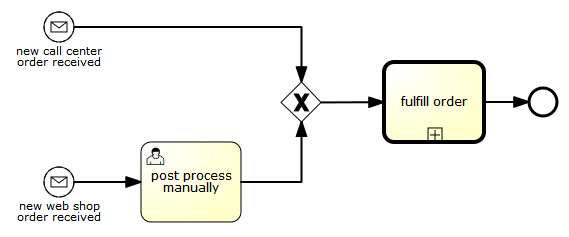
This is useful if the process needs alternative ways to react to different start events but eventually continues in a uniform way.
8.2.6. Start Events
A start event indicates where a process starts. The type of start event (process starts on arrival of message, on specific time intervals, etc.), defining how the process is started is shown as a small icon in the visual representation of the event. In the XML representation, the type is given by the declaration of a sub-element.
Start events are always catching: conceptually the event is (at any time) waiting until a certain trigger happens.
In a start event, following Activiti-specific properties can be specified:
-
initiator: identifies the variable name in which the authenticated user id will be stored when the process is started. Example:
1 <startEvent id="request" activiti:initiator="initiator" />
The authenticated user must be set with the method IdentityService.setAuthenticatedUserId(String) in a try-finally block like this:
1
2
3
4
5
6 try {
identityService.setAuthenticatedUserId("bono");
runtimeService.startProcessInstanceByKey("someProcessKey");
} finally {
identityService.setAuthenticatedUserId(null);
}
This code is baked into the Activiti Explorer application. So it works in combination with Forms.
8.2.7. None Start Event
Description
A none start event technically means that the trigger for starting the process instance is unspecified. This means that the engine cannot anticipate when the process instance must be started. The none start event is used when the process instance is started through the API by calling one of the startProcessInstanceByXXX methods.
1 ProcessInstance processInstance = runtimeService.startProcessInstanceByXXX();
Note: a subprocess always has a none start event.
Graphical notation
A none start event is visualized as a circle with no inner icon (i.e. no trigger type).
XML representation
The XML representation of a none start event is the normal start event declaration, without any sub-element (other start event types all have a sub-element declaring the type).
1 <startEvent id="start" name="my start event" />
Custom extensions for the none start event
formKey: references to a form template that users have to fill in when starting a new process instance. More information can be found in the forms section Example:
1 <startEvent id="request" activiti:formKey="org/activiti/examples/taskforms/request.form" />
8.2.8. Timer Start Event
Description
A timer start event is used to create process instance at given time. It can be used both for processes which should start only once and for processes that should start in specific time intervals.
Note: a subprocess cannot have a timer start event.
Note: a start timer event is scheduled as soon as process is deployed. There is no need to call startProcessInstanceByXXX, although calling start process methods is not restricted and will cause one more starting of the process at the time of startProcessInstanceByXXX Invocation.
Note: when a new version of a process with a start timer event is deployed, the job corresponding with the previous timer will be removed. The reasoning is that normally it is not wanted to keep automatically starting new process instances of this old version of the process.
Graphical notation
A none start event is visualized as a circle with clock inner icon.

XML representation
The XML representation of a timer start event is the normal start event declaration, with timer definition sub-element. Please refer to timer definitions for configuration details.
Example: process will start 4 times, in 5 minute intervals, starting on 11th march 2011, 12:13
1
2
3
4
5 <startEvent id="theStart">
<timerEventDefinition>
<timeCycle>R4/2011-03-11T12:13/PT5M</timeCycle>
</timerEventDefinition>
</startEvent>
Example: process will start once, on selected date
1
2
3
4
5 <startEvent id="theStart">
<timerEventDefinition>
<timeDate>2011-03-11T12:13:14</timeDate>
</timerEventDefinition>
</startEvent>
8.2.9. Message Start Event
Description
A message start event can be used to start a process instance using a named message. This effectively allows us to select the right start event from a set of alternative start events using the message name.
When deploying a process definition with one or more message start events, the following considerations apply:
-
The name of the message start event must be unique across a given process definition. A process definition must not have multiple message start events with the same name. Activiti throws an exception upon deployment of a process definition such that two or more message start events reference the same message of if two or more message start events reference messages with the same message name.
-
The name of the message start event must be unique across all deployed process definitions. Activiti throws an exception upon deployment of a process definition such that one or more message start events reference a message with the same name as a message start event already deployed by a different process definition.
-
Process versioning: Upon deployment of a new version of a process definition, the message subscriptions of the previous version are cancelled. This is also true for message events that are not present in the new version.
When starting a process instance, a message start event can be triggered using the following methods on the RuntimeService:
1
2
3 ProcessInstance startProcessInstanceByMessage(String messageName);
ProcessInstance startProcessInstanceByMessage(String messageName, Map<String, Object> processVariables);
ProcessInstance startProcessInstanceByMessage(String messageName, String businessKey, Map<String, Object< processVariables);
The messageName is the name given in the name attribute of the message element referenced by the messageRef attribute of the messageEventDefinition. The following considerations apply when starting a process instance:
-
Message start events are only supported on top-level processes. Message start events are not supported on embedded sub processes.
-
If a process definition has multiple message start events,
runtimeService.startProcessInstanceByMessage(…)allows to select the appropriate start event. -
If a process definition has multiple message start events and a single none start event,
runtimeService.startProcessInstanceByKey(…)andruntimeService.startProcessInstanceById(…)starts a process instance using the none start event. -
If a process definition has multiple message start events and no none start event,
runtimeService.startProcessInstanceByKey(…)andruntimeService.startProcessInstanceById(…)throw an exception. -
If a process definition has a single message start event,
runtimeService.startProcessInstanceByKey(…)andruntimeService.startProcessInstanceById(…)start a new process instance using the message start event. -
If a process is started from a call activity, message start event(s) are only supported if
-
in addition to the message start event(s), the process has a single none start event
-
the process has a single message start event and no other start events.
-
Graphical notation
A message start event is visualized as a circle with a message event symbol. The symbol is unfilled, to visualize the catching (receiving) behavior.
XML representation
The XML representation of a message start event is the normal start event declaration with a messageEventDefinition child-element:
1
2
3
4
5
6
7
8
9
10
11
12
13
14
15
16
17 <definitions id="definitions"
xmlns="http://www.omg.org/spec/BPMN/20100524/MODEL"
xmlns:activiti="http://activiti.org/bpmn"
targetNamespace="Examples"
xmlns:tns="Examples">
<message id="newInvoice" name="newInvoiceMessage" />
<process id="invoiceProcess">
<startEvent id="messageStart" >
<messageEventDefinition messageRef="tns:newInvoice" />
</startEvent>
...
</process>
</definitions>
8.2.10. Signal Start Event
Description
A signal start event can be used to start a process instance using a named signal. The signal can be fired from within a process instance using the intermediary signal throw event or through the API (runtimeService.signalEventReceivedXXX methods). In both cases, all process definitions that have a signal start event with the same name will be started.
Note that in both cases, it is also possible to choose between a synchronous and asynchronous starting of the process instances.
The signalName that must be passed in the API is the name given in the name attribute of the signal element referenced by the signalRef attribute of the signalEventDefinition.
Graphical notation
A signal start event is visualized as a circle with a signal event symbol. The symbol is unfilled, to visualize the catching (receiving) behavior.
XML representation
The XML representation of a signal start event is the normal start event declaration with a signalEventDefinition child-element:
1
2
3
4
5
6
7
8
9
10
11 <signal id="theSignal" name="The Signal" />
<process id="processWithSignalStart1">
<startEvent id="theStart">
<signalEventDefinition id="theSignalEventDefinition" signalRef="theSignal" />
</startEvent>
<sequenceFlow id="flow1" sourceRef="theStart" targetRef="theTask" />
<userTask id="theTask" name="Task in process A" />
<sequenceFlow id="flow2" sourceRef="theTask" targetRef="theEnd" />
<endEvent id="theEnd" />
</process>
8.2.11. Error Start Event
Description
An error start event can be used to trigger an Event Sub-Process. An error start event cannot be used for starting a process instance.
An error start event is always interrupting.
Graphical notation
An error start event is visualized as a circle with an error event symbol. The symbol is unfilled, to visualize the catching (receiving) behavior.
XML representation
The XML representation of an error start event is the normal start event declaration with an errorEventDefinition child-element:
1
2
3 <startEvent id="messageStart" >
<errorEventDefinition errorRef="someError" />
</startEvent>
8.2.12. End Events
An end event signifies the end (of a path) of a (sub)process. An end event is always throwing. This means that when process execution arrives in the end event, a result is thrown. The type of result is depicted by the inner black icon of the event. In the XML representation, the type is given by the declaration of a sub-element.
8.2.13. None End Event
Description
A none end event means that the result thrown when the event is reached is unspecified. As such, the engine will not do anything extra besides ending the current path of execution.
Graphical notation
A none end event is visualized as a circle with a thick border with no inner icon (no result type).
XML representation
The XML representation of a none end event is the normal end event declaration, without any sub-element (other end event types all have a sub-element declaring the type).
1 <endEvent id="end" name="my end event" />
8.2.14. Error End Event
Description
When process execution arrives in an error end event, the current path of execution is ended and an error is thrown. This error can caught by a matching intermediate boundary error event. In case no matching boundary error event is found, an exception will be thrown.
Graphical notation
An error end event is visualized as a typical end event (circle with thick border), with the error icon inside. The error icon is completely black, to indicate the throwing semantics.
XML representation
And error end event is represented as an end event, with an errorEventDefinition child element.
1
2
3 <endEvent id="myErrorEndEvent">
<errorEventDefinition errorRef="myError" />
</endEvent>
The errorRef attribute can reference an error element that is defined outside the process:
1
2
3
4 <error id="myError" errorCode="123" />
...
<process id="myProcess">
...
The errorCode of the error will be used to find the matching catching boundary error event. If the errorRef does not match any defined error, then the errorRef is used as a shortcut for the errorCode. This is an Activiti specific shortcut. More concretely, following snippets are equivalent in functionality.
1
2
3
4
5
6
7
8 <error id="myError" errorCode="error123" />
...
<process id="myProcess">
...
<endEvent id="myErrorEndEvent">
<errorEventDefinition errorRef="myError" />
</endEvent>
...
is equivalent with
1
2
3 <endEvent id="myErrorEndEvent">
<errorEventDefinition errorRef="error123" />
</endEvent>
Note that the errorRef must comply with the BPMN 2.0 schema, and must be a valid QName.
8.2.15. Terminate End Event
Description
When a terminate end event is reached, the current process instance or sub-process will be terminated. Conceptually, when an execution arrives in a terminate end event, the first scope (process or sub-process) will be determined and ended. Note that in BPMN 2.0, a sub-process can be an embedded sub-process, call activity, event sub-process or transaction sub-process. This rule applies in general: when for example there is a multi-instance call activity or embedded subprocess, only that instance will be ended, the other instances and the process instance are not affected.
There is an optional attribute terminateAll that can be added. When true, regardless of the placement of the terminate end event in the process definition and regardless of being in a sub-process (even nested), the (root) process instance will be terminated.
Graphical notation
A cancel end event visualized as a typical end event (circle with thick outline), with a full black circle inside.

XML representation
A terminate end event is represented as an end event, with a terminateEventDefinition child element.
Note that the terminateAll attribute is optional (and false by default).
1
2
3 <endEvent id="myEndEvent >
<terminateEventDefinition activiti:terminateAll="true"></terminateEventDefinition>
</endEvent>
8.2.16. Cancel End Event
Description
The cancel end event can only be used in combination with a bpmn transaction subprocess. When the cancel end event is reached, a cancel event is thrown which must be caught by a cancel boundary event. The cancel boundary event then cancels the transaction and triggers compensation.
Graphical notation
A cancel end event visualized as a typical end event (circle with thick outline), with the cancel icon inside. The cancel icon is completely black, to indicate the throwing semantics.

XML representation
A cancel end event is represented as an end event, with a cancelEventDefinition child element.
1
2
3 <endEvent id="myCancelEndEvent">
<cancelEventDefinition />
</endEvent>
8.2.17. Boundary Events
Boundary events are catching events that are attached to an activity (a boundary event can never be throwing). This means that while the activity is running, the event is listening for a certain type of trigger. When the event is caught, the activity is interrupted and the sequence flow going out of the event are followed.
All boundary events are defined in the same way:
1
2
3 <boundaryEvent id="myBoundaryEvent" attachedToRef="theActivity">
<XXXEventDefinition/>
</boundaryEvent>
A boundary event is defined with
-
A unique identifier (process-wide)
-
A reference to the activity to which the event is attached through the attachedToRef attribute. Note that a boundary event is defined on the same level as the activities to which they are attached (i.e. no inclusion of the boundary event inside the activity).
-
An XML sub-element of the form XXXEventDefinition (e.g. TimerEventDefinition, ErrorEventDefinition, etc.) defining the type of the boundary event. See the specific boundary event types for more details.
8.2.18. Timer Boundary Event
Description
A timer boundary event acts as a stopwatch and alarm clock. When an execution arrives in the activity where the boundary event is attached to, a timer is started. When the timer fires (e.g. after a specified interval), the activity is interrupted boundary event are followed.
Graphical Notation
A timer boundary event is visualized as a typical boundary event (i.e. circle on the border), with the timer icon on the inside.
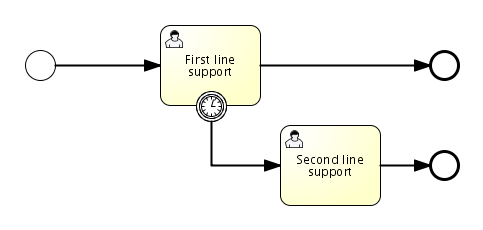
XML Representation
A timer boundary event is defined as a regular boundary event. The specific type sub-element is in this case a timerEventDefinition element.
1
2
3
4
5 <boundaryEvent id="escalationTimer" cancelActivity="true" attachedToRef="firstLineSupport">
<timerEventDefinition>
<timeDuration>PT4H</timeDuration>
</timerEventDefinition>
</boundaryEvent>
Please refer to timer event definition for details on timer configuration.
In the graphical representation, the line of the circle is dotted as you can see in this example above:
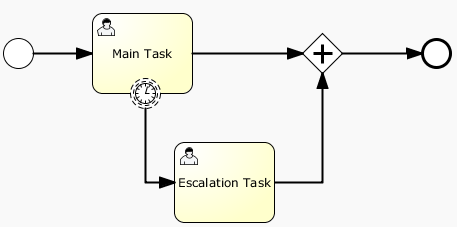
A typical use case is sending an escalation email additionally but not interrupt the normal process flow.
Since BPMN 2.0 there is the difference between the interrupting and non interrupting timer event. The interrupting is the default. The non-interrupting leads to the original activity is not interrupted but the activity stays there. Instead an additional executions is created and send over the outgoing transition of the event. In the XML representation, the cancelActivity attribute is set to false:
1 <boundaryEvent id="escalationTimer" cancelActivity="false" attachedToRef="firstLineSupport"/>
Note: boundary timer events are only fired when the job or async executor is enabled (i.e. jobExecutorActivate or asyncExecutorActivate needs to be set to true in the activiti.cfg.xml, since the job and async executor are disabled by default).
Known issue with boundary events
There is a known issue regarding concurrency when using boundary events of any type. Currently, it is not possible to have multiple outgoing sequence flow attached to a boundary event (see issue ACT-47). A solution to this problem is to use one outgoing sequence flow that goes to a parallel gateway.
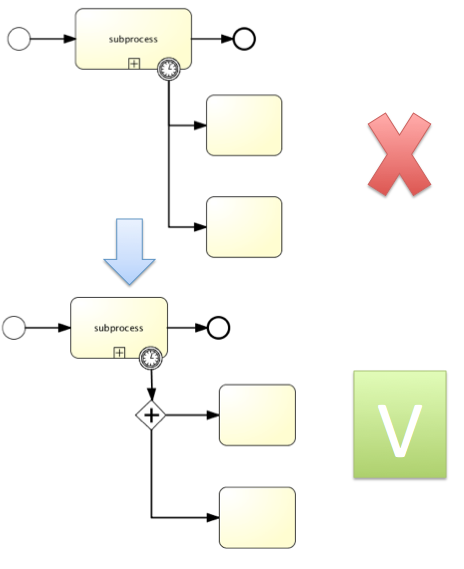
8.2.19. Error Boundary Event
Description
An intermediate catching error on the boundary of an activity, or boundary error event for short, catches errors that are thrown within the scope of the activity on which it is defined.
Defining a boundary error event makes most sense on an embedded subprocess, or a call activity, as a subprocess creates a scope for all activities inside the subprocess. Errors are thrown by error end events. Such an error will propagate its parent scopes upwards until a scope is found on which a boundary error event is defined that matches the error event definition.
When an error event is caught, the activity on which the boundary event is defined is destroyed, also destroying all current executions within (e.g. concurrent activities, nested subprocesses, etc.). Process execution continues following the outgoing sequence flow of the boundary event.
Graphical notation
A boundary error event is visualized as a typical intermediate event (circle with smaller circle inside) on the boundary, with the error icon inside. The error icon is white, to indicate the catch semantics.
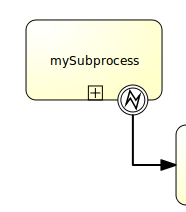
Xml representation
A boundary error event is defined as a typical boundary event:
1
2
3 <boundaryEvent id="catchError" attachedToRef="mySubProcess">
<errorEventDefinition errorRef="myError"/>
</boundaryEvent>
As with the error end event, the errorRef references an error defined outside the process element:
1
2
3
4 <error id="myError" errorCode="123" />
...
<process id="myProcess">
...
The errorCode is used to match the errors that are caught:
-
If errorRef is omitted, the boundary error event will catch any error event, regardless of the errorCode of the error.
-
In case an errorRef is provided and it references an existing error, the boundary event will only catch errors with the same error code.
-
In case an errorRef is provided, but no error is defined in the BPMN 2.0 file, then the errorRef is used as errorCode (similar for with error end events).
Example
Following example process shows how an error end event can be used. When the 'Review profitability' user task is completed by stating that not enough information is provided, an error is thrown. When this error is caught on the boundary of the subprocess, all active activities within the 'Review sales lead' subprocess are destroyed (even if 'Review customer rating' was not yet completed), and the 'Provide additional details' user task is created.
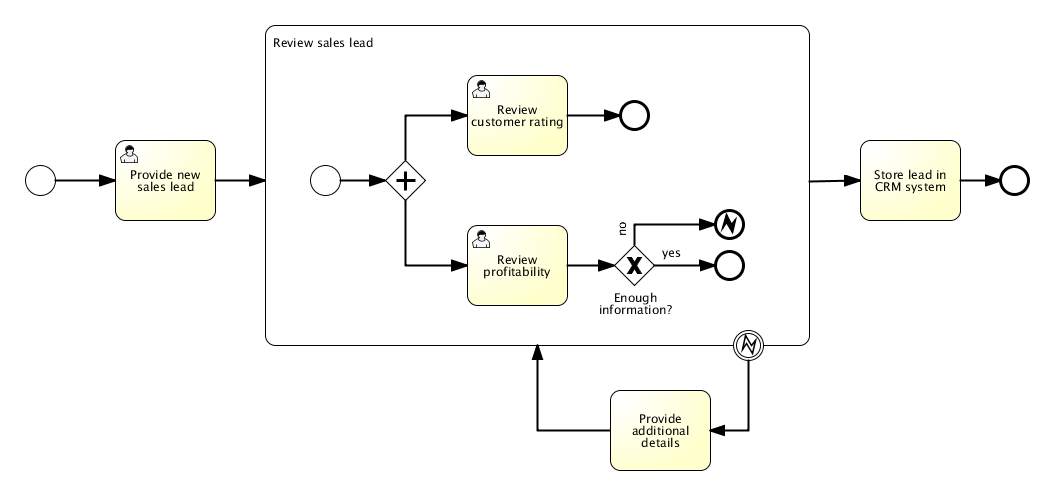
This process is shipped as example in the demo setup. The process XML and unit test can be found in the org.activiti.examples.bpmn.event.error package.
8.2.20. Signal Boundary Event
Description
An attached intermediate catching signal on the boundary of an activity, or boundary signal event for short, catches signals with the same signal name as the referenced signal definition.
Note: contrary to other events like the boundary error event, a boundary signal event does not only catch signal events thrown from the scope it is attached to. On the contrary, a signal event has global scope (broadcast semantics) meaning that the signal can be thrown from any place, even from a different process instance.
Note: contrary to other events like an error event, a signal is not consumed if it is caught. If you have two active signal boundary events catching the same signal event, both boundary events are triggered, even if they are part of different process instances.
Graphical notation
A boundary signal event is visualized as a typical intermediate event (Circle with smaller circle inside) on the boundary, with the signal icon inside. The signal icon is white (unfilled), to indicate the catch semantics.
XML representation
A boundary signal event is defined as a typical boundary event:
1
2
3 <boundaryEvent id="boundary" attachedToRef="task" cancelActivity="true">
<signalEventDefinition signalRef="alertSignal"/>
</boundaryEvent>
Example
See section on signal event definitions.
8.2.21. Message Boundary Event
Description
An attached intermediate catching message on the boundary of an activity, or boundary message event for short, catches messages with the same message name as the referenced message definition.
Graphical notation
A boundary message event is visualized as a typical intermediate event (Circle with smaller circle inside) on the boundary, with the message icon inside. The message icon is white (unfilled), to indicate the catch semantics.
Note that boundary message event can be both interrupting (right hand side) and non-interrupting (left hand side).
XML representation
A boundary message event is defined as a typical boundary event:
1
2
3 <boundaryEvent id="boundary" attachedToRef="task" cancelActivity="true">
<messageEventDefinition messageRef="newCustomerMessage"/>
</boundaryEvent>
Example
See section on message event definitions.
8.2.22. Cancel Boundary Event
Description
An attached intermediate catching cancel on the boundary of a transaction subprocess, or boundary cancel event for short, is triggered when a transaction is cancelled. When the cancel boundary event is triggered, it first interrupts all executions active in the current scope. Next, it starts compensation of all active compensation boundary events in the scope of the transaction. Compensation is performed synchronously, i.e. the boundary event waits before compensation is completed before leaving the transaction. When compensation is completed, the transaction subprocess is left using the sequence flow(s) running out of the cancel boundary event.
Note: Only a single cancel boundary event is allowed for a transaction subprocess.
Note: If the transaction subprocess hosts nested subprocesses, compensation is only triggered for subprocesses that have completed successfully.
Note: If a cancel boundary event is placed on a transaction subprocess with multi instance characteristics, if one instance triggers cancellation, the boundary event cancels all instances.
Graphical notation
A cancel boundary event is visualized as a typical intermediate event (Circle with smaller circle inside) on the boundary, with the cancel icon inside. The cancel icon is white (unfilled), to indicate the catching semantics.
XML representation
A cancel boundary event is defined as a typical boundary event:
1
2
3 <boundaryEvent id="boundary" attachedToRef="transaction" >
<cancelEventDefinition />
</boundaryEvent>
Since the cancel boundary event is always interrupting, the cancelActivity attribute is not required.
8.2.23. Compensation Boundary Event
Description
An attached intermediate catching compensation on the boundary of an activity or compensation boundary event for short, can be used to attach a compensation handler to an activity.
The compensation boundary event must reference a single compensation handler using a directed association.
A compensation boundary event has a different activation policy from other boundary events. Other boundary events like for instance the signal boundary event are activated when the activity they are attached to is started. When the activity is left, they are deactivated and the corresponding event subscription is cancelled. The compensation boundary event is different. The compensation boundary event is activated when the activity it is attached to completes successfully. At this point, the corresponding subscription to the compensation events is created. The subscription is removed either when a compensation event is triggered or when the corresponding process instance ends. From this, it follows:
-
When compensation is triggered, the compensation handler associated with the compensation boundary event is invoked the same number of times the activity it is attached to completed successfully.
-
If a compensation boundary event is attached to an activity with multiple instance characteristics, a compensation event subscription is created for each instance.
-
If a compensation boundary event is attached to an activity which is contained inside a loop, a compensation event subscription is created for each time the activity is executed.
-
If the process instance ends, the subscriptions to compensation events are cancelled.
Note: the compensation boundary event is not supported on embedded subprocesses.
Graphical notation
A compensation boundary event is visualized as a typical intermediate event (Circle with smaller circle inside) on the boundary, with the compensation icon inside. The compensation icon is white (unfilled), to indicate the catching semantics. In addition to a compensation boundary event, the following figure shows a compensation handler associated with the boundary event using a unidirectional association:
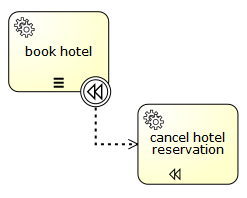
XML representation
A compensation boundary event is defined as a typical boundary event:
1
2
3
4
5
6
7 <boundaryEvent id="compensateBookHotelEvt" attachedToRef="bookHotel" >
<compensateEventDefinition />
</boundaryEvent>
<association associationDirection="One" id="a1" sourceRef="compensateBookHotelEvt" targetRef="undoBookHotel" />
<serviceTask id="undoBookHotel" isForCompensation="true" activiti:class="..." />
Since the compensation boundary event is activated after the activity has completed successfully, the cancelActivity attribute is not supported.
8.2.24. Intermediate Catching Events
All intermediate catching events are defined in the same way:
1
2
3 <intermediateCatchEvent id="myIntermediateCatchEvent" >
<XXXEventDefinition/>
</intermediateCatchEvent>
An intermediate catching event is defined with
-
A unique identifier (process-wide)
-
An XML sub-element of the form XXXEventDefinition (e.g. TimerEventDefinition, etc.) defining the type of the intermediate catching event. See the specific catching event types for more details.
8.2.25. Timer Intermediate Catching Event
Description
A timer intermediate event acts as a stopwatch. When an execution arrives in catching event activity, a timer is started. When the timer fires (e.g. after a specified interval), the sequence flow going out of the timer intermediate event is followed.
Graphical Notation
A timer intermediate event is visualized as an intermediate catching event, with the timer icon on the inside.

XML Representation
A timer intermediate event is defined as an intermediate catching event. The specific type sub-element is in this case a timerEventDefinition element.
1
2
3
4
5 <intermediateCatchEvent id="timer">
<timerEventDefinition>
<timeDuration>PT5M</timeDuration>
</timerEventDefinition>
</intermediateCatchEvent>
See timer event definitions for configuration details.
8.2.26. Signal Intermediate Catching Event
Description
An intermediate catching signal event catches signals with the same signal name as the referenced signal definition.
Note: contrary to other events like an error event, a signal is not consumed if it is caught. If you have two active signal boundary events catching the same signal event, both boundary events are triggered, even if they are part of different process instances.
Graphical notation
An intermediate signal catch event is visualized as a typical intermediate event (Circle with smaller circle inside), with the signal icon inside. The signal icon is white (unfilled), to indicate the catch semantics.

XML representation
A signal intermediate event is defined as an intermediate catching event. The specific type sub-element is in this case a signalEventDefinition element.
1
2
3 <intermediateCatchEvent id="signal">
<signalEventDefinition signalRef="newCustomerSignal" />
</intermediateCatchEvent>
Example
See section on signal event definitions.
8.2.27. Message Intermediate Catching Event
Description
An intermediate catching message event catches messages with a specified name.
Graphical notation
An intermediate catching message event is visualized as a typical intermediate event (Circle with smaller circle inside), with the message icon inside. The message icon is white (unfilled), to indicate the catch semantics.

XML representation
A message intermediate event is defined as an intermediate catching event. The specific type sub-element is in this case a messageEventDefinition element.
1
2
3 <intermediateCatchEvent id="message">
<messageEventDefinition signalRef="newCustomerMessage" />
</intermediateCatchEvent>
Example
See section on message event definitions.
8.2.28. Intermediate Throwing Event
All intermediate throwing events are defined in the same way:
1
2
3 <intermediateThrowEvent id="myIntermediateThrowEvent" >
<XXXEventDefinition/>
</intermediateThrowEvent>
An intermediate throwing event is defined with
-
A unique identifier (process-wide)
-
An XML sub-element of the form XXXEventDefinition (e.g. signalEventDefinition, etc.) defining the type of the intermediate throwing event. See the specific throwing event types for more details.
8.2.29. Intermediate Throwing None Event
The following process diagram shows a simple example of an intermediate none event, which is often used to indicate some state achieved in the process.

This can be a good hook to monitor some KPI’s, basically by adding an execution listener.
1
2
3
4
5 <intermediateThrowEvent id="noneEvent">
<extensionElements>
<activiti:executionListener class="org.activiti.engine.test.bpmn.event.IntermediateNoneEventTest$MyExecutionListener" event="start" />
</extensionElements>
</intermediateThrowEvent>
There you can add some own code to maybe send some event to your BAM tool or DWH. The engine itself doesn’t do anything in that event, it just passes through.
8.2.30. Signal Intermediate Throwing Event
Description
An intermediate throwing signal event throws a signal event for a defined signal.
In Activiti, the signal is broadcast to all active handlers (i.e. all catching signal events). Signals can be published synchronous or asynchronous.
-
In the default configuration, the signal is delivered synchronously. This means that the throwing process instance waits until the signal is delivered to all catching process instances. The catching process instances are also notified in the same transaction as the throwing process instance, which means that if one of the notified instances produces a technical error (throws an exception), all involved instances fail.
-
A signal can also be delivered asynchronously. In that case it is determined which handlers are active at the time the throwing signal event is reached. For each active handler, an asynchronous notification message (Job) is stored and delivered by the JobExecutor.
Graphical notation
An intermediate signal throw event is visualized as a typical intermediate event (Circle with smaller circle inside), with the signal icon inside. The signal icon is black (filled), to indicate the throw semantics.
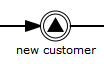
XML representation
A signal intermediate event is defined as an intermediate throwing event. The specific type sub-element is in this case a signalEventDefinition element.
1
2
3 <intermediateThrowEvent id="signal">
<signalEventDefinition signalRef="newCustomerSignal" />
</intermediateThrowEvent>
An asynchronous signal event would look like this:
1
2
3 <intermediateThrowEvent id="signal">
<signalEventDefinition signalRef="newCustomerSignal" activiti:async="true" />
</intermediateThrowEvent>
Example
See section on signal event definitions.
8.2.31. Compensation Intermediate Throwing Event
Description
An intermediate throwing compensation event can be used to trigger compensation.
Triggering compensation: Compensation can either be triggered for a designated activity or for the scope which hosts the compensation event. Compensation is performed through execution of the compensation handler associated with an activity.
-
When compensation is thrown for an activity, the associated compensation handler is executed the same number of times the activity competed successfully.
-
If compensation is thrown for the current scope, all activities within the current scope are compensated, which includes activities on concurrent branches.
-
Compensation is triggered hierarchically: if an activity to be compensated is a subprocess, compensation is triggered for all activities contained in the subprocess. If the subprocess has nested activities, compensation is thrown recursively. However, compensation is not propagated to the "upper levels" of the process: if compensation is triggered within a subprocess, it is not propagated to activities outside of the subprocess scope. The BPMN specification states that compensation is triggered for activities at "the same level of subprocess".
-
In Activiti compensation is performed in reverse order of execution. This means that whichever activity completed last is compensated first, etc.
-
The intermediate throwing compensation event can be used to compensate transaction subprocesses which competed successfully.
Note: If compensation is thrown within a scope which contains a subprocess and the subprocess contains activities with compensation handlers, compensation is only propagated to the subprocess if it has completed successfully when compensation is thrown. If some of the activities nested inside the subprocess have completed and have attached compensation handlers, the compensation handlers are not executed if the subprocess containing these activities is not completed yet. Consider the following example:
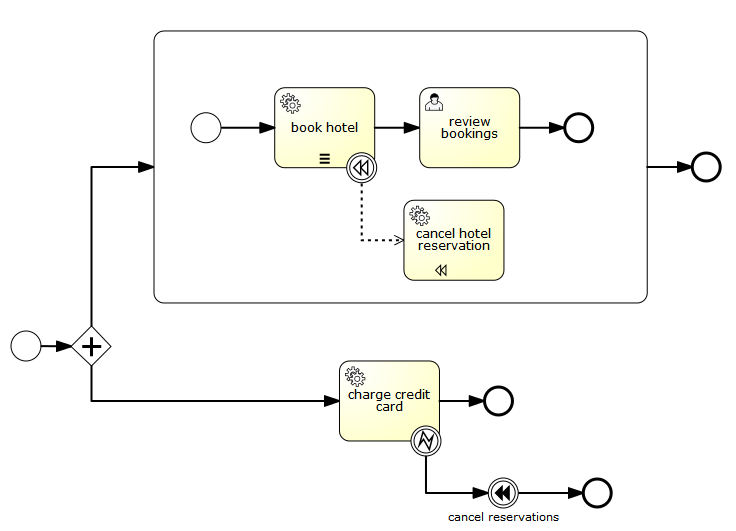
In this process we have two concurrent executions, one executing the embedded subprocess and one executing the "charge credit card" activity. Let’s assume both executions are started and the first concurrent execution is waiting for a user to complete the "review bookings" task. The second execution performs the "charge credit card" activity and an error is thrown, which causes the "cancel reservations" event to trigger compensation. At this point the parallel subprocess is not yet completed which means that the compensation event is not propagated to the subprocess and thus the "cancel hotel reservation" compensation handler is not executed. If the user task (and thus the embedded subprocess) completes before the "cancel reservations" is performed, compensation is propagated to the embedded subprocess.
Process variables: When compensating an embedded subprocess, the execution used for executing the compensation handlers has access to the local process variables of the subprocess in the state they were in when the subprocess completed execution. To achieve this, a snapshot of the process variables associated with the scope execution (execution created for executing the subprocess) is taken. Form this, a couple of implications follow:
-
The compensation handler does not have access to variables added to concurrent executions created inside the subprocess scope.
-
Process variables associated with executions higher up in the hierarchy, (for instance process variables associated with the process instance execution are not contained in the snapshot: the compensation handler has access to these process variables in the state they are in when compensation is thrown.
-
A variable snapshot is only taken for embedded subprocesses, not for other activities.
Current limitations:
-
waitForCompletion="false"is currently unsupported. When compensation is triggered using the intermediate throwing compensation event, the event is only left, after compensation completed successfully. -
Compensation itself is currently performed by concurrent executions. The concurrent executions are started in reverse order in which the compensated activities completed. Future versions of activity might include an option to perform compensation sequentially.
-
Compensation is not propagated to sub process instances spawned by call activities.
Graphical notation
An intermediate compensation throw event is visualized as a typical intermediate event (Circle with smaller circle inside), with the compensation icon inside. The compensation icon is black (filled), to indicate the throw semantics.
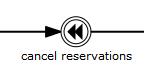
Xml representation
A compensation intermediate event is defined as an intermediate throwing event. The specific type sub-element is in this case a compensateEventDefinition element.
1
2
3 <intermediateThrowEvent id="throwCompensation">
<compensateEventDefinition />
</intermediateThrowEvent>
In addition, the optional argument activityRef can be used to trigger compensation of a specific scope / activity:
1
2
3 <intermediateThrowEvent id="throwCompensation">
<compensateEventDefinition activityRef="bookHotel" />
</intermediateThrowEvent>
8.3. Sequence Flow
8.3.1. Description
A sequence flow is the connector between two elements of a process. After an element is visited during process execution, all outgoing sequence flow will be followed. This means that the default nature of BPMN 2.0 is to be parallel: two outgoing sequence flow will create two separate, parallel paths of execution.
8.3.2. Graphical notation
A sequence flow is visualized as an arrow going from the source element towards the target element. The arrow always points towards the target.

8.3.3. XML representation
Sequence flow need to have a process-unique id, and a reference to an existing source and target element.
1 <sequenceFlow id="flow1" sourceRef="theStart" targetRef="theTask" />
8.3.4. Conditional sequence flow
Description
A sequence flow can have a condition defined on it. When a BPMN 2.0 activity is left, the default behavior is to evaluate the conditions on the outgoing sequence flow. When a condition evaluates to true, that outgoing sequence flow is selected. When multiple sequence flow are selected that way, multiple executions will be generated and the process will be continued in a parallel way.
Note: the above holds for BPMN 2.0 activities (and events), but not for gateways. Gateways will handle sequence flow with conditions in specific ways, depending on the gateway type.
Graphical notation
A conditional sequence flow is visualized as a regular sequence flow, with a small diamond at the beginning. The condition expression is shown next to the sequence flow.
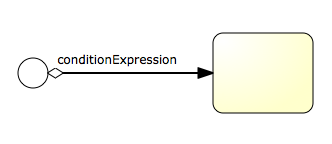
XML representation
A conditional sequence flow is represented in XML as a regular sequence flow, containing a conditionExpression sub-element. Note that for the moment only tFormalExpressions are supported, Omitting the xsi:type="" definition will simply default to this only supported type of expressions.
1
2
3
4
5 <sequenceFlow id="flow" sourceRef="theStart" targetRef="theTask">
<conditionExpression xsi:type="tFormalExpression">
<![CDATA[${order.price > 100 && order.price < 250}]]>
</conditionExpression>
</sequenceFlow>
Currently conditionalExpressions can only be used with UEL, detailed info about these can be found in section Expressions. The expression used should resolve to a boolean value, otherwise an exception is thrown while evaluating the condition.
-
The example below references data of a process variable, in the typical JavaBean style through getters.
1
2
3 <conditionExpression xsi:type="tFormalExpression">
<![CDATA[${order.price > 100 && order.price < 250}]]>
</conditionExpression>
-
This example invokes a method that resolves to a boolean value.
1
2
3 <conditionExpression xsi:type="tFormalExpression">
<![CDATA[${order.isStandardOrder()}]]>
</conditionExpression>
The Activiti distribution contains the following example process using value and method expressions (see org.activiti.examples.bpmn.expression):
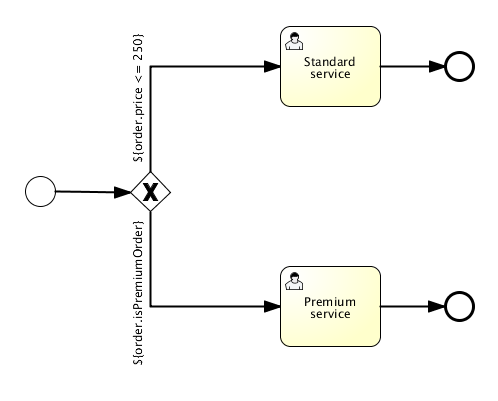
8.3.5. Default sequence flow
Description
All BPMN 2.0 tasks and gateways can have a default sequence flow. This sequence flow is only selected as the outgoing sequence flow for that activity if and only if none of the other sequence flow could be selected. Conditions on a default sequence flow are always ignored.
Graphical notation
A default sequence flow is visualized as a regular sequence flow, with a slash marker at the beginning.

XML representation
A default sequence flow for a certain activity is defined by the default attribute on that activity. The following XML snippet shows for example an exclusive gateway that has as default sequence flow flow 2. Only when conditionA and conditionB both evaluate to false, will it be chosen as outgoing sequence flow for the gateway.
1
2
3
4
5
6
7
8 <exclusiveGateway id="exclusiveGw" name="Exclusive Gateway" default="flow2" />
<sequenceFlow id="flow1" sourceRef="exclusiveGw" targetRef="task1">
<conditionExpression xsi:type="tFormalExpression">${conditionA}</conditionExpression>
</sequenceFlow>
<sequenceFlow id="flow2" sourceRef="exclusiveGw" targetRef="task2"/>
<sequenceFlow id="flow3" sourceRef="exclusiveGw" targetRef="task3">
<conditionExpression xsi:type="tFormalExpression">${conditionB}</conditionExpression>
</sequenceFlow>
Which corresponds with the following graphical representation:
8.4. Gateways
A gateway is used to control the flow of execution (or as the BPMN 2.0 describes, the tokens of execution). A gateway is capable of consuming or generating tokens.
A gateway is graphically visualized as a diamond shape, with an icon inside. The icon shows the type of gateway.
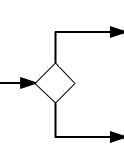
8.4.1. Exclusive Gateway
Description
An exclusive gateway (also called the XOR gateway or more technical the exclusive data-based gateway), is used to model a decision in the process. When the execution arrives at this gateway, all outgoing sequence flow are evaluated in the order in which they are defined. The sequence flow which condition evaluates to true (or which doesn’t have a condition set, conceptually having a 'true' defined on the sequence flow) is selected for continuing the process.
Note that the semantics of outgoing sequence flow is different to that of the general case in BPMN 2.0. While in general all sequence flow which condition evaluates to true are selected to continue in a parallel way, only one sequence flow is selected when using the exclusive gateway. In case multiple sequence flow have a condition that evaluates to true, the first one defined in the XML (and only that one!) is selected for continuing the process. If no sequence flow can be selected, an exception will be thrown.
Graphical notation
An exclusive gateway is visualized as a typical gateway (i.e. a diamond shape) with an X icon inside, referring to the XOR semantics. Note that a gateway without an icon inside defaults to an exclusive gateway. The BPMN 2.0 specification does not allow mixing the diamond with and without an X in the same process definition.

XML representation
The XML representation of an exclusive gateway is straight-forward: one line defining the gateway and condition expressions defined on the outgoing sequence flow. See the section on conditional sequence flow to see which options are available for such expressions.
Take for example the following model:
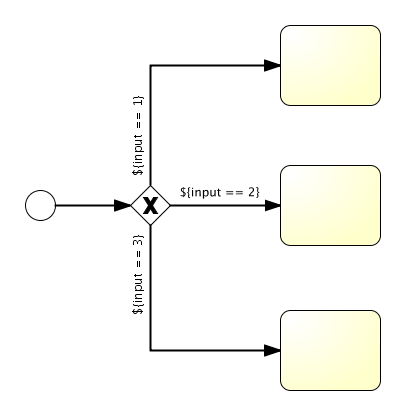
Which is represented in XML as follows:
1
2
3
4
5
6
7
8
9
10
11
12
13 <exclusiveGateway id="exclusiveGw" name="Exclusive Gateway" />
<sequenceFlow id="flow2" sourceRef="exclusiveGw" targetRef="theTask1">
<conditionExpression xsi:type="tFormalExpression">${input == 1}</conditionExpression>
</sequenceFlow>
<sequenceFlow id="flow3" sourceRef="exclusiveGw" targetRef="theTask2">
<conditionExpression xsi:type="tFormalExpression">${input == 2}</conditionExpression>
</sequenceFlow>
<sequenceFlow id="flow4" sourceRef="exclusiveGw" targetRef="theTask3">
<conditionExpression xsi:type="tFormalExpression">${input == 3}</conditionExpression>
</sequenceFlow>
8.4.2. Parallel Gateway
Description
Gateways can also be used to model concurrency in a process. The most straightforward gateway to introduce concurrency in a process model, is the Parallel Gateway, which allows to fork into multiple paths of execution or join multiple incoming paths of execution.
The functionality of the parallel gateway is based on the incoming and outgoing sequence flow:
-
fork: all outgoing sequence flow are followed in parallel, creating one concurrent execution for each sequence flow.
-
join: all concurrent executions arriving at the parallel gateway wait in the gateway until an execution has arrived for each of the incoming sequence flow. Then the process continues past the joining gateway.
Note that a parallel gateway can have both fork and join behavior, if there are multiple incoming and outgoing sequence flow for the same parallel gateway. In that case, the gateway will first join all incoming sequence flow, before splitting into multiple concurrent paths of executions.
An important difference with other gateway types is that the parallel gateway does not evaluate conditions. If conditions are defined on the sequence flow connected with the parallel gateway, they are simply neglected.
Graphical Notation
A parallel gateway is visualized as a gateway (diamond shape) with the plus symbol inside, referring to the AND semantics.
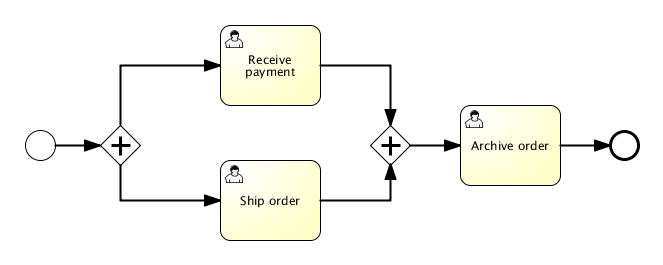
XML representation
Defining a parallel gateway needs one line of XML:
1 <parallelGateway id="myParallelGateway" />
The actual behavior (fork, join or both), is defined by the sequence flow connected to the parallel gateway.
For example, the model above comes down to the following XML:
1
2
3
4
5
6
7
8
9
10
11
12
13
14
15
16
17
18
19
20 <startEvent id="theStart" />
<sequenceFlow id="flow1" sourceRef="theStart" targetRef="fork" />
<parallelGateway id="fork" />
<sequenceFlow sourceRef="fork" targetRef="receivePayment" />
<sequenceFlow sourceRef="fork" targetRef="shipOrder" />
<userTask id="receivePayment" name="Receive Payment" />
<sequenceFlow sourceRef="receivePayment" targetRef="join" />
<userTask id="shipOrder" name="Ship Order" />
<sequenceFlow sourceRef="shipOrder" targetRef="join" />
<parallelGateway id="join" />
<sequenceFlow sourceRef="join" targetRef="archiveOrder" />
<userTask id="archiveOrder" name="Archive Order" />
<sequenceFlow sourceRef="archiveOrder" targetRef="theEnd" />
<endEvent id="theEnd" />
In the above example, after the process is started, two tasks will be created:
1
2
3
4
5
6
7
8
9
10
11
12
13 ProcessInstance pi = runtimeService.startProcessInstanceByKey("forkJoin");
TaskQuery query = taskService.createTaskQuery()
.processInstanceId(pi.getId())
.orderByTaskName()
.asc();
List<Task> tasks = query.list();
assertEquals(2, tasks.size());
Task task1 = tasks.get(0);
assertEquals("Receive Payment", task1.getName());
Task task2 = tasks.get(1);
assertEquals("Ship Order", task2.getName());
When these two tasks are completed, the second parallel gateway will join the two executions and since there is only one outgoing sequence flow, no concurrent paths of execution will be created, and only the Archive Order task will be active.
Note that a parallel gateway does not need to be balanced (i.e. a matching number of incoming/outgoing sequence flow for corresponding parallel gateways). A parallel gateway will simply wait for all incoming sequence flow and create a concurrent path of execution for each outgoing sequence flow, not influenced by other constructs in the process model. So, the following process is legal in BPMN 2.0:
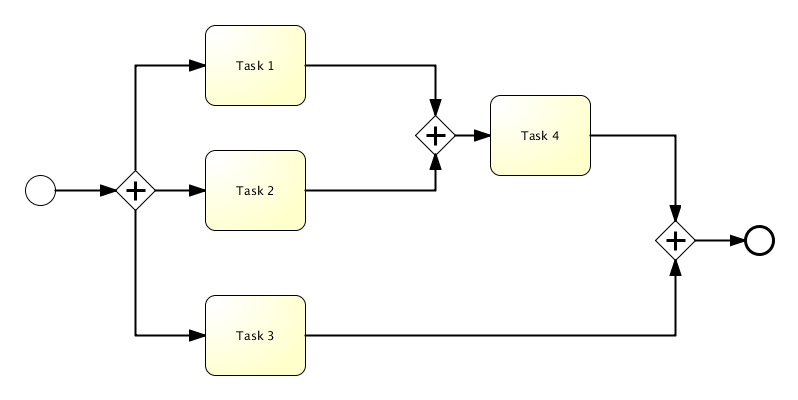
8.4.3. Inclusive Gateway
Description
The Inclusive Gateway can be seen as a combination of an exclusive and a parallel gateway. Like an exclusive gateway you can define conditions on outgoing sequence flows and the inclusive gateway will evaluate them. But the main difference is that the inclusive gateway can take more than one sequence flow, like the parallel gateway.
The functionality of the inclusive gateway is based on the incoming and outgoing sequence flow:
-
fork: all outgoing sequence flow conditions are evaluated and for the sequence flow conditions that evaluate to true the flows are followed in parallel, creating one concurrent execution for each sequence flow.
-
join: all concurrent executions arriving at the inclusive gateway wait in the gateway until an execution has arrived for each of the incoming sequence flows that have a process token. This is an important difference with the parallel gateway. So in other words, the inclusive gateway will only wait for the incoming sequence flows that will be executed. After the join, the process continues past the joining inclusive gateway.
Note that an inclusive gateway can have both fork and join behavior, if there are multiple incoming and outgoing sequence flow for the same inclusive gateway. In that case, the gateway will first join all incoming sequence flows that have a process token, before splitting into multiple concurrent paths of executions for the outgoing sequence flows that have a condition that evaluates to true.
Graphical Notation
An inclusive gateway is visualized as a gateway (diamond shape) with the circle symbol inside.
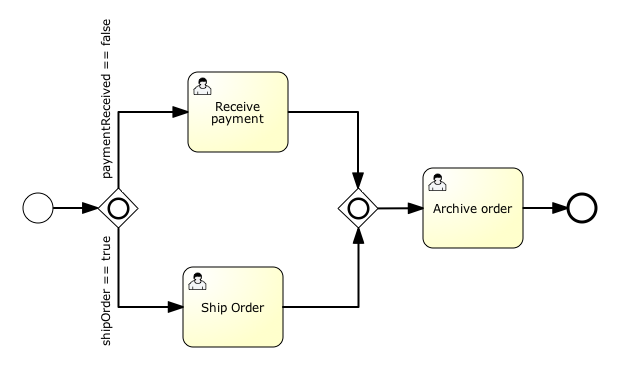
XML representation
Defining an inclusive gateway needs one line of XML:
1 <inclusiveGateway id="myInclusiveGateway" />
The actual behavior (fork, join or both), is defined by the sequence flows connected to the inclusive gateway.
For example, the model above comes down to the following XML:
1
2
3
4
5
6
7
8
9
10
11
12
13
14
15
16
17
18
19
20
21
22
23
24 <startEvent id="theStart" />
<sequenceFlow id="flow1" sourceRef="theStart" targetRef="fork" />
<inclusiveGateway id="fork" />
<sequenceFlow sourceRef="fork" targetRef="receivePayment" >
<conditionExpression xsi:type="tFormalExpression">${paymentReceived == false}</conditionExpression>
</sequenceFlow>
<sequenceFlow sourceRef="fork" targetRef="shipOrder" >
<conditionExpression xsi:type="tFormalExpression">${shipOrder == true}</conditionExpression>
</sequenceFlow>
<userTask id="receivePayment" name="Receive Payment" />
<sequenceFlow sourceRef="receivePayment" targetRef="join" />
<userTask id="shipOrder" name="Ship Order" />
<sequenceFlow sourceRef="shipOrder" targetRef="join" />
<inclusiveGateway id="join" />
<sequenceFlow sourceRef="join" targetRef="archiveOrder" />
<userTask id="archiveOrder" name="Archive Order" />
<sequenceFlow sourceRef="archiveOrder" targetRef="theEnd" />
<endEvent id="theEnd" />
In the above example, after the process is started, two tasks will be created if the process variables paymentReceived == false and shipOrder == true. In case only one of these process variables equals to true only one task will be created. If no condition evaluates to true and exception is thrown. This can be prevented by specifying a default outgoing sequence flow. In the following example one task will be created, the ship order task:
1
2
3
4
5
6
7
8
9
10
11
12
13
14 HashMap<String, Object> variableMap = new HashMap<String, Object>();
variableMap.put("receivedPayment", true);
variableMap.put("shipOrder", true);
ProcessInstance pi = runtimeService.startProcessInstanceByKey("forkJoin");
TaskQuery query = taskService.createTaskQuery()
.processInstanceId(pi.getId())
.orderByTaskName()
.asc();
List<Task> tasks = query.list();
assertEquals(1, tasks.size());
Task task = tasks.get(0);
assertEquals("Ship Order", task.getName());
When this task is completed, the second inclusive gateway will join the two executions and since there is only one outgoing sequence flow, no concurrent paths of execution will be created, and only the Archive Order task will be active.
Note that an inclusive gateway does not need to be balanced (i.e. a matching number of incoming/outgoing sequence flow for corresponding inclusive gateways). An inclusive gateway will simply wait for all incoming sequence flow and create a concurrent path of execution for each outgoing sequence flow, not influenced by other constructs in the process model.
8.4.4. Event-based Gateway
Description
The Event-based Gateway allows to take a decision based on events. Each outgoing sequence flow of the gateway needs to be connected to an intermediate catching event. When process execution reaches an Event-based Gateway, the gateway acts like a wait state: execution is suspended. In addition, for each outgoing sequence flow, an event subscription is created.
Note the sequence flows running out of an Event-based Gateway are different from ordinary sequence flows. These sequence flows are never actually "executed". On the contrary, they allow the process engine to determine which events an execution arriving at an Event-based Gateway needs to subscribe to. The following restrictions apply:
-
An Event-based Gateway must have two or more outgoing sequence flows.
-
An Event-based Gateway must only be connected to elements of type
intermediateCatchEventonly. (Receive Tasks after an Event-based Gateway are not supported by Activiti.) -
An
intermediateCatchEventconnected to an Event-based Gateway must have a single incoming sequence flow.
Graphical notation
An Event-based Gateway is visualized as a diamond shape like other BPMN gateways with a special icon inside.

XML representation
The XML element used to define an Event-based Gateway is eventBasedGateway.
Example(s)
The following process is an example of a process with an Event-based Gateway. When the execution arrives at the Event-based Gateway, process execution is suspended. In addition, the process instance subscribes to the alert signal event and created a timer which fires after 10 minutes. This effectively causes the process engine to wait for ten minutes for a signal event. If the signal occurs within 10 minutes, the timer is cancelled and execution continues after the signal. If the signal is not fired, execution continues after the timer and the signal subscription is cancelled.
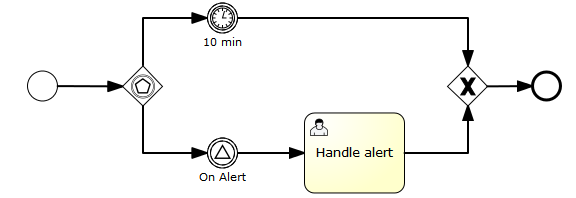
1
2
3
4
5
6
7
8
9
10
11
12
13
14
15
16
17
18
19
20
21
22
23
24
25
26
27
28
29
30
31
32
33
34
35
36
37
38
39
40
41 <definitions id="definitions"
xmlns="http://www.omg.org/spec/BPMN/20100524/MODEL"
xmlns:activiti="http://activiti.org/bpmn"
targetNamespace="Examples">
<signal id="alertSignal" name="alert" />
<process id="catchSignal">
<startEvent id="start" />
<sequenceFlow sourceRef="start" targetRef="gw1" />
<eventBasedGateway id="gw1" />
<sequenceFlow sourceRef="gw1" targetRef="signalEvent" />
<sequenceFlow sourceRef="gw1" targetRef="timerEvent" />
<intermediateCatchEvent id="signalEvent" name="Alert">
<signalEventDefinition signalRef="alertSignal" />
</intermediateCatchEvent>
<intermediateCatchEvent id="timerEvent" name="Alert">
<timerEventDefinition>
<timeDuration>PT10M</timeDuration>
</timerEventDefinition>
</intermediateCatchEvent>
<sequenceFlow sourceRef="timerEvent" targetRef="exGw1" />
<sequenceFlow sourceRef="signalEvent" targetRef="task" />
<userTask id="task" name="Handle alert"/>
<exclusiveGateway id="exGw1" />
<sequenceFlow sourceRef="task" targetRef="exGw1" />
<sequenceFlow sourceRef="exGw1" targetRef="end" />
<endEvent id="end" />
</process>
</definitions>
8.5. Tasks
8.5.1. User Task
Description
A user task is used to model work that needs to be done by a human actor. When the process execution arrives at such a user task, a new task is created in the task list of the user(s) or group(s) assigned to that task.
Graphical notation
A user task is visualized as a typical task (rounded rectangle), with a small user icon in the left upper corner.
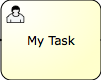
XML representation
A user task is defined in XML as follows. The id attribute is required, the name attribute is optional.
1 <userTask id="theTask" name="Important task" />
A user task can have also a description. In fact any BPMN 2.0 element can have a description. A description is defined by adding the documentation element.
1
2
3
4 <userTask id="theTask" name="Schedule meeting" >
<documentation>
Schedule an engineering meeting for next week with the new hire.
</documentation>
The description text can be retrieved from the task in the standard Java way:
1 task.getDescription()
Due Date
Each task has a field, indicating the due date of that task. The Query API can be used to query for tasks that are due on, before or after a certain date.
There is an activity extension which allows you to specify an expression in your task-definition to set the initial due date of a task when it is created. The expression should always resolve to a java.util.Date, java.util.String (ISO8601 formatted), ISO8601 time-duration (e.g. PT50M) or null. For example, you could use a date that was entered in a previous form in the process or calculated in a previous Service Task. In case a time-duration is used, the due-date is calculated based on the current time, incremented by the given period. For example, when "PT30M" is used as dueDate, the task is due in thirty minutes from now.
1 <userTask id="theTask" name="Important task" activiti:dueDate="${dateVariable}"/>
The due date of a task can also be altered using the TaskService or in TaskListeners using the passed DelegateTask.
User assignment
A user task can be directly assigned to a user. This is done by defining a humanPerformer sub element. Such a humanPerformer definition needs a resourceAssignmentExpression that actually defines the user. Currently, only formalExpressions are supported.
1
2
3
4
5
6
7
8
9
10
11 <process >
...
<userTask id='theTask' name='important task' >
<humanPerformer>
<resourceAssignmentExpression>
<formalExpression>kermit</formalExpression>
</resourceAssignmentExpression>
</humanPerformer>
</userTask>
Only one user can be assigned as human performer to the task. In Activiti terminology, this user is called the assignee. Tasks that have an assignee are not visible in the task lists of other people and can be found in the so-called personal task list of the assignee instead.
Tasks directly assigned to users can be retrieved through the TaskService as follows:
1 List<Task> tasks = taskService.createTaskQuery().taskAssignee("kermit").list();
Tasks can also be put in the so-called candidate task list of people. In that case, the potentialOwner construct must be used. The usage is similar to the humanPerformer construct. Do note that it is required to define for each element in the formal expression to specify if it is a user or a group (the engine cannot guess this).
1
2
3
4
5
6
7
8
9
10
11 <process >
...
<userTask id='theTask' name='important task' >
<potentialOwner>
<resourceAssignmentExpression>
<formalExpression>user(kermit), group(management)</formalExpression>
</resourceAssignmentExpression>
</potentialOwner>
</userTask>
Tasks defines with the potential owner construct, can be retrieved as follows (or a similar TaskQuery usage as for the tasks with an assignee):
1 List<Task> tasks = taskService.createTaskQuery().taskCandidateUser("kermit");
This will retrieve all tasks where kermit is a candidate user, i.e. the formal expression contains user(kermit). This will also retrieve all tasks that are assigned to a group where kermit is a member of (e.g. group(management), if kermit is a member of that group and the Activiti identity component is used). The groups of a user are resolved at runtime and these can be managed through the IdentityService.
If no specifics are given whether the given text string is a user or group, the engine defaults to group. So the following would be the same as when group(accountancy) was declared.
1 <formalExpression>accountancy</formalExpression>
Activiti extensions for task assignment
It is clear that user and group assignments are quite cumbersome for use cases where the assignment is not complex. To avoid these complexities, custom extensions on the user task are possible.
-
assignee attribute: this custom extension allows to directly assign a user task to a given user.
1 <userTask id="theTask" name="my task" activiti:assignee="kermit" />
This is exactly the same as using a humanPerformer construct as defined above.
-
candidateUsers attribute: this custom extension allows to make a user a candidate for a task.
1 <userTask id="theTask" name="my task" activiti:candidateUsers="kermit, gonzo" />
This is exactly the same as using a potentialOwner construct as defined above. Note that it is not required to use the user(kermit) declaration as is the case with the potential owner construct, since the attribute can only be used for users.
-
candidateGroups attribute: this custom extension allows to make a group a candidate for a task.
1 <userTask id="theTask" name="my task" activiti:candidateGroups="management, accountancy" />
This is exactly the same as using a potentialOwner construct as defined above. Note that it is not required to use the group(management) declaration as is the case with the potential owner construct, since the attribute can only be used for groups.
-
candidateUsers and candidateGroups can both be defined on the same user task.
Note: Although Activiti provides an identity management component, which is exposed through the IdentityService, no check is done whether a provided user is known by the identity component. This allows Activiti to integrate with existing identity management solutions when it is embedded into an application.
Custom identity link types (Experimental)
The BPMN standard supports a single assigned user or humanPerformer or a set of users that form a potential pool of potentialOwners as defined in User assignment. In addition, Activiti defines extension attribute elements for the User Task that can represent the task assignee or candidate owner.
The supported Activiti identity link types are:
1
2
3
4
5
6
7
8 public class IdentityLinkType {
/* Activiti native roles */
public static final String ASSIGNEE = "assignee";
public static final String CANDIDATE = "candidate";
public static final String OWNER = "owner";
public static final String STARTER = "starter";
public static final String PARTICIPANT = "participant";
}
The BPMN standard and Activiti example authorization identities are user and group. As mentioned in the previous section, the Activiti identity management implementation is not intended for production use, but should be extended depending upon the supported authorization scheme.
If additional link types are required, custom resources can be defined as extension elements with the following syntax:
1
2
3
4
5
6
7
8
9 <userTask id="theTask" name="make profit">
<extensionElements>
<activiti:customResource activiti:name="businessAdministrator">
<resourceAssignmentExpression>
<formalExpression>user(kermit), group(management)</formalExpression>
</resourceAssignmentExpression>
</activiti:customResource>
</extensionElements>
</userTask>
The custom link expressions are added to the TaskDefinition class:
1
2
3
4
5
6
7
8
9
10
11
12
13
14
15
16
17
18
19
20
21
22
23
24 protected Map<String, Set<Expression>> customUserIdentityLinkExpressions =
new HashMap<String, Set<Expression>>();
protected Map<String, Set<Expression>> customGroupIdentityLinkExpressions =
new HashMap<String, Set<Expression>>();
public Map<String,
Set<Expression>> getCustomUserIdentityLinkExpressions() {
return customUserIdentityLinkExpressions;
}
public void addCustomUserIdentityLinkExpression(String identityLinkType,
Set<Expression> idList)
customUserIdentityLinkExpressions.put(identityLinkType, idList);
}
public Map<String,
Set<Expression>> getCustomGroupIdentityLinkExpressions() {
return customGroupIdentityLinkExpressions;
}
public void addCustomGroupIdentityLinkExpression(String identityLinkType,
Set<Expression> idList) {
customGroupIdentityLinkExpressions.put(identityLinkType, idList);
}
which are populated at runtime by the UserTaskActivityBehavior handleAssignments method.
Finally, the IdentityLinkType class must be extended to support the custom identity link types:
1
2
3
4
5
6
7
8
9 package com.yourco.engine.task;
public class IdentityLinkType
extends org.activiti.engine.task.IdentityLinkType
{
public static final String ADMINISTRATOR = "administrator";
public static final String EXCLUDED_OWNER = "excludedOwner";
}
Custom Assignment via task listeners
In case the previous approaches are not sufficient, it is possible to delegate to custom assignment logic using a task listener on the create event:
1
2
3
4
5 <userTask id="task1" name="My task" >
<extensionElements>
<activiti:taskListener event="create" class="org.activiti.MyAssignmentHandler" />
</extensionElements>
</userTask>
The DelegateTask that is passed to the TaskListener implementation, allows to set the assignee and candidate-users/groups:
1
2
3
4
5
6
7
8
9
10
11
12
13 public class MyAssignmentHandler implements TaskListener {
public void notify(DelegateTask delegateTask) {
// Execute custom identity lookups here
// and then for example call following methods:
delegateTask.setAssignee("kermit");
delegateTask.addCandidateUser("fozzie");
delegateTask.addCandidateGroup("management");
...
}
}
When using Spring it is possible to use the custom assignment attributes as described in the section above, and delegate to a Spring bean using a task listener with an expression that listens to task create events. In the following example, the assignee will be set by calling the findManagerOfEmployee on the ldapService Spring bean. The emp parameter that is passed, is a process variable>.
1 <userTask id="task" name="My Task" activiti:assignee="${ldapService.findManagerForEmployee(emp)}"/>
This also works similar for candidate users and groups:
1 <userTask id="task" name="My Task" activiti:candidateUsers="${ldapService.findAllSales()}"/>
Note that this will only work if the return type of the invoked methods is String or Collection<String> (for candidate users and groups):
1
2
3
4
5
6
7
8
9
10
11 public class FakeLdapService {
public String findManagerForEmployee(String employee) {
return "Kermit The Frog";
}
public List<String> findAllSales() {
return Arrays.asList("kermit", "gonzo", "fozzie");
}
}
8.5.2. Script Task
Description
A script task is an automatic activity. When a process execution arrives at the script task, the corresponding script is executed.
Graphical Notation
A script task is visualized as a typical BPMN 2.0 task (rounded rectangle), with a small script icon in the top-left corner of the rectangle.
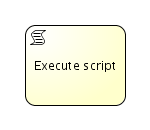
XML representation
A script task is defined by specifying the script and the scriptFormat.
1
2
3
4
5
6
7
8 <scriptTask id="theScriptTask" name="Execute script" scriptFormat="groovy">
<script>
sum = 0
for ( i in inputArray ) {
sum += i
}
</script>
</scriptTask>
The value of the scriptFormat attribute must be a name that is compatible with the JSR-223 (scripting for the Java platform). By default JavaScript is included in every JDK and as such doesn’t need any additional jars. If you want to use another (JSR-223 compatible) scripting engine, it is sufficient to add the corresponding jar to the classpath and use the appropriate name. For example, the Activiti unit tests often use Groovy because the syntax is pretty similar to that of Java.
Do note that the Groovy scripting engine is bundled with the groovy-all jar. Before version 2.0, the scripting engine was part of the regular Groovy jar. As such, one must now add following dependency:
1
2
3
4
5 <dependency>
<groupId>org.codehaus.groovy</groupId>
<artifactId>groovy-all</artifactId>
<version>2.x.x<version>
</dependency>
Variables in scripts
All process variables that are accessible through the execution that arrives in the script task, can be used within the script. In the example, the script variable 'inputArray' is in fact a process variable (an array of integers).
1
2
3
4
5
6 <script>
sum = 0
for ( i in inputArray ) {
sum += i
}
</script>
It’s also possible to set process variables in a script, simply by calling execution.setVariable("variableName", variableValue). By default, no variables are stored automatically (Note: before Activiti 5.12 this was the case!). It is possible to automatically store any variable defined in the script (e.g. sum in the example above) by setting the property autoStoreVariables on the scriptTask to true. However, the best practice is not to do this and use an explicit execution.setVariable() call, as on some recent versions of the JDK auto storing of variables does not work for some scripting languages. See this link for more details.
1 <scriptTask id="script" scriptFormat="JavaScript" activiti:autoStoreVariables="false">
The default of this parameter is false, meaning that if the parameter is omitted from the script task definition, all the declared variables will only exist during the duration of the script.
Example on how to set a variable in a script:
1
2
3
4 <script>
def scriptVar = "test123"
execution.setVariable("myVar", scriptVar)
</script>
Note: the following names are reserved and cannot be used as variable names: out, out:print, lang:import, context, elcontext.
Script results
The return value of a script task can be assigned to an already existing or to a new process variable by specifying the process variable name as a literal value for the 'activiti:resultVariable' attribute of a script task definition. Any existing value for a specific process variable will be overwritten by the result value of the script execution. When not specifying a result variable name, the script result value gets ignored.
1
2
3 <scriptTask id="theScriptTask" name="Execute script" scriptFormat="juel" activiti:resultVariable="myVar">
<script>#{echo}</script>
</scriptTask>
In the above example, the result of the script execution (the value of the resolved expression '#{echo}') is set to the process variable named 'myVar' after the script completes.
Security
It is also possible when using javascript as scripting language to use secure scripting. See the secure scripting section.
8.5.3. Java Service Task
Description
A Java service task is used to invoke an external Java class.
Graphical Notation
A service task is visualized as a rounded rectangle with a small gear icon in the top-left corner.
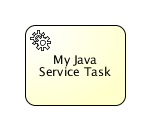
XML representation
There are 4 ways of declaring how to invoke Java logic:
-
Specifying a class that implements JavaDelegate or ActivityBehavior
-
Evaluating an expression that resolves to a delegation object
-
Invoking a method expression
-
Evaluating a value expression
To specify a class that is called during process execution, the fully qualified classname needs to be provided by the activiti:class attribute.
1
2
3 <serviceTask id="javaService"
name="My Java Service Task"
activiti:class="org.activiti.MyJavaDelegate" />
See the implementation section for more details on how to use such a class.
It is also possible to use an expression that resolves to an object. This object must follow the same rules as objects that are created when the activiti:class attribute is used (see further).
1 <serviceTask id="serviceTask" activiti:delegateExpression="${delegateExpressionBean}" />
Here, the delegateExpressionBean is a bean that implements the JavaDelegate interface, defined in for example the Spring container.
To specify a UEL method expression that should be evaluated, use attribute activiti:expression.
1
2
3 <serviceTask id="javaService"
name="My Java Service Task"
activiti:expression="#{printer.printMessage()}" />
Method printMessage (without parameters) will be called on the named object called printer.
It’s also possible to pass parameters with an method used in the expression.
1
2
3 <serviceTask id="javaService"
name="My Java Service Task"
activiti:expression="#{printer.printMessage(execution, myVar)}" />
Method printMessage will be called on the object named printer. The first parameter passed is the DelegateExecution, which is available in the expression context by default available as execution. The second parameter passed, is the value of the variable with name myVar in the current execution.
To specify a UEL value expression that should be evaluated, use attribute activiti:expression.
1
2
3 <serviceTask id="javaService"
name="My Java Service Task"
activiti:expression="#{split.ready}" />
The getter method of property ready, getReady (without parameters), will be called on the named bean called split. The named objects are resolved in the execution’s process variables and (if applicable) in the Spring context.
Implementation
To implement a class that can be called during process execution, this class needs to implement the org.activiti.engine.delegate.JavaDelegate interface and provide the required logic in the execute method. When process execution arrives at this particular step, it will execute this logic defined in that method and leave the activity in the default BPMN 2.0 way.
Let’s create for example a Java class that can be used to change a process variable String to uppercase. This class needs to implement the org.activiti.engine.delegate.JavaDelegate interface, which requires us to implement the execute(DelegateExecution) method. It’s this operation that will be called by the engine and which needs to contain the business logic. Process instance information such as process variables and other can be accessed and manipulated through the DelegateExecution interface (click on the link for a detailed Javadoc of its operations).
1
2
3
4
5
6
7
8
9 public class ToUppercase implements JavaDelegate {
public void execute(DelegateExecution execution) throws Exception {
String var = (String) execution.getVariable("input");
var = var.toUpperCase();
execution.setVariable("input", var);
}
}
Note: there will be only one instance of that Java class created for the serviceTask it is defined on. All process-instances share the same class instance that will be used to call execute(DelegateExecution). This means that the class must not use any member variables and must be thread-safe, since it can be executed simultaneously from different threads. This also influences the way Field injection is handled.
The classes that are referenced in the process definition (i.e. by using activiti:class) are NOT instantiated during deployment. Only when a process execution arrives for the first time at the point in the process where the class is used, an instance of that class will be created. If the class cannot be found, an ActivitiException will be thrown. The reasoning for this is that the environment (and more specifically the classpath) when you are deploying is often different from the actual runtime environment. For example when using ant or the business archive upload in Activiti Explorer to deploy processes, the classpath does not contain the referenced classes.
[INTERNAL: non-public implementation classes] It is also possible to provide a class that implements the org.activiti.engine.impl.pvm.delegate.ActivityBehavior interface. Implementations have then access to the more powerful ActivityExecution that for example also allows to influence the control flow of the process. Note however that this is not a very good practice, and should be avoided as much as possible. So, it is advised to use the ActivityBehavior interface only for advanced use cases and if you know exactly what you’re doing.
Field Injection
It’s possible to inject values into the fields of the delegated classes. The following types of injection are supported:
-
Fixed string values
-
Expressions
If available, the value is injected through a public setter method on your delegated class, following the Java Bean naming conventions (e.g. field firstName has setter setFirstName(…)). If no setter is available for that field, the value of private member will be set on the delegate. SecurityManagers in some environments don’t allow modifying private fields, so it’s safer to expose a public setter-method for the fields you want to have injected.
Regardless of the type of value declared in the process-definition, the type of the setter/private field on the injection target should always be org.activiti.engine.delegate.Expression. When the expression is resolved it can be cast to the appropriate type.
Field injection is supported when using the 'actviiti:class' attribute. Field injection is also possible when using the activiti:delegateExpression attribute, however special rules with regards to thread-safety apply (see next section).
The following code snippet shows how to inject a constant value into a field declared on the class. Note that we need to declare a extensionElements XML element before the actual field injection declarations, which is a requirement of the BPMN 2.0 XML Schema.
1
2
3
4
5
6
7 <serviceTask id="javaService"
name="Java service invocation"
activiti:class="org.activiti.examples.bpmn.servicetask.ToUpperCaseFieldInjected">
<extensionElements>
<activiti:field name="text" stringValue="Hello World" />
</extensionElements>
</serviceTask>
The class ToUpperCaseFieldInjected has a field text which is of type org.activiti.engine.delegate.Expression. When calling text.getValue(execution), the configured string value Hello World will be returned:
1
2
3
4
5
6
7
8
9 public class ToUpperCaseFieldInjected implements JavaDelegate {
private Expression text;
public void execute(DelegateExecution execution) {
execution.setVariable("var", ((String)text.getValue(execution)).toUpperCase());
}
}
Alternatively, for longs texts (e.g. an inline e-mail) the 'activiti:string' sub element can be used:
1
2
3
4
5
6
7
8
9
10
11 <serviceTask id="javaService"
name="Java service invocation"
activiti:class="org.activiti.examples.bpmn.servicetask.ToUpperCaseFieldInjected">
<extensionElements>
<activiti:field name="text">
<activiti:string>
This is a long string with a lot of words and potentially way longer even!
</activiti:string>
</activiti:field>
</extensionElements>
</serviceTask>
To inject values that are dynamically resolved at runtime, expressions can be used. Those expressions can use process variables, or Spring defined beans (if Spring is used). As noted in Service Task Implementation, an instance of the Java class is shared among all process-instances in a service task when using the activiti:class attribute. To have dynamic injection of values in fields, you can inject value and method expressions in a org.activiti.engine.delegate.Expression which can be evaluated/invoked using the DelegateExecution passed in the execute method.
The example class below uses the injected expressions and resolves them using the current DelegateExecution. A generBean method call is used while passing the gender variable. Full code and test can be found in org.activiti.examples.bpmn.servicetask.JavaServiceTaskTest.testExpressionFieldInjection
1
2
3
4
5
6
7
8
9
10
11
12 <serviceTask id="javaService" name="Java service invocation"
activiti:class="org.activiti.examples.bpmn.servicetask.ReverseStringsFieldInjected">
<extensionElements>
<activiti:field name="text1">
<activiti:expression>${genderBean.getGenderString(gender)}</activiti:expression>
</activiti:field>
<activiti:field name="text2">
<activiti:expression>Hello ${gender == 'male' ? 'Mr.' : 'Mrs.'} ${name}</activiti:expression>
</activiti:field>
</ extensionElements>
</ serviceTask>
1
2
3
4
5
6
7
8
9
10
11
12
13 public class ReverseStringsFieldInjected implements JavaDelegate {
private Expression text1;
private Expression text2;
public void execute(DelegateExecution execution) {
String value1 = (String) text1.getValue(execution);
execution.setVariable("var1", new StringBuffer(value1).reverse().toString());
String value2 = (String) text2.getValue(execution);
execution.setVariable("var2", new StringBuffer(value2).reverse().toString());
}
}
Alternatively, you can also set the expressions as an attribute instead of a child-element, to make the XML less verbose.
1
2 <activiti:field name="text1" expression="${genderBean.getGenderString(gender)}" />
<activiti:field name="text1" expression="Hello ${gender == 'male' ? 'Mr.' : 'Mrs.'} ${name}" />
Field injection and thread safety
In general, using service tasks with Java delegates and field injections are thread-safe. However, there are a few situations where thread-safety is not guaranteed, depending on the setup or environment Activiti is running in.
When using the activiti:class attribute, using field injection is always thread safe. For each service task that references a certain class, a new instance will be instantiated and fields will be injected once when the instance is created. Reusing the same class in multiple times in different tasks or process definitions is no problem.
When using the activiti:expression attribute, using field injection is not possible. Parameters are passed via method calls and these are always thread-safe.
When using the activiti:delegateExpression attribute, the thread-safety of the delegate instance will depend on how the expression is resolved. If the delegate expression is reused in various tasks and/or process definitions and the expression always returns the same instance, using field injection is not thread-safe. Let’s look at a few examples to clarify.
Suppose the expression is ${factory.createDelegate(someVariable)}, where factory is a Java bean known to the engine (for example a Spring bean when using the Spring integration) that creates a new instance each time the expression is resolved. When using field injection in this case, there is no problem with regards to thread-safety: each time the expression is resolved, the fields are injected on this new instance.
However, suppose the expression is ${someJavaDelegateBean} that resolves to an implementation of the JavaDelegate class and we’re running in an environment that creates singleton instances of each bean (like Spring, but many others too). When using this expression in different tasks and/or process definitions, the expression will always be resolved to the same instance. In this case, using field injection is not thread-safe. For example:
1
2
3
4
5
6
7
8
9
10
11
12
13 <serviceTask id="serviceTask1" activiti:delegateExpression="${someJavaDelegateBean}">
<extensionElements>
<activiti:field name="someField" expression="${input * 2}"/>
</extensionElements>
</serviceTask>
<!-- other process definition elements -->
<serviceTask id="serviceTask2" activiti:delegateExpression="${someJavaDelegateBean}">
<extensionElements>
<activiti:field name="someField" expression="${input * 2000}"/>
</extensionElements>
</serviceTask>
This example snippet has two service tasks that use the same delegate expression, but injects different values for the Expression field. If the expression resolves to the same instance, there can be race conditions in concurrent scenarios when it comes to injecting the field someField when the processes are executed.
The easiest solution to solve this, is to either
-
rewrite the Java delegate to use an expression and passing the needed data to the delegate via a method arguments.
-
return a new instance of the delegate class each time the delegate expression is resolved. For example when using Spring, this means that the scope of the bean must be set to prototype (for example by adding the @Scope(SCOPE_PROTOTYPE) annotation to the delegate class)
As of Activiti version 5.21, the process engine configuration can be configured in a way to disable the use of field injection on delegate epxressions, by setting the value of the delegateExpressionFieldInjectionMode property (which takes one of the values in the org.activiti.engine.imp.cfg.DelegateExpressionFieldInjectionMode enum).
Following settings are possible:
-
DISABLED : fully disables field injection when using delegate expressions. No field injection will be attempted. This is the safest mode, when it comes to thread-safety.
-
COMPATIBILITY: in this mode, the behavior will be exactly as it was before version 5.21: field injection is possible when using delegate expressions and an exception will be thrown when the fields are not defined on the delegate class. This is of course the least safe mode with regards to thread-safety, but it can be needed for backwards compatibility or can be used safely when the delegate expression is used only on one task in a set of process definitions (and thus no concurrent race conditions can happen).
-
MIXED: Allows injection when using delegateExpressions but will not throw an exception when the fields are not defined on the delegate. This allows for mixed behaviors where some delegates have injection (for example because they are not singletons) and some don’t.
-
The default mode for Activiti version 5.x is COMPATIBILITY.
-
The default mode for Activiti version 6.x is MIXED.
For example, suppose that we’re using MIXED mode and we’re using the Spring integration. Suppose that we have following beans in the Spring configuration:
1
2
3
4
5
6 <bean id="singletonDelegateExpressionBean"
class="org.activiti.spring.test.fieldinjection.SingletonDelegateExpressionBean" />
<bean id="prototypeDelegateExpressionBean"
class="org.activiti.spring.test.fieldinjection.PrototypeDelegateExpressionBean"
scope="prototype" />
The first bean is a regular Spring bean and thus a singleton. The second one has prototype as scope, and the Spring container will return a new instance every time the bean is requested.
Given following process definition:
1
2
3
4
5
6
7
8
9
10
11
12
13
14
15
16
17
18
19
20
21
22
23
24
25
26
27
28
29
30
31 <serviceTask id="serviceTask1" activiti:delegateExpression="${prototypeDelegateExpressionBean}">
<extensionElements>
<activiti:field name="fieldA" expression="${input * 2}"/>
<activiti:field name="fieldB" expression="${1 + 1}"/>
<activiti:field name="resultVariableName" stringValue="resultServiceTask1"/>
</extensionElements>
</serviceTask>
<serviceTask id="serviceTask2" activiti:delegateExpression="${prototypeDelegateExpressionBean}">
<extensionElements>
<activiti:field name="fieldA" expression="${123}"/>
<activiti:field name="fieldB" expression="${456}"/>
<activiti:field name="resultVariableName" stringValue="resultServiceTask2"/>
</extensionElements>
</serviceTask>
<serviceTask id="serviceTask3" activiti:delegateExpression="${singletonDelegateExpressionBean}">
<extensionElements>
<activiti:field name="fieldA" expression="${input * 2}"/>
<activiti:field name="fieldB" expression="${1 + 1}"/>
<activiti:field name="resultVariableName" stringValue="resultServiceTask1"/>
</extensionElements>
</serviceTask>
<serviceTask id="serviceTask4" activiti:delegateExpression="${singletonDelegateExpressionBean}">
<extensionElements>
<activiti:field name="fieldA" expression="${123}"/>
<activiti:field name="fieldB" expression="${456}"/>
<activiti:field name="resultVariableName" stringValue="resultServiceTask2"/>
</extensionElements>
</serviceTask>
We’ve got four service tasks, where the first and the second use the ${prototypeDelegateExpressionBean} delegate expression and the third and fourth use the ${singletonDelegateExpressionBean} delegate expression.
Let’s look at the prototype bean first:
1
2
3
4
5
6
7
8
9
10
11
12
13
14
15
16
17
18
19
20
21
22
23 public class PrototypeDelegateExpressionBean implements JavaDelegate {
public static AtomicInteger INSTANCE_COUNT = new AtomicInteger(0);
private Expression fieldA;
private Expression fieldB;
private Expression resultVariableName;
public PrototypeDelegateExpressionBean() {
INSTANCE_COUNT.incrementAndGet();
}
@Override
public void execute(DelegateExecution execution) throws Exception {
Number fieldAValue = (Number) fieldA.getValue(execution);
Number fieldValueB = (Number) fieldB.getValue(execution);
int result = fieldAValue.intValue() + fieldValueB.intValue();
execution.setVariable(resultVariableName.getValue(execution).toString(), result);
}
}
When we check the INSTANCE_COUNT after running a process instance of the process definition above, we’ll get two back, as a new instance is created every time ${prototypeDelegateExpressionBean} is resolved. Fields can be injected without any problem here and we can see the three Expression member fields here.
The singleton bean, however, looks slightly different:
1
2
3
4
5
6
7
8
9
10
11
12
13
14
15
16
17
18
19
20
21
22
23
24 public class SingletonDelegateExpressionBean implements JavaDelegate {
public static AtomicInteger INSTANCE_COUNT = new AtomicInteger(0);
public SingletonDelegateExpressionBean() {
INSTANCE_COUNT.incrementAndGet();
}
@Override
public void execute(DelegateExecution execution) throws Exception {
Expression fieldAExpression = DelegateHelper.getFieldExpression(execution, "fieldA");
Number fieldA = (Number) fieldAExpression.getValue(execution);
Expression fieldBExpression = DelegateHelper.getFieldExpression(execution, "fieldB");
Number fieldB = (Number) fieldBExpression.getValue(execution);
int result = fieldA.intValue() + fieldB.intValue();
String resultVariableName = DelegateHelper.getFieldExpression(execution, "resultVariableName").getValue(execution).toString();
execution.setVariable(resultVariableName, result);
}
}
The INSTANCE_COUNT will always be one here, as it is a singleton. In this delegate, there are no Expression member fields. This is possible since we’re running in MIXED mode. In COMPATIBILITY mode, this would throw an exception as it expects the member fields to be there. DISABLED mode would also work for this bean, but it would disallow the use the prototype bean above that does use field injection.
In this delegate code, the org.activiti.engine.delegate.DelegateHelper class is used, that has some useful utility methods to execute the same logic, but in a thread-safe way when the delegate is a singleton. Instead of injecting the Expression, it is fetched via the getFieldExpression method. This means that when it comes to the service task xml, the fields are defined exactly the same as for the singleton bean. If you look at the xml snippet above, you can see they are equal in definition and only the implementation logic differs.
(Technical note: the getFieldExpression will introspect the BpmnModel and create the Expression on the fly when the method is executed, making it thread-safe)
-
For Activiti versions 5.x, the DelegateHelper cannot be used for an ExecutionListener or TaskListener (due to an architectural flaw). To make thread-safe instances of those listeners, use either an expression or make sure a new instance is created every time the delegate expression is resolved.
-
For Activiti version 6.x the DelegateHelper does work in ExecutionListener and TaskListener implementations. For example in version 6.x, the following code can be written, using the DelegateHelper:
1
2
3
4
5
6
7 <extensionElements>
<activiti:executionListener
delegateExpression="${testExecutionListener}" event="start">
<activiti:field name="input" expression="${startValue}" />
<activiti:field name="resultVar" stringValue="processStartValue" />
</activiti:executionListener>
</extensionElements>
Where testExecutionListener resolves to an instance implementing the ExecutionListener interface:
1
2
3
4
5
6
7
8
9
10
11
12
13
14
15 @Component("testExecutionListener")
public class TestExecutionListener implements ExecutionListener {
@Override
public void notify(DelegateExecution execution) {
Expression inputExpression = DelegateHelper.getFieldExpression(execution, "input");
Number input = (Number) inputExpression.getValue(execution);
int result = input.intValue() * 100;
Expression resultVarExpression = DelegateHelper.getFieldExpression(execution, "resultVar");
execution.setVariable(resultVarExpression.getValue(execution).toString(), result);
}
}
Service task results
The return value of a service execution (for service task using expression only) can be assigned to an already existing or to a new process variable by specifying the process variable name as a literal value for the 'activiti:resultVariable' attribute of a service task definition. Any existing value for a specific process variable will be overwritten by the result value of the service execution. When not specifying a result variable name, the service execution result value gets ignored.
1
2
3 <serviceTask id="aMethodExpressionServiceTask"
activiti:expression="#{myService.doSomething()}"
activiti:resultVariable="myVar" />
In the example above, the result of the service execution (the return value of the 'doSomething()' method invocation on an object that is made available under the name 'myService' either in the process variables or as a Spring bean) is set to the process variable named 'myVar' after the service execution completes.
Handling exceptions
When custom logic is executed, it is often required to catch certain business exceptions and handle them inside the surrounding process. Activiti provides different options to do that.
Throwing BPMN Errors
It is possible to throw BPMN Errors from user code inside Service Tasks or Script Tasks. In order to do this, a special ActivitiException called BpmnError can be thrown in JavaDelegates, scripts, expressions and delegate expressions. The engine will catch this exception and forward it to an appropriate error handler, e.g., a Boundary Error Event or an Error Event Sub-Process.
1
2
3
4
5
6
7
8
9
10
11 public class ThrowBpmnErrorDelegate implements JavaDelegate {
public void execute(DelegateExecution execution) throws Exception {
try {
executeBusinessLogic();
} catch (BusinessException e) {
throw new BpmnError("BusinessExceptionOccurred");
}
}
}
The constructor argument is an error code, which will be used to determine the error handler that is responsible for the error. See Boundary Error Event for information on how to catch a BPMN Error.
This mechanism should be used only for business faults that shall be handled by a Boundary Error Event or Error Event Sub-Process modeled in the process definition. Technical errors should be represented by other exception types and are usually not handled inside a process.
Exception mapping
It is also possible to directly map a java exception to business exception by using mapException extension. Single mapping is the simplest form:
1
2
3
4
5
6 <serviceTask id="servicetask1" name="Service Task" activiti:class="...">
<extensionElements>
<activiti:mapException
errorCode="myErrorCode1">org.activiti.SomeException</activiti:mapException>
</extensionElements>
</serviceTask>
In above code, if an instance of org.activiti.SomeException is thrown in service task, it would be caught and converted to a BPMN exception with the given errorCode. From this point on, it will be handled exactly like a normal BPMN exception.
Any other exception will be treated as if there is no mapping in place. It will be propagated to the API caller.
One can map all the child exception of a certain exception in a single line by using includeChildExceptions attribute.
1
2
3
4
5
6 <serviceTask id="servicetask1" name="Service Task" activiti:class="...">
<extensionElements>
<activiti:mapException errorCode="myErrorCode1"
includeChildExceptions="true">org.activiti.SomeException</activiti:mapException>
</extensionElements>
</serviceTask>
The above code will cause activiti to convert any direct or indirect descendent of SomeException to a BPMN error with the given error code.
includeChildExceptions will be considered "false" when not given.
The most generic mapping is a default map. Default map is a map with no class. It will match any java exception:
1
2
3
4
5 <serviceTask id="servicetask1" name="Service Task" activiti:class="...">
<extensionElements>
<activiti:mapException errorCode="myErrorCode1"/>
</extensionElements>
</serviceTask>
The mappings are checked in order, from top to bottom and the first found match will be followed, except for the default map. Default map is selected only after all maps are unsuccessfully checked.
Only the first map with no class will be considered as default map. includeChildExceptions is ignored for default Map.
Exception Sequence Flow
Another option is to route process execution through another path in case some exception occurs. The following example shows how this is done.
1
2
3
4
5
6
7 <serviceTask id="javaService"
name="Java service invocation"
activiti:class="org.activiti.ThrowsExceptionBehavior">
</serviceTask>
<sequenceFlow id="no-exception" sourceRef="javaService" targetRef="theEnd" />
<sequenceFlow id="exception" sourceRef="javaService" targetRef="fixException" />
Here, the service task has two outgoing sequence flow, called exception and no-exception. This sequence flow id will be used to direct process flow in case of an exception:
1
2
3
4
5
6
7
8
9
10
11
12
13
14
15
16 public class ThrowsExceptionBehavior implements ActivityBehavior {
public void execute(ActivityExecution execution) throws Exception {
String var = (String) execution.getVariable("var");
PvmTransition transition = null;
try {
executeLogic(var);
transition = execution.getActivity().findOutgoingTransition("no-exception");
} catch (Exception e) {
transition = execution.getActivity().findOutgoingTransition("exception");
}
execution.take(transition);
}
}
Using an Activiti service from within a JavaDelegate
For some use cases, it might be needed to use the Activiti services from within a Java service task (e.g. starting a process instance through the RuntimeService, if the callActivity doesn’t suit your needs). The org.activiti.engine.delegate.DelegateExecution allows to easily use these services through the org.activiti.engine.EngineServices interface:
1
2
3
4
5
6
7
8 public class StartProcessInstanceTestDelegate implements JavaDelegate {
public void execute(DelegateExecution execution) throws Exception {
RuntimeService runtimeService = execution.getEngineServices().getRuntimeService();
runtimeService.startProcessInstanceByKey("myProcess");
}
}
All of the Activiti service API’s are available through this interface.
All data changes that occur as an effect of using these API calls, will be part of the current transaction. This also works in environments with dependency injection like Spring and CDI with or without a JTA enabled datasource. For example, the following snippet of code will do the same as the snippet above, but now the RuntimeService is injected rather than it is being fetched through the org.activiti.engine.EngineServices interface.
1
2
3
4
5
6
7
8
9
10
11 @Component("startProcessInstanceDelegate")
public class StartProcessInstanceTestDelegateWithInjection {
@Autowired
private RuntimeService runtimeService;
public void startProcess() {
runtimeService.startProcessInstanceByKey("oneTaskProcess");
}
}
Important technical note: since the service call is being done as part of the current transaction any data that was produced or altered before the service task is executed, is not yet flushed to the database. All API calls work on the database data, which means that these uncommitted changes are not be visible within the api call of the service task.
8.5.4. Web Service Task
Description
A Web Service task is used to synchronously invoke an external Web service.
Graphical Notation
A Web Service task is visualized the same as a Java service task.
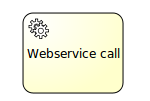
XML representation
To use a Web service we need to import its operations and complex types. This can be done automatically by using the import tag pointing to the WSDL of the Web service:
1
2
3 <import importType="http://schemas.xmlsoap.org/wsdl/"
location="http://localhost:63081/counter?wsdl"
namespace="http://webservice.activiti.org/" />
The previous declaration tells Activiti to import the definitions but it doesn’t create the item definitions and messages for you. Let’s suppose we want to invoke a specific method called prettyPrint, therefore we will need to create the corresponding message and item definitions for the request and response messages:
1
2
3
4
5 <message id="prettyPrintCountRequestMessage" itemRef="tns:prettyPrintCountRequestItem" />
<message id="prettyPrintCountResponseMessage" itemRef="tns:prettyPrintCountResponseItem" />
<itemDefinition id="prettyPrintCountRequestItem" structureRef="counter:prettyPrintCount" />
<itemDefinition id="prettyPrintCountResponseItem" structureRef="counter:prettyPrintCountResponse" />
Before declaring the service task, we have to define the BPMN interfaces and operations that actually reference the Web service ones. Basically, we define and interface and the required operation’s. For each operation we reuse the previous defined message for in and out. For example, the following declaration defines the counter interface and the prettyPrintCountOperation operation:
1
2
3
4
5
6
7 <interface name="Counter Interface" implementationRef="counter:Counter">
<operation id="prettyPrintCountOperation" name="prettyPrintCount Operation"
implementationRef="counter:prettyPrintCount">
<inMessageRef>tns:prettyPrintCountRequestMessage</inMessageRef>
<outMessageRef>tns:prettyPrintCountResponseMessage</outMessageRef>
</operation>
</interface>
Then we can declare a Web Service Task by using the ##WebService implementation and a reference to the Web service operation.
1
2
3
4 <serviceTask id="webService"
name="Web service invocation"
implementation="##WebService"
operationRef="tns:prettyPrintCountOperation">
Web Service Task IO Specification
Unless we are using the simplistic approach for data input and output associations (See below), each Web Service Task needs to declare an IO Specification which states which are the inputs and outputs of the task. The approach is pretty straightforward and BPMN 2.0 complaint, for our prettyPrint example we define the input and output sets according to the previously declared item definitions:
1
2
3
4
5
6
7
8
9
10 <ioSpecification>
<dataInput itemSubjectRef="tns:prettyPrintCountRequestItem" id="dataInputOfServiceTask" />
<dataOutput itemSubjectRef="tns:prettyPrintCountResponseItem" id="dataOutputOfServiceTask" />
<inputSet>
<dataInputRefs>dataInputOfServiceTask</dataInputRefs>
</inputSet>
<outputSet>
<dataOutputRefs>dataOutputOfServiceTask</dataOutputRefs>
</outputSet>
</ioSpecification>
Web Service Task data input associations
There are 2 ways of specifying data input associations:
-
Using expressions
-
Using the simplistic approach
To specify the data input association using expressions we need to define the source and target items and specify the corresponding assignments between the fields of each item. In the following example we assign prefix and suffix fields of the items:
1
2
3
4
5
6
7
8
9
10
11
12 <dataInputAssociation>
<sourceRef>dataInputOfProcess</sourceRef>
<targetRef>dataInputOfServiceTask</targetRef>
<assignment>
<from>${dataInputOfProcess.prefix}</from>
<to>${dataInputOfServiceTask.prefix}</to>
</assignment>
<assignment>
<from>${dataInputOfProcess.suffix}</from>
<to>${dataInputOfServiceTask.suffix}</to>
</assignment>
</dataInputAssociation>
On the other hand we can use the simplistic approach which is much more simple. The sourceRef element is an Activiti variable name and the targetRef element is a property of the item definition. In the following example we assign to the prefix field the value of the variable PrefixVariable and to the suffix field the value of the variable SuffixVariable.
1
2
3
4
5
6
7
8 <dataInputAssociation>
<sourceRef>PrefixVariable</sourceRef>
<targetRef>prefix</targetRef>
</dataInputAssociation>
<dataInputAssociation>
<sourceRef>SuffixVariable</sourceRef>
<targetRef>suffix</targetRef>
</dataInputAssociation>
Web Service Task data output associations
There are 2 ways of specifying data out associations:
-
Using expressions
-
Using the simplistic approach
To specify the data out association using expressions we need to define the target variable and the source expression. The approach is pretty straightforward and similar data input associations:
1
2
3
4 <dataOutputAssociation>
<targetRef>dataOutputOfProcess</targetRef>
<transformation>${dataOutputOfServiceTask.prettyPrint}</transformation>
</dataOutputAssociation>
On the other hand we can use the simplistic approach which is much more simple. The sourceRef element is a property of the item definition and the targetRef element is an Activiti variable name. The approach is pretty straightforward and similar data input associations:
1
2
3
4 <dataOutputAssociation>
<sourceRef>prettyPrint</sourceRef>
<targetRef>OutputVariable</targetRef>
</dataOutputAssociation>
8.5.5. Business Rule Task
Description
A Business Rule task is used to synchronously execute one or more rules. Activiti uses Drools Expert, the Drools rule engine to execute business rules. Currently, the .drl files containing the business rules have to be deployed together with the process definition that defines a business rule task to execute those rules. This means that all .drl files that are used in a process have to be packaged in the process BAR file like for example the task forms. For more information about creating business rules for Drools Expert please refer to the Drools documentation at JBoss Drools
If you want to plug in your implementation of the rule task, e.g. because you want to use Drools differently or you want to use a completely different rule engine, then you can use the class or expression attribute on the BusinessRuleTask and it will behave exactly like a ServiceTask
Graphical Notation
A Business Rule task is visualized the with a table icon.
XML representation
To execute one or more business rules that are deployed in the same BAR file as the process definition, we need to define the input and result variables. For the input variable definition a list of process variables can be defined separated by a comma. The output variable definition can only contain one variable name that will be used to store the output objects of the executed business rules in a process variable. Note that the result variable will contain a List of objects. If no result variable name is specified by default org.activiti.engine.rules.OUTPUT is used.
The following business rule task executes all business rules deployed with the process definition:
1
2
3
4
5
6
7
8
9
10
11
12
13 <process id="simpleBusinessRuleProcess">
<startEvent id="theStart" />
<sequenceFlow sourceRef="theStart" targetRef="businessRuleTask" />
<businessRuleTask id="businessRuleTask" activiti:ruleVariablesInput="${order}"
activiti:resultVariable="rulesOutput" />
<sequenceFlow sourceRef="businessRuleTask" targetRef="theEnd" />
<endEvent id="theEnd" />
</process>
The business rule task can also be configured to execute only a defined set of rules from the deployed .drl files. A list of rule names separated by a comma must be specified for this.
1
2 <businessRuleTask id="businessRuleTask" activiti:ruleVariablesInput="${order}"
activiti:rules="rule1, rule2" />
In this case only rule1 and rule2 are executed.
You can also define a list of rules that should be excluded from execution.
1
2 <businessRuleTask id="businessRuleTask" activiti:ruleVariablesInput="${order}"
activiti:rules="rule1, rule2" exclude="true" />
In this case all rules deployed in the same BAR file as the process definition will be executed, except for rule1 and rule2.
As mentioned earlier another option is to hook in the implementation of the BusinessRuleTask yourself:
1 <businessRuleTask id="businessRuleTask" activiti:class="${MyRuleServiceDelegate}" />
Now the BusinessRuleTask behaves exactly like a ServiceTask, but still keeps the BusinessRuleTask icon to visualize that we do business rule processing here.
8.5.6. Email Task
Activiti allows to enhance business processes with automatic mail service tasks that send e-mails to one or more recipients, including support for cc, bcc, HTML content, … etc. Note that the mail task is not an official task of the BPMN 2.0 spec (and it does not have a dedicated icon as a consequence). Hence, in Activiti the mail task is implemented as a dedicated service task.
Mail server configuration
The Activiti engine sends e-mails trough an external mail server with SMTP capabilities. To actually send e-mails, the engine needs to know how to reach the mail server. Following properties can be set in the activiti.cfg.xml configuration file:
| Property | Required? | Description |
|---|---|---|
mailServerHost |
no |
The hostname of your mail server (e.g. mail.mycorp.com). Default is |
mailServerPort |
yes, if not on the default port |
The port for SMTP traffic on the mail server. The default is 25 |
mailServerDefaultFrom |
no |
The default e-mail address of the sender of e-mails, when none is provided by the user. By default this is activiti@activiti.org |
mailServerUsername |
if applicable for your server |
Some mail servers require credentials for sending e-mail. By default not set. |
mailServerPassword |
if applicable for your server |
Some mail servers require credentials for sending e-mail. By default not set. |
mailServerUseSSL |
if applicable for your server |
Some mail servers require ssl communication. By default set to false. |
mailServerUseTLS |
if applicable for your server |
Some mail servers (for instance gmail) require TLS communication. By default set to false. |
Defining an Email Task
The Email task is implemented as a dedicated Service Task and is defined by setting 'mail' for the type of the service task.
1 <serviceTask id="sendMail" activiti:type="mail">
The Email task is configured by field injection. All the values for these properties can contain EL expression, which are resolved at runtime during process execution. Following properties can be set:
| Property | Required? | Description |
|---|---|---|
to |
yes |
The recipients if the e-mail. Multiple recipients are defined in a comma-separated list |
from |
no |
The sender e-mail address. If not provided, the default configured from address is used. |
subject |
no |
The subject of the e-mail. |
cc |
no |
The cc’s of the e-mail. Multiple recipients are defined in a comma-separated list |
bcc |
no |
The bcc’s of the e-mail. Multiple recipients are defined in a comma-separated list |
charset |
no |
Allows to change the charset of the email, which is necessary for many non-English languages. |
html |
no |
A piece of HTML that is the content of the e-mail. |
text |
no |
The content of the e-mail, in case one needs to send plain none-rich e-mails. Can be used in combination with html, for e-mail clients that don’t support rich content. The client will then fall back to this text-only alternative. |
htmlVar |
no |
The name of a process variable that holds the HTML that is the content of the e-mail. The key difference between this and html is that this content will have expressions replaced before being sent by the mail task. |
textVar |
no |
The name of a process variable that holds the plain text content of the e-mail. The key difference between this and html is that this content will have expressions replaced before being sent by the mail task. |
ignoreException |
no |
Whether an failure when handling the e-mail throws an ActivitiException. By default this is set to false. |
exceptionVariableName |
no |
When email handling does not throw an exception since ignoreException = true a variable with the given name is used to hold a failure message |
Example usage
The following XML snippet shows an example of using the Email Task.
1
2
3
4
5
6
7
8
9
10
11
12
13
14
15
16
17
18
19
20
21
22
23
24 <serviceTask id="sendMail" activiti:type="mail">
<extensionElements>
<activiti:field name="from" stringValue="order-shipping@thecompany.com" />
<activiti:field name="to" expression="${recipient}" />
<activiti:field name="subject" expression="Your order ${orderId} has been shipped" />
<activiti:field name="html">
<activiti:expression>
<![CDATA[
<html>
<body>
Hello ${male ? 'Mr.' : 'Mrs.' } ${recipientName},<br/><br/>
As of ${now}, your order has been <b>processed and shipped</b>.<br/><br/>
Kind regards,<br/>
TheCompany.
</body>
</html>
]]>
</activiti:expression>
</activiti:field>
</extensionElements>
</serviceTask>
with the following result:
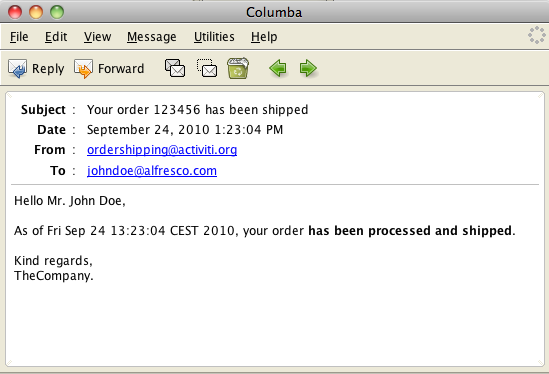
8.5.7. Mule Task
The mule task allows to send messages to Mule enhancing the integration features of Activiti. Note that the mule task is not an official task of the BPMN 2.0 spec (and it does not have a dedicated icon as a consequence). Hence, in Activiti the mule task is implemented as a dedicated service task.
Defining an Mule Task
The Mule task is implemented as a dedicated Service Task and is defined by setting 'mule' for the type of the service task.
1 <serviceTask id="sendMule" activiti:type="mule">
The Mule task is configured by field injection. All the values for these properties can contain EL expression, which are resolved at runtime during process execution. Following properties can be set:
| Property | Required? | Description |
|---|---|---|
endpointUrl |
yes |
The Mule endpoint you want to invoke. |
language |
yes |
The language you want to use to evaluate the payloadExpression field. |
payloadExpression |
yes |
An expression that will be the message’s payload. |
resultVariable |
no |
The name of the variable which will store the result of the invocation. |
Example usage
The following XML snippet shows an example of using the Mule Task.
1
2
3
4
5
6
7
8
9
10
11
12
13
14 <extensionElements>
<activiti:field name="endpointUrl">
<activiti:string>vm://in</activiti:string>
</activiti:field>
<activiti:field name="language">
<activiti:string>juel</activiti:string>
</activiti:field>
<activiti:field name="payloadExpression">
<activiti:string>"hi"</activiti:string>
</activiti:field>
<activiti:field name="resultVariable">
<activiti:string>theVariable</activiti:string>
</activiti:field>
</extensionElements>
8.5.8. Camel Task
The Camel task allows to send messages to and receive messages from Camel and thereby enhances the integration features of Activiti. Note that the Camel task is not an official task of the BPMN 2.0 spec (and it does not have a dedicated icon as a consequence). Hence, in Activiti the Camel task is implemented as a dedicated service task. Also note to include the Activiti Camel module in your project to use the Camel task functionality.
Defining a Camel Task
The Camel task is implemented as a dedicated Service Task and is defined by setting 'camel' for the type of the service task.
1 <serviceTask id="sendCamel" activiti:type="camel">
The process definition itself needs nothing else then the camel type definition on a service task. The integration logic is all delegated to the Camel container. By default the Activiti Engine looks for a camelContext bean in the Spring container. The camelContext bean defines the Camel routes that will be loaded by the Camel container. In the following example the routes are loaded from a specific Java package, but you can also define routes directly in the Spring configuration itself.
1
2
3
4
5 <camelContext id="camelContext" xmlns="http://camel.apache.org/schema/spring">
<packageScan>
<package>org.activiti.camel.route</package>
</packageScan>
</camelContext>
For more documentation about Camel routes you can look on the Camel website. The basic concepts are demonstrated through a few small samples here in this document. In the first sample, we will do the simplest form of Camel call from an Activiti workflow. Let’s call it SimpleCamelCall.
If you want to define multiple Camel context beans and/or want to use a different bean name, this can be overridden on the Camel task definition like this:
1
2
3
4
5 <serviceTask id="serviceTask1" activiti:type="camel">
<extensionElements>
<activiti:field name="camelContext" stringValue="customCamelContext" />
</extensionElements>
</serviceTask>
Simple Camel Call example
All the files related to this example can be found in org.activiti.camel.examples.simpleCamelCall package of activiti-camel module. The target is simply activating a specific camel route. First of all we need an Spring context which contains the introduction to the routes as mentioned previously. This part of the file serves this purpose:
1
2
3
4
5 <camelContext id="camelContext" xmlns="http://camel.apache.org/schema/spring">
<packageScan>
<package>org.activiti.camel.examples.simpleCamelCall</package>
</packageScan>
</camelContext>
1
2
3
4
5
6
7 public class SimpleCamelCallRoute extends RouteBuilder {
@Override
public void configure() throws Exception {
from("activiti:SimpleCamelCallProcess:simpleCall").to("log:org.activiti.camel.examples.SimpleCamelCall");
}
}
The route just logs the message body and nothing more. Notice the format of the from endpoint. It is consisted of three parts:
| Endpoint Url Part | Description |
|---|---|
activiti |
refers to Activiti endpoint |
SimpleCamelCallProcess |
name of the process |
simpleCall |
name of the Camel service in the process |
Ok, our route is now properly configured and accessible to the Camel. Now comes the workflow part. The workflow looks like:
1
2
3
4
5
6
7
8
9 <process id="SimpleCamelCallProcess">
<startEvent id="start"/>
<sequenceFlow id="flow1" sourceRef="start" targetRef="simpleCall"/>
<serviceTask id="simpleCall" activiti:type="camel"/>
<sequenceFlow id="flow2" sourceRef="simpleCall" targetRef="end"/>
<endEvent id="end"/>
</process>
Ping Pong example
Our example worked but nothing is really transferred between Camel and Activiti and there is not much merit in it. In this example we try to send and receive data to and from Camel. We send a string, camel concatenates something to it and returns back the result. The sender part is trivial, we send our message in form of a variable to Camel Task. Here is our caller code:
1
2
3
4
5
6
7
8
9
10
11
12
13 @Deployment
public void testPingPong() {
Map<String, Object> variables = new HashMap<String, Object>();
variables.put("input", "Hello");
Map<String, String> outputMap = new HashMap<String, String>();
variables.put("outputMap", outputMap);
runtimeService.startProcessInstanceByKey("PingPongProcess", variables);
assertEquals(1, outputMap.size());
assertNotNull(outputMap.get("outputValue"));
assertEquals("Hello World", outputMap.get("outputValue"));
}
The variable "input" is actually the input for the Camel route and outputMap is there to capture the result back from Camel. The process should be something like this:
1
2
3
4
5
6
7
8
9 <process id="PingPongProcess">
<startEvent id="start"/>
<sequenceFlow id="flow1" sourceRef="start" targetRef="ping"/>
<serviceTask id="ping" activiti:type="camel"/>
<sequenceFlow id="flow2" sourceRef="ping" targetRef="saveOutput"/>
<serviceTask id="saveOutput" activiti:class="org.activiti.camel.examples.pingPong.SaveOutput" />
<sequenceFlow id="flow3" sourceRef="saveOutput" targetRef="end"/>
<endEvent id="end"/>
</process>
Note that SaveOutput Service task, stores the value of "Output" variable from context to the previously mentioned OutputMap. Now we have to know how the variables are send to Camel and returned back. Here comes the notion of Camel behaviour into the play. The way variables are communicated to Camel is configurable via CamelBehavior. Here we use Default one in our sample, a short description of the other ones comes afterwards. With such a code you can configure the desired camel behaviour:
1
2
3
4
5 <serviceTask id="serviceTask1" activiti:type="camel">
<extensionElements>
<activiti:field name="camelBehaviorClass" stringValue="org.activiti.camel.impl.CamelBehaviorCamelBodyImpl" />
</extensionElements>
</serviceTask>
If you do not specify and specific behaviour then, org.activiti.camel.impl.CamelBehaviorDefaultImpl will be set. This behaviour copies the variables to Camel properties of the same name. In return regardless of selected behaviour, if the camel message body is a map, then each of its elements is copied as a variable, else the whole object is copied into a specific variable with the name of "camelBody". Knowing that, this camel route concludes our second example:
1
2
3
4 @Override
public void configure() throws Exception {
from("activiti:PingPongProcess:ping").transform().simple("${property.input} World");
}
In this route, the string "world" is concatenated to the end of property named "input" and the result will be in the message body. It is accessible by checking "camelBody" variable in the java service task and copied to "outputMap" and checked in test case. Now that the example on its default behaviour works, lets see what are the other possibilities. In starting every camel route, the Process Instance ID will be copied into a camel property with the specific name of "PROCESS_ID_PROPERTY". It is later used for correlating the process instance and camel route. Also it can be exploited in the Camel route.
There are three different behaviours already available out of the box in Activiti. The behaviour can be overwritten by a specific phrase in the route URL. Here is an example of overriding the already defined behaviour in URL:
1 from("activiti:asyncCamelProcess:serviceTaskAsync2?copyVariablesToProperties=true").
the following table provides an overview of three available camel behaviours:
| Behaviour | In Url | Description |
|---|---|---|
CamelBehaviorDefaultImpl |
copyVariablesToProperties |
Copy Activiti variables as Camel properties |
CamelBehaviorCamelBodyImpl |
copyCamelBodyToBody |
Copy only Activiti variable named "camelBody" as camel message body |
CamelBehaviorBodyAsMapImpl |
copyVariablesToBodyAsMap |
Copy all the Activiti variables in a map as Camel message body |
The above table explains how Activiti variables are going to be transferred to Camel. The following table explains how the Camel variables are returned back to Activiti. This can only be configured in route URLs.
| Url | Description |
|---|---|
Default |
If Camel body is a map, copy each element as Activiti variable, otherwise copy the whole Camel body as "camelBody" Activiti variable |
copyVariablesFromProperties |
Copy Camel properties as Activiti variables of the same name |
copyCamelBodyToBodyAsString |
like default, but if camel Body is not a map, first convert it to String and then copy it in "camelBody" |
copyVariablesFromHeader |
Additionally copy camel headers to Activiti variables of the same names |
Returning back the variables
What is mentioned above about passing variables, only holds for start side of the variable transfer, in both directions from Camel to Activiti and vice versa.
It is important to notice that because of special non blocking behavior of Activiti, variables are not automatically returned back from Activiti to Camel.
For that to happen, a special syntax is available. There can be one or more parameters in Camel route URL in format of var.return.someVariableName.
All variables having a name equal to one of these parameters without var.return part, will be considered as output variables and will be copied back as camel properties with the same names.
For example in a route like:
from("direct:start").to("activiti:process?var.return.exampleVar").to("mock:result");
Activiti variable with the name of exampleVar will be considered as output variable and will be copied back as a property in camel with the same name.
Asynchronous Ping Pong example
Previous examples were all synchronous. The workflow stops, until the camel route is concluded and returned. In some cases, we might need the Activiti workflow to continue. For such purposes the asynchronous capability of the Camel service task is useful. You can make use of this feature by setting the async property of the Camel service task to true.
1 <serviceTask id="serviceAsyncPing" activiti:type="camel" activiti:async="true"/>
By setting this feature the specified Camel route is activated asynchronously by the Activiti job executor. When you define a queue in the Camel route the Activiti process will continue with the activities after the Camel service task. The Camel route will be executed fully asynchronously from the process execution. If you want to wait for a response of the Camel service task somewhere in your process definition, you can use a receive task.
1 <receiveTask id="receiveAsyncPing" name="Wait State" />
The process instance will wait until a signal is received, for example from Camel. In Camel you can send a signal to the process instance by sending a message to the proper Activiti endpoint.
1 from("activiti:asyncPingProcess:serviceAsyncPing").to("activiti:asyncPingProcess:receiveAsyncPing");
-
constant string "activiti"
-
process name
-
receive task name
Instantiate workflow from Camel route
In our all previous examples Activiti workflow started first and the Camel route was started within workflow. It is also possible from the other side. It is possible that a workflow is instantiated from an already started camel route. It is very similar to signalling receive task, except that the last part is not there. Here is a sample route:
1 from("direct:start").to("activiti:camelProcess");
as you see the url has two parts, the first is constant string "activiti" and the second name is the name of the process. Obviously the process should already be deployed and startable by engine configuration.
It is also possible to set the initiator of the process to some authenticated user id that is provided in a Camel header. To achieve this first of all an initiator variable must be specified in the process definition:
1 <startEvent id="start" activiti:initiator="initiator" />
Then given that the user id is contained in a Camel header named CamelProcessInitiatorHeader the Camel route could be defined as follows:
1
2
3 from("direct:startWithInitiatorHeader")
.setHeader("CamelProcessInitiatorHeader", constant("kermit"))
.to("activiti:InitiatorCamelCallProcess?processInitiatorHeaderName=CamelProcessInitiatorHeader");
8.5.9. Manual Task
Description
A Manual Task defines a task that is external to the BPM engine. It is used to model work that is done by somebody, which the engine does not need to know of, nor is there a system or UI interface. For the engine, a manual task is handled as a pass-through activity, automatically continuing the process from the moment process execution arrives into it.
Graphical Notation
A manual task is visualized as a rounded rectangle, with a little hand icon in the upper left corner

XML representation
1 <manualTask id="myManualTask" name="Call client for more information" />
8.5.10. Java Receive Task
Description
A Receive Task is a simple task that waits for the arrival of a certain message. Currently, we have only implemented Java semantics for this task. When process execution arrives at a Receive Task, the process state is committed to the persistence store. This means that the process will stay in this wait state, until a specific message is received by the engine, which triggers the continuation of the process past the Receive Task.
Graphical notation
A Receive Task is visualized as a task (rounded rectangle) with a message icon in the top left corner. The message is white (a black message icon would have send semantics)
XML representation
1 <receiveTask id="waitState" name="wait" />
To continue a process instance that is currently waiting at such a Receive Task, the runtimeService.signal(executionId) must be called using the id of the execution that arrived in the Receive Task. The following code snippet shows how this works in practice:
1
2
3
4
5
6
7
8 ProcessInstance pi = runtimeService.startProcessInstanceByKey("receiveTask");
Execution execution = runtimeService.createExecutionQuery()
.processInstanceId(pi.getId())
.activityId("waitState")
.singleResult();
assertNotNull(execution);
runtimeService.signal(execution.getId());
8.5.11. Shell Task
Description
The shell task allows to run shell scripts and commands. Note that the Shell task is not an official task of BPMN 2.0 spec (and it does not have a dedicated icon as a consequence).
Defining a shell task
The shell task is implemented as a dedicated Service Task and is defined by setting 'shell' for the type of the service task.
1 <serviceTask id="shellEcho" activiti:type="shell">
The Shell task is configured by field injection. All the values for these properties can contain EL expression, which are resolved at runtime during process execution. Following properties could be set:
| Property | Required? | Type | Description | Default |
|---|---|---|---|---|
command |
yes |
String |
Shell command to execute. |
|
arg0-5 |
no |
String |
Parameter 0 to Parameter 5 |
|
wait |
no |
true/false |
wait if necessary, until the shell process has terminated. |
true |
redirectError |
no |
true/false |
Merge standard error with the standard output. |
false |
cleanEnv |
no |
true/false |
Shell process does not inherit current environment. |
false |
outputVariable |
no |
String |
Name of variable to contain the output |
Output is not recorded. |
errorCodeVariable |
no |
String |
Name of variable to contain result error code |
Error level is not registered. |
directory |
no |
String |
Default directory of shell process |
Current directory |
Example usage
The following XML snippet shows an example of using the shell Task. It runs shell script "cmd /c echo EchoTest", waits for it to be terminated and puts the result in resultVar
1
2
3
4
5
6
7
8
9
10 <serviceTask id="shellEcho" activiti:type="shell" >
<extensionElements>
<activiti:field name="command" stringValue="cmd" />
<activiti:field name="arg1" stringValue="/c" />
<activiti:field name="arg2" stringValue="echo" />
<activiti:field name="arg3" stringValue="EchoTest" />
<activiti:field name="wait" stringValue="true" />
<activiti:field name="outputVariable" stringValue="resultVar" />
</extensionElements>
</serviceTask>
8.5.12. Execution listener
Compatibility note: After releasing 5.3, we discovered that execution listeners and task listeners and expressions were still in non-public API. Those classes were in subpackages of org.activiti.engine.impl…, which has impl in it). org.activiti.engine.impl.pvm.delegate.ExecutionListener, org.activiti.engine.impl.pvm.delegate.TaskListener and org.activiti.engine.impl.pvm.el.Expression have been deprecated. From now on, you should use org.activiti.engine.delegate.ExecutionListener, org.activiti.engine.delegate.TaskListener and org.activiti.engine.delegate.Expression. In the new publicly available API, access to ExecutionListenerExecution.getEventSource() has been removed. Apart from the deprecation compiler warning, the existing code should run fine. But consider switching to the new public API interfaces (without .impl. in the package name).
Execution listeners allow you to execute external Java code or evaluate an expression when certain events occur during process execution. The events that can be captured are:
-
Start and ending of a process instance.
-
Taking a transition.
-
Start and ending of an activity.
-
Start and ending of a gateway.
-
Start and ending of intermediate events.
-
Ending a start event or starting an end event.
The following process definition contains 3 execution listeners:
1
2
3
4
5
6
7
8
9
10
11
12
13
14
15
16
17
18
19
20
21
22
23
24
25
26
27
28
29 <process id="executionListenersProcess">
<extensionElements>
<activiti:executionListener class="org.activiti.examples.bpmn.executionlistener.ExampleExecutionListenerOne" event="start" />
</extensionElements>
<startEvent id="theStart" />
<sequenceFlow sourceRef="theStart" targetRef="firstTask" />
<userTask id="firstTask" />
<sequenceFlow sourceRef="firstTask" targetRef="secondTask">
<extensionElements>
<activiti:executionListener class="org.activiti.examples.bpmn.executionListener.ExampleExecutionListenerTwo" />
</extensionElements>
</sequenceFlow>
<userTask id="secondTask" >
<extensionElements>
<activiti:executionListener expression="${myPojo.myMethod(execution.event)}" event="end" />
</extensionElements>
</userTask>
<sequenceFlow sourceRef="secondTask" targetRef="thirdTask" />
<userTask id="thirdTask" />
<sequenceFlow sourceRef="thirdTask" targetRef="theEnd" />
<endEvent id="theEnd" />
</process>
The first execution listener is notified when the process starts. The listener is an external Java-class (like ExampleExecutionListenerOne) and should implement org.activiti.engine.delegate.ExecutionListener interface. When the event occurs (in this case end event) the method notify(ExecutionListenerExecution execution) is called.
1
2
3
4
5
6
7 public class ExampleExecutionListenerOne implements ExecutionListener {
public void notify(ExecutionListenerExecution execution) throws Exception {
execution.setVariable("variableSetInExecutionListener", "firstValue");
execution.setVariable("eventReceived", execution.getEventName());
}
}
It is also possible to use a delegation class that implements the org.activiti.engine.delegate.JavaDelegate interface. These delegation classes can then be reused in other constructs, such as a delegation for a serviceTask.
The second execution listener is called when the transition is taken. Note that the listener element doesn’t define an event, since only take events are fired on transitions. Values in the event attribute are ignored when a listener is defined on a transition.
The last execution listener is called when activity secondTask ends. Instead of using the class on the listener declaration, a expression is defined instead which is evaluated/invoked when the event is fired.
1 <activiti:executionListener expression="${myPojo.myMethod(execution.eventName)}" event="end" />
As with other expressions, execution variables are resolved and can be used. Because the execution implementation object has a property that exposes the event name, it’s possible to pass the event-name to your methods using execution.eventName.
Execution listeners also support using a delegateExpression, similar to a service task.
1 <activiti:executionListener event="start" delegateExpression="${myExecutionListenerBean}" />
In Activiti 5.12 we also introduced a new type of execution listener, the org.activiti.engine.impl.bpmn.listener.ScriptExecutionListener. This script execution listener allows you to execute a piece of script logic for an execution listener event.
1
2
3
4
5
6
7
8
9
10
11
12 <activiti:executionListener event="start" class="org.activiti.engine.impl.bpmn.listener.ScriptExecutionListener" >
<activiti:field name="script">
<activiti:string>
def bar = "BAR"; // local variable
foo = "FOO"; // pushes variable to execution context
execution.setVariable("var1", "test"); // test access to execution instance
bar // implicit return value
</activiti:string>
</activiti:field>
<activiti:field name="language" stringValue="groovy" />
<activiti:field name="resultVariable" stringValue="myVar" />
</activiti:executionListener>
Field injection on execution listeners
When using an execution listener that is configured with the class attribute, field injection can be applied. This is exactly the same mechanism as used Service task field injection, which contains an overview of the possibilities provided by field injection.
The fragment below shows a simple example process with an execution listener with fields injected.
1
2
3
4
5
6
7
8
9
10
11
12
13
14
15
16 <process id="executionListenersProcess">
<extensionElements>
<activiti:executionListener class="org.activiti.examples.bpmn.executionListener.ExampleFieldInjectedExecutionListener" event="start">
<activiti:field name="fixedValue" stringValue="Yes, I am " />
<activiti:field name="dynamicValue" expression="${myVar}" />
</activiti:executionListener>
</extensionElements>
<startEvent id="theStart" />
<sequenceFlow sourceRef="theStart" targetRef="firstTask" />
<userTask id="firstTask" />
<sequenceFlow sourceRef="firstTask" targetRef="theEnd" />
<endEvent id="theEnd" />
</process>
1
2
3
4
5
6
7
8
9
10 public class ExampleFieldInjectedExecutionListener implements ExecutionListener {
private Expression fixedValue;
private Expression dynamicValue;
public void notify(ExecutionListenerExecution execution) throws Exception {
execution.setVariable("var", fixedValue.getValue(execution).toString() + dynamicValue.getValue(execution).toString());
}
}
The class ExampleFieldInjectedExecutionListener concatenates the 2 injected fields (one fixed an the other dynamic) and stores this in the process variable var.
1
2
3
4
5
6
7
8
9
10
11
12
13
14 @Deployment(resources = {"org/activiti/examples/bpmn/executionListener/ExecutionListenersFieldInjectionProcess.bpmn20.xml"})
public void testExecutionListenerFieldInjection() {
Map<String, Object> variables = new HashMap<String, Object>();
variables.put("myVar", "listening!");
ProcessInstance processInstance = runtimeService.startProcessInstanceByKey("executionListenersProcess", variables);
Object varSetByListener = runtimeService.getVariable(processInstance.getId(), "var");
assertNotNull(varSetByListener);
assertTrue(varSetByListener instanceof String);
// Result is a concatenation of fixed injected field and injected expression
assertEquals("Yes, I am listening!", varSetByListener);
}
Note that the same rules with regards to thread-safety apply as for service task. Please read the relevant section for more information.
8.5.13. Task listener
A task listener is used to execute custom Java logic or an expression upon the occurrence of a certain task-related event.
A task listener can only be added in the process definition as a child element of a user task. Note that this also must happen as a child of the BPMN 2.0 extensionElements and in the activiti namespace, since a task listener is an Activiti-specific construct.
1
2
3
4
5 <userTask id="myTask" name="My Task" >
<extensionElements>
<activiti:taskListener event="create" class="org.activiti.MyTaskCreateListener" />
</extensionElements>
</userTask>
A task listener supports following attributes:
-
event (required): the type of task event on which the task listener will be invoked. Possible events are
-
create: occurs when the task has been created an all task properties are set.
-
assignment: occurs when the task is assigned to somebody. Note: when process execution arrives in a userTask, first an assignment event will be fired, before the create event is fired. This might seem an unnatural order, but the reason is pragmatic: when receiving the create event, we usually want to inspect all properties of the task including the assignee.
-
complete: occurs when the task is completed and just before the task is deleted from the runtime data.
-
delete: occurs just before the task is going to be deleted. Notice that it will also be executed when task is normally finished via completeTask.
-
-
class: the delegation class that must be called. This class must implement the
org.activiti.engine.delegate.TaskListenerinterface.
1
2
3
4
5
6
7 public class MyTaskCreateListener implements TaskListener {
public void notify(DelegateTask delegateTask) {
// Custom logic goes here
}
}
It is also possible to use field injection to pass process variables or the execution to the delegation class. Note that an instance of the delegation class is created upon process deployment (as is the case with any class delegation in Activiti), which means that the instance is shared between all process instance executions.
-
expression: (cannot be used together with the class attribute): specifies an expression that will be executed when the event happens. It is possible to pass the
DelegateTaskobject and the name of the event (usingtask.eventName) as parameter to the called object.
1 <activiti:taskListener event="create" expression="${myObject.callMethod(task, task.eventName)}" />
-
delegateExpression allows to specify an expression that resolves to an object implementing the
TaskListenerinterface, similar to a service task.
1 <activiti:taskListener event="create" delegateExpression="${myTaskListenerBean}" />
-
In Activiti 5.12 we also introduced a new type of task listener, the org.activiti.engine.impl.bpmn.listener.ScriptTaskListener. This script task listener allows you to execute a piece of script logic for an task listener event.
1
2
3
4
5
6
7
8
9
10
11
12 <activiti:taskListener event="complete" class="org.activiti.engine.impl.bpmn.listener.ScriptTaskListener" >
<activiti:field name="script">
<activiti:string>
def bar = "BAR"; // local variable
foo = "FOO"; // pushes variable to execution context
task.setOwner("kermit"); // test access to task instance
bar // implicit return value
</activiti:string>
</activiti:field>
<activiti:field name="language" stringValue="groovy" />
<activiti:field name="resultVariable" stringValue="myVar" />
</activiti:taskListener>
8.5.14. Multi-instance (for each)
Description
A multi-instance activity is a way of defining repetition for a certain step in a business process. In programming concepts, a multi-instance matches the for each construct: it allows to execute a certain step or even a complete subprocess for each item in a given collection, sequentially or in parallel.
A multi-instance is a regular activity that has extra properties defined (so-called 'multi-instance characteristics'') which will cause the activity to be executed multiple times at runtime. Following activities can become a multi-instance activity:
As required by the spec, each parent execution of the created executions for each instance will have following variables:
-
nrOfInstances: the total number of instances
-
nrOfActiveInstances: the number of currently active, i.e. not yet finished, instances. For a sequential multi-instance, this will always be 1.
-
nrOfCompletedInstances: the number of already completed instances.
These values can be retrieved by calling the execution.getVariable(x) method.
Additionally, each of the created executions will have an execution-local variable (i.e. not visible for the other executions, and not stored on process instance level) :
-
loopCounter: indicates the index in the for-each loop of that particular instance. loopCounter variable can be renamed by Activiti elementIndexVariable attribute.
Graphical notation
If an activity is multi-instance, this is indicated by three short lines at the bottom of that activity. Three vertical lines indicates that the instances will be executed in parallel, while three horizontal lines indicate sequential execution.
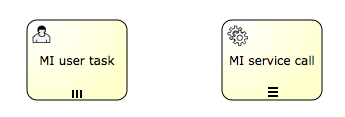
Xml representation
To make an activity multi-instance, the activity xml element must have a multiInstanceLoopCharacteristics child element.
1
2
3 <multiInstanceLoopCharacteristics isSequential="false|true">
...
</multiInstanceLoopCharacteristics>
The isSequential attribute indicates if the instances of that activity are executed sequentially or parallel.
The number of instances are calculated once, when entering the activity. There are a few ways of configuring this. On way is directly specifying a number, by using the loopCardinality child element.
1
2
3 <multiInstanceLoopCharacteristics isSequential="false|true">
<loopCardinality>5</loopCardinality>
</multiInstanceLoopCharacteristics>
Expressions that resolve to a positive number are also possible:
1
2
3 <multiInstanceLoopCharacteristics isSequential="false|true">
<loopCardinality>${nrOfOrders-nrOfCancellations}</loopCardinality>
</multiInstanceLoopCharacteristics>
Another way to define the number of instances, is to specify the name of a process variable which is a collection using the loopDataInputRef child element. For each item in the collection, an instance will be created. Optionally, it is possible to set that specific item of the collection for the instance using the inputDataItem child element. This is shown in the following XML example:
1
2
3
4
5
6 <userTask id="miTasks" name="My Task ${loopCounter}" activiti:assignee="${assignee}">
<multiInstanceLoopCharacteristics isSequential="false">
<loopDataInputRef>assigneeList</loopDataInputRef>
<inputDataItem name="assignee" />
</multiInstanceLoopCharacteristics>
</userTask>
Suppose the variable assigneeList contains the values \[kermit, gonzo, fozzie\]. In the snippet above, three user tasks will be created in parallel. Each of the executions will have a process variable named assignee containing one value of the collection, which is used to assign the user task in this example.
The downside of the loopDataInputRef and inputDataItem is that 1) the names are pretty hard to remember and 2) due to the BPMN 2.0 schema restrictions they can’t contain expressions. Activiti solves this by offering the collection and elementVariable attributes on the multiInstanceCharacteristics:
1
2
3
4
5 <userTask id="miTasks" name="My Task" activiti:assignee="${assignee}">
<multiInstanceLoopCharacteristics isSequential="true"
activiti:collection="${myService.resolveUsersForTask()}" activiti:elementVariable="assignee" >
</multiInstanceLoopCharacteristics>
</userTask>
A multi-instance activity ends when all instances are finished. However, it is possible to specify an expression that is evaluated every time one instance ends. When this expression evaluates to true, all remaining instances are destroyed and the multi-instance activity ends, continuing the process. Such an expression must be defined in the completionCondition child element.
1
2
3
4
5
6 <userTask id="miTasks" name="My Task" activiti:assignee="${assignee}">
<multiInstanceLoopCharacteristics isSequential="false"
activiti:collection="assigneeList" activiti:elementVariable="assignee" >
<completionCondition>${nrOfCompletedInstances/nrOfInstances >= 0.6 }</completionCondition>
</multiInstanceLoopCharacteristics>
</userTask>
In this example, there will be parallel instances created for each element of the assigneeList collection. However, when 60% of the tasks are completed, the other tasks are deleted and the process continues.
Boundary events and multi-instance
Since a multi-instance is a regular activity, it is possible to define a boundary event on its boundary. In case of an interrupting boundary event, when the event is caught, all instances that are still active will be destroyed. Take for example following multi-instance subprocess:
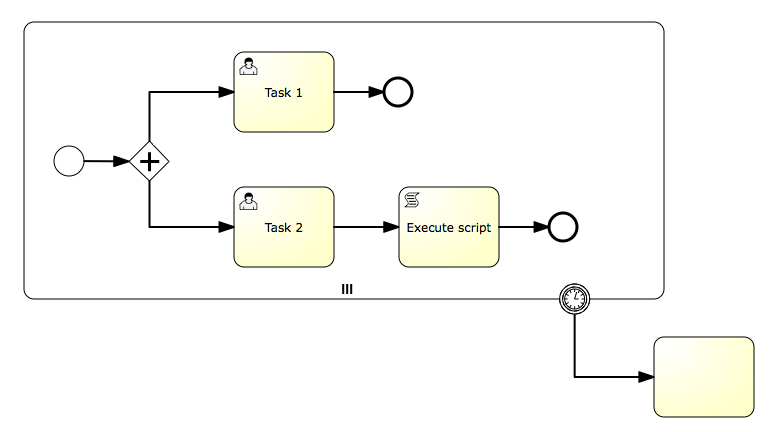
Here, all instances of the subprocess will be destroyed when the timer fires, regardless of how many instances there are or which inner activities are currently not yet completed.
Multi instance and execution listeners
(Valid for Activiti 5.18 and up)
There is a caveat when using execution listeners in combination with multi instance. Take for example the following snippet of BPMN 2.0 xml, which is defined on the same level as the multiInstanceLoopCharacteristics xml element is set:
1
2
3
4 <extensionElements>
<activiti:executionListener event="start" class="org.activiti.MyStartListener"/>
<activiti:executionListener event="end" class="org.activiti.MyEndListener"/>
</extensionElements>
For a normal BPMN activity, there would be an invocation of these listeners when the activity is started and ended.
However, when the activity is multi instance, the behavior is different:
-
When the multi instance activity is entered, before any of the inner activities is executed, a start event is thrown. The loopCounter variable is not yet set (is null).
-
For each of the actual activities visited, a start event is thrown. The loopCounter variable is set.
The same reasoning applies for the end event:
-
When the actual activity is left, an end even is thrown. The loopCounter variable is set.
-
When the multi instance activity has finished as a whole, an end event is thrown. The loopCounter variable is not set.
For example:
1
2
3
4
5
6
7
8
9
10
11
12
13 <subProcess id="subprocess1" name="Sub Process">
<extensionElements>
<activiti:executionListener event="start" class="org.activiti.MyStartListener"/>
<activiti:executionListener event="end" class="org.activiti.MyEndListener"/>
</extensionElements>
<multiInstanceLoopCharacteristics isSequential="false">
<loopDataInputRef>assignees</loopDataInputRef>
<inputDataItem name="assignee"></inputDataItem>
</multiInstanceLoopCharacteristics>
<startEvent id="startevent2" name="Start"></startEvent>
<endEvent id="endevent2" name="End"></endEvent>
<sequenceFlow id="flow3" name="" sourceRef="startevent2" targetRef="endevent2"></sequenceFlow>
</subProcess>
In this example, suppose the assignees list has three items. The following happens at runtime:
-
A start event is thrown for the multi instance as a whole. The start execution listener is invoked. The loopCounter nor the assignee variable will not be set (i.e. they will be null).
-
A start event is thrown for each activity instance. The start execution listener is invoked three times. The loopCounter nor the assignee variable will be set (i.e. different from null).
-
So in total, the start execution listener is invoked four times.
Note that the same applies when the multiInstanceLoopCharacteristics are defined on something else than a subprocess too. For example in case the example above would be a simple userTask, the same reasoning still applies.
8.5.15. Compensation Handlers
Description
If an activity is used for compensating the effects of another activity, it can be declared to be a compensation handler. Compensation handlers are not contained in normal flow and are only executed when a compensation event is thrown.
Compensation handlers must not have incoming or outgoing sequence flows.
A compensation handler must be associated with a compensation boundary event using a directed association.
Graphical notation
If an activity is a compensation handler, the compensation event icon is displayed in the center bottom area. The following excerpt from a process diagram shows a service task with an attached compensation boundary event which is associated to a compensation handler. Notice the compensation handler icon in the bottom canter area of the "cancel hotel reservation" service task.
XML representation
In order to declare an activity to be a compensation handler, we need to set the attribute isForCompensation to true:
1
2 <serviceTask id="undoBookHotel" isForCompensation="true" activiti:class="...">
</serviceTask>
8.6. Sub-Processes and Call Activities
8.6.1. Sub-Process
Description
A Sub-Process is an activity that contains other activities, gateways, events, etc. which on itself form a process that is part of the bigger process. A Sub-Process is completely defined inside a parent process (that’s why it’s often called an embedded Sub-Process).
Sub-Processes have two major use cases:
-
Sub-Processes allow hierarchical modeling. Many modeling tools allow that Sub-Processes can be collapsed, hiding all the details of the Sub-Process and displaying a high-level end-to-end overview of the business process.
-
A Sub-Process creates a new scope for events. Events that are thrown during execution of the Sub-Process, can be caught by a boundary event on the boundary of the Sub-Process, thus creating a scope for that event limited to the Sub-Process.
Using a Sub-Process does impose some constraints:
-
A Sub-Process can only have one none start event, no other start event types are allowed. A Sub-Process must at least have one end event. Note that the BPMN 2.0 specification allows to omit the start and end events in a Sub-Process, but the current Activiti implementation does not support this.
-
Sequence flow cannot cross Sub-Process boundaries.
Graphical Notation
A Sub-Process is visualized as a typical activity, i.e. a rounded rectangle. In case the Sub-Process is collapsed, only the name and a plus-sign are displayed, giving a high-level overview of the process:
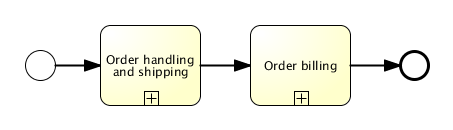
In case the Sub-Process is expanded, the steps of the Sub-Process are displayed within the Sub-Process boundaries:
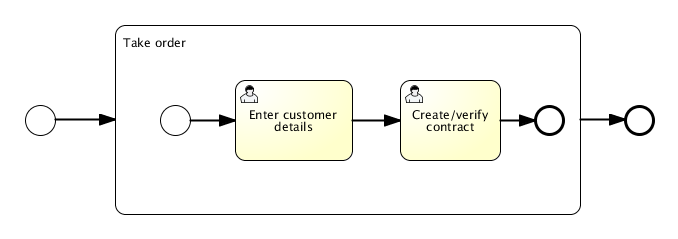
One of the main reasons to use a Sub-Process, is to define a scope for a certain event. The following process model shows this: both the investigate software/investigate hardware tasks need to be done in parallel, but both tasks need to be done within a certain time, before Level 2 support is consulted. Here, the scope of the timer (i.e. which activities must be done in time) is constrained by the Sub-Process.
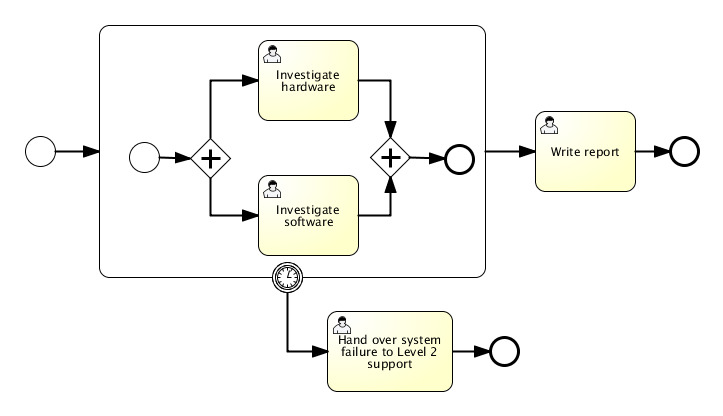
XML representation
A Sub-Process is defined by the subprocess element. All activities, gateways, events, etc. that are part of the Sub-Process, need to be enclosed within this element.
1
2
3
4
5
6
7
8
9 <subProcess id="subProcess">
<startEvent id="subProcessStart" />
... other Sub-Process elements ...
<endEvent id="subProcessEnd" />
</subProcess>
8.6.2. Event Sub-Process
Description
The Event Sub-Process is new in BPMN 2.0. An Event Sub-Process is a subprocess that is triggered by an event. An Event Sub-Process can be added at the process level or at any subprocess level. The event used to trigger an event subprocess is configured using a start event. From this, it follows that none start events are not supported for Event Sub-Processes. An Event Sub-Process might be triggered using events like message events, error events, signal events, timer events, or compensation events. The subscription to the start event is created when the scope (process instance or subprocess) hosting the Event Sub-Process is created. The subscription is removed when the scope is destroyed.
An Event Sub-Process may be interrupting or non-interrupting. An interrupting subprocess cancels any executions in the current scope. A non-interrupting Event Sub-Process spawns a new concurrent execution. While an interrupting Event Sub-Process can only be triggered once for each activation of the scope hosting it, a non-interrupting Event Sub-Process can be triggered multiple times. The fact whether the subprocess is interrupting is configured using the start event triggering the Event Sub-Process.
An Event Sub-Process must not have any incoming or outgoing sequence flows. Since an Event Sub-Process is triggered by an event, an incoming sequence flow makes no sense. When an Event Sub-Process is ended, either the current scope is ended (in case of an interrupting Event Sub-Process), or the concurrent execution spawned for the non-interrupting subprocess is ended.
Current limitations:
-
Activiti only supports interrupting Event Sub-Processes.
-
Activiti only supports Event Sub-Process triggered using an Error Start Event or Message Start Event.
Graphical Notation
An Event Sub-Process might be visualized as a an embedded subprocess with a dotted outline.
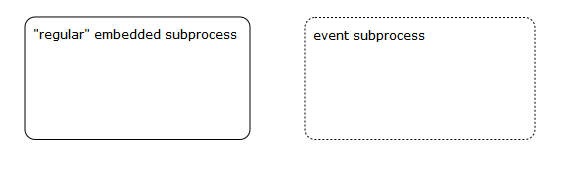
XML representation
An Event Sub-Process is represented using XML in the same way as a an embedded subprocess. In addition the attribute triggeredByEvent must have the value true:
1
2
3 <subProcess id="eventSubProcess" triggeredByEvent="true">
...
</subProcess>
Example
The following is an example of an Event Sub-Process triggered using an Error Start Event. The Event Sub-Process is located at the "process level", i.e. is scoped to the process instance:
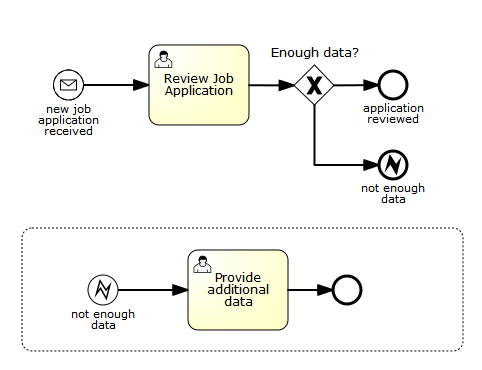
This is how the Event Sub-Process would look like in XML:
1
2
3
4
5
6
7 <subProcess id="eventSubProcess" triggeredByEvent="true">
<startEvent id="catchError">
<errorEventDefinition errorRef="error" />
</startEvent>
<sequenceFlow id="flow2" sourceRef="catchError" targetRef="taskAfterErrorCatch" />
<userTask id="taskAfterErrorCatch" name="Provide additional data" />
</subProcess>
As already stated, an Event Sub-Process can also be added to an embedded subprocess. If it is added to an embedded subprocess, it becomes an alternative to a boundary event. Consider the two following process diagrams. In both cases the embedded subprocess throws an error event. Both times the error is caught and handled using a user task.
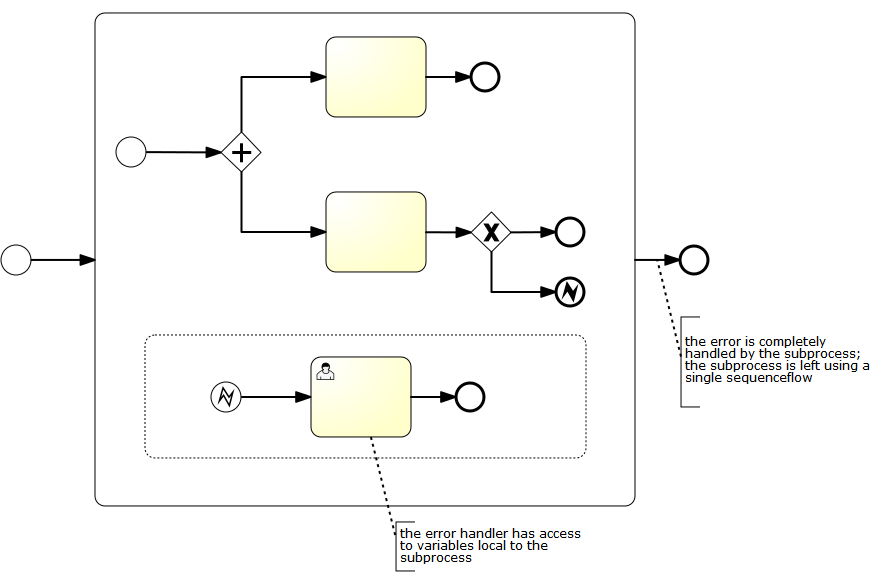
as opposed to:
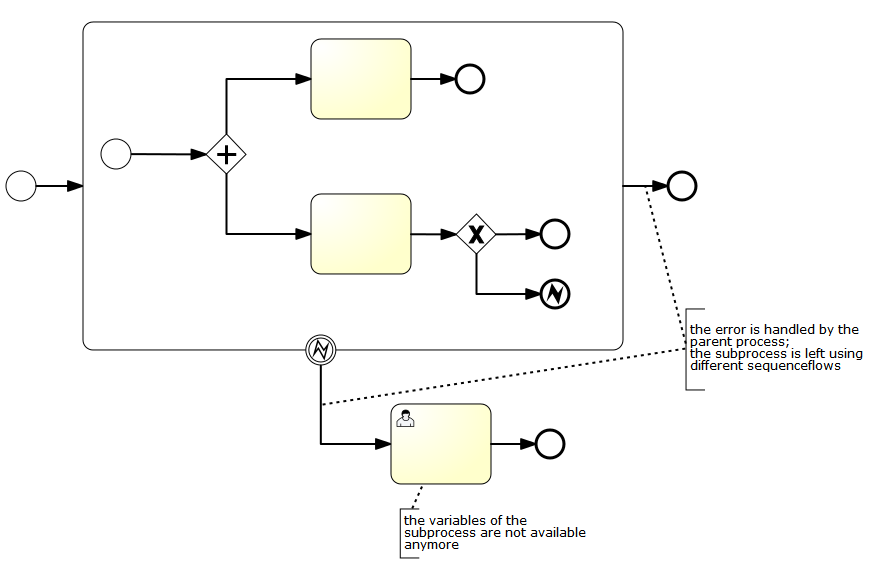
In both cases the same tasks are executed. However, there are differences between both modelling alternatives:
-
The embedded subprocess is executed using the same execution which executed the scope it is hosted in. This means that an embedded subprocess has access to the variables local to it’s scope. When using a boundary event, the execution created for executing the embedded subprocess is deleted by the sequence flow leaving the boundary event. This means that the variables created by the embedded subprocess are not available anymore.
-
When using an Event Sub-Process, the event is completely handled by the subprocess it is added to. When using a boundary event, the event is handled by the parent process.
These two differences can help you decide whether a boundary event or an embedded subprocess is better suited for solving a particular process modeling / implementation problem.
8.6.3. Transaction subprocess
Description
A transaction subprocess is an embedded subprocess, which can be used to group multiple activities to a transaction. A transaction is a logical unit of work which allows to group a set of individual activities, such that they either succeed or fail collectively.
Possible outcomes of a transaction: A transaction can have three different outcomes:
-
A transaction is successful, if it is neither cancelled not terminated by a hazard. If a transaction subprocess is successful, it is left using the outgoing sequenceflow(s). A successful transaction might be compensated if a compensation event is thrown later in the process. Note: just as "ordinary" embedded subprocesses, a transaction may be compensated after successful completion using an intermediary throwing compensation event.
-
A transaction is cancelled, if an execution reaches the cancel end event. In that case, all executions are terminated and removed. A single remaining execution is then set to the cancel boundary event, which triggers compensation. After compensation is completed, the transaction subprocess is left using the outgoing sequence flow(s) of the cancel boundary event.
-
A transaction is ended by a hazard, if an error event is thrown, that is not caught within the scope of the transaction subprocess. (This also applies if the error is caught on the boundary of the transaction subprocess.) In this case, compensation is not performed.
The following diagram illustrates the three different outcomes:
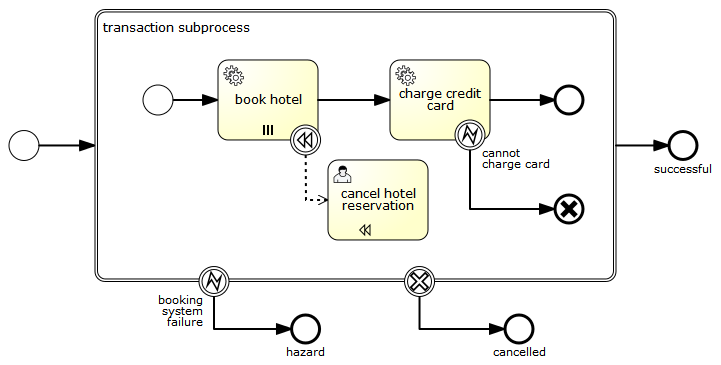
Relation to ACID transactions: it is important not to confuse the bpmn transaction subprocess with technical (ACID) transactions. The bpmn transaction subprocess is not a way to scope technical transactions. In order to understand transaction management in Activiti, read the section on concurrency and transactions. A bpmn transaction is different from a technical transaction in the following ways:
-
While an ACID transaction is typically short lived, a bpmn transaction may take hours, days or even months to complete. (Consider the case where one of the activities grouped by a transaction is a usertask, typically people have longer response times than applications. Or, in another situation, a bpmn transaction might wait for some business event to occur, like the fact that a particular order has been fulfilled.) Such operations usually take considerably longer to complete than updating a record in a database, or storing a message using a transactional queue.
-
Because it is impossible to scope a technical transaction to the duration of a business activity, a bpmn transaction typically spans multiple ACID transactions.
-
Since a bpmn transaction spans multiple ACID transactions, we loose ACID properties. For example, consider the example given above. Let’s assume the "book hotel" and the "charge credit card" operations are performed in separate ACID transactions. Let’s also assume that the "book hotel" activity is successful. Now we have an intermediary inconsistent state, because we have performed an hotel booking but have not yet charged the credit card. Now, in an ACID transaction, we would also perform different operations sequentially and thus also have an intermediary inconsistent state. What is different here, is that the inconsistent state is visible outside of the scope of the transaction. For example, if the reservations are made using an external booking service, other parties using the same booking service might already see that the hotel is booked. This means, that when implementing business transactions, we completely loose the isolation property (Granted: we usually also relax isolation when working with ACID transactions to allow for higher levels of concurrency, but there we have fine grained control and intermediary inconsistencies are only present for very short periods of times).
-
A bpmn business transaction can also not be rolled back in the traditional sense. Since it spans multiple ACID transactions, some of these ACID transactions might already be committed at the time the bpmn transaction is cancelled. At this point, they cannot be rolled back anymore.
Since bpmn transactions are long-running in nature, the lack of isolation and a rollback mechanism need to be dealt with differently. In practice, there is usually no better solution than to deal with these problems in a domain specific way:
-
The rollback is performed using compensation. If a cancel event is thrown in the scope of a transaction, the effects of all activities that executed successfully and have a compensation handler are compensated.
-
The lack of isolation is also often dealt with using domain specific solutions. For instance, in the example above, an hotel room might appear to be booked to a second customer, before we have actually made sure that the first customer can pay for it. Since this might be undesirable from a business perspective, a booking service might choose to allow for a certain amount of overbooking.
-
In addition, since the transaction can be aborted in case of a hazard, the booking service has to deal with the situation where a hotel room is booked but payment is never attempted (since the transaction was aborted). In that case the booking service might choose a strategy where a hotel room is reserved for a maximum period of time and if payment is not received until then, the booking is cancelled.
To sum it up: while ACID transactions offer a generic solution to such problems (rollback, isolation levels and heuristic outcomes), we need to find domain specific solutions to these problems when implementing business transactions.
Current limitations:
-
The BPMN specification requires that the process engine reacts to events issued by the underlying transaction protocol and for instance that a transaction is cancelled, if a cancel event occurs in the underlying protocol. As an embeddable engine, Activiti does currently not support this. (For some ramifications of this, see paragraph on consistency below.)
Consistency on top of ACID transactions and optimistic concurrency: A bpmn transaction guarantees consistency in the sense that either all activities compete successfully, or if some activity cannot be performed, the effects of all other successful activities are compensated. So either way we end up in a consistent state. However, it is important to recognize that in Activiti, the consistency model for bpmn transactions is superposed on top of the consistency model for process execution. Activiti executes processes in a transactional way. Concurrency is addressed using optimistic locking. In Activiti, bpmn error, cancel and compensation events are built on top of the same acid transactions and optimistic locking. For example, a cancel end event can only trigger compensation if it is actually reached. It is not reached if some undeclared exception is thrown by a service task before. Or, the effects of a compensation handler cannot be committed if some other participant in the underlying ACID transaction sets the transaction to the state rollback-only. Or, when two concurrent executions reach a cancel end event, compensation might be triggered twice and fail with an optimistic locking exception. All of this is to say that when implementing bpmn transactions in Activiti, the same set of rules apply as when implementing "ordinary" processes and subprocesses. So to effectively guarantee consistency, it is important to implement processes in a way that does take the optimistic, transactional execution model into consideration.
Graphical Notation
An transaction subprocess might be visualized as a an embedded subprocess with a double outline.
XML representation
A transaction subprocess is represented using xml using the transaction tag:
1
2
3 <transaction id="myTransaction" >
...
</transaction>
Example
The following is an example of a transaction subprocess:
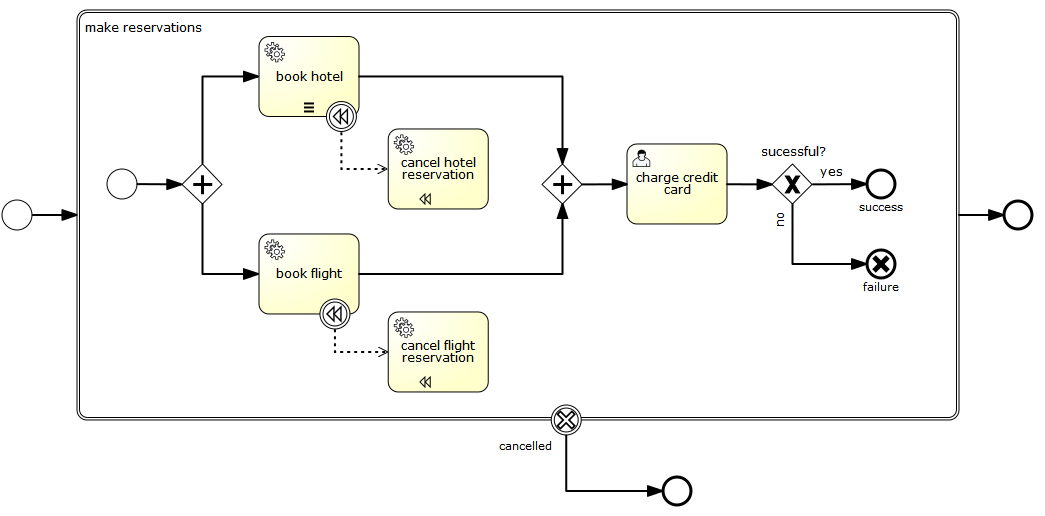
8.6.4. Call activity (subprocess)
Description
BPMN 2.0 makes a distinction between a regular subprocess, often also called embedded subprocess, and the call activity, which looks very similar. From a conceptual point of view, both will call a subprocess when process execution arrives at the activity.
The difference is that the call activity references a process that is external to the process definition, whereas the subprocess is embedded within the original process definition. The main use case for the call activity is to have a reusable process definition that can be called from multiple other process definitions.
When process execution arrives in the call activity, a new execution is created that is a sub-execution of the execution that arrives in the call activity. This sub-execution is then used to execute the subprocess, potentially creating parallel child execution as within a regular process. The super-execution waits until the subprocess is completely ended, and continues the original process afterwards.
Graphical Notation
A call activity is visualized the same as a subprocess, however with a thick border (collapsed and expanded). Depending on the modeling tool, a call activity can also be expanded, but the default visualization is the collapsed subprocess representation.
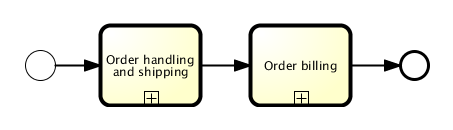
XML representation
A call activity is a regular activity, that requires a calledElement that references a process definition by its key. In practice, this means that the id of the process is used in the calledElement.
1 <callActivity id="callCheckCreditProcess" name="Check credit" calledElement="checkCreditProcess" />
Note that the process definition of the subprocess is resolved at runtime. This means that the subprocess can be deployed independently from the calling process, if needed.
Passing variables
You can pass process variables to the sub process and vice versa. The data is copied into the subprocess when it is started and copied back into the main process when it ends.
1
2
3
4
5
6 <callActivity id="callSubProcess" calledElement="checkCreditProcess" >
<extensionElements>
<activiti:in source="someVariableInMainProcess" target="nameOfVariableInSubProcess" />
<activiti:out source="someVariableInSubProcess" target="nameOfVariableInMainProcess" />
</extensionElements>
</callActivity>
We use an Activiti Extension as a shortcut for the BPMN standard elements called dataInputAssociation and dataOutputAssociation, which only work if you declare process variables in the BPMN 2.0 standard way.
It is possible to use expressions here as well:
1
2
3
4
5
6 <callActivity id="callSubProcess" calledElement="checkCreditProcess" >
<extensionElements>
<activiti:in sourceExpression="${x+5}" target="y" />
<activiti:out source="${y+5}" target="z" />
</extensionElements>
</callActivity>
So in the end z = y+5 = x+5+5
The callActivity element also supports setting the business key on the started subprocess instance using a custom activiti attribute extension. The businessKey attribute can be used to set a custom business key value on the subprocess instance.
<callActivity id="callSubProcess" calledElement="checkCreditProcess" activiti:businessKey="${myVariable}">
...
</callActivity>
Defining the inheritBusinessKey attribute with a value of true will set the business key value on the subprocess to the value of the business key as defined in the calling process.
<callActivity id="callSubProcess" calledElement="checkCreditProcess" activiti:inheritBusinessKey="true"> ... </callActivity>
Example
The following process diagram shows a simple handling of an order. Since the checking of the customer’s credit could be common to many other processes, the check credit step is modeled here as a call activity.
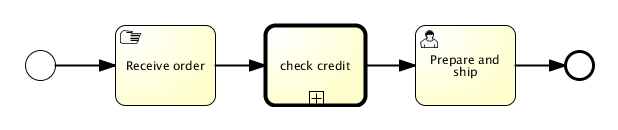
The process looks as follows:
1
2
3
4
5
6
7
8
9
10
11
12
13 <startEvent id="theStart" />
<sequenceFlow id="flow1" sourceRef="theStart" targetRef="receiveOrder" />
<manualTask id="receiveOrder" name="Receive Order" />
<sequenceFlow id="flow2" sourceRef="receiveOrder" targetRef="callCheckCreditProcess" />
<callActivity id="callCheckCreditProcess" name="Check credit" calledElement="checkCreditProcess" />
<sequenceFlow id="flow3" sourceRef="callCheckCreditProcess" targetRef="prepareAndShipTask" />
<userTask id="prepareAndShipTask" name="Prepare and Ship" />
<sequenceFlow id="flow4" sourceRef="prepareAndShipTask" targetRef="end" />
<endEvent id="end" />
The subprocess looks as follows:
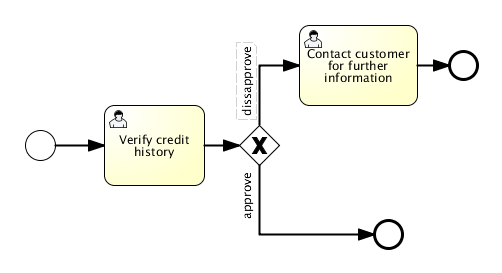
There is nothing special to the process definition of the subprocess. It could as well be used without being called from another process.
8.7. Transactions and Concurrency
8.7.1. Asynchronous Continuations
Activiti executes processes in a transactional way which can be configured to suite your needs. Lets start by looking at how Activiti scopes transactions normally. If you trigger Activiti (i.e. start a process, complete a task, signal an execution), Activiti is going to advance in the process, until it reaches wait states on each active path of execution. More concretely speaking it performs a depth-first search through the process graph and returns if it has reached wait states on every branch of execution. A wait state is a task which is performed "later" which means that Activiti persists the current execution and waits to be triggered again. The trigger can either come from an external source for example if we have a user task or a receive message task, or from Activiti itself, if we have a timer event. This is illustrated in the following picture:
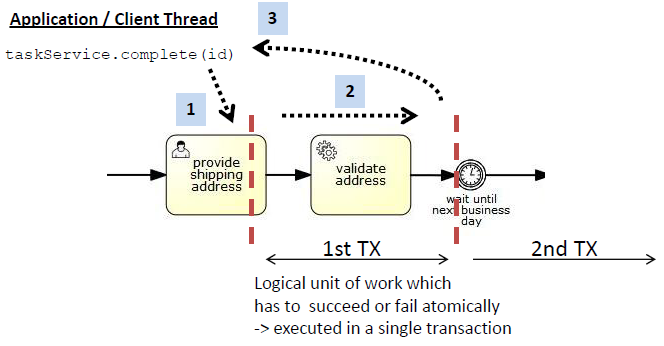
We see a segment of a BPMN processes with a usertask, a service task and a timer event. Completing the usertask and validating the address is part of the same unit of work, so it should succeed or fail atomically. That means that if the service task throws an exception we want to rollback the current transaction, such that the execution tracks back to the user task and the user task is still present in the database. This is also the default behavior of Activiti. In (1) an application or client thread completes the task. In that same thread Activiti is now executing the service and advances until it reaches a wait state, in this case the timer event (2). Then it returns the control to the caller (3) potentially committing the transaction (if it was started by Activiti).
In some cases this is not what we want. Sometimes we need custom control over transaction boundaries in a process, in order to be able to scope logical units of work. This is where asynchronous continuations come into play. Consider the following process (fragment):
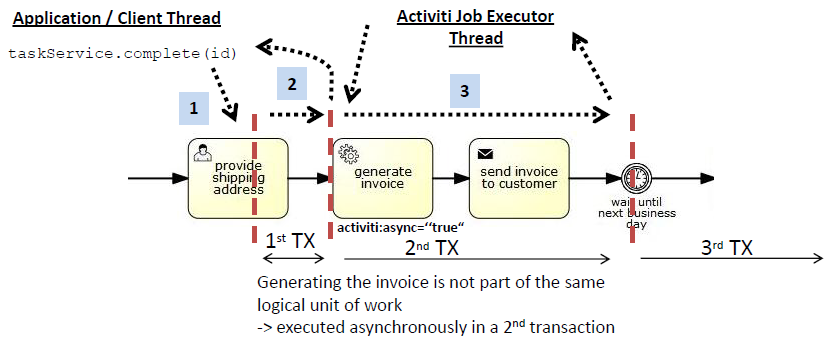
This time we are completing the user task, generating an invoice and then send that invoice to the customer. This time the generation of the invoice is not part of the same unit of work so we do not want to rollback the completion of the usertask if generating an invoice fails. So what we want Activiti to do is complete the user task (1), commit the transaction and return the control to the calling application. Then we want to generate the invoice asynchronously, in a background thread. This background thread is the Activiti job executor (actually a thread pool) which periodically polls the database for jobs. So behind the scenes, when we reach the "generate invoice" task, we are creating a job "message" for Activiti to continue the process later and persisting it into the database. This job is then picked up by the job executor and executed. We are also giving the local job executor a little hint that there is a new job, to improve performance.
In order to use this feature, we can use the activiti:async="true" extension. So for example, the service task would look like this:
1 <serviceTask id="service1" name="Generate Invoice" activiti:class="my.custom.Delegate" activiti:async="true" />
activiti:async can be specified on the following BPMN task types: task, serviceTask, scriptTask, businessRuleTask, sendTask, receiveTask, userTask, subProcess, callActivity
On a userTask, receiveTask or other wait states, the async continuation allows us to execute the start execution listeners in a separate thread/transaction.
8.7.2. Fail Retry
Activiti, in its default configuration, reruns a job 3 times in case of any exception in execution of a job. This holds also for asynchronous task jobs. In some cases more flexibility is required. There are two parameters to be configured:
-
Number of retries
-
Delay between retries These parameters can be configured by
activiti:failedJobRetryTimeCycleelement. Here is a sample usage:
1
2
3
4
5 <serviceTask id="failingServiceTask" activiti:async="true" activiti:class="org.activiti.engine.test.jobexecutor.RetryFailingDelegate">
<extensionElements>
<activiti:failedJobRetryTimeCycle>R5/PT7M</activiti:failedJobRetryTimeCycle>
</extensionElements>
</serviceTask>
Time cycle expression follows ISO 8601 standard, just like timer event expressions. The above example, makes the job executor to retry the job 5 times and wait 7 minutes between before each retry.
8.7.3. Exclusive Jobs
Since Activiti 5.9, the JobExecutor makes sure that jobs from a single process instance are never executed concurrently. Why is this?
Why exclusive Jobs?
Consider the following process definition:
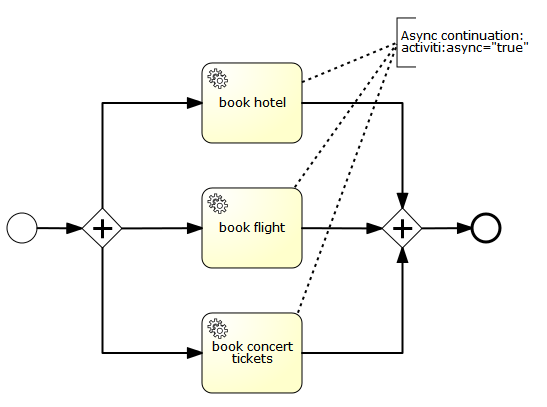
We have a parallel gateway followed by three service tasks which all perform an asynchronous continuation. As a result of this, three jobs are added to the database. Once such a job is present in the database it can be processes by the JobExecutor. The JobExecutor acquires the jobs and delegates them to a thread pool of worker threads which actually process the jobs. This means that using an asynchronous continuation, you can distribute the work to this thread pool (and in a clustered scenario even across multiple thread pools in the cluster). This is usually a good thing. However it also bears an inherent problem: consistency. Consider the parallel join after the service tasks. When execution of a service tasks is completed, we arrive at the parallel join and need to decide whether to wait for the other executions or whether we can move forward. That means, for each branch arriving at the parallel join, we need to take a decision whether we can continue or whether we need to wait for one or more other executions on the other branches.
Why is this a problem? Since the service tasks are configured using an asynchronous continuation, it is possible that the corresponding jobs are all acquired at the same time and delegated to different worker threads by the JobExecutor. The consequence is that the transactions in which the services are executed and in which the 3 individual executions arrive at the parallel join can overlap. And if they do so, each individual transaction will not "see", that another transaction is arriving at the same parallel join concurrently and thus assume that it has to wait for the others. However, if each transaction assumes that it has to wait for the other ones, none will continue the process after the parallel join and the process instance will remain in that state forever.
How does Activiti address this problem? Activiti performs optimistic locking. Whenever we take a decision based on data that might not be current (because another transaction might modify it before we commit, we make sure to increment the version of the same database row in both transactions). This way, whichever transaction commits first wins and the other ones fail with an optimistic locking exception. This solves the problem in the case of the process discussed above: if multiple executions arrive at the parallel join concurrently, they all assume that they have to wait, increment the version of their parent execution (the process instance) and then try to commit. Whichever execution is first will be able to commit and the other ones will fail with an optimistic locking exception. Since the executions are triggered by a job, Activiti will retry to perform the same job after waiting for a certain amount of time and hopefully this time pass the synchronizing gateway.
Is this a good solution? As we have seen, optimistic locking allows Activiti to prevent inconsistencies. It makes sure that we do not "keep stuck at the joining gateway", meaning: either all executions have passed the gateway or, there are jobs in the database making sure that we retry passing it. However, while this is a perfectly fine solution from the point of view of persistence and consistency, this might not always be desirable behavior at an higher level:
-
Activiti will retry the same job for a fixed maximum number of times only (3 in the default configuration). After that, the job will still be present in the database but not be retried actively anymore. That means that an operator would need to trigger the job manually.
-
If a job has non-transactional side effects, those will not be rolled back by the failing transaction. For instance, if the "book concert tickets" service does not share the same transaction as Activiti, we might book multiple tickets if we retry the job.
What are exclusive jobs?
An exclusive job cannot be performed at the same time as another exclusive job from the same process instance. Consider the process shown above: if we declare the service tasks to be exclusive, the JobExecutor will make sure that the corresponding jobs are not executed concurrently. Instead, it will make sure that whenever it acquires an exclusive job from a certain process instance, it acquires all other exclusive jobs from the same process instance and delegates them to the same worker thread. This ensures sequential execution execution of the jobs.
How can I enable this feature? Since Activiti 5.9, exclusive jobs are the default configuration. All asynchronous continuations and timer events are thus exclusive by default. In addition, if you want a job to be non-exclusive, you can configure it as such using activiti:exclusive="false". For example, the following servicetask would be asynchronous but non-exclusive.
1 <serviceTask id="service" activiti:expression="${myService.performBooking(hotel, dates)}" activiti:async="true" activiti:exclusive="false" />
Is this a good solution? We had some people asking whether this was a good solution. Their concern was that this would to prevent you from "doing things" in parallel and would thus be a performance problem. Again, two things have to be taken into consideration:
-
It can be turned off if you are an expert and know what you are doing (and have understood the section named "Why exclusive Jobs?"). Other than that, it is more intuitive for most users if things like asynchronous continuations and timers just work.
-
It is actually not a performance issue. Performance is an issue under heavy load. Heavy load means that all worker threads of the job executor are busy all the time. With exclusive jobs, Activiti will simply distribute the load differently. Exclusive jobs means that jobs from a single process instance are performed by the same thread sequentially. But consider: you have more than one single process instance. And jobs from other process instances are delegated to other threads and executed concurrently. This means that with exclusive jobs Activiti will not execute jobs from the same process instance concurrently, but it will still execute multiple instances concurrently. From an overall throughput perspective this is desirable in most scenarios as it usually leads to individual instances being done more quickly. Furthermore, data that is required for executing subsequent jobs of the same process instance will already be in the cache of the executing cluster node. If the jobs do not have this node affinity, that data might need to be fetched from the database again.
8.8. Process Initiation Authorization
By default everyone is allowed to start a new process instance of deployed process definitions. The process initiation authorization functionality allows to define users and groups so that web clients can optionally restrict users to start a new process instance. NOTE that the authorization definition is NOT validated by the Activiti Engine in any way. This functionality is only meant for developers to ease the implementation of authorization rules in a web client. The syntax is similar to the syntax of user assignment for a user task. A user or group can be assigned as potential initiator of a process using <activiti:potentialStarter> tag. Here is an example:
1
2
3
4
5
6
7
8
9
10
11 <process id="potentialStarter">
<extensionElements>
<activiti:potentialStarter>
<resourceAssignmentExpression>
<formalExpression>group2, group(group3), user(user3)</formalExpression>
</resourceAssignmentExpression>
</activiti:potentialStarter>
</extensionElements>
<startEvent id="theStart"/>
...
In the above xml excerpt user(user3) refers directly to user user3 and group(group3) to group group3. No indicator will default to a group type. It is also possible to use attributes of the <process> tag, namely <activiti:candidateStarterUsers> and <activiti:candidateStarterGroups>. Here is an example:
1
2
3 <process id="potentialStarter" activiti:candidateStarterUsers="user1, user2"
activiti:candidateStarterGroups="group1">
...
It is possible to use both attributes simultaneously.
After the process initiation authorizations are defined, a developer can retrieve the authorization definition using the following methods. This code retrieves the list of process definitions which can be initiated by the given user:
1 processDefinitions = repositoryService.createProcessDefinitionQuery().startableByUser("userxxx").list();
It’s also possible to retrieve all identity links that are defined as potential starter for a specific process definition
1 identityLinks = repositoryService.getIdentityLinksForProcessDefinition("processDefinitionId");
The following example shows how to get list of users who can initiate the given process:
1 List<User> authorizedUsers = identityService().createUserQuery().potentialStarter("processDefinitionId").list();
Exactly the same way, the list of groups that is configured as a potential starter to a given process definition can be retrieved:
1 List<Group> authorizedGroups = identityService().createGroupQuery().potentialStarter("processDefinitionId").list();
8.9. Data objects
BPMN provides the possibility to define data objects as part of a process or sub process element. According to the BPMN specification it’s possible to include complex XML structures that might be imported from XSD definitions. As a first start to support data objects in Activiti the following XSD types are supported:
1
2
3
4
5
6 <dataObject id="dObj1" name="StringTest" itemSubjectRef="xsd:string"/>
<dataObject id="dObj2" name="BooleanTest" itemSubjectRef="xsd:boolean"/>
<dataObject id="dObj3" name="DateTest" itemSubjectRef="xsd:datetime"/>
<dataObject id="dObj4" name="DoubleTest" itemSubjectRef="xsd:double"/>
<dataObject id="dObj5" name="IntegerTest" itemSubjectRef="xsd:int"/>
<dataObject id="dObj6" name="LongTest" itemSubjectRef="xsd:long"/>
The data object definitions will be automatically converted to process variables using the name attribute value as the name for the new variable. In addition to the definition of the data object Activiti also provides an extension element to assign a default value to the variable. The following BPMN snippet provides an example:
1
2
3
4
5
6
7 <process id="dataObjectScope" name="Data Object Scope" isExecutable="true">
<dataObject id="dObj123" name="StringTest123" itemSubjectRef="xsd:string">
<extensionElements>
<activiti:value>Testing123</activiti:value>
</extensionElements>
</dataObject>
...
9. Forms
Activiti provides a convenient and flexible way to add forms for the manual steps of your business processes. We support two strategies to work with forms: Build-in form rendering with form properties and external form rendering.
9.1. Form properties
All information relevant to a business process is either included in the process variables themselves or referenced through the process variables. Activiti supports complex Java objects to be stored as process variables like Serializable objects, JPA entities or whole XML documents as Strings.
Starting a process and completing user tasks is where people are involved into a process. Communicating with people requires forms to be rendered in some UI technology. In order to facilitate multiple UI technologies easy, the process definition can include the logic of transforming of the complex Java typed objects in the process variables to a Map<String,String> of properties.
Any UI technology can then build a form on top of those properties, using the Activiti API methods that expose the property information. The properties can provide a dedicated (and more limited) view on the process variables. The properties needed to display a form are available in the FormData return values of for example
1 StartFormData FormService.getStartFormData(String processDefinitionId)
or
1 TaskFormdata FormService.getTaskFormData(String taskId)
By default, the build-in form engines, sees the properties as well as the process variables. So there is no need to declare task form properties if they match 1-1 with the process variables. For example, with the following declaration:
1 <startEvent id="start" />
All process variables are available when execution arrives in the startEvent, but
1 formService.getStartFormData(String processDefinitionId).getFormProperties()
will be empty since no specific mapping was defined.
In the above case, all the submitted properties will be stored as process variables. This means that by simply adding a new input field in the form, a new variable can be stored.
Properties are derived from process variables, but they don’t have to be stored as process variables. For example, a process variable could be a JPA entity of class Address. And a form property StreetName used by the UI technology could be linked with an expression #{address.street}
Analogue, the properties that a user is supposed to submit in a form can be stored as a process variable or as a nested property in one of the process variables with a UEL value expression like e.g. #{address.street} .
Analogue the default behavior of properties that are submitted is that they will be stored as process variables unless a formProperty declaration specifies otherwise.
Also type conversions can be applied as part of the processing between form properties and process variables.
For example:
1
2
3
4
5
6
7
8 <userTask id="task">
<extensionElements>
<activiti:formProperty id="room" />
<activiti:formProperty id="duration" type="long"/>
<activiti:formProperty id="speaker" variable="SpeakerName" writable="false" />
<activiti:formProperty id="street" expression="#{address.street}" required="true" />
</extensionElements>
</userTask>
-
Form property
roomwill be mapped to process variableroomas a String -
Form property
durationwill be mapped to process variabledurationas a java.lang.Long -
Form property
speakerwill be mapped to process variableSpeakerName. It will only be available in the TaskFormData object. If property speaker is submitted, an ActivitiException will be thrown. Analogue, with attributereadable="false", a property can be excluded from the FormData, but still be processed in the submit. -
Form property
streetwill be mapped to Java bean propertystreetin process variableaddressas a String. And required="true" will throw an exception during the submit if the property is not provided.
It’s also possible to provide type metadata as part of the FormData that is returned from methods StartFormData FormService.getStartFormData(String processDefinitionId) and TaskFormdata FormService.getTaskFormData(String taskId)
We support the following form property types:
-
string(org.activiti.engine.impl.form.StringFormType -
long(org.activiti.engine.impl.form.LongFormType) -
enum(org.activiti.engine.impl.form.EnumFormType) -
date(org.activiti.engine.impl.form.DateFormType) -
boolean(org.activiti.engine.impl.form.BooleanFormType)
For each form property declared, the following FormProperty information will be made available through List<FormProperty> formService.getStartFormData(String processDefinitionId).getFormProperties() and List<FormProperty> formService.getTaskFormData(String taskId).getFormProperties()
1
2
3
4
5
6
7
8
9
10
11
12
13
14
15
16
17
18 public interface FormProperty {
/** the key used to submit the property in {@link FormService#submitStartFormData(String, java.util.Map)}
* or {@link FormService#submitTaskFormData(String, java.util.Map)} */
String getId();
/** the display label */
String getName();
/** one of the types defined in this interface like e.g. {@link #TYPE_STRING} */
FormType getType();
/** optional value that should be used to display in this property */
String getValue();
/** is this property read to be displayed in the form and made accessible with the methods
* {@link FormService#getStartFormData(String)} and {@link FormService#getTaskFormData(String)}. */
boolean isReadable();
/** is this property expected when a user submits the form? */
boolean isWritable();
/** is this property a required input field */
boolean isRequired();
}
For example:
1
2
3
4
5
6
7
8
9
10
11
12
13
14
15
16
17
18
19
20 <startEvent id="start">
<extensionElements>
<activiti:formProperty id="speaker"
name="Speaker"
variable="SpeakerName"
type="string" />
<activiti:formProperty id="start"
type="date"
datePattern="dd-MMM-yyyy" />
<activiti:formProperty id="direction" type="enum">
<activiti:value id="left" name="Go Left" />
<activiti:value id="right" name="Go Right" />
<activiti:value id="up" name="Go Up" />
<activiti:value id="down" name="Go Down" />
</activiti:formProperty>
</extensionElements>
</startEvent>
All that information is accessible through the API. The type names can be obtained with formProperty.getType().getName(). And even the date pattern is available with formProperty.getType().getInformation("datePattern") and the enumeration values are accessible with formProperty.getType().getInformation("values")
Activiti explorer supports the form properties and will render the form accordingly to the form definition. The following XML snippet
1
2
3
4
5
6
7 <startEvent>
<extensionElements>
<activiti:formProperty id="numberOfDays" name="Number of days" value="${numberOfDays}" type="long" required="true"/>
<activiti:formProperty id="startDate" name="First day of holiday (dd-MM-yyy)" value="${startDate}" datePattern="dd-MM-yyyy hh:mm" type="date" required="true" />
<activiti:formProperty id="vacationMotivation" name="Motivation" value="${vacationMotivation}" type="string" />
</extensionElements>
</userTask>
will render to a process start form when used in Activiti Explorer
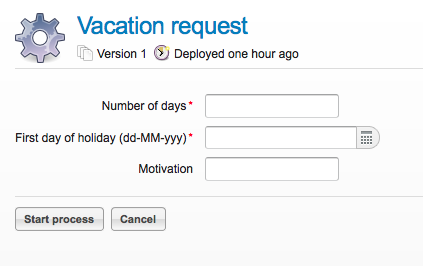
9.2. External form rendering
The API also allows for you to perform your own task form rendering outside of the Activiti Engine. These steps explain the hooks that you can use to render your task forms yourself.
Essentially, all the data that’s needed to render a form is assembled in one of these two service methods: StartFormData FormService.getStartFormData(String processDefinitionId) and TaskFormdata FormService.getTaskFormData(String taskId).
Submitting form properties can be done with ProcessInstance FormService.submitStartFormData(String processDefinitionId, Map<String,String> properties) and void FormService.submitTaskFormData(String taskId, Map<String,String> properties)
To learn about how form properties map to process variables, see Form properties
You can place any form template resource inside the business archives that you deploy (in case you want to store them versioned with the process). It will be available as a resource in the deployment, which you can retrieve using: String ProcessDefinition.getDeploymentId() and InputStream RepositoryService.getResourceAsStream(String deploymentId, String resourceName); This could be your template definition file, which you can use to render/show the form in your own application.
You can use this capability of accessing the deployment resources beyond task forms for any other purposes as well.
The attribute <userTask activiti:formKey="…" is exposed by the API through String FormService.getStartFormData(String processDefinitionId).getFormKey() and String FormService.getTaskFormData(String taskId).getFormKey(). You could use this to store the full name of the template within your deployment (e.g. org/activiti/example/form/my-custom-form.xml), but this is not required at all. For instance, you could also store a generic key in the form attribute and apply an algorithm or transformation to get to the actual template that needs to be used. This might be handy when you want to render different forms for different UI technologies like e.g. one form for usage in a web app of normal screen size, one form for mobile phone’s small screens and maybe even a template for an IM form or an email form.
10. JPA
You can use JPA-Entities as process variables, allowing you to:
-
Updating existing JPA-entities based on process variables that can be filled in on a form in a userTask or generated in a serviceTask.
-
Reusing existing domain model without having to write explicit services to fetch the entities and update the values
-
Make decisions (gateways) based on properties of existing entities.
-
…
10.1. Requirements
Only entities that comply with the following are supported:
-
Entities should be configured using JPA-annotations, we support both field and property-access. Mapped super classes can also be used.
-
Entity should have a primary key annotated with
@Id, compound primary keys are not supported (@EmbeddedIdand@IdClass). The Id field/property can be of any type supported in the JPA-spec: Primitive types and their wrappers (excluding boolean),String,BigInteger,BigDecimal,java.util.Dateandjava.sql.Date.
10.2. Configuration
To be able to use JPA-entities, the engine must have a reference to an EntityManagerFactory. This can be done by configuring a reference or by supplying a persistence-unit name. JPA-entities used as variables will be detected automatically and will be handled accordingly.
The example configuration below uses the jpaPersistenceUnitName:
1
2
3
4
5
6
7
8
9
10
11
12
13
14
15
16
17 <bean id="processEngineConfiguration"
class="org.activiti.engine.impl.cfg.StandaloneInMemProcessEngineConfiguration">
<!-- Database configurations -->
<property name="databaseSchemaUpdate" value="true" />
<property name="jdbcUrl" value="jdbc:h2:mem:JpaVariableTest;DB_CLOSE_DELAY=1000" />
<property name="jpaPersistenceUnitName" value="activiti-jpa-pu" />
<property name="jpaHandleTransaction" value="true" />
<property name="jpaCloseEntityManager" value="true" />
<!-- job executor configurations -->
<property name="jobExecutorActivate" value="false" />
<!-- mail server configurations -->
<property name="mailServerPort" value="5025" />
</bean>
The next example configuration below provides a EntityManagerFactory which we define ourselves (in this case, an open-jpa entity manager). Note that the snippet only contains the beans that are relevant for the example, the others are omitted. Full working example with open-jpa entity manager can be found in the activiti-spring-examples (/activiti-spring/src/test/java/org/activiti/spring/test/jpa/JPASpringTest.java)
1
2
3
4
5
6
7
8
9
10
11
12
13
14
15
16
17
18 <bean id="entityManagerFactory" class="org.springframework.orm.jpa.LocalContainerEntityManagerFactoryBean">
<property name="persistenceUnitManager" ref="pum"/>
<property name="jpaVendorAdapter">
<bean class="org.springframework.orm.jpa.vendor.OpenJpaVendorAdapter">
<property name="databasePlatform" value="org.apache.openjpa.jdbc.sql.H2Dictionary" />
</bean>
</property>
</bean>
<bean id="processEngineConfiguration" class="org.activiti.spring.SpringProcessEngineConfiguration">
<property name="dataSource" ref="dataSource" />
<property name="transactionManager" ref="transactionManager" />
<property name="databaseSchemaUpdate" value="true" />
<property name="jpaEntityManagerFactory" ref="entityManagerFactory" />
<property name="jpaHandleTransaction" value="true" />
<property name="jpaCloseEntityManager" value="true" />
<property name="jobExecutorActivate" value="false" />
</bean>
The same configurations can also be done when building an engine programmatically, example:
1
2
3
4 ProcessEngine processEngine = ProcessEngineConfiguration
.createProcessEngineConfigurationFromResourceDefault()
.setJpaPersistenceUnitName("activiti-pu")
.buildProcessEngine();
Configuration properties:
-
jpaPersistenceUnitName: The name of the persistence-unit to use. (Make sure the persistence-unit is available on the classpath. According to the spec, the default location is/META-INF/persistence.xml). Use eitherjpaEntityManagerFactoryorjpaPersistenceUnitName. -
jpaEntityManagerFactory: An reference to a bean implementingjavax.persistence.EntityManagerFactorythat will be used to load the Entities and flushing the updates. Use either jpaEntityManagerFactory or jpaPersistenceUnitName. -
jpaHandleTransaction: Flag indicating that the engine should begin and commit/rollback the transaction on the used EntityManager instances. Set to false when Java Transaction API (JTA) is used. -
jpaCloseEntityManager: Flag indicating that the engine should close theEntityManagerinstance that was obtained from theEntityManagerFactory. Set to false when the EntityManager is container-managed (e.g. when using an Extended Persistence Context which isn’t scoped to a single transaction').
10.3. Usage
10.3.1. Simple Example
Examples for using JPA variables can be found in JPAVariableTest in the Activiti source code. We’ll explain JPAVariableTest.testUpdateJPAEntityValues step by step.
First of all, we create an EntityManagerFactory for our persistence-unit, which is based on META-INF/persistence.xml. This contains classes which should be included in the persistence unit and some vendor-specific configuration.
We are using a simple entity in the test, having an id and String value property, which is also persisted. Before running the test, we create an entity and save this.
1
2
3
4
5
6
7
8
9
10
11
12
13
14
15
16
17
18
19
20
21
22
23
24
25
26
27
28
29 @Entity(name = "JPA_ENTITY_FIELD")
public class FieldAccessJPAEntity {
@Id
@Column(name = "ID_")
private Long id;
private String value;
public FieldAccessJPAEntity() {
// Empty constructor needed for JPA
}
public Long getId() {
return id;
}
public void setId(Long id) {
this.id = id;
}
public String getValue() {
return value;
}
public void setValue(String value) {
this.value = value;
}
}
We start a new process instance, adding the entity as a variable. As with other variables, they are stored in the persistent storage of the engine. When the variable is requested the next time, it will be loaded from the EntityManager based on the class and Id stored.
1
2
3
4 Map<String, Object> variables = new HashMap<String, Object>();
variables.put("entityToUpdate", entityToUpdate);
ProcessInstance processInstance = runtimeService.startProcessInstanceByKey("UpdateJPAValuesProcess", variables);
The first node in our process definition contains a serviceTask that will invoke the method setValue on entityToUpdate, which resolves to the JPA variable we set earlier when starting the process instance and will be loaded from the EntityManager associated with the current engine’s context'.
1
2 <serviceTask id='theTask' name='updateJPAEntityTask'
activiti:expression="${entityToUpdate.setValue('updatedValue')}" />
When the service-task is finished, the process instance waits in a userTask defined in the process definition, which allows us to inspect the process instance. At this point, the EntityManager has been flushed and the changes to the entity have been pushed to the database. When we get the value of the variable entityToUpdate, it’s loaded again and we get the entity with its value property set to updatedValue.
1
2
3
4 // Servicetask in process 'UpdateJPAValuesProcess' should have set value on entityToUpdate.
Object updatedEntity = runtimeService.getVariable(processInstance.getId(), "entityToUpdate");
assertTrue(updatedEntity instanceof FieldAccessJPAEntity);
assertEquals("updatedValue", ((FieldAccessJPAEntity)updatedEntity).getValue());
10.3.2. Query JPA process variables
You can query for ProcessInstances and Executions that have a certain JPA-entity as variable value. Note that only variableValueEquals(name, entity) is supported for JPA-Entities on ProcessInstanceQuery and ExecutionQuery. Methods variableValueNotEquals, variableValueGreaterThan, variableValueGreaterThanOrEqual, variableValueLessThan and variableValueLessThanOrEqual are unsupported and will throw an ActivitiException when a JPA-Entity is passed as value.
1
2 ProcessInstance result = runtimeService.createProcessInstanceQuery()
.variableValueEquals("entityToQuery", entityToQuery).singleResult();
10.3.3. Advanced example using Spring beans and JPA
A more advanced example, JPASpringTest, can be found in activiti-spring-examples. It describes the following simple use case:
-
An existing Spring-bean which uses JPA entities already exists which allows for Loan Requests to be stored.
-
Using Activiti, we can use the existing entities, obtained through the existing bean, and use them as variable in our process. Process is defined in the following steps:
-
Service task that creates a new LoanRequest, using the existing
LoanRequestBeanusing variables received when starting the process (e.g. could come from a start form). The created entity is stored as a variable, usingactiviti:resultVariablewhich stores the expression result as a variable. -
UserTask that allows a manager to review the request and approve/disapprove, which is stored as a boolean variable
approvedByManager -
ServiceTask that updates the loan request entity so the entity is in sync with the process.
-
Depending on the value of the entity property
approved, an exclusive gateway is used to make a decision about what path to take next: When the request is approved, process ends, otherwise, an extra task will become available (Send rejection letter), so the customer can be notified manually by a rejection letter.
-
Please note that the process doesn’t contain any forms, since it is only used in a unit test.
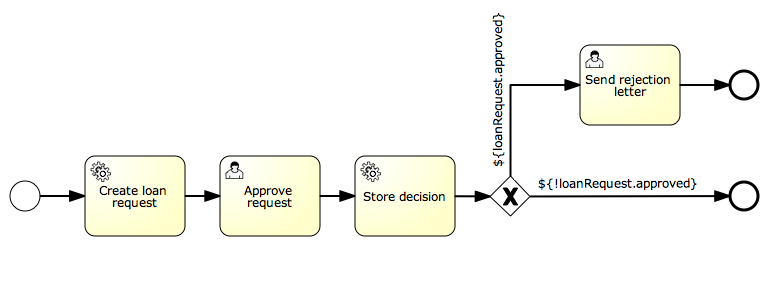
1
2
3
4
5
6
7
8
9
10
11
12
13
14
15
16
17
18
19
20
21
22
23
24
25
26
27
28
29
30
31
32
33
34
35
36
37
38
39 <?xml version="1.0" encoding="UTF-8"?>
<definitions id="taskAssigneeExample"
xmlns="http://www.omg.org/spec/BPMN/20100524/MODEL"
xmlns:xsi="http://www.w3.org/2001/XMLSchema-instance"
xmlns:activiti="http://activiti.org/bpmn"
targetNamespace="org.activiti.examples">
<process id="LoanRequestProcess" name="Process creating and handling loan request">
<startEvent id='theStart' />
<sequenceFlow id='flow1' sourceRef='theStart' targetRef='createLoanRequest' />
<serviceTask id='createLoanRequest' name='Create loan request'
activiti:expression="${loanRequestBean.newLoanRequest(customerName, amount)}"
activiti:resultVariable="loanRequest"/>
<sequenceFlow id='flow2' sourceRef='createLoanRequest' targetRef='approveTask' />
<userTask id="approveTask" name="Approve request" />
<sequenceFlow id='flow3' sourceRef='approveTask' targetRef='approveOrDissaprove' />
<serviceTask id='approveOrDissaprove' name='Store decision'
activiti:expression="${loanRequest.setApproved(approvedByManager)}" />
<sequenceFlow id='flow4' sourceRef='approveOrDissaprove' targetRef='exclusiveGw' />
<exclusiveGateway id="exclusiveGw" name="Exclusive Gateway approval" />
<sequenceFlow id="endFlow1" sourceRef="exclusiveGw" targetRef="theEnd">
<conditionExpression xsi:type="tFormalExpression">${loanRequest.approved}</conditionExpression>
</sequenceFlow>
<sequenceFlow id="endFlow2" sourceRef="exclusiveGw" targetRef="sendRejectionLetter">
<conditionExpression xsi:type="tFormalExpression">${!loanRequest.approved}</conditionExpression>
</sequenceFlow>
<userTask id="sendRejectionLetter" name="Send rejection letter" />
<sequenceFlow id='flow5' sourceRef='sendRejectionLetter' targetRef='theOtherEnd' />
<endEvent id='theEnd' />
<endEvent id='theOtherEnd' />
</process>
</definitions>
Although the example above is quite simple, it shows the power of using JPA combined with Spring and parametrized method-expressions. The process requires no custom java-code at all (except for the Spring-bean off course) and speeds up development drastically.
11. History
History is the component that captures what happened during process execution and stores it permanently. In contrast to the runtime data, the history data will remain present in the DB also after process instances have completed.
There are 5 history entities:
-
HistoricProcessInstances containing information about current and past process instances. -
HistoricVariableInstances containing the latest value of a process variable or task variable. -
HistoricActivityInstances containing information about a single execution of an activity (node in the process). -
HistoricTaskInstances containing information about current and past (completed and deleted) task instances. -
HistoricDetails containing various kinds of information related to either a historic process instances, an activity instance or a task instance.
Since the DB contains historic entities for past as well as ongoing instances, you might want to consider querying these tables in order to minimize access to the runtime process instance data and that way keeping the runtime execution performant.
Later on, this information will be exposed in Activiti Explorer. Also, it will be the information from which the reports will be generated.
11.1. Querying history
In the API, it’s possible to query all 5 of the History entities. The HistoryService exposes the methods createHistoricProcessInstanceQuery(), createHistoricVariableInstanceQuery(), createHistoricActivityInstanceQuery(), createHistoricDetailQuery() and createHistoricTaskInstanceQuery().
Below are a couple of examples that show some of the possibilities of the query API for history. Full description of the possibilities can be found in the javadocs, in the org.activiti.engine.history package.
11.1.1. HistoricProcessInstanceQuery
Get 10 HistoricProcessInstances that are finished and which took the most time to complete (the longest duration) of all finished processes with definition XXX.
1
2
3
4
5 historyService.createHistoricProcessInstanceQuery()
.finished()
.processDefinitionId("XXX")
.orderByProcessInstanceDuration().desc()
.listPage(0, 10);
11.1.2. HistoricVariableInstanceQuery
Get all HistoricVariableInstances from a finished process instance with id xxx ordered by variable name.
1
2
3
4 historyService.createHistoricVariableInstanceQuery()
.processInstanceId("XXX")
.orderByVariableName.desc()
.list();
11.1.3. HistoricActivityInstanceQuery
Get the last HistoricActivityInstance of type serviceTask that has been finished in any process that uses the processDefinition with id XXX.
1
2
3
4
5
6 historyService.createHistoricActivityInstanceQuery()
.activityType("serviceTask")
.processDefinitionId("XXX")
.finished()
.orderByHistoricActivityInstanceEndTime().desc()
.listPage(0, 1);
11.1.4. HistoricDetailQuery
The next example, gets all variable-updates that have been done in process with id 123. Only HistoricVariableUpdates will be returned by this query. Note that it’s possible that a certain variable name has multiple HistoricVariableUpdate entries, for each time the variable was updated in the process. You can use orderByTime (the time the variable update was done) or orderByVariableRevision (revision of runtime variable at the time of updating) to find out in what order they occurred.
1
2
3
4
5 historyService.createHistoricDetailQuery()
.variableUpdates()
.processInstanceId("123")
.orderByVariableName().asc()
.list()
This example gets all form-properties that were submitted in any task or when starting the process with id "123". Only HistoricFormPropertiess will be returned by this query.
1
2
3
4
5 historyService.createHistoricDetailQuery()
.formProperties()
.processInstanceId("123")
.orderByVariableName().asc()
.list()
The last example gets all variable updates that were performed on the task with id "123". This returns all HistoricVariableUpdates for variables that were set on the task (task local variables), and NOT on the process instance.
1
2
3
4
5 historyService.createHistoricDetailQuery()
.variableUpdates()
.taskId("123")
.orderByVariableName().asc()
.list()
Task local variables can be set using the TaskService or on a DelegateTask, inside TaskListener:
1 taskService.setVariableLocal("123", "myVariable", "Variable value");
1
2
3 public void notify(DelegateTask delegateTask) {
delegateTask.setVariableLocal("myVariable", "Variable value");
}
11.1.5. HistoricTaskInstanceQuery
Get 10 HistoricTaskInstances that are finished and which took the most time to complete (the longest duration) of all tasks.
1
2
3
4 historyService.createHistoricTaskInstanceQuery()
.finished()
.orderByHistoricTaskInstanceDuration().desc()
.listPage(0, 10);
Get HistoricTaskInstances that are deleted with a delete reason that contains "invalid", which were last assigned to user kermit.
1
2
3
4
5 historyService.createHistoricTaskInstanceQuery()
.finished()
.taskDeleteReasonLike("%invalid%")
.taskAssignee("kermit")
.listPage(0, 10);
11.2. History configuration
The history level can be configured programmatically, using the enum org.activiti.engine.impl.history.HistoryLevel (or HISTORY constants defined on ProcessEngineConfiguration for versions prior to 5.11):
1
2
3
4 ProcessEngine processEngine = ProcessEngineConfiguration
.createProcessEngineConfigurationFromResourceDefault()
.setHistory(HistoryLevel.AUDIT.getKey())
.buildProcessEngine();
The level can also be configured in activiti.cfg.xml or in a spring-context:
1
2
3
4 <bean id="processEngineConfiguration" class="org.activiti.engine.impl.cfg.StandaloneInMemProcessEngineConfiguration">
<property name="history" value="audit" />
...
</bean>
Following history levels can be configured:
-
none: skips all history archiving. This is the most performant for runtime process execution, but no historical information will be available. -
activity: archives all process instances and activity instances. At the end of the process instance, the latest values of the top level process instance variables will be copied to historic variable instances. No details will be archived. -
audit: This is the default. It archives all process instances, activity instances, keeps variable values continuously in sync and all form properties that are submitted so that all user interaction through forms is traceable and can be audited. -
full: This is the highest level of history archiving and hence the slowest. This level stores all information as in theauditlevel plus all other possible details, mostly this are process variable updates.
Prior to Activiti 5.11, the history level was stored in the database (table ACT_GE_PROPERTY, property with name historyLevel). Starting from 5.11, this value is not used anymore and is ignored/deleted from the database. The history can now be changed between 2 boots of the engine, without an exception being thrown in case the level changed from the previous engine-boot.
11.3. History for audit purposes
When configuring at least audit level for configuration. Then all properties submitted through methods FormService.submitStartFormData(String processDefinitionId, Map<String, String> properties) and FormService.submitTaskFormData(String taskId, Map<String, String> properties) are recorded.
Form properties can be retrieved with the query API like this:
1
2
3
4
5 historyService
.createHistoricDetailQuery()
.formProperties()
...
.list();
In that case only historic details of type HistoricFormProperty are returned.
If you’ve set the authenticated user before calling the submit methods with IdentityService.setAuthenticatedUserId(String) then that authenticated user who submitted the form will be accessible in the history as well with HistoricProcessInstance.getStartUserId() for start forms and HistoricActivityInstance.getAssignee() for task forms.
12. Eclipse Designer
Activiti comes with an Eclipse plugin, the Activiti Eclipse Designer, that can be used to graphically model, test and deploy BPMN 2.0 processes.
12.1. Installation
The following installation instructions are verified on Eclipse Kepler and Indigo. Note that Eclipse Helios is NOT supported.
Go to Help → Install New Software. In the following panel, click on Add button and fill in the following fields:
-
*Name:*Activiti BPMN 2.0 designer
-
*Location:*http://activiti.org/designer/update/
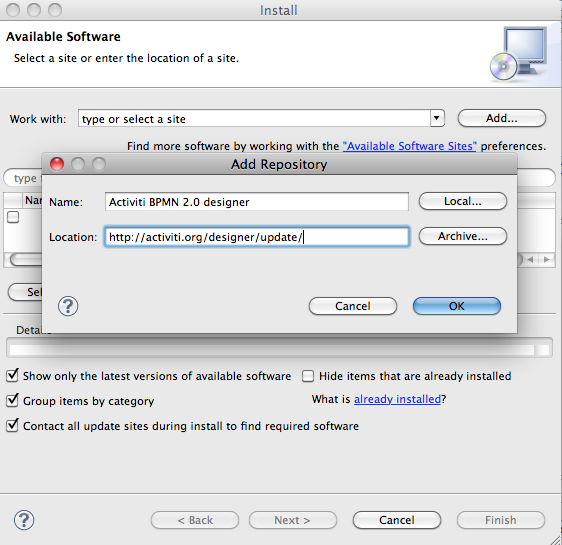
Make sure the "Contact all updates sites.." checkbox is checked, because all the necessary plugins will then be downloaded by Eclipse.
12.2. Activiti Designer editor features
-
Create Activiti projects and diagrams.
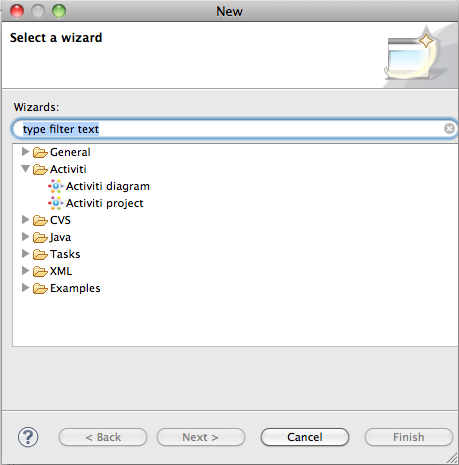
-
The Activiti Designer creates a .bpmn file when creating a new Activiti diagram. When opened with the Activiti Diagram Editor view this will provide a graphical modeling canvas and palette. The same file can however be opened with an XML editor and it then shows the BPMN 2.0 XML elements of the process definition. So the Activiti Designer works with only one file for both the graphical diagram as well as the BPMN 2.0 XML. Note that in Activiti 5.9 the .bpmn extension is not yet supported as deployment artifact for a process definition. Therefore the "create deployment artifacts" feature of the Activiti Designer generates a BAR file with a .bpmn20.xml file that contains the content of the .bpmn file. You can also do a quick file rename yourself. Also note that you can open a .bpmn20.xml file with the Activiti Diagram Editor view as well.
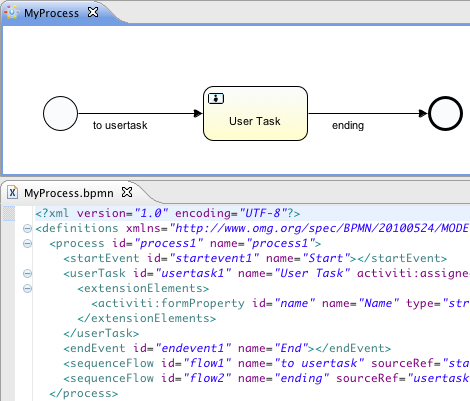
-
BPMN 2.0 XML files can be imported into the Activiti Designer and a diagram will be created. Just copy the BPMN 2.0 XML file to your project and open the file with the Activiti Diagram Editor view. The Activiti Designer uses the BPMN DI information of the file to create the diagram. If you have a BPMN 2.0 XML file without BPMN DI information, no diagram can be created.
-
For deployment a BAR file and optionally a JAR file is created by the Activiti Designer by right-clicking on an Activiti project in the package explorer and choosing the Create deployment artifacts option at the bottom of the popup menu. For more information about the deployment functionality of the Designer look at the deployment section.
-
Generate a unit test (right click on a BPMN 2.0 XML file in the package explorer and select generate unit test) A unit test is generated with an Activiti configuration that runs on an embedded H2 database. You can now run the unit test to test your process definition.
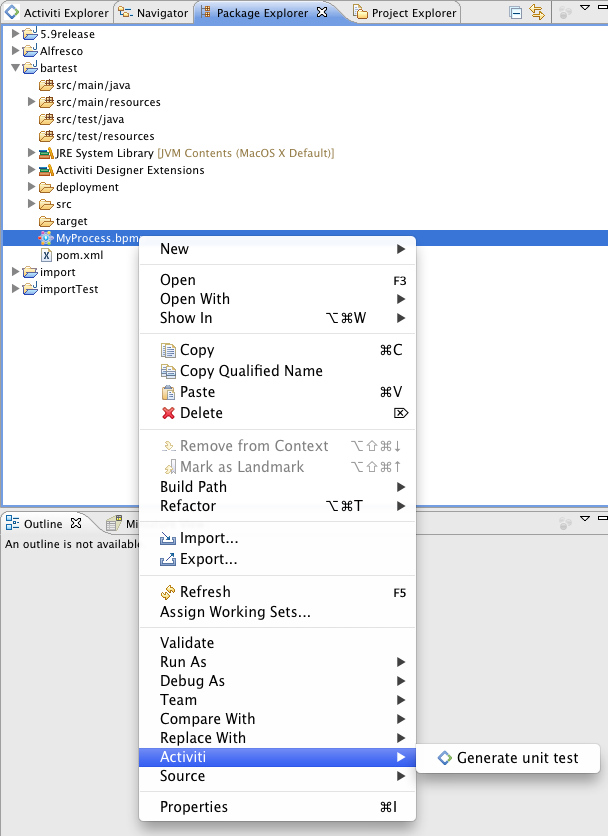
-
The Activiti project is generated as a Maven project. To configure the dependencies you need to run mvn eclipse:eclipse and the Maven dependencies will be configured as expected. Note that for process design Maven dependencies are not needed. They are only needed to run unit tests.
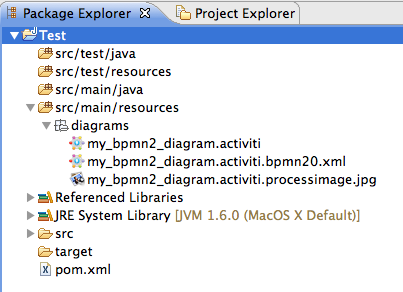
12.3. Activiti Designer BPMN features
-
Support for start none event, start error event, timer start event, end none event, end error event, sequence flow, parallel gateway, exclusive gateway, inclusive gateway, event gateway, embedded subprocess, event sub process, call activity, pool, lane, script task, user task, service task, mail task, manual task, business rule task, receive task, timer boundary event, error boundary event, signal boundary event, timer catching event, signal catching event, signal throwing event, none throwing event and four Alfresco specific elements (user, script, mail tasks and start event).
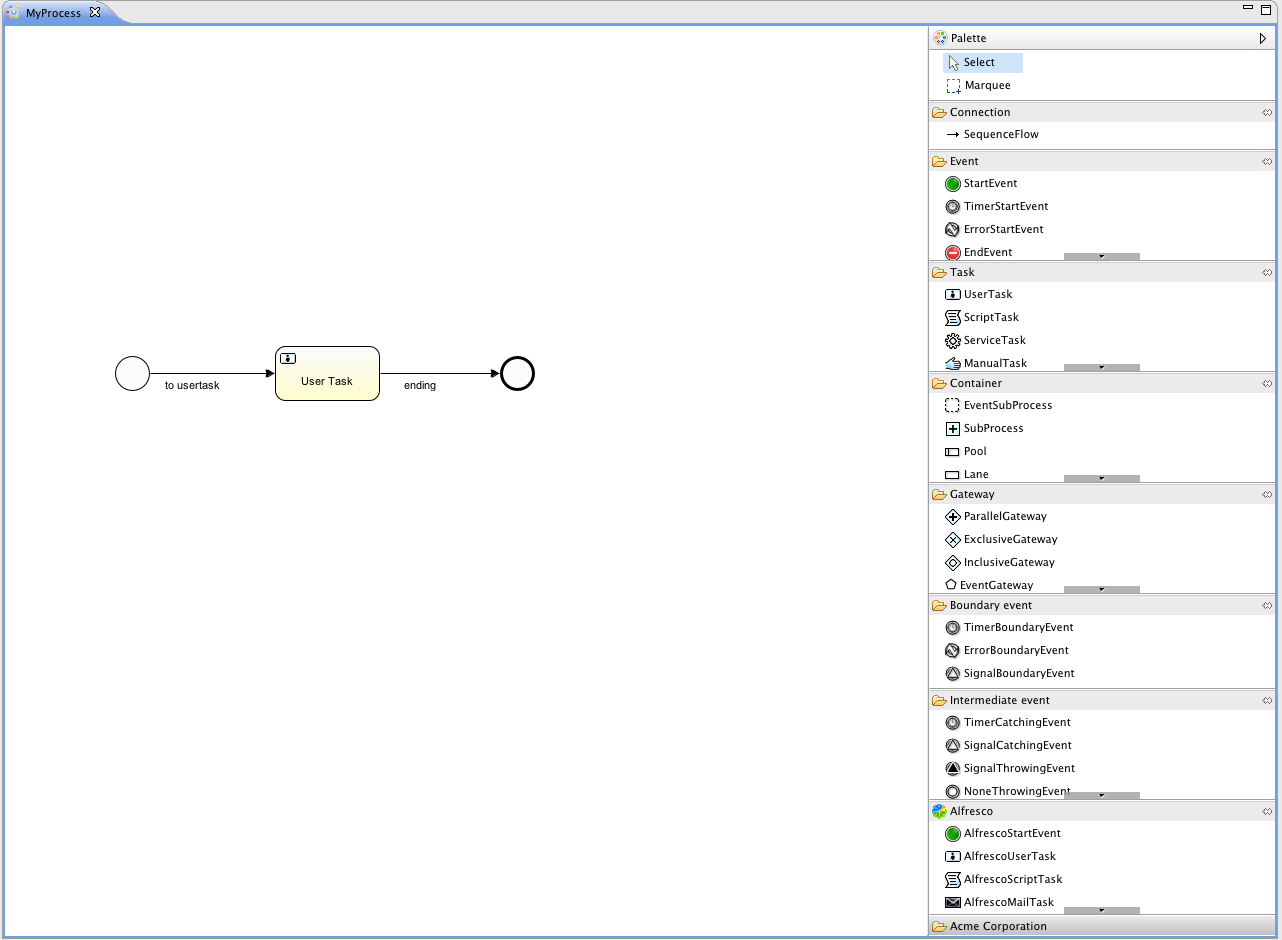
-
You can quickly change the type of a task by hovering over the element and choosing the new task type.
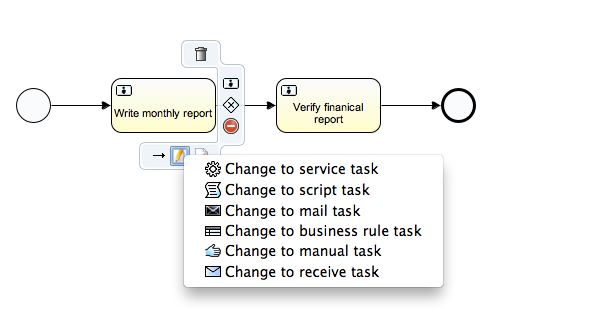
-
You can quickly add new elements hovering over an element and choosing a new element type.
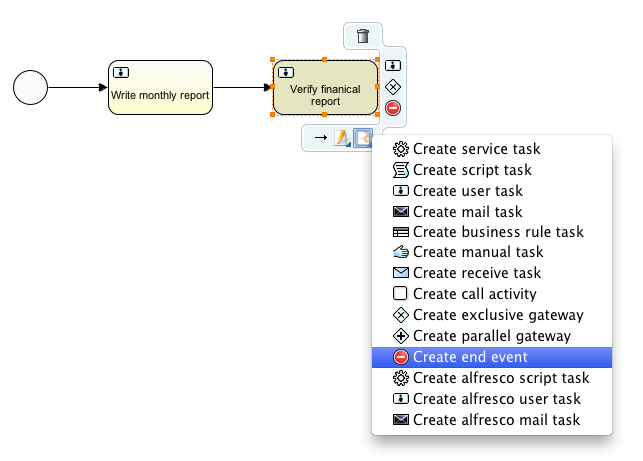
-
Java class, expression or delegate expression configuration is supported for the Java service task. In addition field extensions can be configured.
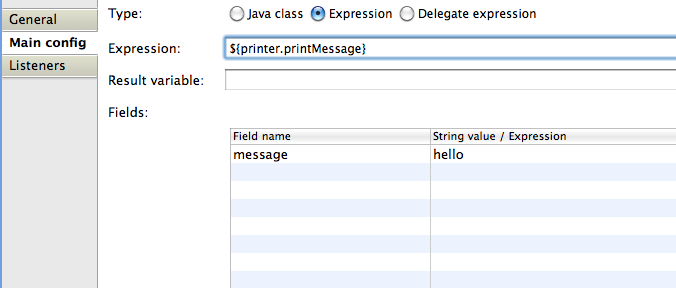
-
Support for pools and lanes. Because Activiti reads different pools as different process definition, it makes the most sense to use only one pool. If you use multiple pools, be aware that drawing sequence flows between the pools will result in problems when deploying the process in the Activiti Engine. You can add as much lanes to a pool as you want.
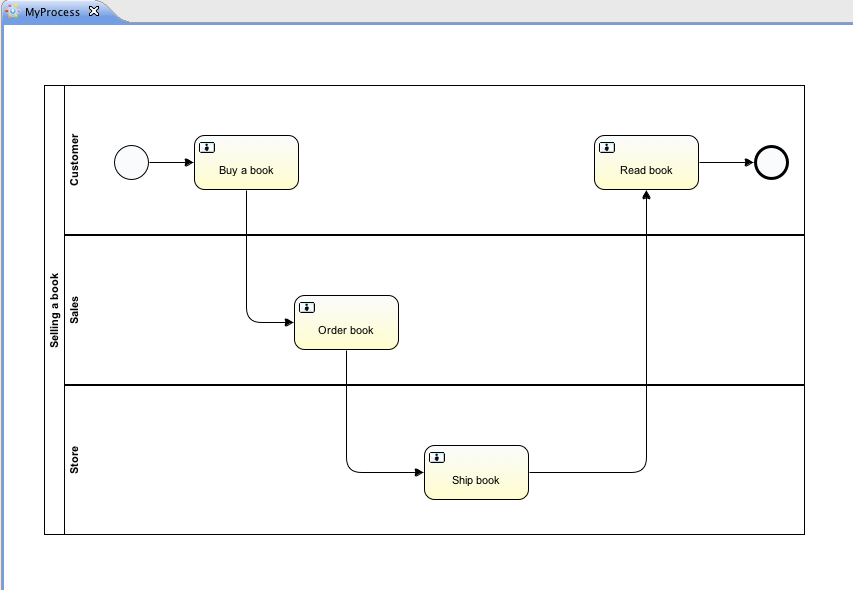
-
You can add labels to sequence flows by filling the name property. You can position the labels yourself as the position is saved as part of the BPMN 2.0 XML DI information.
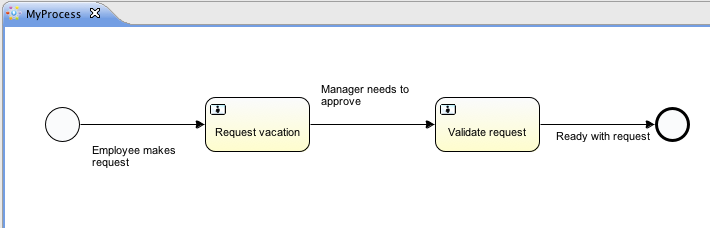
-
Support for event sub processes.
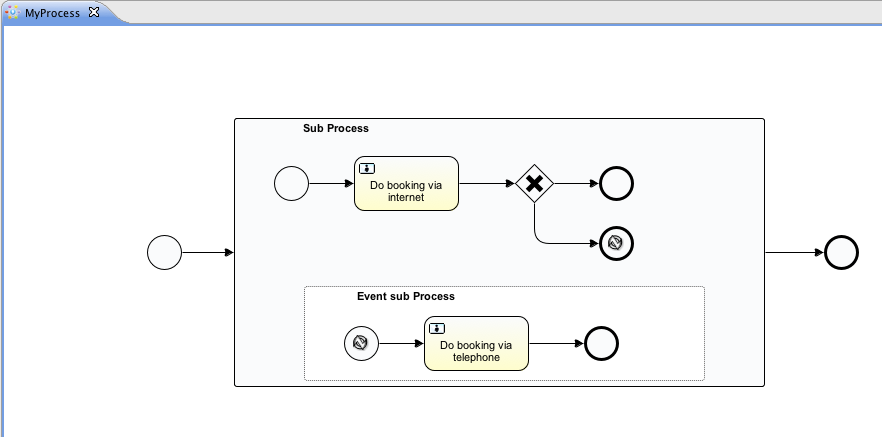
-
Support for expanded embedded sub processes. You can also add an embedded sub process in another embedded sub process.
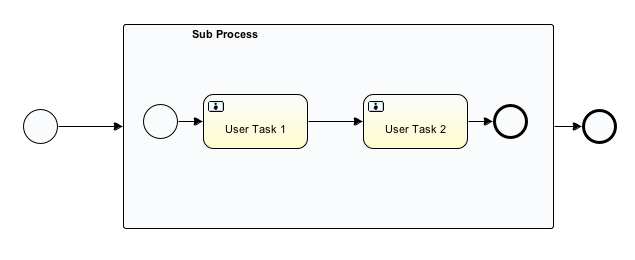
-
Support for timer boundary events on tasks and embedded sub processes. Although, the timer boundary event makes the most sense when using it on a user task or an embedded sub process in the Activiti Designer.
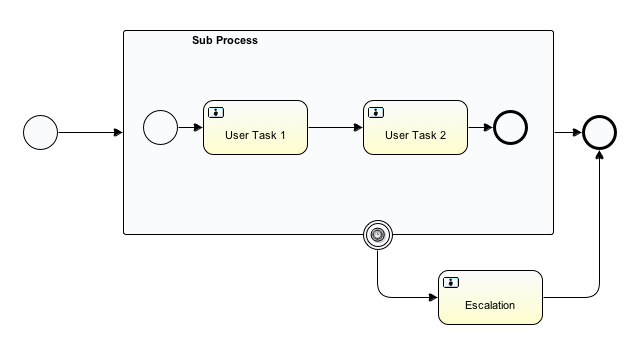
-
Support for additional Activiti extensions like the Mail task, the candidate configuration of User tasks and Script task configuration.
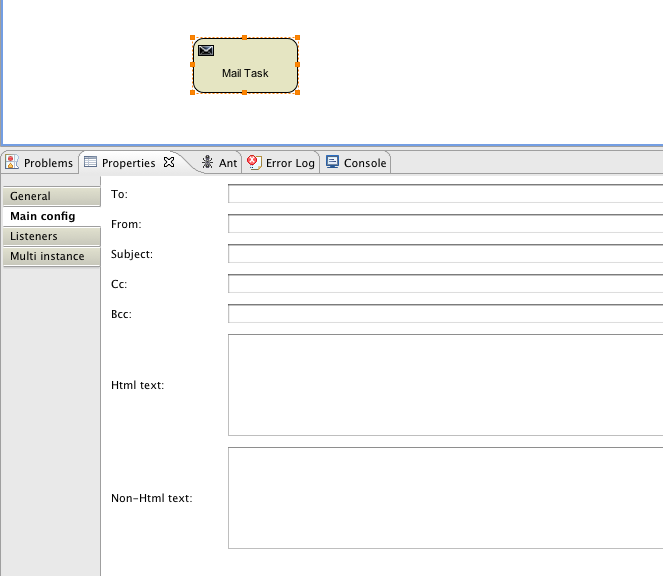
-
Support for the Activiti execution and task listeners. You can also add field extensions for execution listeners.
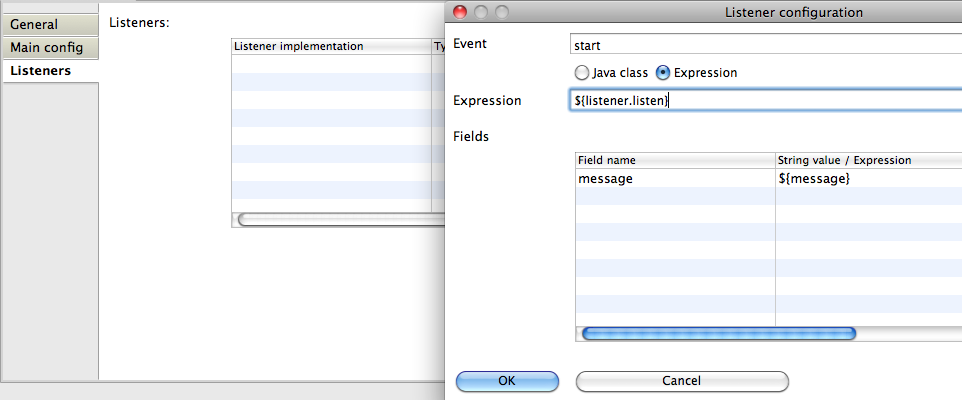
-
Support for conditions on sequence flows.
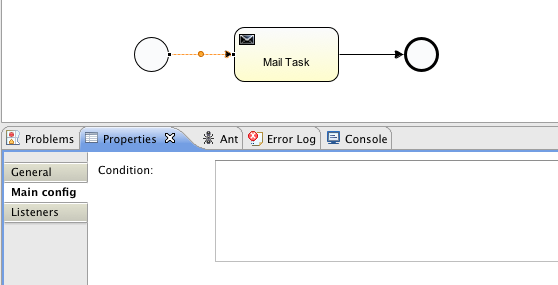
12.4. Activiti Designer deployment features
Deploying process definitions and task forms on the Activiti Engine is not hard. You need a BAR file containing the process definition BPMN 2.0 XML file and optionally task forms and an image of the process that can be viewed in the Activiti Explorer. In the Activiti Designer it’s made very easy to create a BAR file. When you’ve finished your process implementation just right-click on your Activiti project in the package explorer and choose for the Create deployment artifacts option at the bottom of the popup menu.
Then a deployment directory is created containing the BAR file and optionally a JAR file with the Java classes of your Activiti project.
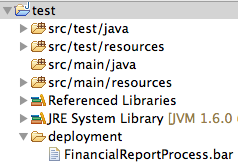
This file can now be uploaded to the Activiti Engine using the deployments tab in Activiti Explorer, and you are ready to go.
When your project contains Java classes, the deployment is a bit more work. In that case the Create deployment artifacts step in the Activiti Designer will also generate a JAR file containing the compiled classes. This JAR file must be deployed to the activiti-XXX/WEB-INF/lib directory in your Activiti Tomcat installation directory. This makes the classes available on the classpath of the Activiti Engine.
12.5. Extending Activiti Designer
You can extend the default functionality offered by Activiti Designer. This section documents which extensions are available, how they can be used and provides some usage examples. Extending Activiti Designer is useful in cases where the default functionality doesn’t suit your needs, you require additional capabilities or have domain specific requirements when modeling business processes. Extension of Activiti Designer falls into two distinct categories, extending the palette and extending output formats. Each of these extension ways requires a specific approach and different technical expertise.
|
Extending Activiti Designer requires technical knowledge and more specifically, knowledge of programming in Java. Depending on the type of extension you want to create, you might also need to be familiar with Maven, Eclipse, OSGi, Eclipse extensions and SWT. |
12.5.1. Customizing the palette
You can customize the palette that is offered to users when modeling processes. The palette is the collection of shapes that can be dragged onto the canvas in a process diagram and is displayed to the right hand side of the canvas. As you can see in the default palette, the default shapes are grouped into compartments (these are called "drawers") for Events, Gateways and so on. There are two options built-in to Activiti Designer to customize the drawers and shapes in the palette:
-
Adding your own shapes / nodes to existing or new drawers
-
Disabling any or all of the default BPMN 2.0 shapes offered by Activiti Designer, with the exception of the connection and selection tools
In order to customize the palette, you create a JAR file that is added to a specific installation of Activiti Designer (more on how to do that later). Such a JAR file is called an extension. By writing classes that are included in your extension, Activiti Designer understands which customizations you wish to make. In order for this to work, your classes should implement certain interfaces. There is an integration library available with those interfaces and base classes to extend which you should add to your project’s classpath.
You can find the code examples listed below in source control with Activiti Designer. Take a look in the examples/money-tasks directory in the projects/designer directory of Activiti’s source code.
|
You can setup your project in whichever tool you prefer and build the JAR with your build tool of choice. For the instructions below, a setup is assumed with Eclipse Kepler or Indigo, using Maven (3.x) as build tool, but any setup should enable you to create the same results. |
Extension setup (Eclipse/Maven)
Download and extract Eclipse (most recent versions should work) and a recent version (3.x) of Apache Maven. If you use a 2.x version of Maven, you will run into problems when building your project, so make sure your version is up to date. We assume you are familiar with using basic features and the Java editor in Eclipse. It’s up to you whether you prefer to use Eclipse’s features for Maven or run Maven commands from a command prompt.
Create a new project in Eclipse. This can be a general project type. Create a pom.xml file at the root of the project to contain the Maven project setup. Also create folders for the src/main/java and src/main/resources folders, which are Maven conventions for your Java source files and resources respectively. Open the pom.xml file and add the following lines:
1
2
3
4
5
6
7
8
9
10
11
12
13
14 <project
xmlns="http://maven.apache.org/POM/4.0.0"
xmlns:xsi="http://www.w3.org/2001/XMLSchema-instance"
xsi:schemaLocation="http://maven.apache.org/POM/4.0.0 http://maven.apache.org/maven-v4_0_0.xsd">
<modelVersion>4.0.0</modelVersion>
<groupId>org.acme</groupId>
<artifactId>money-tasks</artifactId>
<version>1.0.0</version>
<packaging>jar</packaging>
<name>Acme Corporation Money Tasks</name>
...
</project>
As you can see, this is just a basic pom.xml file that defines a groupId, artifactId and version for the project. We will create a customization that includes a single custom node for our money business.
Add the integration library to your project’s dependencies by including this dependency in your pom.xml file:
1
2
3
4
5
6
7
8
9
10
11
12
13
14
15 <dependencies>
<dependency>
<groupId>org.activiti.designer</groupId>
<artifactId>org.activiti.designer.integration</artifactId>
<version>5.12.0</version> <!-- Use the current Activiti Designer version -->
<scope>compile</scope>
</dependency>
</dependencies>
...
<repositories>
<repository>
<id>Activiti</id>
<url>https://maven.alfresco.com/nexus/content/groups/public/</url>
</repository>
</repositories>
Finally, in the pom.xml file, add the configuration for the maven-compiler-plugin so the Java source level is at least 1.5 (see snippet below). You will need this in order to use annotations. You can also include instructions for Maven to generate the JAR’s MANIFEST.MF file. This is not required, but you can use a specific property in the manifest to provide a name for your extension (this name may be shown at certain places in the designer and is primarily intended for future use if you have several extensions in the designer). If you wish to do so, include the following snippet in pom.xml:
1
2
3
4
5
6
7
8
9
10
11
12
13
14
15
16
17
18
19
20
21
22
23
24
25
26
27
28
29
30
31 <build>
<plugins>
<plugin>
<artifactId>maven-compiler-plugin</artifactId>
<configuration>
<source>1.5</source>
<target>1.5</target>
<showDeprecation>true</showDeprecation>
<showWarnings>true</showWarnings>
<optimize>true</optimize>
</configuration>
</plugin>
<plugin>
<groupId>org.apache.maven.plugins</groupId>
<artifactId>maven-jar-plugin</artifactId>
<version>2.3.1</version>
<configuration>
<archive>
<index>true</index>
<manifest>
<addClasspath>false</addClasspath>
<addDefaultImplementationEntries>true</addDefaultImplementationEntries>
</manifest>
<manifestEntries>
<ActivitiDesigner-Extension-Name>Acme Money</ActivitiDesigner-Extension-Name>
</manifestEntries>
</archive>
</configuration>
</plugin>
</plugins>
</build>
The name for the extension is described by the ActivitiDesigner-Extension-Name property. The only thing left to do now is tell Eclipse to setup the project according to the instructions in pom.xml. So open up a command shell and go to the root folder of your project in the Eclipse workspace. Then execute the following Maven command:
mvn eclipse:eclipse
Wait until the build is successful. Refresh the project (use the project’s context menu (right-click) and select Refresh). You should now have the src/main/java and src/main/resources folders as source folders in the Eclipse project.
|
You can of course also use the m2eclipse plugin and simply enable Maven dependency management from the context menu (right-click) of the project. Then choose |
That’s it for the setup. Now you’re ready to start creating customizations to Activiti Designer!
Applying your extension to Activiti Designer
You might be wondering how you can add your extension to Activiti Designer so your customizations are applied. These are the steps to do just that:
* Once you’ve created your extension JAR (for instance, by performing a mvn install in your project to build it with Maven), you need to transfer the extension to the computer where Activiti Designer is installed;
* Store the extension somewhere on the hard drive where it will be able to remain and remember the location. Note: the location must be outside the Eclipse workspace of Activiti Designer - storing the extension inside the workspace will lead to the user getting a popup error message and the extensions being unavailable;
* Start Activiti Designer and from the menu, select Window > Preferences
* In the preferences screen, type user as keyword. You should see an option to access the User Libraries in Eclipse in the Java section.
-
Select the User Libraries item and a tree view shows up to the right where you can add libraries. You should see the default group where you can add extensions to Activiti Designer (depending on your Eclipse installation, you might see several others as well).
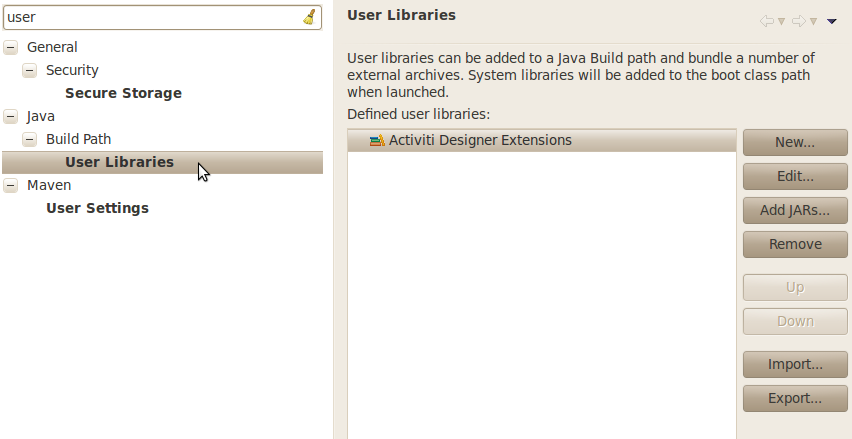
-
Select the
Activiti Designer Extensionsgroup and click theAdd JARs…button. Navigate to the folder where your extension is stored and select the extension file you want to add. After completing this, your preferences screen should show the extension as part of theActiviti Designer Extensionsgroup, as shown below.
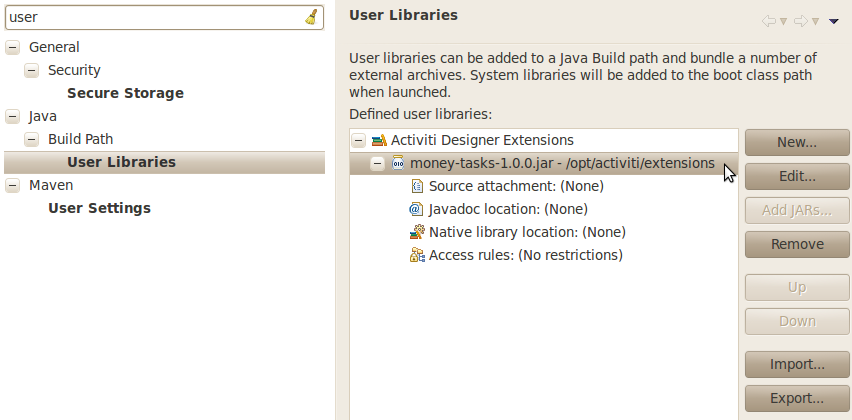
-
Click the
OKbutton to save and close the preferences dialog. TheActiviti Designer Extensionsgroup is automatically added to new Activiti projects you create. You can see the user library as entry in the project’s tree in the Navigator or Package Explorer. If you already had Activiti projects in the workspace, you should also see the new extensions show up in the group. An example is shown below.
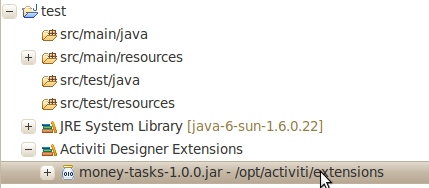
Diagrams you open will now have the shapes from the new extension in their palette (or shapes disabled, depending on the customizations in your extension). If you already had a diagram opened, close and reopen it to see the changes in the palette.
Adding shapes to the palette
With your project set up, you can now easily add shapes to the palette. Each shape you wish to add is represented by a class in your JAR. Take note that these classes are not the classes that will be used by the Activiti engine during runtime. In your extension you describe the properties that can be set in Activiti Designer for each shape. From these shapes, you can also define the runtime characteristics that should be used by the engine when a process instance reaches the node in the process. The runtime characteristics can use any of the options that Activiti supports for regular ServiceTasks. See this section for more details.
A shape’s class is a simple Java class, to which a number of annotations are added. The class should implement the CustomServiceTask interface, but you shouldn’t implement this interface yourself. Extend the AbstractCustomServiceTask base class instead (at the moment you MUST extend this class directly, so no abstract classes in between). In the Javadoc for that class you can find instructions on the defaults it provides and when you should override any of the methods it already implements. Overrides allow you to do things such as providing icons for the palette and in the shape on the canvas (these can be different) and specifying the base shape you want the node to have (activity, event, gateway).
1
2
3
4
5
6
7
8 /**
* @author John Doe
* @version 1
* @since 1.0.0
*/
public class AcmeMoneyTask extends AbstractCustomServiceTask {
...
}
You will need to implement the getName() method to determine the name the node will have in the palette. You can also put the nodes in their own drawer and provide an icon. Override the appropriate methods from AbstractCustomServiceTask. If you want to provide an icon, make sure it’s in the src/main/resources package in your JAR and is about 16x16 pixels and a JPEG or PNG format. The path you supply is relative to that folder.
You can add properties to the shape by adding members to the class and annotating them with the @Property annotation like this:
1
2
3 @Property(type = PropertyType.TEXT, displayName = "Account Number")
@Help(displayHelpShort = "Provide an account number", displayHelpLong = HELP_ACCOUNT_NUMBER_LONG)
private String accountNumber;
There are several PropertyType values you can use, which are described in more detail in this section. You can make a field required by setting the required attribute to true. A message and red background will appear if the user doesn’t fill out the field.
If you want to ensure the order of the various properties in your class as they appear in the property screen, you should specify the order attribute of the @Property annotation.
As you can see, there’s also a @Help annotation that’s used to provide the user some guidance when filling out the field. You can also use the @Help annotation on the class itself - this information is shown at the top of the property sheet presented to the user.
Below is the listing for a further elaboration of the MoneyTask. A comment field has been added and you can see an icon is included for the node.
1
2
3
4
5
6
7
8
9
10
11
12
13
14
15
16
17
18
19
20
21
22
23
24
25
26
27
28
29
30
31
32
33
34
35
36
37
38
39
40
41
42
43
44 /**
* @author John Doe
* @version 1
* @since 1.0.0
*/
@Runtime(javaDelegateClass = "org.acme.runtime.AcmeMoneyJavaDelegation")
@Help(displayHelpShort = "Creates a new account", displayHelpLong = "Creates a new account using the account number specified")
public class AcmeMoneyTask extends AbstractCustomServiceTask {
private static final String HELP_ACCOUNT_NUMBER_LONG = "Provide a number that is suitable as an account number.";
@Property(type = PropertyType.TEXT, displayName = "Account Number", required = true)
@Help(displayHelpShort = "Provide an account number", displayHelpLong = HELP_ACCOUNT_NUMBER_LONG)
private String accountNumber;
@Property(type = PropertyType.MULTILINE_TEXT, displayName = "Comments")
@Help(displayHelpShort = "Provide comments", displayHelpLong = "You can add comments to the node to provide a brief description.")
private String comments;
/*
* (non-Javadoc)
*
* @see org.activiti.designer.integration.servicetask.AbstractCustomServiceTask #contributeToPaletteDrawer()
*/
@Override
public String contributeToPaletteDrawer() {
return "Acme Corporation";
}
@Override
public String getName() {
return "Money node";
}
/*
* (non-Javadoc)
*
* @see org.activiti.designer.integration.servicetask.AbstractCustomServiceTask #getSmallIconPath()
*/
@Override
public String getSmallIconPath() {
return "icons/coins.png";
}
}
If you extend Activiti Designer with this shape, The palette and corresponding node will look like this:
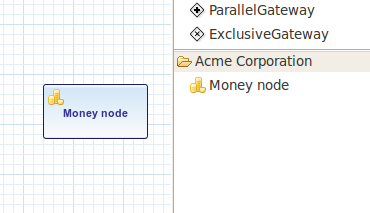
The properties screen for the money task is shown below. Note the required message for the accountNumber field.
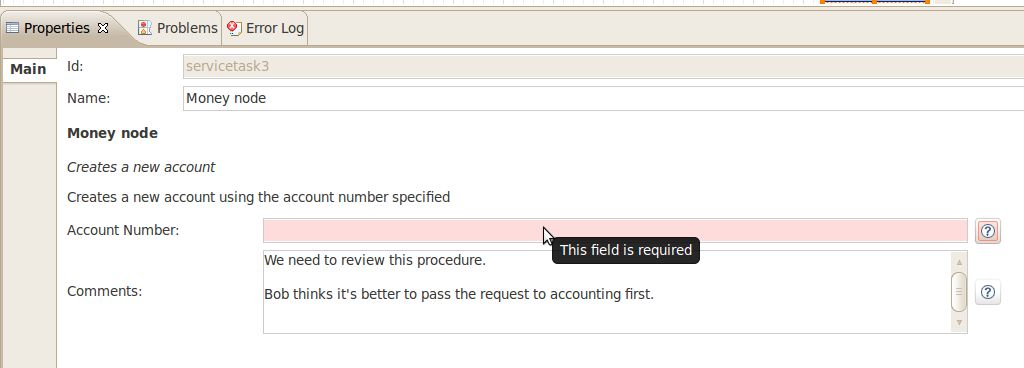
Users can enter static text or use expressions that use process variables in the property fields when creating diagrams (e.g. "This little piggy went to ${piggyLocation}"). Generally, this applies to text fields where users are free to enter any text. If you expect users to want to use expressions and you apply runtime behavior to your CustomServiceTask (using @Runtime), make sure to use Expression fields in the delegate class so the expressions are correctly resolved at runtime. More information on runtime behavior can be found in this section.
The help for fields is offered by the buttons to the right of each property. Clicking on the button shows a popup as displayed below.
Configuring runtime execution of Custom Service Tasks
With your fields setup and your extension applied to Designer, users can configure the properties of the service task when modelling a process. In most cases, you will want to use these user-configured properties when the process is executed by Activiti. To do this, you must instruct Activiti which class to instantiate when the process reaches your CustomServiceTask.
There is a special annotation for specifying the runtime characteristics of your CustomServiceTask, the @Runtime annotation. Here’s an example of how to use it:
1 @Runtime(javaDelegateClass = "org.acme.runtime.AcmeMoneyJavaDelegation")
Your CustomServiceTask will result in a normal ServiceTask in the BPMN output of processes modelled with it. Activiti enables several ways to define the runtime characteristics of ServiceTasks. Therefore, the @Runtime annotation can take one of three attributes, which match directly to the options Activiti provides, like this:
-
javaDelegateClassmaps toactiviti:classin the BPMN output. Specify the fully qualified classname of a class that implementsJavaDelegate. -
expressionmaps toactiviti:expressionin the BPMN output. Specify an expression to a method to be executed, such as a method in a Spring Bean. You should not specify any@Propertyannotations on fields when using this option. For more information, see below. -
javaDelegateExpressionmaps toactiviti:delegateExpressionin the BPMN output. Specify an expression to a class that implementsJavaDelegate.
The user’s property values will be injected into the runtime class if you provide members in the class for Activiti to inject into. The names should match the names of the members in your CustomServiceTask. For more information, consult this part of the userguide. Note that since version 5.11.0 of the Designer you can use the Expression interface for dynamic field values. This means that the value of the property in the Activiti Designer must contain an expression and this expression will then be injected into an Expression property in the JavaDelegate implementation class.
|
You can use |
|
Note that the runtime class shouldn’t be in your extension JAR, as it’s dependent on the Activiti libraries. Activiti needs to be able to find it at runtime, so it needs to be on the Activiti engine’s classpath. |
The examples project in Designer’s source tree contains examples of the different options for configuring @Runtime. Take a look in the money-tasks project for some starting points. The examples refer to delegate class examples that are in the money-delegates project.
Property types
This section describes the property types you can use for a CustomServiceTask by setting its type to a PropertyType value.
PropertyType.TEXT
Creates a single line text field as shown below. Can be a required field and shows validation messages as a tooltip. Validation failures are displayed by changing the background of the field to a light red color.

PropertyType.MULTILINE_TEXT
Creates a multiline text field as shown below (height is fixed at 80 pixels). Can be a required field and shows validation messages as a tooltip. Validation failures are displayed by changing the background of the field to a light red color.

PropertyType.PERIOD
Creates a structured editor for specifying a period of time by editing amounts of each unit with a spinner control. The result is shown below. Can be a required field (which is interpreted such that not all values may be 0, so at least 1 part of the period must have a non-zero value) and shows validation messages as a tooltip. Validation failures are displayed by changing the background of the entire field to a light red color. The value of the field is stored as a string of the form 1y 2mo 3w 4d 5h 6m 7s, which represents 1 year, 2 months, 3 weeks, 4 days, 6 minutes and 7 seconds. The entire string is always stored, even if parts are 0.

PropertyType.BOOLEAN_CHOICE
Creates a single checkbox control for boolean or toggle choices. Note that you can specify the required attribute on the Property annotation, but it will not be evaluated because that would leave the user without a choice whether to check the box or not. The value stored in the diagram is java.lang.Boolean.toString(boolean), which results in "true" or "false".

PropertyType.RADIO_CHOICE
Creates a group of radio buttons as shown below. Selection of any of the radio buttons is mutually exclusive with selection of any of the others (i.e., only one selection allowed). Can be a required field and shows validation messages as a tooltip. Validation failures are displayed by changing the background of the group to a light red color.
This property type expects the class member you have annotated to also have an accompanying @PropertyItems annotation (for an example, see below). Using this additional annotation, you can specify the list of items that should be offered in an array of Strings. Specify the items by adding two array entries for each item: first, the label to be shown; second, the value to be stored.
1
2
3
4 @Property(type = PropertyType.RADIO_CHOICE, displayName = "Withdrawl limit", required = true)
@Help(displayHelpShort = "The maximum daily withdrawl amount ", displayHelpLong = "Choose the maximum daily amount that can be withdrawn from the account.")
@PropertyItems({ LIMIT_LOW_LABEL, LIMIT_LOW_VALUE, LIMIT_MEDIUM_LABEL, LIMIT_MEDIUM_VALUE, LIMIT_HIGH_LABEL, LIMIT_HIGH_VALUE })
private String withdrawlLimit;


PropertyType.COMBOBOX_CHOICE
Creates a combobox with fixed options as shown below. Can be a required field and shows validation messages as a tooltip. Validation failures are displayed by changing the background of the combobox to a light red color.
This property type expects the class member you have annotated to also have an accompanying @PropertyItems annotation (for an example, see below). Using this additional annotation, you can specify the list of items that should be offered in an array of Strings. Specify the items by adding two array entries for each item: first, the label to be shown; second, the value to be stored.
1
2
3
4
5
6 @Property(type = PropertyType.COMBOBOX_CHOICE, displayName = "Account type", required = true)
@Help(displayHelpShort = "The type of account", displayHelpLong = "Choose a type of account from the list of options")
@PropertyItems({ ACCOUNT_TYPE_SAVINGS_LABEL, ACCOUNT_TYPE_SAVINGS_VALUE, ACCOUNT_TYPE_JUNIOR_LABEL, ACCOUNT_TYPE_JUNIOR_VALUE, ACCOUNT_TYPE_JOINT_LABEL,
ACCOUNT_TYPE_JOINT_VALUE, ACCOUNT_TYPE_TRANSACTIONAL_LABEL, ACCOUNT_TYPE_TRANSACTIONAL_VALUE, ACCOUNT_TYPE_STUDENT_LABEL, ACCOUNT_TYPE_STUDENT_VALUE,
ACCOUNT_TYPE_SENIOR_LABEL, ACCOUNT_TYPE_SENIOR_VALUE })
private String accountType;


PropertyType.DATE_PICKER
Creates a date selection control as shown below. Can be a required field and shows validation messages as a tooltip (note, that the control used will auto-set the selection to the date on the system, so the value is seldom empty). Validation failures are displayed by changing the background of the control to a light red color.
This property type expects the class member you have annotated to also have an accompanying @DatePickerProperty annotation (for an example, see below). Using this additional annotation, you can specify the date time pattern to be used to store dates in the diagram and the type of datepicker you would like to be shown. Both attributes are optional and have default values that will be used if you don’t specify them (these are static variables in the DatePickerProperty annotation). The dateTimePattern attribute should be used to supply a pattern to the SimpleDateFormat class. When using the swtStyle attribute, you should specify an integer value that is supported by SWT's DateTime control, because this is the control that is used to render this type of property.
1
2
3
4 @Property(type = PropertyType.DATE_PICKER, displayName = "Expiry date", required = true)
@Help(displayHelpShort = "The date the account expires ", displayHelpLong = "Choose the date when the account will expire if no extended before the date.")
@DatePickerProperty(dateTimePattern = "MM-dd-yyyy", swtStyle = 32)
private String expiryDate;

PropertyType.DATA_GRID
Creates a data grid control as shown below. A data grid can be used to allow the user to enter an arbitrary amount of rows of data and enter values for a fixed set of columns in each of those rows (each individual combination of row and column is referred to as a cell). Rows can be added and removed as the user sees fit.
This property type expects the class member you have annotated to also have an accompanying @DataGridProperty annotation (for an example, see below). Using this additional annotation, you can specify some specific attributes of the data grid. You are required to reference a different class to determine which columns go into the grid with the itemClass attribute. Activiti Designer expects the member type to be a List. By convention, you can use the class of the itemClass attribute as its generic type. If, for example, you have a grocery list that you edit in the grid, you would define the columns of the grid in the GroceryListItem class. From your CustomServiceTask, you would refer to it like this:
1
2
3 @Property(type = PropertyType.DATA_GRID, displayName = "Grocery List")
@DataGridProperty(itemClass = GroceryListItem.class)
private List<GroceryListItem> groceryList;
The "itemClass" class uses the same annotations you would otherwise use to specify fields of a CustomServiceTask, with the exception of using a data grid. Specifically, TEXT, MULTILINE_TEXT and PERIOD are currently supported. You’ll notice the grid will create single line text controls for each field, regardless of the PropertyType. This is done on purpose to keep the grid graphically appealing and readable. If you consider the regular display mode for a PERIOD PropertyType for instance, you can imagine it would never properly fit in a grid cell without cluttering the screen. For MULTILINE_TEXT and PERIOD, a double-click mechanism is added to each field which pops up a larger editor for the PropertyType. The value is stored to the field after the user clicks OK and is therefore readable within the grid.
Required attributes are handled in a similar manner to regular fields of type TEXT and the entire grid is validated as soon as any field loses focus. The background color of the text control in a specific cell of the data grid is changed to light red if there are validation failures.
By default, the component allows the user to add rows, but not to determine the order of those rows. If you wish to allow this, you should set the orderable attribute to true, which enables buttons at the end of each row to move it up or down in the grid.
|
At the moment, this property type is not correctly injected into your runtime class. |

Disabling default shapes in the palette
This customization requires you to include a class in your extension that implements the DefaultPaletteCustomizer interface. You should not implement this interface directly, but subclass the AbstractDefaultPaletteCustomizer base class. Currently, this class provides no functionality, but future versions of the DefaultPaletteCustomizer interface will offer more capabilities for which this base class will provide some sensible defaults so it’s best to subclass so your extension will be compatible with future releases.
Extending the AbstractDefaultPaletteCustomizer class requires you to implement one method, disablePaletteEntries(), from which you must return a list of PaletteEntry values. For each of the default shapes, you can disable it by adding its corresponding PaletteEntry value to your list. Note that if you remove shapes from the default set and there are no remaining shapes in a particular drawer, that drawer will be removed from the palette in its entirety. If you wish to disable all of the default shapes, you only need to add PaletteEntry.ALL to your result. As an example, the code below disables the Manual task and Script task shapes in the palette.
1
2
3
4
5
6
7
8
9
10
11
12
13
14
15
16 public class MyPaletteCustomizer extends AbstractDefaultPaletteCustomizer {
/*
* (non-Javadoc)
*
* @see org.activiti.designer.integration.palette.DefaultPaletteCustomizer#disablePaletteEntries()
*/
@Override
public List<PaletteEntry> disablePaletteEntries() {
List<PaletteEntry> result = new ArrayList<PaletteEntry>();
result.add(PaletteEntry.MANUAL_TASK);
result.add(PaletteEntry.SCRIPT_TASK);
return result;
}
}
The result of applying this extension is shown in the picture below. As you can see, the manual task and script task shapes are no longer available in the Tasks drawer.
To disable all of the default shapes, you could use something similar to the code below.
1
2
3
4
5
6
7
8
9
10
11
12
13
14
15 public class MyPaletteCustomizer extends AbstractDefaultPaletteCustomizer {
/*
* (non-Javadoc)
*
* @see org.activiti.designer.integration.palette.DefaultPaletteCustomizer#disablePaletteEntries()
*/
@Override
public List<PaletteEntry> disablePaletteEntries() {
List<PaletteEntry> result = new ArrayList<PaletteEntry>();
result.add(PaletteEntry.ALL);
return result;
}
}
The result will look like this (notice that the drawers the default shapes were in are no longer in the palette):
12.5.2. Validating diagrams and exporting to custom output formats
Besides customizing the palette, you can also create extensions to Activiti Designer that can perform validations and save information from the diagram to custom resources in the Eclipse workspace. There are built-in extension points for doing this and this section explains how to use them.
|
The ExportMarshaller functions were reintroduced recently. We are still working on the validation functionality. The documentation below details the old situation and will be updated when the new functionality is available. |
Activiti Designer allows you to write extensions that validate diagrams. There are already validations of BPMN constructs in the tool by default, but you can add your own if you want to validate additional items such as modeling conventions or the values in properties of CustomServiceTasks. These extensions are known as Process Validators.
You can also Activiti Designer to publish to additional formats when saving diagrams. These extensions are called Export Marshallers and are invoked automatically by Activiti Designer on each save action by the user. This behavior can be enabled or disabled by setting a preference in Eclipse’s preferences dialog for each format for which there is an extension detected. Designer will make sure your ExportMarshaller is invoked when saving the diagram, depending on the user’s preference.
Often, you will want to combine a ProcessValidator and an ExportMarshaller. Let’s say you have a number of CustomServiceTasks in use that have properties you would like to use in the process that gets generated. However, before the process is generated, you want to validate some of those values first. Combining a ProcessValidator and ExportMarshaller is the best way to accomplish this and Activiti Designer enables you to plug your extensions into the tool seamlessly.
To create a ProcessValidator or an ExportMarshaller, you need to create a different kind of extension than for extending the palette. The reason for this is simple: from your code you will need access to more APIs than those that are offered by the integration library. In particular, you will need classes that are available in Eclipse itself. So to get started, you should create an Eclipse plugin (which you can do by using Eclipse’s PDE support) and package it in a custom Eclipse product or feature. It’s beyond the scope of this user guide to explain all the details involved in developing Eclipse plugins, so the instructions below are limited to the functionality for extending Activiti Designer.
Your bundle should be dependent on the following libraries:
-
org.eclipse.core.runtime
-
org.eclipse.core.resources
-
org.activiti.designer.eclipse
-
org.activiti.designer.libs
-
org.activiti.designer.util
Optionally, the org.apache.commons.lang bundle is available through Designer if you’d like to use that in your extension.
Both ProcessValidators and ExportMarshallers are created by extending a base class. These base classes inherit some useful methods from their superclass, the AbstractDiagramWorker class. Using these methods you can create information, warning and error markers that show up in Eclipse’s problems view for the user to figure out what’s wrong or important. You can get to information about the diagram in the form of Resources and InputStreams. This information is provided from the DiagramWorkerContext, which is available from the AbstractDiagramWorker class.
It’s probably a good idea to invoke clearMarkers() as one of the first things you do in either a ProcessValidator or an ExportMarshaller; this will clear any previous markers for your worker (markers are automatically linked to the worker and clearing markers for one worker leaves other markers untouched). For example:
1
2 // Clear markers for this diagram first
clearMarkersForDiagram();
You should also use the progress monitor provided (in the DiagramWorkerContext) to report your progress back to the user because validations and/or marshalling actions can take up some time during which the user is forced to wait. Reporting progress requires some knowledge of how you should use Eclipse’s features. Take a look at this article for a thorough explanation of the concepts and usage.
Creating a ProcessValidator extension
|
Under review! |
Create an extension to the org.activiti.designer.eclipse.extension.validation.ProcessValidator extension point in your plugin.xml file. For this extension point, you are required to subclass the AbstractProcessValidator class.
1
2
3
4
5
6
7
8
9 <?eclipse version="3.6"?>
<plugin>
<extension
point="org.activiti.designer.eclipse.extension.validation.ProcessValidator">
<ProcessValidator
class="org.acme.validation.AcmeProcessValidator">
</ProcessValidator>
</extension>
</plugin>
1
2 public class AcmeProcessValidator extends AbstractProcessValidator {
}
You have to implement a number of methods. Most importantly, implement getValidatorId() so you return a globally unique ID for your validator. This will enable you to invoke it from and ExportMarshaller, or event let someone else invoke your validator from their ExportMarshaller. Implement getValidatorName() and return a logical name for your validator. This name is shown to the user in dialogs. In getFormatName(), you can return the type of diagram the validator typically validates.
The validation work itself is done in the validateDiagram() method. From this point on, it’s up to your specific functionality what you code here. Typically, however, you will want to start by getting hold of the nodes in the diagram’s process, so you can iterate through them, collect, compare and validate data. This snippet shows you how to do this:
1
2
3
4
5
6
7 final EList<EObject> contents = getResourceForDiagram(diagram).getContents();
for (final EObject object : contents) {
if (object instanceof StartEvent ) {
// Perform some validations for StartEvents
}
// Other node types and validations
}
Don’t forget to invoke addProblemToDiagram() and/or addWarningToDiagram(), etc as you go through your validations. Make sure you return a correct boolean result at the end to indicate whether you consider the validation as succeeded or failed. This can be used by and invoking ExportMarshaller to determine the next course of action.
Creating an ExportMarshaller extension
Create an extension to the org.activiti.designer.eclipse.extension.ExportMarshaller extension point in your plugin.xml file. For this extension point, you are required to subclass the AbstractExportMarshaller class. This abstract base class provides you with a number of useful methods when marshalling to your own format, but most importantly it allows you to save resources to the workspace and to invoke validators.
An example implementation is available in Designer’s examples folder. This example shows how to use the methods in the base class to get the basics done, such as accessing the diagram’s InputStream, using its BpmnModel and saving resources to the workspace.
1
2
3
4
5
6
7
8
9 <?eclipse version="3.6"?>
<plugin>
<extension
point="org.activiti.designer.eclipse.extension.ExportMarshaller">
<ExportMarshaller
class="org.acme.export.AcmeExportMarshaller">
</ExportMarshaller>
</extension>
</plugin>
1
2 public class AcmeExportMarshaller extends AbstractExportMarshaller {
}
You are required to implement some methods, such as getMarshallerName() and getFormatName(). These methods are used to display options to the user and to show information in progress dialogs, so make sure the descriptions you return reflect the functionality you are implementing.
The bulk of your work is performed in the doMarshallDiagram() method.
If you want to perform a certain validation first, you can invoke the validator directly from your marshaller. You receive a boolean result from the validator, so you know whether validation succeeded. In most cases you won’t want to proceed with marshalling the diagram if it’s not valid, but you might choose to go ahead anyway or even create a different resource if validation fails.
Once you have all the data you need, you should invoke the saveResource() method to create a file containing your data. You can invoke saveResource() as many times as you wish from a single ExportMarshaller; a marshaller can therefore be used to create more than one output file.
You can construct a filename for your output resource(s) by using the saveResource() method in the AbstractDiagramWorker class. There are a couple of useful variables you can have parsed, allowing you to create filenames such as _original-filename__my-format-name.xml. These variables are described in the Javadocs and defined by the ExportMarshaller interface. You can also use resolvePlaceholders() on a string (e.g. a path) if you want to parse the placeholders yourself. getURIRelativeToDiagram() will invoke this for you.
You should use the progress monitor provided to report your progress back to the user. How to do this is described in this article.
13. REST API
13.1. General Activiti REST principles
13.1.1. Installation and Authentication
Activiti includes a REST API to the Activiti Engine that can be installed by deploying the activiti-rest.war file to a servlet container like Apache Tomcat. However, it can also be used in another web-application by including the servlet and it’s mapping in your application and add all activiti-rest dependencies to the classpath.
By default the Activiti Engine will connect to an in-memory H2 database. You can change the database settings in the db.properties file in the WEB-INF/classes folder. The REST API uses JSON format (http://www.json.org) and is built upon the Spring MVC (http://docs.spring.io/spring/docs/current/spring-framework-reference/html/mvc.html).
All REST-resources require a valid Activiti-user to be authenticated by default. Basic HTTP access authentication is used, so you should always include a Authorization: Basic …== HTTP-header when performing requests or include the username and password in the request-url (e.g. http://username:password@localhost…;).
It’s recommended to use Basic Authentication in combination with HTTPS.
13.1.2. Configuration
The Activiti REST web application is using Spring Java Configuration for starting the Activiti Engine, defining the basic authentication security using Spring security and to define the variable converters for specific variable handling. A small amount of properties can be defined by changing the engine.properties file you can find in the WEB-INF/classes folder. If you need more advanced configuration options there’s the possibility to override the default Spring beans in XML in the activiti-custom-context.xml file you can also find in the WEB-INF/classes folder. An example configuration is already in comments in this file. This is also the place to override the default RestResponseFactory by defining a new Spring bean with the name restResponsefactory and use your custom implementation class for it.
13.1.3. Usage in Tomcat
Due to default security properties on Tomcat, escaped forward slashes (%2F and %5C) are not allowed by default (400-result is returned). This may have an impact on the deployment resources and their data-URL, as the URL can potentially contain escaped forward slashes.
When issues are experienced with unexpected 400-results, set the following system-property: -Dorg.apache.tomcat.util.buf.UDecoder.ALLOW_ENCODED_SLASH=true.
It’s a best practice to always set the Accept and Content-Type (in case of posting/putting JSON) headers to application/json on the HTTP requests described below.
13.1.4. Methods and return-codes
| Method | Operations |
|---|---|
|
Get a single resource or get a collection of resources. |
|
Create a new resource. Also used for executing resource-queries which have a too complex request-structure to fit in the query-URL of a GET-request. |
|
Update properties of an existing resource. Also used for invoking actions on an existing resource. |
|
Delete an existing resource. |
| Response | Description |
|---|---|
|
The operation was successful and a response has been returned ( |
|
The operation was successful and the entity has been created and is returned in the response-body ( |
|
The operation was successful and entity has been deleted and therefore there is no response-body returned ( |
|
The operation failed. The operation requires an Authentication header to be set. If this was present in the request, the supplied credentials are not valid or the user is not authorized to perform this operation. |
|
The operation is forbidden and should not be re-attempted. This does not imply an issue with authentication not authorization, it’s an operation that is not allowed. Example: deleting a task that is part of a running process is not allowed and will never be allowed, regardless of the user or process/task state. |
|
The operation failed.The requested resource was not found. |
|
The operation failed. The used method is not allowed for this resource. E.g. trying to update (PUT) a deployment-resource will result in a |
|
The operation failed. The operation causes an update of a resource that has been updated by another operation, which makes the update no longer valid. Can also indicate a resource that is being created in a collection where a resource with that identifier already exists. |
|
The operation failed. The request body contains an unsupported media type. Also occurs when the request-body JSON contains an unknown attribute or value that doesn’t have the right format/type to be accepted. |
|
The operation failed. An unexpected exception occurred while executing the operation. The response-body contains details about the error. |
The media-type of the HTTP-responses is always application/json unless binary content is requested (e.g. deployment resource data), the media-type of the content is used.
13.1.5. Error response body
When an error occurs (both client and server, 4XX and 5XX status-codes) the response body contains an object describing the error that occurred. An example for a 404-status when a task is not found:
1
2
3
4 {
"statusCode" : 404,
"errorMessage" : "Could not find a task with id '444'."
}
13.1.6. Request parameters
URL fragments
Parameters that are part of the url (e.g. the deploymentId parameter in http://host/actviti-rest/service/repository/deployments/{deploymentId})
need to be properly escaped (see URL-encoding or Percent-encoding) in case the segment contains special characters. Most frameworks have this functionality built in, but it should be taken into account. Especially for segments that can contains forward-slashes (e.g. deployment resource), this is required.
Rest URL query parameters
Parameters added as query-string in the URL (e.g. the name parameter used in http://host/activiti-rest/service/deployments?name=Deployment) can have the following types and are mentioned in the corresponding REST-API documentation:
| Type | Format |
|---|---|
String |
Plain text parameters. Can contain any valid characters that are allowed in URL’s. In case of a |
Integer |
Parameter representing an integer value. Can only contain numeric non-decimal values, between -2.147.483.648 and 2.147.483.647. |
Long |
Parameter representing a long value. Can only contain numeric non-decimal values, between -9.223.372.036.854.775.808 and 9.223.372.036.854.775.807. |
Boolean |
Parameter representing a boolean value. Can be either |
Date |
Parameter representing a date value. Use the ISO-8601 date-format (see ISO-8601 on wikipedia) using both time and date-components (e.g. |
JSON body parameters
| Type | Format |
|---|---|
String |
Plain text parameters. In case of a |
Integer |
Parameter representing an integer value, using a JSON number. Can only contain numeric non-decimal values, between -2.147.483.648 and 2.147.483.647. |
Long |
Parameter representing a long value, using a JSON number. Can only contain numeric non-decimal values, between -9.223.372.036.854.775.808 and 9.223.372.036.854.775.807. |
Date |
Parameter representing a date value, using a JSON text. Use the ISO-8601 date-format (see ISO-8601 on wikipedia) using both time and date-components (e.g. |
Paging and sorting
Paging and order parameters can be added as query-string in the URL (e.g. the name parameter used in http://host/activiti-rest/service/deployments?sort=name).
| Parameter | Default value | Description |
|---|---|---|
sort |
different per query implementation |
Name of the sort key, for which the default value and the allowed values are different per query implementation. |
order |
asc |
Sorting order which can be asc or desc. |
start |
0 |
Parameter to allow for paging of the result. By default the result will start at 0. |
size |
10 |
Parameter to allow for paging of the result. By default the size will be 10. |
JSON query variable format
1
2
3
4
5
6 {
"name" : "variableName",
"value" : "variableValue",
"operation" : "equals",
"type" : "string"
}
| Parameter | Required | Description |
|---|---|---|
name |
No |
Name of the variable to include in a query. Can be empty in case |
value |
Yes |
Value of the variable included in the query, should include a correct format for the given type. |
operator |
Yes |
Operator to use in query, can have the following values: |
type |
No |
Type of variable to use. When omitted, the type will be deducted from the |
| Type name | Description |
|---|---|
string |
Value is threaded as and converted to a |
short |
Value is threaded as and converted to a |
integer |
Value is threaded as and converted to a |
long |
Value is threaded as and converted to a |
double |
Value is threaded as and converted to a |
boolean |
Value is threaded as and converted to a |
date |
Value is treated as and converted to a |
Variable representation
When working with variables (execution/process and task), the REST-api uses some common principles and JSON-format for both reading and writing. The JSON representation of a variable looks like this:
1
2
3
4
5
6
7 {
"name" : "variableName",
"value" : "variableValue",
"valueUrl" : "http://...",
"scope" : "local",
"type" : "string"
}
| Parameter | Required | Description |
|---|---|---|
name |
Yes |
Name of the variable. |
value |
No |
Value of the variable. When writing a variable and |
valueUrl |
No |
When reading a variable of type |
scope |
No |
Scope of the variable. If |
type |
No |
Type of the variable. See table below for additional information on types. When writing a variable and this value is omitted, the type will be deducted from the raw JSON-attribute request type and is limited to either |
| Type name | Description |
|---|---|
string |
Value is threaded as a |
integer |
Value is threaded as a |
short |
Value is threaded as a |
long |
Value is threaded as a |
double |
Value is threaded as a |
boolean |
Value is threaded as a |
date |
Value is treated as a |
binary |
Binary variable, treated as an array of bytes. The |
serializable |
Serialized representation of a Serializable Java-object. As with the |
It’s possible to support additional variable-types with a custom JSON representation (either simple value or complex/nested JSON object). By extending the initializeVariableConverters() method on org.activiti.rest.service.api.RestResponseFactory, you can add additional org.activiti.rest.service.api.engine.variable.RestVariableConverter classes to support converting your POJO’s to a format suitable for transferring through REST and converting the REST-value back to your POJO. The actual transformation to JSON is done by Jackson.
13.2. Deployment
When using tomcat, please read Usage in Tomcat.
13.2.1. List of Deployments
GET repository/deployments
| Parameter | Required | Value | Description |
|---|---|---|---|
name |
No |
String |
Only return deployments with the given name. |
nameLike |
No |
String |
Only return deployments with a name like the given name. |
category |
No |
String |
Only return deployments with the given category. |
categoryNotEquals |
No |
String |
Only return deployments which don’t have the given category. |
tenantId |
No |
String |
Only return deployments with the given tenantId. |
tenantIdLike |
No |
String |
Only return deployments with a tenantId like the given value. |
withoutTenantId |
No |
Boolean |
If |
sort |
No |
id (default), name, deploytime or tenantId |
Property to sort on, to be used together with the order. |
| Response code | Description |
|---|---|
200 |
Indicates the request was successful. |
Success response body:
1
2
3
4
5
6
7
8
9
10
11
12
13
14
15
16
17 {
"data": [
{
"id": "10",
"name": "activiti-examples.bar",
"deploymentTime": "2010-10-13T14:54:26.750+02:00",
"category": "examples",
"url": "http://localhost:8081/service/repository/deployments/10",
"tenantId": null
}
],
"total": 1,
"start": 0,
"sort": "id",
"order": "asc",
"size": 1
}
13.2.2. Get a deployment
GET repository/deployments/{deploymentId}
| Parameter | Required | Value | Description |
|---|---|---|---|
deploymentId |
Yes |
String |
The id of the deployment to get. |
| Response code | Description |
|---|---|
200 |
Indicates the deployment was found and returned. |
404 |
Indicates the requested deployment was not found. |
Success response body:
1
2
3
4
5
6
7
8 {
"id": "10",
"name": "activiti-examples.bar",
"deploymentTime": "2010-10-13T14:54:26.750+02:00",
"category": "examples",
"url": "http://localhost:8081/service/repository/deployments/10",
"tenantId" : null
}
13.2.3. Create a new deployment
POST repository/deployments
Request body:
The request body should contain data of type multipart/form-data. There should be exactly one file in the request, any additional files will be ignored. The deployment name is the name of the file-field passed in. If multiple resources need to be deployed in a single deployment, compress the resources in a zip and make sure the file-name ends with .bar or .zip.
An additional parameter (form-field) can be passed in the request body with name tenantId. The value of this field will be used as the id of the tenant this deployment is done in.
| Response code | Description |
|---|---|
201 |
Indicates the deployment was created. |
400 |
Indicates there was no content present in the request body or the content mime-type is not supported for deployment. The status-description contains additional information. |
Success response body:
1
2
3
4
5
6
7
8 {
"id": "10",
"name": "activiti-examples.bar",
"deploymentTime": "2010-10-13T14:54:26.750+02:00",
"category": null,
"url": "http://localhost:8081/service/repository/deployments/10",
"tenantId" : "myTenant"
}
13.2.4. Delete a deployment
DELETE repository/deployments/{deploymentId}
| Parameter | Required | Value | Description |
|---|---|---|---|
deploymentId |
Yes |
String |
The id of the deployment to delete. |
| Response code | Description |
|---|---|
204 |
Indicates the deployment was found and has been deleted. Response-body is intentionally empty. |
404 |
Indicates the requested deployment was not found. |
13.2.5. List resources in a deployment
GET repository/deployments/{deploymentId}/resources
| Parameter | Required | Value | Description |
|---|---|---|---|
deploymentId |
Yes |
String |
The id of the deployment to get the resources for. |
| Response code | Description |
|---|---|
200 |
Indicates the deployment was found and the resource list has been returned. |
404 |
Indicates the requested deployment was not found. |
Success response body:
1
2
3
4
5
6
7
8
9
10
11
12
13
14
15
16 [
{
"id": "diagrams/my-process.bpmn20.xml",
"url": "http://localhost:8081/activiti-rest/service/repository/deployments/10/resources/diagrams%2Fmy-process.bpmn20.xml",
"contentUrl": "http://localhost:8081/activiti-rest/service/repository/deployments/10/resourcedata/diagrams%2Fmy-process.bpmn20.xml",
"mediaType": "text/xml",
"type": "processDefinition"
},
{
"id": "image.png",
"url": "http://localhost:8081/activiti-rest/service/repository/deployments/10/resources/image.png",
"contentUrl": "http://localhost:8081/activiti-rest/service/repository/deployments/10/resourcedata/image.png",
"mediaType": "image/png",
"type": "resource"
}
]
-
mediaType: Contains the media-type the resource has. This is resolved using a (pluggable)MediaTypeResolverand contains, by default, a limited number of mime-type mappings. -
type: Type of resource, possible values: -
resource: Plain old resource. -
processDefinition: Resource that contains one or more process-definitions. This resource is picked up by the deployer. -
processImage: Resource that represents a deployed process definition’s graphical layout.
The contentUrl property in the resulting JSON for a single resource contains the actual URL to use for retrieving the binary resource.
13.2.6. Get a deployment resource
GET repository/deployments/{deploymentId}/resources/{resourceId}
| Parameter | Required | Value | Description |
|---|---|---|---|
deploymentId |
Yes |
String |
The id of the deployment the requested resource is part of. |
resourceId |
Yes |
String |
The id of the resource to get. Make sure you URL-encode the resourceId in case it contains forward slashes. Eg: use diagrams%2Fmy-process.bpmn20.xml instead of diagrams/Fmy-process.bpmn20.xml. |
| Response code | Description |
|---|---|
200 |
Indicates both deployment and resource have been found and the resource has been returned. |
404 |
Indicates the requested deployment was not found or there is no resource with the given id present in the deployment. The status-description contains additional information. |
Success response body:
1
2
3
4
5
6
7 {
"id": "diagrams/my-process.bpmn20.xml",
"url": "http://localhost:8081/activiti-rest/service/repository/deployments/10/resources/diagrams%2Fmy-process.bpmn20.xml",
"contentUrl": "http://localhost:8081/activiti-rest/service/repository/deployments/10/resourcedata/diagrams%2Fmy-process.bpmn20.xml",
"mediaType": "text/xml",
"type": "processDefinition"
}
-
mediaType: Contains the media-type the resource has. This is resolved using a (pluggable)MediaTypeResolverand contains, by default, a limited number of mime-type mappings. -
type: Type of resource, possible values: -
resource: Plain old resource. -
processDefinition: Resource that contains one or more process-definitions. This resource is picked up by the deployer. -
processImage: Resource that represents a deployed process definition’s graphical layout.
13.2.7. Get a deployment resource content
GET repository/deployments/{deploymentId}/resourcedata/{resourceId}
| Parameter | Required | Value | Description |
|---|---|---|---|
deploymentId |
Yes |
String |
The id of the deployment the requested resource is part of. |
resourceId |
Yes |
String |
The id of the resource to get the data for. Make sure you URL-encode the resourceId in case it contains forward slashes. Eg: use diagrams%2Fmy-process.bpmn20.xml instead of diagrams/Fmy-process.bpmn20.xml. |
.Get a deployment resource content - Response codes
| Response code | Description |
|---|---|
200 |
Indicates both deployment and resource have been found and the resource data has been returned. |
404 |
Indicates the requested deployment was not found or there is no resource with the given id present in the deployment. The status-description contains additional information. |
Success response body:
The response body will contain the binary resource-content for the requested resource. The response content-type will be the same as the type returned in the resources mimeType property. Also, a content-disposition header is set, allowing browsers to download the file instead of displaying it.
13.3. Process Definitions
13.3.1. List of process definitions
GET repository/process-definitions
| Parameter | Required | Value | Description |
|---|---|---|---|
version |
No |
integer |
Only return process definitions with the given version. |
name |
No |
String |
Only return process definitions with the given name. |
nameLike |
No |
String |
Only return process definitions with a name like the given name. |
key |
No |
String |
Only return process definitions with the given key. |
keyLike |
No |
String |
Only return process definitions with a name like the given key. |
resourceName |
No |
String |
Only return process definitions with the given resource name. |
resourceNameLike |
No |
String |
Only return process definitions with a name like the given resource name. |
category |
No |
String |
Only return process definitions with the given category. |
categoryLike |
No |
String |
Only return process definitions with a category like the given name. |
categoryNotEquals |
No |
String |
Only return process definitions which don’t have the given category. |
deploymentId |
No |
String |
Only return process definitions which are part of a deployment with the given id. |
startableByUser |
No |
String |
Only return process definitions which can be started by the given user. |
latest |
No |
Boolean |
Only return the latest process definition versions. Can only be used together with key and keyLike parameters, using any other parameter will result in a 400-response. |
suspended |
No |
Boolean |
If |
sort |
No |
name (default), id, key, category, deploymentId and version |
Property to sort on, to be used together with the order. |
| Response code | Description |
|---|---|
200 |
Indicates request was successful and the process-definitions are returned |
400 |
Indicates a parameter was passed in the wrong format or that latest is used with other parameters other than key and keyLike. The status-message contains additional information. |
Success response body:
1
2
3
4
5
6
7
8
9
10
11
12
13
14
15
16
17
18
19
20
21
22
23
24
25 {
"data": [
{
"id" : "oneTaskProcess:1:4",
"url" : "http://localhost:8182/repository/process-definitions/oneTaskProcess%3A1%3A4",
"version" : 1,
"key" : "oneTaskProcess",
"category" : "Examples",
"suspended" : false,
"name" : "The One Task Process",
"description" : "This is a process for testing purposes",
"deploymentId" : "2",
"deploymentUrl" : "http://localhost:8081/repository/deployments/2",
"graphicalNotationDefined" : true,
"resource" : "http://localhost:8182/repository/deployments/2/resources/testProcess.xml",
"diagramResource" : "http://localhost:8182/repository/deployments/2/resources/testProcess.png",
"startFormDefined" : false
}
],
"total": 1,
"start": 0,
"sort": "name",
"order": "asc",
"size": 1
}
-
graphicalNotationDefined: Indicates the process definition contains graphical information (BPMN DI). -
resource: Contains the actual deployed BPMN 2.0 xml. -
diagramResource: Contains a graphical representation of the process, null when no diagram is available.
13.3.2. Get a process definition
GET repository/process-definitions/{processDefinitionId}
| Parameter | Required | Value | Description |
|---|---|---|---|
processDefinitionId |
Yes |
String |
The id of the process definition to get. |
| Response code | Description |
|---|---|
200 |
Indicates the process definition was found and returned. |
404 |
Indicates the requested process definition was not found. |
Success response body:
1
2
3
4
5
6
7
8
9
10
11
12
13
14
15
16 {
"id" : "oneTaskProcess:1:4",
"url" : "http://localhost:8182/repository/process-definitions/oneTaskProcess%3A1%3A4",
"version" : 1,
"key" : "oneTaskProcess",
"category" : "Examples",
"suspended" : false,
"name" : "The One Task Process",
"description" : "This is a process for testing purposes",
"deploymentId" : "2",
"deploymentUrl" : "http://localhost:8081/repository/deployments/2",
"graphicalNotationDefined" : true,
"resource" : "http://localhost:8182/repository/deployments/2/resources/testProcess.xml",
"diagramResource" : "http://localhost:8182/repository/deployments/2/resources/testProcess.png",
"startFormDefined" : false
}
-
graphicalNotationDefined: Indicates the process definition contains graphical information (BPMN DI). -
resource: Contains the actual deployed BPMN 2.0 xml. -
diagramResource: Contains a graphical representation of the process, null when no diagram is available.
13.3.3. Update category for a process definition
PUT repository/process-definitions/{processDefinitionId}
Body JSON:
1
2
3 {
"category" : "updatedcategory"
}
| Response code | Description |
|---|---|
200 |
Indicates the process was category was altered. |
400 |
Indicates no category was defined in the request body. |
404 |
Indicates the requested process definition was not found. |
Success response body: see response for repository/process-definitions/{processDefinitionId}.
13.3.4. Get a process definition resource content
GET repository/process-definitions/{processDefinitionId}/resourcedata
| Parameter | Required | Value | Description |
|---|---|---|---|
processDefinitionId |
Yes |
String |
The id of the process definition to get the resource data for. |
Response:
Exactly the same response codes/boy as GET repository/deployment/{deploymentId}/resourcedata/{resourceId}.
13.3.5. Get a process definition BPMN model
GET repository/process-definitions/{processDefinitionId}/model
| Parameter | Required | Value | Description |
|---|---|---|---|
processDefinitionId |
Yes |
String |
The id of the process definition to get the model for. |
| Response code | Description |
|---|---|
200 |
Indicates the process definition was found and the model is returned. |
404 |
Indicates the requested process definition was not found. |
Response body:
The response body is a JSON representation of the org.activiti.bpmn.model.BpmnModel and contains the full process definition model.
1
2
3
4
5
6
7
8
9
10
11
12
13
14
15 {
"processes":[
{
"id":"oneTaskProcess",
"xmlRowNumber":7,
"xmlColumnNumber":60,
"extensionElements":{
},
"name":"The One Task Process",
"executable":true,
"documentation":"One task process description",
]
}
13.3.6. Suspend a process definition
PUT repository/process-definitions/{processDefinitionId}
Body JSON:
1
2
3
4
5 {
"action" : "suspend",
"includeProcessInstances" : "false",
"date" : "2013-04-15T00:42:12Z"
}
| Parameter | Description | Required |
|---|---|---|
action |
Action to perform. Either |
Yes |
includeProcessInstances |
Whether or not to suspend/activate running process-instances for this process-definition. If omitted, the process-instances are left in the state they are. |
No |
date |
Date (ISO-8601) when the suspension/activation should be executed. If omitted, the suspend/activation is effective immediately. |
No |
| Response code | Description |
|---|---|
200 |
Indicates the process was suspended. |
404 |
Indicates the requested process definition was not found. |
409 |
Indicates the requested process definition is already suspended. |
Success response body: see response for repository/process-definitions/{processDefinitionId}.
13.3.7. Activate a process definition
PUT repository/process-definitions/{processDefinitionId}
Body JSON:
1
2
3
4
5 {
"action" : "activate",
"includeProcessInstances" : "true",
"date" : "2013-04-15T00:42:12Z"
}
See suspend process definition JSON Body parameters.
| Response code | Description |
|---|---|
200 |
Indicates the process was activated. |
404 |
Indicates the requested process definition was not found. |
409 |
Indicates the requested process definition is already active. |
Success response body: see response for repository/process-definitions/{processDefinitionId}.
13.3.8. Get all candidate starters for a process-definition
GET repository/process-definitions/{processDefinitionId}/identitylinks
| Parameter | Required | Value | Description |
|---|---|---|---|
processDefinitionId |
Yes |
String |
The id of the process definition to get the identity links for. |
| Response code | Description |
|---|---|
200 |
Indicates the process definition was found and the requested identity links are returned. |
404 |
Indicates the requested process definition was not found. |
Success response body:
1
2
3
4
5
6
7
8
9
10
11
12
13
14 [
{
"url":"http://localhost:8182/repository/process-definitions/oneTaskProcess%3A1%3A4/identitylinks/groups/admin",
"user":null,
"group":"admin",
"type":"candidate"
},
{
"url":"http://localhost:8182/repository/process-definitions/oneTaskProcess%3A1%3A4/identitylinks/users/kermit",
"user":"kermit",
"group":null,
"type":"candidate"
}
]
13.3.9. Add a candidate starter to a process definition
POST repository/process-definitions/{processDefinitionId}/identitylinks
| Parameter | Required | Value | Description |
|---|---|---|---|
processDefinitionId |
Yes |
String |
The id of the process definition. |
Request body (user):
1
2
3 {
"user" : "kermit"
}
Request body (group):
1
2
3 {
"groupId" : "sales"
}
| Response code | Description |
|---|---|
201 |
Indicates the process definition was found and the identity link was created. |
404 |
Indicates the requested process definition was not found. |
Success response body:
1
2
3
4
5
6 {
"url":"http://localhost:8182/repository/process-definitions/oneTaskProcess%3A1%3A4/identitylinks/users/kermit",
"user":"kermit",
"group":null,
"type":"candidate"
}
13.3.10. Delete a candidate starter from a process definition
DELETE repository/process-definitions/{processDefinitionId}/identitylinks/{family}/{identityId}
| Parameter | Required | Value | Description |
|---|---|---|---|
processDefinitionId |
Yes |
String |
The id of the process definition. |
family |
Yes |
String |
Either |
identityId |
Yes |
String |
Either the userId or groupId of the identity to remove as candidate starter. |
| Response code | Description |
|---|---|
204 |
Indicates the process definition was found and the identity link was removed. The response body is intentionally empty. |
404 |
Indicates the requested process definition was not found or the process definition doesn’t have an identity-link that matches the url. |
Success response body:
1
2
3
4
5
6 {
"url":"http://localhost:8182/repository/process-definitions/oneTaskProcess%3A1%3A4/identitylinks/users/kermit",
"user":"kermit",
"group":null,
"type":"candidate"
}
13.3.11. Get a candidate starter from a process definition
GET repository/process-definitions/{processDefinitionId}/identitylinks/{family}/{identityId}
| Parameter | Required | Value | Description |
|---|---|---|---|
processDefinitionId |
Yes |
String |
The id of the process definition. |
family |
Yes |
String |
Either |
identityId |
Yes |
String |
Either the userId or groupId of the identity to get as candidate starter. |
| Response code | Description |
|---|---|
200 |
Indicates the process definition was found and the identity link was returned. |
404 |
Indicates the requested process definition was not found or the process definition doesn’t have an identity-link that matches the url. |
Success response body:
1
2
3
4
5
6 {
"url":"http://localhost:8182/repository/process-definitions/oneTaskProcess%3A1%3A4/identitylinks/users/kermit",
"user":"kermit",
"group":null,
"type":"candidate"
}
13.4. Models
13.4.1. Get a list of models
GET repository/models
| Parameter | Required | Value | Description |
|---|---|---|---|
id |
No |
String |
Only return models with the given id. |
category |
No |
String |
Only return models with the given category. |
categoryLike |
No |
String |
Only return models with a category like the given value. Use the |
categoryNotEquals |
No |
String |
Only return models without the given category. |
name |
No |
String |
Only return models with the given name. |
nameLike |
No |
String |
Only return models with a name like the given value. Use the |
key |
No |
String |
Only return models with the given key. |
deploymentId |
No |
String |
Only return models which are deployed in the given deployment. |
version |
No |
Integer |
Only return models with the given version. |
latestVersion |
No |
Boolean |
If |
deployed |
No |
Boolean |
If |
tenantId |
No |
String |
Only return models with the given tenantId. |
tenantIdLike |
No |
String |
Only return models with a tenantId like the given value. |
withoutTenantId |
No |
Boolean |
If |
sort |
No |
id (default), category, createTime, key, lastUpdateTime, name, version or tenantId |
Property to sort on, to be used together with the order. |
| Response code | Description |
|---|---|
200 |
Indicates request was successful and the models are returned |
400 |
Indicates a parameter was passed in the wrong format. The status-message contains additional information. |
Success response body:
1
2
3
4
5
6
7
8
9
10
11
12
13
14
15
16
17
18
19
20
21
22
23
24
25
26 {
"data":[
{
"name":"Model name",
"key":"Model key",
"category":"Model category",
"version":2,
"metaInfo":"Model metainfo",
"deploymentId":"7",
"id":"10",
"url":"http://localhost:8182/repository/models/10",
"createTime":"2013-06-12T14:31:08.612+0000",
"lastUpdateTime":"2013-06-12T14:31:08.612+0000",
"deploymentUrl":"http://localhost:8182/repository/deployments/7",
"tenantId":null
},
...
],
"total":2,
"start":0,
"sort":"id",
"order":"asc",
"size":2
}
13.4.2. Get a model
GET repository/models/{modelId}
| Parameter | Required | Value | Description |
|---|---|---|---|
modelId |
Yes |
String |
The id of the model to get. |
| Response code | Description |
|---|---|
200 |
Indicates the model was found and returned. |
404 |
Indicates the requested model was not found. |
Success response body:
1
2
3
4
5
6
7
8
9
10
11
12
13
14 {
"id":"5",
"url":"http://localhost:8182/repository/models/5",
"name":"Model name",
"key":"Model key",
"category":"Model category",
"version":2,
"metaInfo":"Model metainfo",
"deploymentId":"2",
"deploymentUrl":"http://localhost:8182/repository/deployments/2",
"createTime":"2013-06-12T12:31:19.861+0000",
"lastUpdateTime":"2013-06-12T12:31:19.861+0000",
"tenantId":null
}
13.4.3. Update a model
PUT repository/models/{modelId}
Request body:
1
2
3
4
5
6
7
8
9 {
"name":"Model name",
"key":"Model key",
"category":"Model category",
"version":2,
"metaInfo":"Model metainfo",
"deploymentId":"2",
"tenantId":"updatedTenant"
}
All request values are optional. For example, you can only include the name attribute in the request body JSON-object, only updating the name of the model, leaving all other fields unaffected. When an attribute is explicitly included and is set to null, the model-value will be updated to null. Example: {"metaInfo" : null} will clear the metaInfo of the model).
| Response code | Description |
|---|---|
200 |
Indicates the model was found and updated. |
404 |
Indicates the requested model was not found. |
Success response body:
1
2
3
4
5
6
7
8
9
10
11
12
13
14 {
"id":"5",
"url":"http://localhost:8182/repository/models/5",
"name":"Model name",
"key":"Model key",
"category":"Model category",
"version":2,
"metaInfo":"Model metainfo",
"deploymentId":"2",
"deploymentUrl":"http://localhost:8182/repository/deployments/2",
"createTime":"2013-06-12T12:31:19.861+0000",
"lastUpdateTime":"2013-06-12T12:31:19.861+0000",
"tenantId":""updatedTenant"
}
13.4.4. Create a model
POST repository/models
Request body:
1
2
3
4
5
6
7
8
9 {
"name":"Model name",
"key":"Model key",
"category":"Model category",
"version":1,
"metaInfo":"Model metainfo",
"deploymentId":"2",
"tenantId":"tenant"
}
All request values are optional. For example, you can only include the name attribute in the request body JSON-object, only setting the name of the model, leaving all other fields null.
| Response code | Description |
|---|---|
201 |
Indicates the model was created. |
Success response body:
1
2
3
4
5
6
7
8
9
10
11
12
13
14 {
"id":"5",
"url":"http://localhost:8182/repository/models/5",
"name":"Model name",
"key":"Model key",
"category":"Model category",
"version":1,
"metaInfo":"Model metainfo",
"deploymentId":"2",
"deploymentUrl":"http://localhost:8182/repository/deployments/2",
"createTime":"2013-06-12T12:31:19.861+0000",
"lastUpdateTime":"2013-06-12T12:31:19.861+0000",
"tenantId":"tenant"
}
13.4.5. Delete a model
DELETE repository/models/{modelId}
| Parameter | Required | Value | Description |
|---|---|---|---|
modelId |
Yes |
String |
The id of the model to delete. |
| Response code | Description |
|---|---|
204 |
Indicates the model was found and has been deleted. Response-body is intentionally empty. |
404 |
Indicates the requested model was not found. |
13.4.6. Get the editor source for a model
GET repository/models/{modelId}/source
| Parameter | Required | Value | Description |
|---|---|---|---|
modelId |
Yes |
String |
The id of the model. |
| Response code | Description |
|---|---|
200 |
Indicates the model was found and source is returned. |
404 |
Indicates the requested model was not found. |
Success response body:
Response body contains the model’s raw editor source. The response’s content-type is set to application/octet-stream, regardless of the content of the source.
13.4.7. Set the editor source for a model
PUT repository/models/{modelId}/source
| Parameter | Required | Value | Description |
|---|---|---|---|
modelId |
Yes |
String |
The id of the model. |
Request body:
The request should be of type multipart/form-data. There should be a single file-part included with the binary value of the source.
| Response code | Description |
|---|---|
200 |
Indicates the model was found and the source has been updated. |
404 |
Indicates the requested model was not found. |
Success response body:
Response body contains the model’s raw editor source. The response’s content-type is set to application/octet-stream, regardless of the content of the source.
13.4.8. Get the extra editor source for a model
GET repository/models/{modelId}/source-extra
| Parameter | Required | Value | Description |
|---|---|---|---|
modelId |
Yes |
String |
The id of the model. |
| Response code | Description |
|---|---|
200 |
Indicates the model was found and source is returned. |
404 |
Indicates the requested model was not found. |
Success response body:
Response body contains the model’s raw extra editor source. The response’s content-type is set to application/octet-stream, regardless of the content of the extra source.
13.4.9. Set the extra editor source for a model
PUT repository/models/{modelId}/source-extra
| Parameter | Required | Value | Description |
|---|---|---|---|
modelId |
Yes |
String |
The id of the model. |
Request body:
The request should be of type multipart/form-data. There should be a single file-part included with the binary value of the extra source.
| Response code | Description |
|---|---|
200 |
Indicates the model was found and the extra source has been updated. |
404 |
Indicates the requested model was not found. |
Success response body:
Response body contains the model’s raw editor source. The response’s content-type is set to application/octet-stream, regardless of the content of the source.
13.5. Process Instances
13.5.1. Get a process instance
GET runtime/process-instances/{processInstanceId}
| Parameter | Required | Value | Description |
|---|---|---|---|
processInstanceId |
Yes |
String |
The id of the process instance to get. |
| Response code | Description |
|---|---|
200 |
Indicates the process instance was found and returned. |
404 |
Indicates the requested process instance was not found. |
Success response body:
1
2
3
4
5
6
7
8
9 {
"id":"7",
"url":"http://localhost:8182/runtime/process-instances/7",
"businessKey":"myBusinessKey",
"suspended":false,
"processDefinitionUrl":"http://localhost:8182/repository/process-definitions/processOne%3A1%3A4",
"activityId":"processTask",
"tenantId": null
}
13.5.2. Delete a process instance
DELETE runtime/process-instances/{processInstanceId}
| Parameter | Required | Value | Description |
|---|---|---|---|
processInstanceId |
Yes |
String |
The id of the process instance to delete. |
| Response code | Description |
|---|---|
204 |
Indicates the process instance was found and deleted. Response body is left empty intentionally. |
404 |
Indicates the requested process instance was not found. |
13.5.3. Activate or suspend a process instance
PUT runtime/process-instances/{processInstanceId}
| Parameter | Required | Value | Description |
|---|---|---|---|
processInstanceId |
Yes |
String |
The id of the process instance to activate/suspend. |
Request response body (suspend):
1
2
3 {
"action":"suspend"
}
Request response body (activate):
1
2
3 {
"action":"activate"
}
| Response code | Description |
|---|---|
200 |
Indicates the process instance was found and action was executed. |
400 |
Indicates an invalid action was supplied. |
404 |
Indicates the requested process instance was not found. |
409 |
Indicates the requested process instance action cannot be executed since the process-instance is already activated/suspended. |
13.5.4. Start a process instance
POST runtime/process-instances
Request body (start by process definition id):
1
2
3
4
5
6
7
8
9
10 {
"processDefinitionId":"oneTaskProcess:1:158",
"businessKey":"myBusinessKey",
"variables": [
{
"name":"myVar",
"value":"This is a variable",
}
]
}
Request body (start by process definition key):
1
2
3
4
5
6
7
8
9
10
11 {
"processDefinitionKey":"oneTaskProcess",
"businessKey":"myBusinessKey",
"tenantId": "tenant1",
"variables": [
{
"name":"myVar",
"value":"This is a variable",
}
]
}
Request body (start by message):
1
2
3
4
5
6
7
8
9
10
11 {
"message":"newOrderMessage",
"businessKey":"myBusinessKey",
"tenantId": "tenant1",
"variables": [
{
"name":"myVar",
"value":"This is a variable",
}
]
}
Note that also a transientVariables property is accepted as part of this json, that follows the same structure as the variables property.
Only one of processDefinitionId, processDefinitionKey or message can be used in the request body. Parameters businessKey, variables and tenantId are optional. If tenantId is omitted, the default tenant will be used. More information about the variable format can be found in the REST variables section. Note that the variable-scope that is supplied is ignored, process-variables are always local.
| Response code | Description |
|---|---|
201 |
Indicates the process instance was created. |
400 |
Indicates either the process-definition was not found (based on id or key), no process is started by sending the given message or an invalid variable has been passed. Status description contains additional information about the error. |
Success response body:
1
2
3
4
5
6
7
8
9 {
"id":"7",
"url":"http://localhost:8182/runtime/process-instances/7",
"businessKey":"myBusinessKey",
"suspended":false,
"processDefinitionUrl":"http://localhost:8182/repository/process-definitions/processOne%3A1%3A4",
"activityId":"processTask",
"tenantId" : null
}
13.5.5. List of process instances
GET runtime/process-instances
| Parameter | Required | Value | Description |
|---|---|---|---|
id |
No |
String |
Only return process instance with the given id. |
processDefinitionKey |
No |
String |
Only return process instances with the given process definition key. |
processDefinitionId |
No |
String |
Only return process instances with the given process definition id. |
businessKey |
No |
String |
Only return process instances with the given businessKey. |
involvedUser |
No |
String |
Only return process instances in which the given user is involved. |
suspended |
No |
Boolean |
If |
superProcessInstanceId |
No |
String |
Only return process instances which have the given super process-instance id (for processes that have a call-activities). |
subProcessInstanceId |
No |
String |
Only return process instances which have the given sub process-instance id (for processes started as a call-activity). |
excludeSubprocesses |
No |
Boolean |
Return only process instances which aren’t sub processes. |
includeProcessVariables |
No |
Boolean |
Indication to include process variables in the result. |
tenantId |
No |
String |
Only return process instances with the given tenantId. |
tenantIdLike |
No |
String |
Only return process instances with a tenantId like the given value. |
withoutTenantId |
No |
Boolean |
If |
sort |
No |
String |
Sort field, should be either one of |
| Response code | Description |
|---|---|
200 |
Indicates request was successful and the process-instances are returned |
400 |
Indicates a parameter was passed in the wrong format . The status-message contains additional information. |
Success response body:
1
2
3
4
5
6
7
8
9
10
11
12
13
14
15
16
17
18
19
20 {
"data":[
{
"id":"7",
"url":"http://localhost:8182/runtime/process-instances/7",
"businessKey":"myBusinessKey",
"suspended":false,
"processDefinitionUrl":"http://localhost:8182/repository/process-definitions/processOne%3A1%3A4",
"activityId":"processTask",
"tenantId" : null
}
],
"total":2,
"start":0,
"sort":"id",
"order":"asc",
"size":2
}
13.5.6. Query process instances
POST query/process-instances
Request body:
1
2
3
4
5
6
7
8
9
10
11
12 {
"processDefinitionKey":"oneTaskProcess",
"variables":
[
{
"name" : "myVariable",
"value" : 1234,
"operation" : "equals",
"type" : "long"
}
]
}
The request body can contain all possible filters that can be used in the List process instances URL query. On top of these, it’s possible to provide an array of variables to include in the query, with their format described here.
The general paging and sorting query-parameters can be used for this URL.
| Response code | Description |
|---|---|
200 |
Indicates request was successful and the process-instances are returned |
400 |
Indicates a parameter was passed in the wrong format . The status-message contains additional information. |
Success response body:
1
2
3
4
5
6
7
8
9
10
11
12
13
14
15
16
17
18
19
20 {
"data":[
{
"id":"7",
"url":"http://localhost:8182/runtime/process-instances/7",
"businessKey":"myBusinessKey",
"suspended":false,
"processDefinitionUrl":"http://localhost:8182/repository/process-definitions/processOne%3A1%3A4",
"activityId":"processTask",
"tenantId" : null
}
],
"total":2,
"start":0,
"sort":"id",
"order":"asc",
"size":2
}
13.5.7. Get diagram for a process instance
GET runtime/process-instances/{processInstanceId}/diagram
| Parameter | Required | Value | Description |
|---|---|---|---|
processInstanceId |
Yes |
String |
The id of the process instance to get the diagram for. |
| Response code | Description |
|---|---|
200 |
Indicates the process instance was found and the diagram was returned. |
400 |
Indicates the requested process instance was not found but the process doesn’t contain any graphical information (BPMN:DI) and no diagram can be created. |
404 |
Indicates the requested process instance was not found. |
Success response body:
1
2
3
4
5
6
7
8 {
"id":"7",
"url":"http://localhost:8182/runtime/process-instances/7",
"businessKey":"myBusinessKey",
"suspended":false,
"processDefinitionUrl":"http://localhost:8182/repository/process-definitions/processOne%3A1%3A4",
"activityId":"processTask"
}
13.5.8. Get involved people for process instance
GET runtime/process-instances/{processInstanceId}/identitylinks
| Parameter | Required | Value | Description |
|---|---|---|---|
processInstanceId |
Yes |
String |
The id of the process instance to the links for. |
| Response code | Description |
|---|---|
200 |
Indicates the process instance was found and links are returned. |
404 |
Indicates the requested process instance was not found. |
Success response body:
1
2
3
4
5
6
7
8
9
10
11
12
13
14 [
{
"url":"http://localhost:8182/runtime/process-instances/5/identitylinks/users/john/customType",
"user":"john",
"group":null,
"type":"customType"
},
{
"url":"http://localhost:8182/runtime/process-instances/5/identitylinks/users/paul/candidate",
"user":"paul",
"group":null,
"type":"candidate"
}
]
Note that the groupId will always be null, as it’s only possible to involve users with a process-instance.
13.5.9. Add an involved user to a process instance
POST runtime/process-instances/{processInstanceId}/identitylinks
| Parameter | Required | Value | Description |
|---|---|---|---|
processInstanceId |
Yes |
String |
The id of the process instance to the links for. |
Request body:
1
2
3
4 {
"userId":"kermit",
"type":"participant"
}
Both userId and type are required.
| Response code | Description |
|---|---|
201 |
Indicates the process instance was found and the link is created. |
400 |
Indicates the requested body did not contain a userId or a type. |
404 |
Indicates the requested process instance was not found. |
Success response body:
1
2
3
4
5
6 {
"url":"http://localhost:8182/runtime/process-instances/5/identitylinks/users/john/customType",
"user":"john",
"group":null,
"type":"customType"
}
Note that the groupId will always be null, as it’s only possible to involve users with a process-instance.
13.5.10. Remove an involved user to from process instance
DELETE runtime/process-instances/{processInstanceId}/identitylinks/users/{userId}/{type}
| Parameter | Required | Value | Description |
|---|---|---|---|
processInstanceId |
Yes |
String |
The id of the process instance. |
userId |
Yes |
String |
The id of the user to delete link for. |
type |
Yes |
String |
Type of link to delete. |
| Response code | Description |
|---|---|
204 |
Indicates the process instance was found and the link has been deleted. Response body is left empty intentionally. |
404 |
Indicates the requested process instance was not found or the link to delete doesn’t exist. The response status contains additional information about the error. |
Success response body:
1
2
3
4
5
6 {
"url":"http://localhost:8182/runtime/process-instances/5/identitylinks/users/john/customType",
"user":"john",
"group":null,
"type":"customType"
}
Note that the groupId will always be null, as it’s only possible to involve users with a process-instance.
13.5.11. List of variables for a process instance
GET runtime/process-instances/{processInstanceId}/variables
| Parameter | Required | Value | Description |
|---|---|---|---|
processInstanceId |
Yes |
String |
The id of the process instance to the variables for. |
| Response code | Description |
|---|---|
200 |
Indicates the process instance was found and variables are returned. |
404 |
Indicates the requested process instance was not found. |
Success response body:
1
2
3
4
5
6
7
8
9
10
11
12
13
14
15 [
{
"name":"intProcVar",
"type":"integer",
"value":123,
"scope":"local"
},
{
"name":"byteArrayProcVar",
"type":"binary",
"value":null,
"valueUrl":"http://localhost:8182/runtime/process-instances/5/variables/byteArrayProcVar/data",
"scope":"local"
}
]
In case the variable is a binary variable or serializable, the valueUrl points to an URL to fetch the raw value. If it’s a plain variable, the value is present in the response.
Note that only local scoped variables are returned, as there is no global scope for process-instance variables.
13.5.12. Get a variable for a process instance
GET runtime/process-instances/{processInstanceId}/variables/{variableName}
| Parameter | Required | Value | Description |
|---|---|---|---|
processInstanceId |
Yes |
String |
The id of the process instance to the variables for. |
variableName |
Yes |
String |
Name of the variable to get. |
| Response code | Description |
|---|---|
200 |
Indicates both the process instance and variable were found and variable is returned. |
400 |
Indicates the request body is incomplete or contains illegal values. The status description contains additional information about the error. |
404 |
Indicates the requested process instance was not found or the process instance does not have a variable with the given name. Status description contains additional information about the error. |
Success response body:
1
2
3
4
5
6 {
"name":"intProcVar",
"type":"integer",
"value":123,
"scope":"local"
}
In case the variable is a binary variable or serializable, the valueUrl points to an URL to fetch the raw value. If it’s a plain variable, the value is present in the response. Note that only local scoped variables are returned, as there is no global scope for process-instance variables.
13.5.13. Create (or update) variables on a process instance
POST runtime/process-instances/{processInstanceId}/variables
PUT runtime/process-instances/{processInstanceId}/variables
When using POST, all variables that are passed are created. In case one of the variables already exists on the process instance, the request results in an error (409 - CONFLICT). When PUT is used, nonexistent variables are created on the process-instance and existing ones are overridden without any error.
| Parameter | Required | Value | Description |
|---|---|---|---|
processInstanceId |
Yes |
String |
The id of the process instance to the variables for. |
Request body:
[
{
"name":"intProcVar"
"type":"integer"
"value":123
},
...
]
Any number of variables can be passed into the request body array. More information about the variable format can be found in the REST variables section. Note that scope is ignored, only local variables can be set in a process instance.
| Response code | Description |
|---|---|
201 |
Indicates the process instance was found and variable is created. |
400 |
Indicates the request body is incomplete or contains illegal values. The status description contains additional information about the error. |
404 |
Indicates the requested process instance was not found. |
409 |
Indicates the process instance was found but already contains a variable with the given name (only thrown when POST method is used). Use the update-method instead. |
Success response body:
[
{
"name":"intProcVar",
"type":"integer",
"value":123,
"scope":"local"
},
...
]
13.5.14. Update a single variable on a process instance
PUT runtime/process-instances/{processInstanceId}/variables/{variableName}
| Parameter | Required | Value | Description |
|---|---|---|---|
processInstanceId |
Yes |
String |
The id of the process instance to the variables for. |
variableName |
Yes |
String |
Name of the variable to get. |
Request body:
1
2
3
4
5 {
"name":"intProcVar"
"type":"integer"
"value":123
}
More information about the variable format can be found in the REST variables section. Note that scope is ignored, only local variables can be set in a process instance.
| Response code | Description |
|---|---|
200 |
Indicates both the process instance and variable were found and variable is updated. |
404 |
Indicates the requested process instance was not found or the process instance does not have a variable with the given name. Status description contains additional information about the error. |
Success response body:
1
2
3
4
5
6 {
"name":"intProcVar",
"type":"integer",
"value":123,
"scope":"local"
}
In case the variable is a binary variable or serializable, the valueUrl points to an URL to fetch the raw value. If it’s a plain variable, the value is present in the response. Note that only local scoped variables are returned, as there is no global scope for process-instance variables.
13.5.15. Create a new binary variable on a process-instance
POST runtime/process-instances/{processInstanceId}/variables
| Parameter | Required | Value | Description |
|---|---|---|---|
processInstanceId |
Yes |
String |
The id of the process instance to create the new variable for. |
Request body:
The request should be of type multipart/form-data. There should be a single file-part included with the binary value of the variable. On top of that, the following additional form-fields can be present:
-
name: Required name of the variable. -
type: Type of variable that is created. If omitted,binaryis assumed and the binary data in the request will be stored as an array of bytes.
Success response body:
1
2
3
4
5
6
7 {
"name" : "binaryVariable",
"scope" : "local",
"type" : "binary",
"value" : null,
"valueUrl" : "http://.../runtime/process-instances/123/variables/binaryVariable/data"
}
| Response code | Description |
|---|---|
201 |
Indicates the variable was created and the result is returned. |
400 |
Indicates the name of the variable to create was missing. Status message provides additional information. |
404 |
Indicates the requested process instance was not found. |
409 |
Indicates the process instance already has a variable with the given name. Use the PUT method to update the task variable instead. |
415 |
Indicates the serializable data contains an object for which no class is present in the JVM running the Activiti engine and therefore cannot be deserialized. |
13.5.16. Update an existing binary variable on a process-instance
PUT runtime/process-instances/{processInstanceId}/variables
| Parameter | Required | Value | Description |
|---|---|---|---|
processInstanceId |
Yes |
String |
The id of the process instance to create the new variable for. |
Request body:
The request should be of type multipart/form-data. There should be a single file-part included with the binary value of the variable. On top of that, the following additional form-fields can be present:
-
name: Required name of the variable. -
type: Type of variable that is created. If omitted,binaryis assumed and the binary data in the request will be stored as an array of bytes.
Success response body:
1
2
3
4
5
6
7 {
"name" : "binaryVariable",
"scope" : "local",
"type" : "binary",
"value" : null,
"valueUrl" : "http://.../runtime/process-instances/123/variables/binaryVariable/data"
}
| Response code | Description |
|---|---|
200 |
Indicates the variable was updated and the result is returned. |
400 |
Indicates the name of the variable to update was missing. Status message provides additional information. |
404 |
Indicates the requested process instance was not found or the process instance does not have a variable with the given name. |
415 |
Indicates the serializable data contains an object for which no class is present in the JVM running the Activiti engine and therefore cannot be deserialized. |
13.6. Executions
13.6.1. Get an execution
GET runtime/executions/{executionId}
| Parameter | Required | Value | Description |
|---|---|---|---|
executionId |
Yes |
String |
The id of the execution to get. |
| Response code | Description |
|---|---|
200 |
Indicates the execution was found and returned. |
404 |
Indicates the execution was not found. |
Success response body:
1
2
3
4
5
6
7
8
9
10
11 {
"id":"5",
"url":"http://localhost:8182/runtime/executions/5",
"parentId":null,
"parentUrl":null,
"processInstanceId":"5",
"processInstanceUrl":"http://localhost:8182/runtime/process-instances/5",
"suspended":false,
"activityId":null,
"tenantId": null
}
13.6.2. Execute an action on an execution
PUT runtime/executions/{executionId}
| Parameter | Required | Value | Description |
|---|---|---|---|
executionId |
Yes |
String |
The id of the execution to execute action on. |
Request body (signal an execution):
1
2
3 {
"action":"signal"
}
Both a variables and transientVariables property is accepted with following structure:
1
2
3
4
5
6
7
8
9 {
"action":"signal",
"variables" : [
{
"name": "myVar",
"value": "someValue"
}
]
}
Request body (signal event received for execution):
1
2
3
4
5 {
"action":"signalEventReceived",
"signalName":"mySignal"
"variables": [ ]
}
Notifies the execution that a signal event has been received, requires a signalName parameter. Optional variables can be passed that are set on the execution before the action is executed.
Request body (signal event received for execution):
1
2
3
4
5 {
"action":"messageEventReceived",
"messageName":"myMessage"
"variables": [ ]
}
Notifies the execution that a message event has been received, requires a messageName parameter. Optional variables can be passed that are set on the execution before the action is executed.
| Response code | Description |
|---|---|
200 |
Indicates the execution was found and the action is performed. |
204 |
Indicates the execution was found, the action was performed and the action caused the execution to end. |
400 |
Indicates an illegal action was requested, required parameters are missing in the request body or illegal variables are passed in. Status description contains additional information about the error. |
404 |
Indicates the execution was not found. |
Success response body (in case execution is not ended due to action):
1
2
3
4
5
6
7
8
9
10
11 {
"id":"5",
"url":"http://localhost:8182/runtime/executions/5",
"parentId":null,
"parentUrl":null,
"processInstanceId":"5",
"processInstanceUrl":"http://localhost:8182/runtime/process-instances/5",
"suspended":false,
"activityId":null,
"tenantId" : null
}
13.6.3. Get active activities in an execution
GET runtime/executions/{executionId}/activities
Returns all activities which are active in the execution and in all child-executions (and their children, recursively), if any.
| Parameter | Required | Value | Description |
|---|---|---|---|
executionId |
Yes |
String |
The id of the execution to get activities for. |
| Response code | Description |
|---|---|
200 |
Indicates the execution was found and activities are returned. |
404 |
Indicates the execution was not found. |
Success response body:
1
2
3
4 [
"userTaskForManager",
"receiveTask"
]
13.6.4. List of executions
GET runtime/executions
| Parameter | Required | Value | Description |
|---|---|---|---|
id |
No |
String |
Only return executions with the given id. |
activityId |
No |
String |
Only return executions with the given activity id. |
processDefinitionKey |
No |
String |
Only return executions with the given process definition key. |
processDefinitionId |
No |
String |
Only return executions with the given process definition id. |
processInstanceId |
No |
String |
Only return executions which are part of the process instance with the given id. |
messageEventSubscriptionName |
No |
String |
Only return executions which are subscribed to a message with the given name. |
signalEventSubscriptionName |
No |
String |
Only return executions which are subscribed to a signal with the given name. |
parentId |
No |
String |
Only return executions which are a direct child of the given execution. |
tenantId |
No |
String |
Only return executions with the given tenantId. |
tenantIdLike |
No |
String |
Only return executions with a tenantId like the given value. |
withoutTenantId |
No |
Boolean |
If |
sort |
No |
String |
Sort field, should be either one of |
| Response code | Description |
|---|---|
200 |
Indicates request was successful and the executions are returned |
400 |
Indicates a parameter was passed in the wrong format . The status-message contains additional information. |
Success response body:
1
2
3
4
5
6
7
8
9
10
11
12
13
14
15
16
17
18
19
20
21
22
23
24
25
26
27
28
29
30
31 {
"data":[
{
"id":"5",
"url":"http://localhost:8182/runtime/executions/5",
"parentId":null,
"parentUrl":null,
"processInstanceId":"5",
"processInstanceUrl":"http://localhost:8182/runtime/process-instances/5",
"suspended":false,
"activityId":null,
"tenantId":null
},
{
"id":"7",
"url":"http://localhost:8182/runtime/executions/7",
"parentId":"5",
"parentUrl":"http://localhost:8182/runtime/executions/5",
"processInstanceId":"5",
"processInstanceUrl":"http://localhost:8182/runtime/process-instances/5",
"suspended":false,
"activityId":"processTask",
"tenantId":null
}
],
"total":2,
"start":0,
"sort":"processInstanceId",
"order":"asc",
"size":2
}
13.6.5. Query executions
POST query/executions
Request body:
1
2
3
4
5
6
7
8
9
10
11
12
13
14
15
16
17
18
19
20
21 {
"processDefinitionKey":"oneTaskProcess",
"variables":
[
{
"name" : "myVariable",
"value" : 1234,
"operation" : "equals",
"type" : "long"
}
],
"processInstanceVariables":
[
{
"name" : "processVariable",
"value" : "some string",
"operation" : "equals",
"type" : "string"
}
]
}
The request body can contain all possible filters that can be used in the List executions URL query. On top of these, it’s possible to provide an array of variables and processInstanceVariables
to include in the query, with their format described here.
The general paging and sorting query-parameters can be used for this URL.
| Response code | Description |
|---|---|
200 |
Indicates request was successful and the executions are returned |
400 |
Indicates a parameter was passed in the wrong format . The status-message contains additional information. |
Success response body:
1
2
3
4
5
6
7
8
9
10
11
12
13
14
15
16
17
18
19
20
21
22
23
24
25
26
27
28
29
30
31 {
"data":[
{
"id":"5",
"url":"http://localhost:8182/runtime/executions/5",
"parentId":null,
"parentUrl":null,
"processInstanceId":"5",
"processInstanceUrl":"http://localhost:8182/runtime/process-instances/5",
"suspended":false,
"activityId":null,
"tenantId":null
},
{
"id":"7",
"url":"http://localhost:8182/runtime/executions/7",
"parentId":"5",
"parentUrl":"http://localhost:8182/runtime/executions/5",
"processInstanceId":"5",
"processInstanceUrl":"http://localhost:8182/runtime/process-instances/5",
"suspended":false,
"activityId":"processTask",
"tenantId":null
}
],
"total":2,
"start":0,
"sort":"processInstanceId",
"order":"asc",
"size":2
}
13.6.6. List of variables for an execution
GET runtime/executions/{executionId}/variables?scope={scope}
| Parameter | Required | Value | Description |
|---|---|---|---|
executionId |
Yes |
String |
The id of the execution to the variables for. |
scope |
No |
String |
Either |
| Response code | Description |
|---|---|
200 |
Indicates the execution was found and variables are returned. |
404 |
Indicates the requested execution was not found. |
Success response body:
1
2
3
4
5
6
7
8
9
10
11
12
13
14
15
16
17 [
{
"name":"intProcVar",
"type":"integer",
"value":123,
"scope":"global"
},
{
"name":"byteArrayProcVar",
"type":"binary",
"value":null,
"valueUrl":"http://localhost:8182/runtime/process-instances/5/variables/byteArrayProcVar/data",
"scope":"local"
}
]
In case the variable is a binary variable or serializable, the valueUrl points to an URL to fetch the raw value. If it’s a plain variable, the value is present in the response.
13.6.7. Get a variable for an execution
GET runtime/executions/{executionId}/variables/{variableName}?scope={scope}
| Parameter | Required | Value | Description |
|---|---|---|---|
executionId |
Yes |
String |
The id of the execution to the variables for. |
variableName |
Yes |
String |
Name of the variable to get. |
scope |
No |
String |
Either |
| Response code | Description |
|---|---|
200 |
Indicates both the execution and variable were found and variable is returned. |
400 |
Indicates the request body is incomplete or contains illegal values. The status description contains additional information about the error. |
404 |
Indicates the requested execution was not found or the execution does not have a variable with the given name in the requested scope (in case scope-query parameter was omitted, variable doesn’t exist in local and global scope). Status description contains additional information about the error. |
Success response body:
1
2
3
4
5
6 {
"name":"intProcVar",
"type":"integer",
"value":123,
"scope":"local"
}
In case the variable is a binary variable or serializable, the valueUrl points to an URL to fetch the raw value. If it’s a plain variable, the value is present in the response.
13.6.8. Create (or update) variables on an execution
POST runtime/executions/{executionId}/variables
PUT runtime/executions/{executionId}/variables
When using POST, all variables that are passed are created. In case one of the variables already exists on the execution in the requested scope, the request results in an error (409 - CONFLICT). When PUT is used, nonexistent variables are created on the execution and existing ones are overridden without any error.
| Parameter | Required | Value | Description |
|---|---|---|---|
executionId |
Yes |
String |
The id of the execution to the variables for. |
Request body:
1
2
3
4
5
6
7
8
9
10
11 [
{
"name":"intProcVar"
"type":"integer"
"value":123,
"scope":"local"
}
]
*Note that you can only provide variables that have the same scope. If the request-body array contains variables from mixed scopes, the request results in an error (400 - BAD REQUEST).*Any number of variables can be passed into the request body array. More information about the variable format can be found in the REST variables section. Note that scope is ignored, only local variables can be set in a process instance.
| Response code | Description |
|---|---|
201 |
Indicates the execution was found and variable is created. |
400 |
Indicates the request body is incomplete or contains illegal values. The status description contains additional information about the error. |
404 |
Indicates the requested execution was not found. |
409 |
Indicates the execution was found but already contains a variable with the given name (only thrown when POST method is used). Use the update-method instead. |
Success response body:
1
2
3
4
5
6
7
8
9
10
11 [
{
"name":"intProcVar",
"type":"integer",
"value":123,
"scope":"local"
}
]
13.6.9. Update a variable on an execution
PUT runtime/executions/{executionId}/variables/{variableName}
| Parameter | Required | Value | Description |
|---|---|---|---|
executionId |
Yes |
String |
The id of the execution to update the variables for. |
variableName |
Yes |
String |
Name of the variable to update. |
Request body:
1
2
3
4
5
6 {
"name":"intProcVar"
"type":"integer"
"value":123,
"scope":"global"
}
More information about the variable format can be found in the REST variables section.
| Response code | Description |
|---|---|
200 |
Indicates both the process instance and variable were found and variable is updated. |
404 |
Indicates the requested process instance was not found or the process instance does not have a variable with the given name. Status description contains additional information about the error. |
Success response body:
1
2
3
4
5
6 {
"name":"intProcVar",
"type":"integer",
"value":123,
"scope":"global"
}
In case the variable is a binary variable or serializable, the valueUrl points to an URL to fetch the raw value. If it’s a plain variable, the value is present in the response.
13.6.10. Create a new binary variable on an execution
POST runtime/executions/{executionId}/variables
| Parameter | Required | Value | Description |
|---|---|---|---|
executionId |
Yes |
String |
The id of the execution to create the new variable for. |
Request body:
The request should be of type multipart/form-data. There should be a single file-part included with the binary value of the variable. On top of that, the following additional form-fields can be present:
-
name: Required name of the variable. -
type: Type of variable that is created. If omitted,binaryis assumed and the binary data in the request will be stored as an array of bytes. -
scope: Scope of variable that is created. If omitted,localis assumed.
Success response body:
1
2
3
4
5
6
7 {
"name" : "binaryVariable",
"scope" : "local",
"type" : "binary",
"value" : null,
"valueUrl" : "http://.../runtime/executions/123/variables/binaryVariable/data"
}
| Response code | Description |
|---|---|
201 |
Indicates the variable was created and the result is returned. |
400 |
Indicates the name of the variable to create was missing. Status message provides additional information. |
404 |
Indicates the requested execution was not found. |
409 |
Indicates the execution already has a variable with the given name. Use the PUT method to update the task variable instead. |
415 |
Indicates the serializable data contains an object for which no class is present in the JVM running the Activiti engine and therefore cannot be deserialized. |
13.6.11. Update an existing binary variable on a process-instance
PUT runtime/executions/{executionId}/variables/{variableName}
| Parameter | Required | Value | Description |
|---|---|---|---|
executionId |
Yes |
String |
The id of the execution to create the new variable for. |
variableName |
Yes |
String |
The name of the variable to update. |
Request body:
The request should be of type multipart/form-data. There should be a single file-part included with the binary value of the variable. On top of that, the following additional form-fields can be present:
-
name: Required name of the variable. -
type: Type of variable that is created. If omitted,binaryis assumed and the binary data in the request will be stored as an array of bytes. -
scope: Scope of variable that is created. If omitted,localis assumed.
Success response body:
1
2
3
4
5
6
7 {
"name" : "binaryVariable",
"scope" : "local",
"type" : "binary",
"value" : null,
"valueUrl" : "http://.../runtime/executions/123/variables/binaryVariable/data"
}
| Response code | Description |
|---|---|
200 |
Indicates the variable was updated and the result is returned. |
400 |
Indicates the name of the variable to update was missing. Status message provides additional information. |
404 |
Indicates the requested execution was not found or the execution does not have a variable with the given name. |
415 |
Indicates the serializable data contains an object for which no class is present in the JVM running the Activiti engine and therefore cannot be deserialized. |
13.7. Tasks
13.7.1. Get a task
GET runtime/tasks/{taskId}
| Parameter | Required | Value | Description |
|---|---|---|---|
taskId |
Yes |
String |
The id of the task to get. |
| Response code | Description |
|---|---|
200 |
Indicates the task was found and returned. |
404 |
Indicates the requested task was not found. |
Success response body:
1
2
3
4
5
6
7
8
9
10
11
12
13
14
15
16
17
18
19 {
"assignee" : "kermit",
"createTime" : "2013-04-17T10:17:43.902+0000",
"delegationState" : "pending",
"description" : "Task description",
"dueDate" : "2013-04-17T10:17:43.902+0000",
"execution" : "http://localhost:8182/runtime/executions/5",
"id" : "8",
"name" : "My task",
"owner" : "owner",
"parentTask" : "http://localhost:8182/runtime/tasks/9",
"priority" : 50,
"processDefinition" : "http://localhost:8182/repository/process-definitions/oneTaskProcess%3A1%3A4",
"processInstance" : "http://localhost:8182/runtime/process-instances/5",
"suspended" : false,
"taskDefinitionKey" : "theTask",
"url" : "http://localhost:8182/runtime/tasks/8",
"tenantId" : null
}
-
delegationState: Delegation-state of the task, can benull,"pending"or"resolved".
13.7.2. List of tasks
GET runtime/tasks
| Parameter | Required | Value | Description |
|---|---|---|---|
name |
No |
String |
Only return tasks with the given name. |
nameLike |
No |
String |
Only return tasks with a name like the given name. |
description |
No |
String |
Only return tasks with the given description. |
priority |
No |
Integer |
Only return tasks with the given priority. |
minimumPriority |
No |
Integer |
Only return tasks with a priority greater than the given value. |
maximumPriority |
No |
Integer |
Only return tasks with a priority lower than the given value. |
assignee |
No |
String |
Only return tasks assigned to the given user. |
assigneeLike |
No |
String |
Only return tasks assigned with an assignee like the given value. |
owner |
No |
String |
Only return tasks owned by the given user. |
ownerLike |
No |
String |
Only return tasks assigned with an owner like the given value. |
unassigned |
No |
Boolean |
Only return tasks that are not assigned to anyone. If |
delegationState |
No |
String |
Only return tasks that have the given delegation state. Possible values are |
candidateUser |
No |
String |
Only return tasks that can be claimed by the given user. This includes both tasks where the user is an explicit candidate for and task that are claimable by a group that the user is a member of. |
candidateGroup |
No |
String |
Only return tasks that can be claimed by a user in the given group. |
candidateGroups |
No |
String |
Only return tasks that can be claimed by a user in the given groups. Values split by comma. |
involvedUser |
No |
String |
Only return tasks in which the given user is involved. |
taskDefinitionKey |
No |
String |
Only return tasks with the given task definition id. |
taskDefinitionKeyLike |
No |
String |
Only return tasks with a given task definition id like the given value. |
processInstanceId |
No |
String |
Only return tasks which are part of the process instance with the given id. |
processInstanceBusinessKey |
No |
String |
Only return tasks which are part of the process instance with the given business key. |
processInstanceBusinessKeyLike |
No |
String |
Only return tasks which are part of the process instance which has a business key like the given value. |
processDefinitionId |
No |
String |
Only return tasks which are part of a process instance which has a process definition with the given id. |
processDefinitionKey |
No |
String |
Only return tasks which are part of a process instance which has a process definition with the given key. |
processDefinitionKeyLike |
No |
String |
Only return tasks which are part of a process instance which has a process definition with a key like the given value. |
processDefinitionName |
No |
String |
Only return tasks which are part of a process instance which has a process definition with the given name. |
processDefinitionNameLike |
No |
String |
Only return tasks which are part of a process instance which has a process definition with a name like the given value. |
executionId |
No |
String |
Only return tasks which are part of the execution with the given id. |
createdOn |
No |
ISO Date |
Only return tasks which are created on the given date. |
createdBefore |
No |
ISO Date |
Only return tasks which are created before the given date. |
createdAfter |
No |
ISO Date |
Only return tasks which are created after the given date. |
dueOn |
No |
ISO Date |
Only return tasks which are due on the given date. |
dueBefore |
No |
ISO Date |
Only return tasks which are due before the given date. |
dueAfter |
No |
ISO Date |
Only return tasks which are due after the given date. |
withoutDueDate |
No |
boolean |
Only return tasks which don’t have a due date. The property is ignored if the value is |
withoutDueDate |
No |
boolean |
Only return tasks which don’t have a due date. The property is ignored if the value is |
withoutDueDate |
No |
boolean |
Only return tasks which don’t have a due date. The property is ignored if the value is |
excludeSubTasks |
No |
Boolean |
Only return tasks that are not a subtask of another task. |
active |
No |
Boolean |
If |
includeTaskLocalVariables |
No |
Boolean |
Indication to include task local variables in the result. |
includeProcessVariables |
No |
Boolean |
Indication to include process variables in the result. |
tenantId |
No |
String |
Only return tasks with the given tenantId. |
tenantIdLike |
No |
String |
Only return tasks with a tenantId like the given value. |
withoutTenantId |
No |
Boolean |
If |
candidateOrAssigned |
No |
String |
Select tasks that has been claimed or assigned to user or waiting to claim by user (candidate user or groups). |
category |
No |
string |
Select tasks with the given category. Note that this is the task category, not the category of the process definition (namespace within the BPMN Xml). |
| Response code | Description |
|---|---|
200 |
Indicates request was successful and the tasks are returned |
400 |
Indicates a parameter was passed in the wrong format or that delegationState has an invalid value (other than pending and resolved). The status-message contains additional information. |
Success response body:
1
2
3
4
5
6
7
8
9
10
11
12
13
14
15
16
17
18
19
20
21
22
23
24
25
26
27
28 {
"data": [
{
"assignee" : "kermit",
"createTime" : "2013-04-17T10:17:43.902+0000",
"delegationState" : "pending",
"description" : "Task description",
"dueDate" : "2013-04-17T10:17:43.902+0000",
"execution" : "http://localhost:8182/runtime/executions/5",
"id" : "8",
"name" : "My task",
"owner" : "owner",
"parentTask" : "http://localhost:8182/runtime/tasks/9",
"priority" : 50,
"processDefinition" : "http://localhost:8182/repository/process-definitions/oneTaskProcess%3A1%3A4",
"processInstance" : "http://localhost:8182/runtime/process-instances/5",
"suspended" : false,
"taskDefinitionKey" : "theTask",
"url" : "http://localhost:8182/runtime/tasks/8",
"tenantId" : null
}
],
"total": 1,
"start": 0,
"sort": "name",
"order": "asc",
"size": 1
}
13.7.3. Query for tasks
POST query/tasks
Request body:
1
2
3
4
5
6
7
8
9
10
11
12
13
14
15
16
17
18
19
20
21
22 {
"name" : "My task",
"description" : "The task description",
...
"taskVariables" : [
{
"name" : "myVariable",
"value" : 1234,
"operation" : "equals",
"type" : "long"
}
],
"processInstanceVariables" : [
{
...
}
]
]
}
All supported JSON parameter fields allowed are exactly the same as the parameters found for getting a collection of tasks (except for candidateGroupIn which is only available in this POST task query REST service), but passed in as JSON-body arguments rather than URL-parameters to allow for more advanced querying and preventing errors with request-uri’s that are too long. On top of that, the query allows for filtering based on task and process variables. The taskVariables and processInstanceVariables are both JSON-arrays containing objects with the format as described here.
| Response code | Description |
|---|---|
200 |
Indicates request was successful and the tasks are returned |
400 |
Indicates a parameter was passed in the wrong format or that delegationState has an invalid value (other than pending and resolved). The status-message contains additional information. |
Success response body:
1
2
3
4
5
6
7
8
9
10
11
12
13
14
15
16
17
18
19
20
21
22
23
24
25
26
27
28 {
"data": [
{
"assignee" : "kermit",
"createTime" : "2013-04-17T10:17:43.902+0000",
"delegationState" : "pending",
"description" : "Task description",
"dueDate" : "2013-04-17T10:17:43.902+0000",
"execution" : "http://localhost:8182/runtime/executions/5",
"id" : "8",
"name" : "My task",
"owner" : "owner",
"parentTask" : "http://localhost:8182/runtime/tasks/9",
"priority" : 50,
"processDefinition" : "http://localhost:8182/repository/process-definitions/oneTaskProcess%3A1%3A4",
"processInstance" : "http://localhost:8182/runtime/process-instances/5",
"suspended" : false,
"taskDefinitionKey" : "theTask",
"url" : "http://localhost:8182/runtime/tasks/8",
"tenantId" : null
}
],
"total": 1,
"start": 0,
"sort": "name",
"order": "asc",
"size": 1
}
13.7.4. Update a task
PUT runtime/tasks/{taskId}
Body JSON:
1
2
3
4
5
6
7
8
9
10 {
"assignee" : "assignee",
"delegationState" : "resolved",
"description" : "New task description",
"dueDate" : "2013-04-17T13:06:02.438+02:00",
"name" : "New task name",
"owner" : "owner",
"parentTaskId" : "3",
"priority" : 20
}
All request values are optional. For example, you can only include the assignee attribute in the request body JSON-object, only updating the assignee of the task, leaving all other fields unaffected. When an attribute is explicitly included and is set to null, the task-value will be updated to null. Example: {"dueDate" : null} will clear the duedate of the task).
| Response code | Description |
|---|---|
200 |
Indicates the task was updated. |
404 |
Indicates the requested task was not found. |
409 |
Indicates the requested task was updated simultaneously. |
Success response body: see response for runtime/tasks/{taskId}.
13.7.5. Task actions
POST runtime/tasks/{taskId}
Complete a task - Body JSON:
1
2
3
4 {
"action" : "complete",
"variables" : []
}
Completes the task. Optional variable array can be passed in using the variables property. More information about the variable format can be found in the REST variables section. Note that the variable-scope that is supplied is ignored and the variables are set on the parent-scope unless a variable exists in a local scope, which is overridden in this case. This is the same behavior as the TaskService.completeTask(taskId, variables) invocation.
Note that also a transientVariables property is accepted as part of this json, that follows the same structure as the variables property.
Claim a task - Body JSON:
1
2
3
4 {
"action" : "claim",
"assignee" : "userWhoClaims"
}
Claims the task by the given assignee. If the assignee is null, the task is assigned to no-one, claimable again.
Delegate a task - Body JSON:
1
2
3
4 {
"action" : "delegate",
"assignee" : "userToDelegateTo"
}
Delegates the task to the given assignee. The assignee is required.
Resolve a task - Body JSON:
1
2
3 {
"action" : "resolve"
}
Resolves the task delegation. The task is assigned back to the task owner (if any).
| Response code | Description |
|---|---|
200 |
Indicates the action was executed. |
400 |
When the body contains an invalid value or when the assignee is missing when the action requires it. |
404 |
Indicates the requested task was not found. |
409 |
Indicates the action cannot be performed due to a conflict. Either the task was updates simultaneously or the task was claimed by another user, in case of the |
Success response body: see response for runtime/tasks/{taskId}.
13.7.6. Delete a task
DELETE runtime/tasks/{taskId}?cascadeHistory={cascadeHistory}&deleteReason={deleteReason}
| Parameter | Required | Value | Description |
|---|---|---|---|
taskId |
Yes |
String |
The id of the task to delete. |
cascadeHistory |
False |
Boolean |
Whether or not to delete the HistoricTask instance when deleting the task (if applicable). If not provided, this value defaults to false. |
deleteReason |
False |
String |
Reason why the task is deleted. This value is ignored when |
| Response code | Description |
|---|---|
204 |
Indicates the task was found and has been deleted. Response-body is intentionally empty. |
403 |
Indicates the requested task cannot be deleted because it’s part of a workflow. |
404 |
Indicates the requested task was not found. |
13.7.7. Get all variables for a task
GET runtime/tasks/{taskId}/variables?scope={scope}
| Parameter | Required | Value | Description |
|---|---|---|---|
taskId |
Yes |
String |
The id of the task to get variables for. |
scope |
False |
String |
Scope of variables to be returned. When |
| Response code | Description |
|---|---|
200 |
Indicates the task was found and the requested variables are returned. |
404 |
Indicates the requested task was not found. |
Success response body:
1
2
3
4
5
6
7
8
9
10
11
12
13
14
15
16
17 [
{
"name" : "doubleTaskVar",
"scope" : "local",
"type" : "double",
"value" : 99.99
},
{
"name" : "stringProcVar",
"scope" : "global",
"type" : "string",
"value" : "This is a ProcVariable"
}
]
The variables are returned as a JSON array. Full response description can be found in the general REST-variables section.
13.7.8. Get a variable from a task
GET runtime/tasks/{taskId}/variables/{variableName}?scope={scope}
| Parameter | Required | Value | Description |
|---|---|---|---|
taskId |
Yes |
String |
The id of the task to get a variable for. |
variableName |
Yes |
String |
The name of the variable to get. |
scope |
False |
String |
Scope of variable to be returned. When |
| Response code | Description |
|---|---|
200 |
Indicates the task was found and the requested variables are returned. |
404 |
Indicates the requested task was not found or the task doesn’t have a variable with the given name (in the given scope). Status message provides additional information. |
Success response body:
1
2
3
4
5
6 {
"name" : "myTaskVariable",
"scope" : "local",
"type" : "string",
"value" : "Hello my friend"
}
Full response body description can be found in the general REST-variables section.
13.7.9. Get the binary data for a variable
GET runtime/tasks/{taskId}/variables/{variableName}/data?scope={scope}
| Parameter | Required | Value | Description |
|---|---|---|---|
taskId |
Yes |
String |
The id of the task to get a variable data for. |
variableName |
Yes |
String |
The name of the variable to get data for. Only variables of type |
scope |
False |
String |
Scope of variable to be returned. When |
| Response code | Description |
|---|---|
200 |
Indicates the task was found and the requested variables are returned. |
404 |
Indicates the requested task was not found or the task doesn’t have a variable with the given name (in the given scope) or the variable doesn’t have a binary stream available. Status message provides additional information. |
Success response body:
The response body contains the binary value of the variable. When the variable is of type binary, the content-type of the response is set to application/octet-stream, regardless of the content of the variable or the request accept-type header. In case of serializable, application/x-java-serialized-object is used as content-type.
13.7.10. Create new variables on a task
POST runtime/tasks/{taskId}/variables
| Parameter | Required | Value | Description |
|---|---|---|---|
taskId |
Yes |
String |
The id of the task to create the new variable for. |
Request body for creating simple (non-binary) variables:
1
2
3
4
5
6
7
8
9
10
11 [
{
"name" : "myTaskVariable",
"scope" : "local",
"type" : "string",
"value" : "Hello my friend"
},
{
}
]
The request body should be an array containing one or more JSON-objects representing the variables that should be created.
-
name: Required name of the variable -
scope: Scope of variable that is created. If omitted,localis assumed. -
type: Type of variable that is created. If omitted, reverts to raw JSON-value type (string, boolean, integer or double). -
value: Variable value.
More information about the variable format can be found in the REST variables section.
Success response body:
1
2
3
4
5
6
7
8
9
10
11 [
{
"name" : "myTaskVariable",
"scope" : "local",
"type" : "string",
"value" : "Hello my friend"
},
{
}
]
| Response code | Description |
|---|---|
201 |
Indicates the variables were created and the result is returned. |
400 |
Indicates the name of a variable to create was missing or that an attempt is done to create a variable on a standalone task (without a process associated) with scope |
404 |
Indicates the requested task was not found. |
409 |
Indicates the task already has a variable with the given name. Use the PUT method to update the task variable instead. |
13.7.11. Create a new binary variable on a task
POST runtime/tasks/{taskId}/variables
| Parameter | Required | Value | Description |
|---|---|---|---|
taskId |
Yes |
String |
The id of the task to create the new variable for. |
Request body:
The request should be of type multipart/form-data. There should be a single file-part included with the binary value of the variable. On top of that, the following additional form-fields can be present:
-
name: Required name of the variable. -
scope: Scope of variable that is created. If omitted,localis assumed. -
type: Type of variable that is created. If omitted,binaryis assumed and the binary data in the request will be stored as an array of bytes.
Success response body:
1
2
3
4
5
6
7 {
"name" : "binaryVariable",
"scope" : "local",
"type" : "binary",
"value" : null,
"valueUrl" : "http://.../runtime/tasks/123/variables/binaryVariable/data"
}
| Response code | Description |
|---|---|
201 |
Indicates the variable was created and the result is returned. |
400 |
Indicates the name of the variable to create was missing or that an attempt is done to create a variable on a standalone task (without a process associated) with scope |
404 |
Indicates the requested task was not found. |
409 |
Indicates the task already has a variable with the given name. Use the PUT method to update the task variable instead. |
415 |
Indicates the serializable data contains an object for which no class is present in the JVM running the Activiti engine and therefore cannot be deserialized. |
13.7.12. Update an existing variable on a task
PUT runtime/tasks/{taskId}/variables/{variableName}
| Parameter | Required | Value | Description |
|---|---|---|---|
taskId |
Yes |
String |
The id of the task to update the variable for. |
variableName |
Yes |
String |
The name of the variable to update. |
Request body for updating simple (non-binary) variables:
1
2
3
4
5
6 {
"name" : "myTaskVariable",
"scope" : "local",
"type" : "string",
"value" : "Hello my friend"
}
-
name: Required name of the variable -
scope: Scope of variable that is updated. If omitted,localis assumed. -
type: Type of variable that is updated. If omitted, reverts to raw JSON-value type (string, boolean, integer or double). -
value: Variable value.
More information about the variable format can be found in the REST variables section.
Success response body:
1
2
3
4
5
6 {
"name" : "myTaskVariable",
"scope" : "local",
"type" : "string",
"value" : "Hello my friend"
}
| Response code | Description |
|---|---|
200 |
Indicates the variables was updated and the result is returned. |
400 |
Indicates the name of a variable to update was missing or that an attempt is done to update a variable on a standalone task (without a process associated) with scope |
404 |
Indicates the requested task was not found or the task doesn’t have a variable with the given name in the given scope. Status message contains additional information about the error. |
13.7.13. Updating a binary variable on a task
PUT runtime/tasks/{taskId}/variables/{variableName}
| Parameter | Required | Value | Description |
|---|---|---|---|
taskId |
Yes |
String |
The id of the task to update the variable for. |
variableName |
Yes |
String |
The name of the variable to update. |
Request body:
The request should be of type multipart/form-data. There should be a single file-part included with the binary value of the variable. On top of that, the following additional form-fields can be present:
-
name: Required name of the variable. -
scope: Scope of variable that is updated. If omitted,localis assumed. -
type: Type of variable that is updated. If omitted,binaryis assumed and the binary data in the request will be stored as an array of bytes.
Success response body:
1
2
3
4
5
6
7 {
"name" : "binaryVariable",
"scope" : "local",
"type" : "binary",
"value" : null,
"valueUrl" : "http://.../runtime/tasks/123/variables/binaryVariable/data"
}
| Response code | Description |
|---|---|
200 |
Indicates the variable was updated and the result is returned. |
400 |
Indicates the name of the variable to update was missing or that an attempt is done to update a variable on a standalone task (without a process associated) with scope |
404 |
Indicates the requested task was not found or the variable to update doesn’t exist for the given task in the given scope. |
415 |
Indicates the serializable data contains an object for which no class is present in the JVM running the Activiti engine and therefore cannot be deserialized. |
13.7.14. Delete a variable on a task
DELETE runtime/tasks/{taskId}/variables/{variableName}?scope={scope}
| Parameter | Required | Value | Description |
|---|---|---|---|
taskId |
Yes |
String |
The id of the task the variable to delete belongs to. |
variableName |
Yes |
String |
The name of the variable to delete. |
scope |
No |
String |
Scope of variable to delete in. Can be either |
| Response code | Description |
|---|---|
204 |
Indicates the task variable was found and has been deleted. Response-body is intentionally empty. |
404 |
Indicates the requested task was not found or the task doesn’t have a variable with the given name. Status message contains additional information about the error. |
13.7.15. Delete all local variables on a task
DELETE runtime/tasks/{taskId}/variables
| Parameter | Required | Value | Description |
|---|---|---|---|
taskId |
Yes |
String |
The id of the task the variable to delete belongs to. |
| Response code | Description |
|---|---|
204 |
Indicates all local task variables have been deleted. Response-body is intentionally empty. |
404 |
Indicates the requested task was not found. |
13.7.16. Get all identity links for a task
GET runtime/tasks/{taskId}/identitylinks
| Parameter | Required | Value | Description |
|---|---|---|---|
taskId |
Yes |
String |
The id of the task to get the identity links for. |
| Response code | Description |
|---|---|
200 |
Indicates the task was found and the requested identity links are returned. |
404 |
Indicates the requested task was not found. |
Success response body:
1
2
3
4
5
6
7
8
9
10
11
12
13
14
15
16 [
{
"userId" : "kermit",
"groupId" : null,
"type" : "candidate",
"url" : "http://localhost:8081/activiti-rest/service/runtime/tasks/100/identitylinks/users/kermit/candidate"
},
{
"userId" : null,
"groupId" : "sales",
"type" : "candidate",
"url" : "http://localhost:8081/activiti-rest/service/runtime/tasks/100/identitylinks/groups/sales/candidate"
},
...
]
13.7.17. Get all identitylinks for a task for either groups or users
GET runtime/tasks/{taskId}/identitylinks/users
GET runtime/tasks/{taskId}/identitylinks/groups
Returns only identity links targetting either users or groups. Response body and status-codes are exactly the same as when getting the full list of identity links for a task.
13.7.18. Get a single identity link on a task
GET runtime/tasks/{taskId}/identitylinks/{family}/{identityId}/{type}
| Parameter | Required | Value | Description |
|---|---|---|---|
taskId |
Yes |
String |
The id of the task . |
family |
Yes |
String |
Either |
identityId |
Yes |
String |
The id of the identity. |
type |
Yes |
String |
The type of identity link. |
| Response code | Description |
|---|---|
200 |
Indicates the task and identity link was found and returned. |
404 |
Indicates the requested task was not found or the task doesn’t have the requested identityLink. The status contains additional information about this error. |
Success response body:
1
2
3
4
5
6 {
"userId" : null,
"groupId" : "sales",
"type" : "candidate",
"url" : "http://localhost:8081/activiti-rest/service/runtime/tasks/100/identitylinks/groups/sales/candidate"
}
13.7.19. Create an identity link on a task
POST runtime/tasks/{taskId}/identitylinks
| Parameter | Required | Value | Description |
|---|---|---|---|
taskId |
Yes |
String |
The id of the task . |
Request body (user):
1
2
3
4 {
"userId" : "kermit",
"type" : "candidate",
}
Request body (group):
1
2
3
4 {
"groupId" : "sales",
"type" : "candidate",
}
| Response code | Description |
|---|---|
201 |
Indicates the task was found and the identity link was created. |
404 |
Indicates the requested task was not found or the task doesn’t have the requested identityLink. The status contains additional information about this error. |
Success response body:
1
2
3
4
5
6 {
"userId" : null,
"groupId" : "sales",
"type" : "candidate",
"url" : "http://localhost:8081/activiti-rest/service/runtime/tasks/100/identitylinks/groups/sales/candidate"
}
13.7.20. Delete an identity link on a task
DELETE runtime/tasks/{taskId}/identitylinks/{family}/{identityId}/{type}
| Parameter | Required | Value | Description |
|---|---|---|---|
taskId |
Yes |
String |
The id of the task. |
family |
Yes |
String |
Either |
identityId |
Yes |
String |
The id of the identity. |
type |
Yes |
String |
The type of identity link. |
| Response code | Description |
|---|---|
204 |
Indicates the task and identity link were found and the link has been deleted. Response-body is intentionally empty. |
404 |
Indicates the requested task was not found or the task doesn’t have the requested identityLink. The status contains additional information about this error. |
13.7.21. Create a new comment on a task
POST runtime/tasks/{taskId}/comments
| Parameter | Required | Value | Description |
|---|---|---|---|
taskId |
Yes |
String |
The id of the task to create the comment for. |
Request body:
1
2
3
4 {
"message" : "This is a comment on the task.",
"saveProcessInstanceId" : true
}
Parameter saveProcessInstanceId is optional, if true save process instance id of task with comment.
Success response body:
1
2
3
4
5
6
7
8
9
10 {
"id" : "123",
"taskUrl" : "http://localhost:8081/activiti-rest/service/runtime/tasks/101/comments/123",
"processInstanceUrl" : "http://localhost:8081/activiti-rest/service/history/historic-process-instances/100/comments/123",
"message" : "This is a comment on the task.",
"author" : "kermit",
"time" : "2014-07-13T13:13:52.232+08:00"
"taskId" : "101",
"processInstanceId" : "100"
}
| Response code | Description |
|---|---|
201 |
Indicates the comment was created and the result is returned. |
400 |
Indicates the comment is missing from the request. |
404 |
Indicates the requested task was not found. |
13.7.22. Get all comments on a task
GET runtime/tasks/{taskId}/comments
| Parameter | Required | Value | Description |
|---|---|---|---|
taskId |
Yes |
String |
The id of the task to get the comments for. |
Success response body:
1
2
3
4
5
6
7
8
9
10
11
12
13
14
15
16
17
18
19
20
21
22 [
{
"id" : "123",
"taskUrl" : "http://localhost:8081/activiti-rest/service/runtime/tasks/101/comments/123",
"processInstanceUrl" : "http://localhost:8081/activiti-rest/service/history/historic-process-instances/100/comments/123",
"message" : "This is a comment on the task.",
"author" : "kermit"
"time" : "2014-07-13T13:13:52.232+08:00"
"taskId" : "101",
"processInstanceId" : "100"
},
{
"id" : "456",
"taskUrl" : "http://localhost:8081/activiti-rest/service/runtime/tasks/101/comments/456",
"processInstanceUrl" : "http://localhost:8081/activiti-rest/service/history/historic-process-instances/100/comments/456",
"message" : "This is another comment on the task.",
"author" : "gonzo",
"time" : "2014-07-13T13:13:52.232+08:00"
"taskId" : "101",
"processInstanceId" : "100"
}
]
| Response code | Description |
|---|---|
200 |
Indicates the task was found and the comments are returned. |
404 |
Indicates the requested task was not found. |
13.7.23. Get a comment on a task
GET runtime/tasks/{taskId}/comments/{commentId}
| Parameter | Required | Value | Description |
|---|---|---|---|
taskId |
Yes |
String |
The id of the task to get the comment for. |
commentId |
Yes |
String |
The id of the comment. |
Success response body:
1
2
3
4
5
6
7
8
9
10 {
"id" : "123",
"taskUrl" : "http://localhost:8081/activiti-rest/service/runtime/tasks/101/comments/123",
"processInstanceUrl" : "http://localhost:8081/activiti-rest/service/history/historic-process-instances/100/comments/123",
"message" : "This is a comment on the task.",
"author" : "kermit",
"time" : "2014-07-13T13:13:52.232+08:00"
"taskId" : "101",
"processInstanceId" : "100"
}
| Response code | Description |
|---|---|
200 |
Indicates the task and comment were found and the comment is returned. |
404 |
Indicates the requested task was not found or the tasks doesn’t have a comment with the given ID. |
13.7.24. Delete a comment on a task
DELETE runtime/tasks/{taskId}/comments/{commentId}
| Parameter | Required | Value | Description |
|---|---|---|---|
taskId |
Yes |
String |
The id of the task to delete the comment for. |
commentId |
Yes |
String |
The id of the comment. |
| Response code | Description |
|---|---|
204 |
Indicates the task and comment were found and the comment is deleted. Response body is left empty intentionally. |
404 |
Indicates the requested task was not found or the tasks doesn’t have a comment with the given ID. |
13.7.25. Get all events for a task
GET runtime/tasks/{taskId}/events
| Parameter | Required | Value | Description |
|---|---|---|---|
taskId |
Yes |
String |
The id of the task to get the events for. |
Success response body:
1
2
3
4
5
6
7
8
9
10
11
12 [
{
"action" : "AddUserLink",
"id" : "4",
"message" : [ "gonzo", "contributor" ],
"taskUrl" : "http://localhost:8182/runtime/tasks/2",
"time" : "2013-05-17T11:50:50.000+0000",
"url" : "http://localhost:8182/runtime/tasks/2/events/4",
"userId" : null
}
]
| Response code | Description |
|---|---|
200 |
Indicates the task was found and the events are returned. |
404 |
Indicates the requested task was not found. |
13.7.26. Get an event on a task
GET runtime/tasks/{taskId}/events/{eventId}
| Parameter | Required | Value | Description |
|---|---|---|---|
taskId |
Yes |
String |
The id of the task to get the event for. |
eventId |
Yes |
String |
The id of the event. |
Success response body:
1
2
3
4
5
6
7
8
9 {
"action" : "AddUserLink",
"id" : "4",
"message" : [ "gonzo", "contributor" ],
"taskUrl" : "http://localhost:8182/runtime/tasks/2",
"time" : "2013-05-17T11:50:50.000+0000",
"url" : "http://localhost:8182/runtime/tasks/2/events/4",
"userId" : null
}
| Response code | Description |
|---|---|
200 |
Indicates the task and event were found and the event is returned. |
404 |
Indicates the requested task was not found or the tasks doesn’t have an event with the given ID. |
13.7.27. Create a new attachment on a task, containing a link to an external resource
POST runtime/tasks/{taskId}/attachments
| Parameter | Required | Value | Description |
|---|---|---|---|
taskId |
Yes |
String |
The id of the task to create the attachment for. |
Request body:
1
2
3
4
5
6 {
"name":"Simple attachment",
"description":"Simple attachment description",
"type":"simpleType",
"externalUrl":"http://activiti.org"
}
Only the attachment name is required to create a new attachment.
Success response body:
1
2
3
4
5
6
7
8
9
10
11 {
"id":"3",
"url":"http://localhost:8182/runtime/tasks/2/attachments/3",
"name":"Simple attachment",
"description":"Simple attachment description",
"type":"simpleType",
"taskUrl":"http://localhost:8182/runtime/tasks/2",
"processInstanceUrl":null,
"externalUrl":"http://activiti.org",
"contentUrl":null
}
| Response code | Description |
|---|---|
201 |
Indicates the attachment was created and the result is returned. |
400 |
Indicates the attachment name is missing from the request. |
404 |
Indicates the requested task was not found. |
13.7.28. Create a new attachment on a task, with an attached file
POST runtime/tasks/{taskId}/attachments
| Parameter | Required | Value | Description |
|---|---|---|---|
taskId |
Yes |
String |
The id of the task to create the attachment for. |
Request body:
The request should be of type multipart/form-data. There should be a single file-part included with the binary value of the variable. On top of that, the following additional form-fields can be present:
-
name: Required name of the variable. -
description: Description of the attachment, optional. -
type: Type of attachment, optional. Supports any arbitrary string or a valid HTTP content-type.
Success response body:
1
2
3
4
5
6
7
8
9
10
11 {
"id":"5",
"url":"http://localhost:8182/runtime/tasks/2/attachments/5",
"name":"Binary attachment",
"description":"Binary attachment description",
"type":"binaryType",
"taskUrl":"http://localhost:8182/runtime/tasks/2",
"processInstanceUrl":null,
"externalUrl":null,
"contentUrl":"http://localhost:8182/runtime/tasks/2/attachments/5/content"
}
| Response code | Description |
|---|---|
201 |
Indicates the attachment was created and the result is returned. |
400 |
Indicates the attachment name is missing from the request or no file was present in the request. The error-message contains additional information. |
404 |
Indicates the requested task was not found. |
13.7.29. Get all attachments on a task
GET runtime/tasks/{taskId}/attachments
| Parameter | Required | Value | Description |
|---|---|---|---|
taskId |
Yes |
String |
The id of the task to get the attachments for. |
Success response body:
1
2
3
4
5
6
7
8
9
10
11
12
13
14
15
16
17
18
19
20
21
22
23
24 [
{
"id":"3",
"url":"http://localhost:8182/runtime/tasks/2/attachments/3",
"name":"Simple attachment",
"description":"Simple attachment description",
"type":"simpleType",
"taskUrl":"http://localhost:8182/runtime/tasks/2",
"processInstanceUrl":null,
"externalUrl":"http://activiti.org",
"contentUrl":null
},
{
"id":"5",
"url":"http://localhost:8182/runtime/tasks/2/attachments/5",
"name":"Binary attachment",
"description":"Binary attachment description",
"type":"binaryType",
"taskUrl":"http://localhost:8182/runtime/tasks/2",
"processInstanceUrl":null,
"externalUrl":null,
"contentUrl":"http://localhost:8182/runtime/tasks/2/attachments/5/content"
}
]
| Response code | Description |
|---|---|
200 |
Indicates the task was found and the attachments are returned. |
404 |
Indicates the requested task was not found. |
13.7.30. Get an attachment on a task
GET runtime/tasks/{taskId}/attachments/{attachmentId}
| Parameter | Required | Value | Description |
|---|---|---|---|
taskId |
Yes |
String |
The id of the task to get the attachment for. |
attachmentId |
Yes |
String |
The id of the attachment. |
Success response body:
1
2
3
4
5
6
7
8
9
10
11 {
"id":"5",
"url":"http://localhost:8182/runtime/tasks/2/attachments/5",
"name":"Binary attachment",
"description":"Binary attachment description",
"type":"binaryType",
"taskUrl":"http://localhost:8182/runtime/tasks/2",
"processInstanceUrl":null,
"externalUrl":null,
"contentUrl":"http://localhost:8182/runtime/tasks/2/attachments/5/content"
}
-
externalUrl - contentUrl:In case the attachment is a link to an external resource, theexternalUrlcontains the URL to the external content. If the attachment content is present in the Activiti engine, thecontentUrlwill contain an URL where the binary content can be streamed from. -
type:Can be any arbitrary value. When a valid formatted media-type (e.g. application/xml, text/plain) is included, the binary content HTTP response content-type will be set the the given value.
| Response code | Description |
|---|---|
200 |
Indicates the task and attachment were found and the attachment is returned. |
404 |
Indicates the requested task was not found or the tasks doesn’t have a attachment with the given ID. |
13.7.31. Get the content for an attachment
GET runtime/tasks/{taskId}/attachment/{attachmentId}/content
| Parameter | Required | Value | Description |
|---|---|---|---|
taskId |
Yes |
String |
The id of the task to get a variable data for. |
attachmentId |
Yes |
String |
The id of the attachment, a |
| Response code | Description |
|---|---|
200 |
Indicates the task and attachment was found and the requested content is returned. |
404 |
Indicates the requested task was not found or the task doesn’t have an attachment with the given id or the attachment doesn’t have a binary stream available. Status message provides additional information. |
Success response body:
The response body contains the binary content. By default, the content-type of the response is set to application/octet-stream unless the attachment type contains a valid Content-type.
13.7.32. Delete an attachment on a task
DELETE runtime/tasks/{taskId}/attachments/{attachmentId}
| Parameter | Required | Value | Description |
|---|---|---|---|
taskId |
Yes |
String |
The id of the task to delete the attachment for. |
attachmentId |
Yes |
String |
The id of the attachment. |
| Response code | Description |
|---|---|
204 |
Indicates the task and attachment were found and the attachment is deleted. Response body is left empty intentionally. |
404 |
Indicates the requested task was not found or the tasks doesn’t have a attachment with the given ID. |
13.8. History
13.8.1. Get a historic process instance
GET history/historic-process-instances/{processInstanceId}
| Response code | Description |
|---|---|
200 |
Indicates that the historic process instances could be found. |
404 |
Indicates that the historic process instances could not be found. |
Success response body:
1
2
3
4
5
6
7
8
9
10
11
12
13
14
15
16
17
18
19
20
21
22
23
24
25
26 {
"data": [
{
"id" : "5",
"businessKey" : "myKey",
"processDefinitionId" : "oneTaskProcess%3A1%3A4",
"processDefinitionUrl" : "http://localhost:8182/repository/process-definitions/oneTaskProcess%3A1%3A4",
"startTime" : "2013-04-17T10:17:43.902+0000",
"endTime" : "2013-04-18T14:06:32.715+0000",
"durationInMillis" : 86400056,
"startUserId" : "kermit",
"startActivityId" : "startEvent",
"endActivityId" : "endEvent",
"deleteReason" : null,
"superProcessInstanceId" : "3",
"url" : "http://localhost:8182/history/historic-process-instances/5",
"variables": null,
"tenantId":null
}
],
"total": 1,
"start": 0,
"sort": "name",
"order": "asc",
"size": 1
}
13.8.2. List of historic process instances
GET history/historic-process-instances
| Parameter | Required | Value | Description |
|---|---|---|---|
processInstanceId |
No |
String |
An id of the historic process instance. |
processDefinitionKey |
No |
String |
The process definition key of the historic process instance. |
processDefinitionId |
No |
String |
The process definition id of the historic process instance. |
businessKey |
No |
String |
The business key of the historic process instance. |
involvedUser |
No |
String |
An involved user of the historic process instance. |
finished |
No |
Boolean |
Indication if the historic process instance is finished. |
superProcessInstanceId |
No |
String |
An optional parent process id of the historic process instance. |
excludeSubprocesses |
No |
Boolean |
Return only historic process instances which aren’t sub processes. |
finishedAfter |
No |
Date |
Return only historic process instances that were finished after this date. |
finishedBefore |
No |
Date |
Return only historic process instances that were finished before this date. |
startedAfter |
No |
Date |
Return only historic process instances that were started after this date. |
startedBefore |
No |
Date |
Return only historic process instances that were started before this date. |
startedBy |
No |
String |
Return only historic process instances that were started by this user. |
includeProcessVariables |
No |
Boolean |
An indication if the historic process instance variables should be returned as well. |
tenantId |
No |
String |
Only return instances with the given tenantId. |
tenantIdLike |
No |
String |
Only return instances with a tenantId like the given value. |
withoutTenantId |
No |
Boolean |
If |
| Response code | Description |
|---|---|
200 |
Indicates that historic process instances could be queried. |
400 |
Indicates an parameter was passed in the wrong format. The status-message contains additional information. |
Success response body:
1
2
3
4
5
6
7
8
9
10
11
12
13
14
15
16
17
18
19
20
21
22
23
24
25
26
27
28
29
30
31
32 {
"data": [
{
"id" : "5",
"businessKey" : "myKey",
"processDefinitionId" : "oneTaskProcess%3A1%3A4",
"processDefinitionUrl" : "http://localhost:8182/repository/process-definitions/oneTaskProcess%3A1%3A4",
"startTime" : "2013-04-17T10:17:43.902+0000",
"endTime" : "2013-04-18T14:06:32.715+0000",
"durationInMillis" : 86400056,
"startUserId" : "kermit",
"startActivityId" : "startEvent",
"endActivityId" : "endEvent",
"deleteReason" : null,
"superProcessInstanceId" : "3",
"url" : "http://localhost:8182/history/historic-process-instances/5",
"variables": [
{
"name": "test",
"variableScope": "local",
"value": "myTest"
}
],
"tenantId":null
}
],
"total": 1,
"start": 0,
"sort": "name",
"order": "asc",
"size": 1
}
13.8.3. Query for historic process instances
POST query/historic-process-instances
Request body:
1
2
3
4
5
6
7
8
9
10
11
12
13 {
"processDefinitionId" : "oneTaskProcess%3A1%3A4",
"variables" : [
{
"name" : "myVariable",
"value" : 1234,
"operation" : "equals",
"type" : "long"
}
]
}
All supported JSON parameter fields allowed are exactly the same as the parameters found for getting a collection of historic process instances, but passed in as JSON-body arguments rather than URL-parameters to allow for more advanced querying and preventing errors with request-uri’s that are too long. On top of that, the query allows for filtering based on process variables. The variables property is a JSON-array containing objects with the format as described here.
| Response code | Description |
|---|---|
200 |
Indicates request was successful and the tasks are returned |
400 |
Indicates an parameter was passed in the wrong format. The status-message contains additional information. |
Success response body:
1
2
3
4
5
6
7
8
9
10
11
12
13
14
15
16
17
18
19
20
21
22
23
24
25
26
27
28
29
30
31
32 {
"data": [
{
"id" : "5",
"businessKey" : "myKey",
"processDefinitionId" : "oneTaskProcess%3A1%3A4",
"processDefinitionUrl" : "http://localhost:8182/repository/process-definitions/oneTaskProcess%3A1%3A4",
"startTime" : "2013-04-17T10:17:43.902+0000",
"endTime" : "2013-04-18T14:06:32.715+0000",
"durationInMillis" : 86400056,
"startUserId" : "kermit",
"startActivityId" : "startEvent",
"endActivityId" : "endEvent",
"deleteReason" : null,
"superProcessInstanceId" : "3",
"url" : "http://localhost:8182/history/historic-process-instances/5",
"variables": [
{
"name": "test",
"variableScope": "local",
"value": "myTest"
}
],
"tenantId":null
}
],
"total": 1,
"start": 0,
"sort": "name",
"order": "asc",
"size": 1
}
13.8.4. Delete a historic process instance
DELETE history/historic-process-instances/{processInstanceId}
| Response code | Description |
|---|---|
200 |
Indicates that the historic process instance was deleted. |
404 |
Indicates that the historic process instance could not be found. |
13.8.5. Get the identity links of a historic process instance
GET history/historic-process-instance/{processInstanceId}/identitylinks
| Response code | Description |
|---|---|
200 |
Indicates request was successful and the identity links are returned |
404 |
Indicates the process instance could not be found. |
Success response body:
1
2
3
4
5
6
7
8
9
10
11 [
{
"type" : "participant",
"userId" : "kermit",
"groupId" : null,
"taskId" : null,
"taskUrl" : null,
"processInstanceId" : "5",
"processInstanceUrl" : "http://localhost:8182/history/historic-process-instances/5"
}
]
13.8.6. Get the binary data for a historic process instance variable
GET history/historic-process-instances/{processInstanceId}/variables/{variableName}/data
| Response code | Description |
|---|---|
200 |
Indicates the process instance was found and the requested variable data is returned. |
404 |
Indicates the requested process instance was not found or the process instance doesn’t have a variable with the given name or the variable doesn’t have a binary stream available. Status message provides additional information. |
Success response body:
The response body contains the binary value of the variable. When the variable is of type binary, the content-type of the response is set to application/octet-stream, regardless of the content of the variable or the request accept-type header. In case of serializable, application/x-java-serialized-object is used as content-type.
13.8.7. Create a new comment on a historic process instance
POST history/historic-process-instances/{processInstanceId}/comments
| Parameter | Required | Value | Description |
|---|---|---|---|
processInstanceId |
Yes |
String |
The id of the process instance to create the comment for. |
Request body:
1
2
3
4 {
"message" : "This is a comment.",
"saveProcessInstanceId" : true
}
Parameter saveProcessInstanceId is optional, if true save process instance id of task with comment.
Success response body:
1
2
3
4
5
6
7
8
9
10 {
"id" : "123",
"taskUrl" : "http://localhost:8081/activiti-rest/service/runtime/tasks/101/comments/123",
"processInstanceUrl" : "http://localhost:8081/activiti-rest/service/history/historic-process-instances/100/comments/123",
"message" : "This is a comment on the task.",
"author" : "kermit",
"time" : "2014-07-13T13:13:52.232+08:00",
"taskId" : "101",
"processInstanceId" : "100"
}
| Response code | Description |
|---|---|
201 |
Indicates the comment was created and the result is returned. |
400 |
Indicates the comment is missing from the request. |
404 |
Indicates the requested historic process instance was not found. |
13.8.8. Get all comments on a historic process instance
GET history/historic-process-instances/{processInstanceId}/comments
| Parameter | Required | Value | Description |
|---|---|---|---|
processInstanceId |
Yes |
String |
The id of the process instance to get the comments for. |
Success response body:
1
2
3
4
5
6
7
8
9
10
11
12
13
14
15
16
17
18 [
{
"id" : "123",
"processInstanceUrl" : "http://localhost:8081/activiti-rest/service/history/historic-process-instances/100/comments/123",
"message" : "This is a comment on the task.",
"author" : "kermit",
"time" : "2014-07-13T13:13:52.232+08:00",
"processInstanceId" : "100"
},
{
"id" : "456",
"processInstanceUrl" : "http://localhost:8081/activiti-rest/service/history/historic-process-instances/100/comments/456",
"message" : "This is another comment.",
"author" : "gonzo",
"time" : "2014-07-14T15:16:52.232+08:00",
"processInstanceId" : "100"
}
]
| Response code | Description |
|---|---|
200 |
Indicates the process instance was found and the comments are returned. |
404 |
Indicates the requested task was not found. |
13.8.9. Get a comment on a historic process instance
GET history/historic-process-instances/{processInstanceId}/comments/{commentId}
| Parameter | Required | Value | Description |
|---|---|---|---|
processInstanceId |
Yes |
String |
The id of the historic process instance to get the comment for. |
commentId |
Yes |
String |
The id of the comment. |
Success response body:
1
2
3
4
5
6
7
8 {
"id" : "123",
"processInstanceUrl" : "http://localhost:8081/activiti-rest/service/history/historic-process-instances/100/comments/456",
"message" : "This is another comment.",
"author" : "gonzo",
"time" : "2014-07-14T15:16:52.232+08:00",
"processInstanceId" : "100"
}
| Response code | Description |
|---|---|
200 |
Indicates the historic process instance and comment were found and the comment is returned. |
404 |
Indicates the requested historic process instance was not found or the historic process instance doesn’t have a comment with the given ID. |
13.8.10. Delete a comment on a historic process instance
DELETE history/historic-process-instances/{processInstanceId}/comments/{commentId}
| Parameter | Required | Value | Description |
|---|---|---|---|
processInstanceId |
Yes |
String |
The id of the historic process instance to delete the comment for. |
commentId |
Yes |
String |
The id of the comment. |
| Response code | Description |
|---|---|
204 |
Indicates the historic process instance and comment were found and the comment is deleted. Response body is left empty intentionally. |
404 |
Indicates the requested task was not found or the historic process instance doesn’t have a comment with the given ID. |
13.8.11. Get a single historic task instance
GET history/historic-task-instances/{taskId}
| Response code | Description |
|---|---|
200 |
Indicates that the historic task instances could be found. |
404 |
Indicates that the historic task instances could not be found. |
Success response body:
1
2
3
4
5
6
7
8
9
10
11
12
13
14
15
16
17
18
19
20
21
22
23
24
25
26 {
"id" : "5",
"processDefinitionId" : "oneTaskProcess%3A1%3A4",
"processDefinitionUrl" : "http://localhost:8182/repository/process-definitions/oneTaskProcess%3A1%3A4",
"processInstanceId" : "3",
"processInstanceUrl" : "http://localhost:8182/history/historic-process-instances/3",
"executionId" : "4",
"name" : "My task name",
"description" : "My task description",
"deleteReason" : null,
"owner" : "kermit",
"assignee" : "fozzie",
"startTime" : "2013-04-17T10:17:43.902+0000",
"endTime" : "2013-04-18T14:06:32.715+0000",
"durationInMillis" : 86400056,
"workTimeInMillis" : 234890,
"claimTime" : "2013-04-18T11:01:54.715+0000",
"taskDefinitionKey" : "taskKey",
"formKey" : null,
"priority" : 50,
"dueDate" : "2013-04-20T12:11:13.134+0000",
"parentTaskId" : null,
"url" : "http://localhost:8182/history/historic-task-instances/5",
"variables": null,
"tenantId":null
}
13.8.12. Get historic task instances
GET history/historic-task-instances
| Parameter | Required | Value | Description |
|---|---|---|---|
taskId |
No |
String |
An id of the historic task instance. |
processInstanceId |
No |
String |
The process instance id of the historic task instance. |
processDefinitionKey |
No |
String |
The process definition key of the historic task instance. |
processDefinitionKeyLike |
No |
String |
The process definition key of the historic task instance, which matches the given value. |
processDefinitionId |
No |
String |
The process definition id of the historic task instance. |
processDefinitionName |
No |
String |
The process definition name of the historic task instance. |
processDefinitionNameLike |
No |
String |
The process definition name of the historic task instance, which matches the given value. |
processBusinessKey |
No |
String |
The process instance business key of the historic task instance. |
processBusinessKeyLike |
No |
String |
The process instance business key of the historic task instance that matches the given value. |
executionId |
No |
String |
The execution id of the historic task instance. |
taskDefinitionKey |
No |
String |
The task definition key for tasks part of a process |
taskName |
No |
String |
The task name of the historic task instance. |
taskNameLike |
No |
String |
The task name with like operator for the historic task instance. |
taskDescription |
No |
String |
The task description of the historic task instance. |
taskDescriptionLike |
No |
String |
The task description with like operator for the historic task instance. |
taskDefinitionKey |
No |
String |
The task identifier from the process definition for the historic task instance. |
taskCategory |
No |
String |
Select tasks with the given category. Note that this is the task category, not the category of the process definition (namespace within the BPMN Xml). |
taskDeleteReason |
No |
String |
The task delete reason of the historic task instance. |
taskDeleteReasonLike |
No |
String |
The task delete reason with like operator for the historic task instance. |
taskAssignee |
No |
String |
The assignee of the historic task instance. |
taskAssigneeLike |
No |
String |
The assignee with like operator for the historic task instance. |
taskOwner |
No |
String |
The owner of the historic task instance. |
taskOwnerLike |
No |
String |
The owner with like operator for the historic task instance. |
taskInvolvedUser |
No |
String |
An involved user of the historic task instance. |
taskPriority |
No |
String |
The priority of the historic task instance. |
finished |
No |
Boolean |
Indication if the historic task instance is finished. |
processFinished |
No |
Boolean |
Indication if the process instance of the historic task instance is finished. |
parentTaskId |
No |
String |
An optional parent task id of the historic task instance. |
dueDate |
No |
Date |
Return only historic task instances that have a due date equal this date. |
dueDateAfter |
No |
Date |
Return only historic task instances that have a due date after this date. |
dueDateBefore |
No |
Date |
Return only historic task instances that have a due date before this date. |
withoutDueDate |
No |
Boolean |
Return only historic task instances that have no due-date. When |
taskCompletedOn |
No |
Date |
Return only historic task instances that have been completed on this date. |
taskCompletedAfter |
No |
Date |
Return only historic task instances that have been completed after this date. |
taskCompletedBefore |
No |
Date |
Return only historic task instances that have been completed before this date. |
taskCreatedOn |
No |
Date |
Return only historic task instances that were created on this date. |
taskCreatedBefore |
No |
Date |
Return only historic task instances that were created before this date. |
taskCreatedAfter |
No |
Date |
Return only historic task instances that were created after this date. |
includeTaskLocalVariables |
No |
Boolean |
An indication if the historic task instance local variables should be returned as well. |
includeProcessVariables |
No |
Boolean |
An indication if the historic task instance global variables should be returned as well. |
tenantId |
No |
String |
Only return historic task instances with the given tenantId. |
tenantIdLike |
No |
String |
Only return historic task instances with a tenantId like the given value. |
withoutTenantId |
No |
Boolean |
If |
| Response code | Description |
|---|---|
200 |
Indicates that historic process instances could be queried. |
400 |
Indicates an parameter was passed in the wrong format. The status-message contains additional information. |
Success response body:
1
2
3
4
5
6
7
8
9
10
11
12
13
14
15
16
17
18
19
20
21
22
23
24
25
26
27
28
29
30
31
32
33
34
35
36
37
38
39
40
41
42
43
44
45
46
47
48 {
"data": [
{
"id" : "5",
"processDefinitionId" : "oneTaskProcess%3A1%3A4",
"processDefinitionUrl" : "http://localhost:8182/repository/process-definitions/oneTaskProcess%3A1%3A4",
"processInstanceId" : "3",
"processInstanceUrl" : "http://localhost:8182/history/historic-process-instances/3",
"executionId" : "4",
"name" : "My task name",
"description" : "My task description",
"deleteReason" : null,
"owner" : "kermit",
"assignee" : "fozzie",
"startTime" : "2013-04-17T10:17:43.902+0000",
"endTime" : "2013-04-18T14:06:32.715+0000",
"durationInMillis" : 86400056,
"workTimeInMillis" : 234890,
"claimTime" : "2013-04-18T11:01:54.715+0000",
"taskDefinitionKey" : "taskKey",
"formKey" : null,
"priority" : 50,
"dueDate" : "2013-04-20T12:11:13.134+0000",
"parentTaskId" : null,
"url" : "http://localhost:8182/history/historic-task-instances/5",
"taskVariables": [
{
"name": "test",
"variableScope": "local",
"value": "myTest"
}
],
"processVariables": [
{
"name": "processTest",
"variableScope": "global",
"value": "myProcessTest"
}
],
"tenantId":null
}
],
"total": 1,
"start": 0,
"sort": "name",
"order": "asc",
"size": 1
}
13.8.13. Query for historic task instances
POST query/historic-task-instances
Query for historic task instances - Request body:
1
2
3
4
5
6
7
8
9
10
11
12
13 {
"processDefinitionId" : "oneTaskProcess%3A1%3A4",
...
"variables" : [
{
"name" : "myVariable",
"value" : 1234,
"operation" : "equals",
"type" : "long"
}
]
}
All supported JSON parameter fields allowed are exactly the same as the parameters found for getting a collection of historic task instances, but passed in as JSON-body arguments rather than URL-parameters to allow for more advanced querying and preventing errors with request-uri’s that are too long. On top of that, the query allows for filtering based on process variables. The taskVariables and processVariables properties are JSON-arrays containing objects with the format as described here.
| Response code | Description |
|---|---|
200 |
Indicates request was successful and the tasks are returned |
400 |
Indicates an parameter was passed in the wrong format. The status-message contains additional information. |
Success response body:
1
2
3
4
5
6
7
8
9
10
11
12
13
14
15
16
17
18
19
20
21
22
23
24
25
26
27
28
29
30
31
32
33
34
35
36
37
38
39
40
41
42
43
44
45
46
47
48 {
"data": [
{
"id" : "5",
"processDefinitionId" : "oneTaskProcess%3A1%3A4",
"processDefinitionUrl" : "http://localhost:8182/repository/process-definitions/oneTaskProcess%3A1%3A4",
"processInstanceId" : "3",
"processInstanceUrl" : "http://localhost:8182/history/historic-process-instances/3",
"executionId" : "4",
"name" : "My task name",
"description" : "My task description",
"deleteReason" : null,
"owner" : "kermit",
"assignee" : "fozzie",
"startTime" : "2013-04-17T10:17:43.902+0000",
"endTime" : "2013-04-18T14:06:32.715+0000",
"durationInMillis" : 86400056,
"workTimeInMillis" : 234890,
"claimTime" : "2013-04-18T11:01:54.715+0000",
"taskDefinitionKey" : "taskKey",
"formKey" : null,
"priority" : 50,
"dueDate" : "2013-04-20T12:11:13.134+0000",
"parentTaskId" : null,
"url" : "http://localhost:8182/history/historic-task-instances/5",
"taskVariables": [
{
"name": "test",
"variableScope": "local",
"value": "myTest"
}
],
"processVariables": [
{
"name": "processTest",
"variableScope": "global",
"value": "myProcessTest"
}
],
"tenantId":null
}
],
"total": 1,
"start": 0,
"sort": "name",
"order": "asc",
"size": 1
}
13.8.14. Delete a historic task instance
DELETE history/historic-task-instances/{taskId}
| Response code | Description |
|---|---|
200 |
Indicates that the historic task instance was deleted. |
404 |
Indicates that the historic task instance could not be found. |
13.8.15. Get the identity links of a historic task instance
GET history/historic-task-instance/{taskId}/identitylinks
| Response code | Description |
|---|---|
200 |
Indicates request was successful and the identity links are returned |
404 |
Indicates the task instance could not be found. |
Success response body:
1
2
3
4
5
6
7
8
9
10
11 [
{
"type" : "assignee",
"userId" : "kermit",
"groupId" : null,
"taskId" : "6",
"taskUrl" : "http://localhost:8182/history/historic-task-instances/5",
"processInstanceId" : null,
"processInstanceUrl" : null
}
]
13.8.16. Get the binary data for a historic task instance variable
GET history/historic-task-instances/{taskId}/variables/{variableName}/data
| Response code | Description |
|---|---|
200 |
Indicates the task instance was found and the requested variable data is returned. |
404 |
Indicates the requested task instance was not found or the process instance doesn’t have a variable with the given name or the variable doesn’t have a binary stream available. Status message provides additional information. |
Success response body:
The response body contains the binary value of the variable. When the variable is of type binary, the content-type of the response is set to application/octet-stream, regardless of the content of the variable or the request accept-type header. In case of serializable, application/x-java-serialized-object is used as content-type.
13.8.17. Get historic activity instances
GET history/historic-activity-instances
| Parameter | Required | Value | Description |
|---|---|---|---|
activityId |
No |
String |
An id of the activity instance. |
activityInstanceId |
No |
String |
An id of the historic activity instance. |
activityName |
No |
String |
The name of the historic activity instance. |
activityType |
No |
String |
The element type of the historic activity instance. |
executionId |
No |
String |
The execution id of the historic activity instance. |
finished |
No |
Boolean |
Indication if the historic activity instance is finished. |
taskAssignee |
No |
String |
The assignee of the historic activity instance. |
processInstanceId |
No |
String |
The process instance id of the historic activity instance. |
processDefinitionId |
No |
String |
The process definition id of the historic activity instance. |
tenantId |
No |
String |
Only return instances with the given tenantId. |
tenantIdLike |
No |
String |
Only return instances with a tenantId like the given value. |
withoutTenantId |
No |
Boolean |
If |
| Response code | Description |
|---|---|
200 |
Indicates that historic activity instances could be queried. |
400 |
Indicates an parameter was passed in the wrong format. The status-message contains additional information. |
Success response body:
1
2
3
4
5
6
7
8
9
10
11
12
13
14
15
16
17
18
19
20
21
22
23
24
25
26
27 {
"data": [
{
"id" : "5",
"activityId" : "4",
"activityName" : "My user task",
"activityType" : "userTask",
"processDefinitionId" : "oneTaskProcess%3A1%3A4",
"processDefinitionUrl" : "http://localhost:8182/repository/process-definitions/oneTaskProcess%3A1%3A4",
"processInstanceId" : "3",
"processInstanceUrl" : "http://localhost:8182/history/historic-process-instances/3",
"executionId" : "4",
"taskId" : "4",
"calledProcessInstanceId" : null,
"assignee" : "fozzie",
"startTime" : "2013-04-17T10:17:43.902+0000",
"endTime" : "2013-04-18T14:06:32.715+0000",
"durationInMillis" : 86400056,
"tenantId":null
}
],
"total": 1,
"start": 0,
"sort": "name",
"order": "asc",
"size": 1
}
13.8.18. Query for historic activity instances
POST query/historic-activity-instances
Request body:
1
2
3 {
"processDefinitionId" : "oneTaskProcess%3A1%3A4"
}
All supported JSON parameter fields allowed are exactly the same as the parameters found for getting a collection of historic task instances, but passed in as JSON-body arguments rather than URL-parameters to allow for more advanced querying and preventing errors with request-uri’s that are too long.
| Response code | Description |
|---|---|
200 |
Indicates request was successful and the activities are returned |
400 |
Indicates an parameter was passed in the wrong format. The status-message contains additional information. |
Success response body:
1
2
3
4
5
6
7
8
9
10
11
12
13
14
15
16
17
18
19
20
21
22
23
24
25
26
27 {
"data": [
{
"id" : "5",
"activityId" : "4",
"activityName" : "My user task",
"activityType" : "userTask",
"processDefinitionId" : "oneTaskProcess%3A1%3A4",
"processDefinitionUrl" : "http://localhost:8182/repository/process-definitions/oneTaskProcess%3A1%3A4",
"processInstanceId" : "3",
"processInstanceUrl" : "http://localhost:8182/history/historic-process-instances/3",
"executionId" : "4",
"taskId" : "4",
"calledProcessInstanceId" : null,
"assignee" : "fozzie",
"startTime" : "2013-04-17T10:17:43.902+0000",
"endTime" : "2013-04-18T14:06:32.715+0000",
"durationInMillis" : 86400056,
"tenantId":null
}
],
"total": 1,
"start": 0,
"sort": "name",
"order": "asc",
"size": 1
}
13.8.19. List of historic variable instances
GET history/historic-variable-instances
| Parameter | Required | Value | Description |
|---|---|---|---|
processInstanceId |
No |
String |
The process instance id of the historic variable instance. |
taskId |
No |
String |
The task id of the historic variable instance. |
excludeTaskVariables |
No |
Boolean |
Indication to exclude the task variables from the result. |
variableName |
No |
String |
The variable name of the historic variable instance. |
variableNameLike |
No |
String |
The variable name using the like operator for the historic variable instance. |
| Response code | Description |
|---|---|
200 |
Indicates that historic variable instances could be queried. |
400 |
Indicates an parameter was passed in the wrong format. The status-message contains additional information. |
Success response body:
1
2
3
4
5
6
7
8
9
10
11
12
13
14
15
16
17
18
19
20 {
"data": [
{
"id" : "14",
"processInstanceId" : "5",
"processInstanceUrl" : "http://localhost:8182/history/historic-process-instances/5",
"taskId" : "6",
"variable" : {
"name" : "myVariable",
"variableScope", "global",
"value" : "test"
}
}
],
"total": 1,
"start": 0,
"sort": "name",
"order": "asc",
"size": 1
}
13.8.20. Query for historic variable instances
POST query/historic-variable-instances
Request body:
1
2
3
4
5
6
7
8
9
10
11
12
13 {
"processDefinitionId" : "oneTaskProcess%3A1%3A4",
...
"variables" : [
{
"name" : "myVariable",
"value" : 1234,
"operation" : "equals",
"type" : "long"
}
]
}
All supported JSON parameter fields allowed are exactly the same as the parameters found for getting a collection of historic process instances, but passed in as JSON-body arguments rather than URL-parameters to allow for more advanced querying and preventing errors with request-uri’s that are too long. On top of that, the query allows for filtering based on process variables. The variables property is a JSON-array containing objects with the format as described here.
| Response code | Description |
|---|---|
200 |
Indicates request was successful and the tasks are returned |
400 |
Indicates an parameter was passed in the wrong format. The status-message contains additional information. |
Success response body:
1
2
3
4
5
6
7
8
9
10
11
12
13
14
15
16
17
18
19
20 {
"data": [
{
"id" : "14",
"processInstanceId" : "5",
"processInstanceUrl" : "http://localhost:8182/history/historic-process-instances/5",
"taskId" : "6",
"variable" : {
"name" : "myVariable",
"variableScope", "global",
"value" : "test"
}
}
],
"total": 1,
"start": 0,
"sort": "name",
"order": "asc",
"size": 1
}
====Get the binary data for a historic task instance variable
GET history/historic-variable-instances/{varInstanceId}/data
| Response code | Description |
|---|---|
200 |
Indicates the variable instance was found and the requested variable data is returned. |
404 |
Indicates the requested variable instance was not found or the variable instance doesn’t have a variable with the given name or the variable doesn’t have a binary stream available. Status message provides additional information. |
Success response body:
The response body contains the binary value of the variable. When the variable is of type binary, the content-type of the response is set to application/octet-stream, regardless of the content of the variable or the request accept-type header. In case of serializable, application/x-java-serialized-object is used as content-type.
13.8.21. Get historic detail
GET history/historic-detail
| Parameter | Required | Value | Description |
|---|---|---|---|
id |
No |
String |
The id of the historic detail. |
processInstanceId |
No |
String |
The process instance id of the historic detail. |
executionId |
No |
String |
The execution id of the historic detail. |
activityInstanceId |
No |
String |
The activity instance id of the historic detail. |
taskId |
No |
String |
The task id of the historic detail. |
selectOnlyFormProperties |
No |
Boolean |
Indication to only return form properties in the result. |
selectOnlyVariableUpdates |
No |
Boolean |
Indication to only return variable updates in the result. |
| Response code | Description |
|---|---|
200 |
Indicates that historic detail could be queried. |
400 |
Indicates an parameter was passed in the wrong format. The status-message contains additional information. |
Success response body:
1
2
3
4
5
6
7
8
9
10
11
12
13
14
15
16
17
18
19
20
21
22
23
24
25
26
27
28 {
"data": [
{
"id" : "26",
"processInstanceId" : "5",
"processInstanceUrl" : "http://localhost:8182/history/historic-process-instances/5",
"executionId" : "6",
"activityInstanceId", "10",
"taskId" : "6",
"taskUrl" : "http://localhost:8182/history/historic-task-instances/6",
"time" : "2013-04-17T10:17:43.902+0000",
"detailType" : "variableUpdate",
"revision" : 2,
"variable" : {
"name" : "myVariable",
"variableScope", "global",
"value" : "test"
},
"propertyId": null,
"propertyValue": null
}
],
"total": 1,
"start": 0,
"sort": "name",
"order": "asc",
"size": 1
}
13.8.22. Query for historic details
POST query/historic-detail
Request body:
{
"processInstanceId" : "5",
}
All supported JSON parameter fields allowed are exactly the same as the parameters found for getting a collection of historic process instances, but passed in as JSON-body arguments rather than URL-parameters to allow for more advanced querying and preventing errors with request-uri’s that are too long.
| Response code | Description |
|---|---|
200 |
Indicates request was successful and the historic details are returned |
400 |
Indicates an parameter was passed in the wrong format. The status-message contains additional information. |
Success response body:
1
2
3
4
5
6
7
8
9
10
11
12
13
14
15
16
17
18
19
20
21
22
23
24
25
26
27
28 {
"data": [
{
"id" : "26",
"processInstanceId" : "5",
"processInstanceUrl" : "http://localhost:8182/history/historic-process-instances/5",
"executionId" : "6",
"activityInstanceId", "10",
"taskId" : "6",
"taskUrl" : "http://localhost:8182/history/historic-task-instances/6",
"time" : "2013-04-17T10:17:43.902+0000",
"detailType" : "variableUpdate",
"revision" : 2,
"variable" : {
"name" : "myVariable",
"variableScope", "global",
"value" : "test"
},
"propertyId" : null,
"propertyValue" : null
}
],
"total": 1,
"start": 0,
"sort": "name",
"order": "asc",
"size": 1
}
13.8.23. Get the binary data for a historic detail variable
GET history/historic-detail/{detailId}/data
| Response code | Description |
|---|---|
200 |
Indicates the historic detail instance was found and the requested variable data is returned. |
404 |
Indicates the requested historic detail instance was not found or the historic detail instance doesn’t have a variable with the given name or the variable doesn’t have a binary stream available. Status message provides additional information. |
Success response body:
The response body contains the binary value of the variable. When the variable is of type binary, the content-type of the response is set to application/octet-stream, regardless of the content of the variable or the request accept-type header. In case of serializable, application/x-java-serialized-object is used as content-type.
13.9. Forms
13.9.1. Get form data
GET form/form-data
| Parameter | Required | Value | Description |
|---|---|---|---|
taskId |
Yes (if no processDefinitionId) |
String |
The task id corresponding to the form data that needs to be retrieved. |
processDefinitionId |
Yes (if no taskId) |
String |
The process definition id corresponding to the start event form data that needs to be retrieved. |
| Response code | Description |
|---|---|
200 |
Indicates that form data could be queried. |
404 |
Indicates that form data could not be found. |
Success response body:
1
2
3
4
5
6
7
8
9
10
11
12
13
14
15
16
17
18
19
20
21
22
23
24
25
26
27
28
29
30
31
32
33
34
35
36
37
38
39 {
"data": [
{
"formKey" : null,
"deploymentId" : "2",
"processDefinitionId" : "3",
"processDefinitionUrl" : "http://localhost:8182/repository/process-definition/3",
"taskId" : "6",
"taskUrl" : "http://localhost:8182/runtime/task/6",
"formProperties" : [
{
"id" : "room",
"name" : "Room",
"type" : "string",
"value" : null,
"readable" : true,
"writable" : true,
"required" : true,
"datePattern" : null,
"enumValues" : [
{
"id" : "normal",
"name" : "Normal bed"
},
{
"id" : "kingsize",
"name" : "Kingsize bed"
},
]
}
]
}
],
"total": 1,
"start": 0,
"sort": "name",
"order": "asc",
"size": 1
}
13.9.2. Submit task form data
POST form/form-data
Request body for task form:
1
2
3
4
5
6
7
8
9 {
"taskId" : "5",
"properties" : [
{
"id" : "room",
"value" : "normal"
}
]
}
Request body for start event form:
1
2
3
4
5
6
7
8
9
10 {
"processDefinitionId" : "5",
"businessKey" : "myKey",
"properties" : [
{
"id" : "room",
"value" : "normal"
}
]
}
| Response code | Description |
|---|---|
200 |
Indicates request was successful and the form data was submitted |
400 |
Indicates an parameter was passed in the wrong format. The status-message contains additional information. |
Success response body for start event form data (no response for task form data):
1
2
3
4
5
6
7
8
9 {
"id" : "5",
"url" : "http://localhost:8182/history/historic-process-instances/5",
"businessKey" : "myKey",
"suspended": false,
"processDefinitionId" : "3",
"processDefinitionUrl" : "http://localhost:8182/repository/process-definition/3",
"activityId" : "myTask"
}
13.10. Database tables
13.10.1. List of tables
GET management/tables
| Response code | Description |
|---|---|
200 |
Indicates the request was successful. |
Success response body:
1
2
3
4
5
6
7
8
9
10
11
12
13 [
{
"name":"ACT_RU_VARIABLE",
"url":"http://localhost:8182/management/tables/ACT_RU_VARIABLE",
"count":4528
},
{
"name":"ACT_RU_EVENT_SUBSCR",
"url":"http://localhost:8182/management/tables/ACT_RU_EVENT_SUBSCR",
"count":3
}
]
13.10.2. Get a single table
GET management/tables/{tableName}
| Parameter | Required | Value | Description |
|---|---|---|---|
tableName |
Yes |
String |
The name of the table to get. |
Success response body:
1
2
3
4
5 {
"name":"ACT_RE_PROCDEF",
"url":"http://localhost:8182/management/tables/ACT_RE_PROCDEF",
"count":60
}
| Response code | Description |
|---|---|
200 |
Indicates the table exists and the table count is returned. |
404 |
Indicates the requested table does not exist. |
13.10.3. Get column info for a single table
GET management/tables/{tableName}/columns
| Parameter | Required | Value | Description |
|---|---|---|---|
tableName |
Yes |
String |
The name of the table to get. |
Success response body:
1
2
3
4
5
6
7
8
9
10
11
12
13
14
15
16
17
18
19 {
"tableName":"ACT_RU_VARIABLE",
"columnNames":[
"ID_",
"REV_",
"TYPE_",
"NAME_"
],
"columnTypes":[
"VARCHAR",
"INTEGER",
"VARCHAR",
"VARCHAR"
]
}
| Response code | Description |
|---|---|
200 |
Indicates the table exists and the table column info is returned. |
404 |
Indicates the requested table does not exist. |
13.10.4. Get row data for a single table
GET management/tables/{tableName}/data
| Parameter | Required | Value | Description |
|---|---|---|---|
tableName |
Yes |
String |
The name of the table to get. |
| Parameter | Required | Value | Description |
|---|---|---|---|
start |
No |
Integer |
Index of the first row to fetch. Defaults to 0. |
size |
No |
Integer |
Number of rows to fetch, starting from |
orderAscendingColumn |
No |
String |
Name of the column to sort the resulting rows on, ascending. |
orderDescendingColumn |
No |
String |
Name of the column to sort the resulting rows on, descending. |
Success response body:
1
2
3
4
5
6
7
8
9
10
11
12
13
14
15
16
17
18
19
20
21
22
23 {
"total":3,
"start":0,
"sort":null,
"order":null,
"size":3,
"data":[
{
"TASK_ID_":"2",
"NAME_":"var1",
"REV_":1,
"TEXT_":"123",
"LONG_":123,
"ID_":"3",
"TYPE_":"integer"
}
]
}
| Response code | Description |
|---|---|
200 |
Indicates the table exists and the table row data is returned. |
404 |
Indicates the requested table does not exist. |
13.11. Engine
13.11.1. Get engine properties
GET management/properties
Returns a read-only view of the properties used internally in the engine.
Success response body:
1
2
3
4
5 {
"next.dbid":"101",
"schema.history":"create(5.15)",
"schema.version":"5.15"
}
| Response code | Description |
|---|---|
200 |
Indicates the properties are returned. |
13.11.2. Get engine info
GET management/engine
Returns a read-only view of the engine that is used in this REST-service.
Success response body:
1
2
3
4
5
6 {
"name":"default",
"version":"5.15",
"resourceUrl":"file://activiti/activiti.cfg.xml",
"exception":null
}
| Response code | Description |
|---|---|
200 |
Indicates the engine info is returned. |
13.12. Runtime
13.12.1. Signal event received
POST runtime/signals
Notifies the engine that a signal event has been received, not explicitly related to a specific execution.
Body JSON:
1
2
3
4
5
6
7
8
9 {
"signalName": "My Signal",
"tenantId" : "execute",
"async": true,
"variables": [
{"name": "testVar", "value": "This is a string"}
]
}
| Parameter | Description | Required |
|---|---|---|
signalName |
Name of the signal |
Yes |
tenantId |
ID of the tenant that the signal event should be processed in |
No |
async |
If |
No |
variables |
Array of variables (in the general variables format) to use as payload to pass along with the signal. Cannot be used in case |
No |
Success response body:
| Response code | Description |
|---|---|
200 |
Indicated signal has been processed and no errors occurred. |
202 |
Indicated signal processing is queued as a job, ready to be executed. |
400 |
Signal not processed. The signal name is missing or variables are used together with async, which is not allowed. Response body contains additional information about the error. |
13.13. Jobs
13.13.1. Get a single job
GET management/jobs/{jobId}
| Parameter | Required | Value | Description |
|---|---|---|---|
jobId |
Yes |
String |
The id of the job to get. |
Success response body:
1
2
3
4
5
6
7
8
9
10
11
12
13
14 {
"id":"8",
"url":"http://localhost:8182/management/jobs/8",
"processInstanceId":"5",
"processInstanceUrl":"http://localhost:8182/runtime/process-instances/5",
"processDefinitionId":"timerProcess:1:4",
"processDefinitionUrl":"http://localhost:8182/repository/process-definitions/timerProcess%3A1%3A4",
"executionId":"7",
"executionUrl":"http://localhost:8182/runtime/executions/7",
"retries":3,
"exceptionMessage":null,
"dueDate":"2013-06-04T22:05:05.474+0000",
"tenantId":null
}
| Response code | Description |
|---|---|
200 |
Indicates the job exists and is returned. |
404 |
Indicates the requested job does not exist. |
13.13.2. Delete a job
DELETE management/jobs/{jobId}
| Parameter | Required | Value | Description |
|---|---|---|---|
jobId |
Yes |
String |
The id of the job to delete. |
| Response code | Description |
|---|---|
204 |
Indicates the job was found and has been deleted. Response-body is intentionally empty. |
404 |
Indicates the requested job was not found. |
13.13.3. Execute a single job
POST management/jobs/{jobId}
Body JSON:
1
2
3 {
"action" : "execute"
}
| Parameter | Description | Required |
|---|---|---|
action |
Action to perform. Only |
Yes |
| Response code | Description |
|---|---|
204 |
Indicates the job was executed. Response-body is intentionally empty. |
404 |
Indicates the requested job was not found. |
500 |
Indicates the an exception occurred while executing the job. The status-description contains additional detail about the error. The full error-stacktrace can be fetched later on if needed. |
13.13.4. Get the exception stacktrace for a job
GET management/jobs/{jobId}/exception-stacktrace
| Parameter | Description | Required |
|---|---|---|
jobId |
Id of the job to get the stacktrace for. |
Yes |
| Response code | Description |
|---|---|
200 |
Indicates the requested job was not found and the stacktrace has been returned. The response contains the raw stacktrace and always has a Content-type of |
404 |
Indicates the requested job was not found or the job doesn’t have an exception stacktrace. Status-description contains additional information about the error. |
13.13.5. Get a list of jobs
GET management/jobs
| Parameter | Description | Type |
|---|---|---|
id |
Only return job with the given id |
String |
processInstanceId |
Only return jobs part of a process with the given id |
String |
executionId |
Only return jobs part of an execution with the given id |
String |
processDefinitionId |
Only return jobs with the given process definition id |
String |
withRetriesLeft |
If |
Boolean |
executable |
If |
Boolean |
timersOnly |
If |
Boolean |
messagesOnly |
If |
Boolean |
withException |
If |
Boolean |
dueBefore |
Only return jobs which are due to be executed before the given date. Jobs without duedate are never returned using this parameter. |
Date |
dueAfter |
Only return jobs which are due to be executed after the given date. Jobs without duedate are never returned using this parameter. |
Date |
exceptionMessage |
Only return jobs with the given exception message |
String |
tenantId |
No |
String |
Only return jobs with the given tenantId. |
tenantIdLike |
No |
String |
Only return jobs with a tenantId like the given value. |
withoutTenantId |
No |
Boolean |
If |
sort |
Field to sort results on, should be one of |
String |
Success response body:
1
2
3
4
5
6
7
8
9
10
11
12
13
14
15
16
17
18
19
20
21
22
23
24
25
26 {
"data":[
{
"id":"13",
"url":"http://localhost:8182/management/jobs/13",
"processInstanceId":"5",
"processInstanceUrl":"http://localhost:8182/runtime/process-instances/5",
"processDefinitionId":"timerProcess:1:4",
"processDefinitionUrl":"http://localhost:8182/repository/process-definitions/timerProcess%3A1%3A4",
"executionId":"12",
"executionUrl":"http://localhost:8182/runtime/executions/12",
"retries":0,
"exceptionMessage":"Can't find scripting engine for 'unexistinglanguage'",
"dueDate":"2013-06-07T10:00:24.653+0000",
"tenantId":null
}
],
"total":2,
"start":0,
"sort":"id",
"order":"asc",
"size":2
}
| Response code | Description |
|---|---|
200 |
Indicates the requested jobs were returned. |
400 |
Indicates an illegal value has been used in a url query parameter or the both |
13.14. Users
13.14.1. Get a single user
GET identity/users/{userId}
| Parameter | Required | Value | Description |
|---|---|---|---|
userId |
Yes |
String |
The id of the user to get. |
Success response body:
1
2
3
4
5
6
7 {
"id":"testuser",
"firstName":"Fred",
"lastName":"McDonald",
"url":"http://localhost:8182/identity/users/testuser",
"email":"no-reply@activiti.org"
}
| Response code | Description |
|---|---|
200 |
Indicates the user exists and is returned. |
404 |
Indicates the requested user does not exist. |
13.14.2. Get a list of users
GET identity/users
| Parameter | Description | Type |
|---|---|---|
id |
Only return user with the given id |
String |
firstName |
Only return users with the given firstname |
String |
lastName |
Only return users with the given lastname |
String |
Only return users with the given email |
String |
|
firstNameLike |
Only return userswith a firstname like the given value. Use |
String |
lastNameLike |
Only return users with a lastname like the given value. Use |
String |
emailLike |
Only return users with an email like the given value. Use |
String |
memberOfGroup |
Only return users which are a member of the given group. |
String |
potentialStarter |
Only return users which are potential starters for a process-definition with the given id. |
String |
sort |
Field to sort results on, should be one of |
String |
Success response body:
1
2
3
4
5
6
7
8
9
10
11
12
13
14
15
16
17
18
19
20
21
22
23
24
25
26
27
28
29
30 {
"data":[
{
"id":"anotherUser",
"firstName":"Tijs",
"lastName":"Barrez",
"url":"http://localhost:8182/identity/users/anotherUser",
"email":"no-reply@alfresco.org"
},
{
"id":"kermit",
"firstName":"Kermit",
"lastName":"the Frog",
"url":"http://localhost:8182/identity/users/kermit",
"email":null
},
{
"id":"testuser",
"firstName":"Fred",
"lastName":"McDonald",
"url":"http://localhost:8182/identity/users/testuser",
"email":"no-reply@activiti.org"
}
],
"total":3,
"start":0,
"sort":"id",
"order":"asc",
"size":3
}
| Response code | Description |
|---|---|
200 |
Indicates the requested users were returned. |
13.14.3. Update a user
PUT identity/users/{userId}
Body JSON:
1
2
3
4
5
6 {
"firstName":"Tijs",
"lastName":"Barrez",
"email":"no-reply@alfresco.org",
"password":"pass123"
}
All request values are optional. For example, you can only include the firstName attribute in the request body JSON-object, only updating the firstName of the user, leaving all other fields unaffected. When an attribute is explicitly included and is set to null, the user-value will be updated to null. Example: {"firstName" : null} will clear the firstName of the user).
| Response code | Description |
|---|---|
200 |
Indicates the user was updated. |
404 |
Indicates the requested user was not found. |
409 |
Indicates the requested user was updated simultaneously. |
Success response body: see response for identity/users/{userId}.
13.14.4. Create a user
POST identity/users
Body JSON:
{
"id":"tijs",
"firstName":"Tijs",
"lastName":"Barrez",
"email":"no-reply@alfresco.org",
"password":"pass123"
}
| Response code | Description |
|---|---|
201 |
Indicates the user was created. |
400 |
Indicates the id of the user was missing. |
Success response body: see response for identity/users/{userId}.
13.14.5. Delete a user
DELETE identity/users/{userId}
| Parameter | Required | Value | Description |
|---|---|---|---|
userId |
Yes |
String |
The id of the user to delete. |
| Response code | Description |
|---|---|
204 |
Indicates the user was found and has been deleted. Response-body is intentionally empty. |
404 |
Indicates the requested user was not found. |
13.14.6. Get a user’s picture
GET identity/users/{userId}/picture
| Parameter | Required | Value | Description |
|---|---|---|---|
userId |
Yes |
String |
The id of the user to get the picture for. |
Response Body:
The response body contains the raw picture data, representing the user’s picture. The Content-type of the response corresponds to the mimeType that was set when creating the picture.
| Response code | Description |
|---|---|
200 |
Indicates the user was found and has a picture, which is returned in the body. |
404 |
Indicates the requested user was not found or the user does not have a profile picture. Status-description contains additional information about the error. |
13.14.7. Updating a user’s picture
GET identity/users/{userId}/picture
| Parameter | Required | Value | Description |
|---|---|---|---|
userId |
Yes |
String |
The id of the user to get the picture for. |
Request body:
The request should be of type multipart/form-data. There should be a single file-part included with the binary value of the picture. On top of that, the following additional form-fields can be present:
-
mimeType: Optional mime-type for the uploaded picture. If omitted, the default ofimage/jpegis used as a mime-type for the picture.
| Response code | Description |
|---|---|
200 |
Indicates the user was found and the picture has been updated. The response-body is left empty intentionally. |
404 |
Indicates the requested user was not found. |
13.14.8. List a user’s info
PUT identity/users/{userId}/info
| Parameter | Required | Value | Description |
|---|---|---|---|
userId |
Yes |
String |
The id of the user to get the info for. |
Response Body:
1
2
3
4
5
6
7
8
9
10 [
{
"key":"key1",
"url":"http://localhost:8182/identity/users/testuser/info/key1"
},
{
"key":"key2",
"url":"http://localhost:8182/identity/users/testuser/info/key2"
}
]
| Response code | Description |
|---|---|
200 |
Indicates the user was found and list of info (key and url) is returned. |
404 |
Indicates the requested user was not found. |
13.14.9. Get a user’s info
GET identity/users/{userId}/info/{key}
| Parameter | Required | Value | Description |
|---|---|---|---|
userId |
Yes |
String |
The id of the user to get the info for. |
key |
Yes |
String |
The key of the user info to get. |
Response Body:
1
2
3
4
5 {
"key":"key1",
"value":"Value 1",
"url":"http://localhost:8182/identity/users/testuser/info/key1"
}
| Response code | Description |
|---|---|
200 |
Indicates the user was found and the user has info for the given key.. |
404 |
Indicates the requested user was not found or the user doesn’t have info for the given key. Status description contains additional information about the error. |
13.14.10. Update a user’s info
PUT identity/users/{userId}/info/{key}
| Parameter | Required | Value | Description |
|---|---|---|---|
userId |
Yes |
String |
The id of the user to update the info for. |
key |
Yes |
String |
The key of the user info to update. |
Request Body:
1
2
3 {
"value":"The updated value"
}
Response Body:
1
2
3
4
5 {
"key":"key1",
"value":"The updated value",
"url":"http://localhost:8182/identity/users/testuser/info/key1"
}
| Response code | Description |
|---|---|
200 |
Indicates the user was found and the info has been updated. |
400 |
Indicates the value was missing from the request body. |
404 |
Indicates the requested user was not found or the user doesn’t have info for the given key. Status description contains additional information about the error. |
13.14.11. Create a new user’s info entry
POST identity/users/{userId}/info
| Parameter | Required | Value | Description |
|---|---|---|---|
userId |
Yes |
String |
The id of the user to create the info for. |
Request Body:
1
2
3
4 {
"key":"key1",
"value":"The value"
}
Response Body:
1
2
3
4
5 {
"key":"key1",
"value":"The value",
"url":"http://localhost:8182/identity/users/testuser/info/key1"
}
| Response code | Description |
|---|---|
201 |
Indicates the user was found and the info has been created. |
400 |
Indicates the key or value was missing from the request body. Status description contains additional information about the error. |
404 |
Indicates the requested user was not found. |
409 |
Indicates there is already an info-entry with the given key for the user, update the resource instance ( |
13.14.12. Delete a user’s info
DELETE identity/users/{userId}/info/{key}
| Parameter | Required | Value | Description |
|---|---|---|---|
userId |
Yes |
String |
The id of the user to delete the info for. |
key |
Yes |
String |
The key of the user info to delete. |
| Response code | Description |
|---|---|
204 |
Indicates the user was found and the info for the given key has been deleted. Response body is left empty intentionally. |
404 |
Indicates the requested user was not found or the user doesn’t have info for the given key. Status description contains additional information about the error. |
13.15. Groups
13.15.1. Get a single group
GET identity/groups/{groupId}
| Parameter | Required | Value | Description |
|---|---|---|---|
groupId |
Yes |
String |
The id of the group to get. |
Success response body:
1
2
3
4
5
6 {
"id":"testgroup",
"url":"http://localhost:8182/identity/groups/testgroup",
"name":"Test group",
"type":"Test type"
}
| Response code | Description |
|---|---|
200 |
Indicates the group exists and is returned. |
404 |
Indicates the requested group does not exist. |
13.15.2. Get a list of groups
GET identity/groups
| Parameter | Description | Type |
|---|---|---|
id |
Only return group with the given id |
String |
name |
Only return groups with the given name |
String |
type |
Only return groups with the given type |
String |
nameLike |
Only return groups with a name like the given value. Use |
String |
member |
Only return groups which have a member with the given username. |
String |
potentialStarter |
Only return groups which members are potential starters for a process-definition with the given id. |
String |
sort |
Field to sort results on, should be one of |
String |
Success response body:
1
2
3
4
5
6
7
8
9
10
11
12
13
14
15 {
"data":[
{
"id":"testgroup",
"url":"http://localhost:8182/identity/groups/testgroup",
"name":"Test group",
"type":"Test type"
}
],
"total":3,
"start":0,
"sort":"id",
"order":"asc",
"size":3
}
| Response code | Description |
|---|---|
200 |
Indicates the requested groups were returned. |
13.15.3. Update a group
PUT identity/groups/{groupId}
Body JSON:
1
2
3
4 {
"name":"Test group",
"type":"Test type"
}
All request values are optional. For example, you can only include the name attribute in the request body JSON-object, only updating the name of the group, leaving all other fields unaffected. When an attribute is explicitly included and is set to null, the group-value will be updated to null.
| Response code | Description |
|---|---|
200 |
Indicates the group was updated. |
404 |
Indicates the requested group was not found. |
409 |
Indicates the requested group was updated simultaneously. |
Success response body: see response for identity/groups/{groupId}.
13.15.4. Create a group
POST identity/groups
Body JSON:
1
2
3
4
5 {
"id":"testgroup",
"name":"Test group",
"type":"Test type"
}
| Response code | Description |
|---|---|
201 |
Indicates the group was created. |
400 |
Indicates the id of the group was missing. |
Success response body: see response for identity/groups/{groupId}.
13.15.5. Delete a group
DELETE identity/groups/{groupId}
| Parameter | Required | Value | Description |
|---|---|---|---|
groupId |
Yes |
String |
The id of the group to delete. |
| Response code | Description |
|---|---|
204 |
Indicates the group was found and has been deleted. Response-body is intentionally empty. |
404 |
Indicates the requested group was not found. |
13.15.6. Get members in a group
There is no GET allowed on identity/groups/members. Use the identity/users?memberOfGroup=sales URL to get all users that are part of a particular group.
13.15.7. Add a member to a group
POST identity/groups/{groupId}/members
| Parameter | Required | Value | Description |
|---|---|---|---|
groupId |
Yes |
String |
The id of the group to add a member to. |
Body JSON:
1
2
3 {
"userId":"kermit"
}
| Response code | Description |
|---|---|
201 |
Indicates the group was found and the member has been added. |
404 |
Indicates the userId was not included in the request body. |
404 |
Indicates the requested group was not found. |
409 |
Indicates the requested user is already a member of the group. |
Response Body:
1
2
3
4
5 {
"userId":"kermit",
"groupId":"sales",
"url":"http://localhost:8182/identity/groups/sales/members/kermit"
}
13.15.8. Delete a member from a group
DELETE identity/groups/{groupId}/members/{userId}
| Parameter | Required | Value | Description |
|---|---|---|---|
groupId |
Yes |
String |
The id of the group to remove a member from. |
userId |
Yes |
String |
The id of the user to remove. |
| Response code | Description |
|---|---|
204 |
Indicates the group was found and the member has been deleted. The response body is left empty intentionally. |
404 |
Indicates the requested group was not found or that the user is not a member of the group. The status description contains additional information about the error. |
Response Body:
1
2
3
4
5 {
"userId":"kermit",
"groupId":"sales",
"url":"http://localhost:8182/identity/groups/sales/members/kermit"
}
14. CDI integration
The activiti-cdi modules leverages both the configurability of Activiti and the extensibility of cdi. The most prominent features of activiti-cdi are:
-
Support for @BusinessProcessScoped beans (Cdi beans the lifecycle of which is bound to a process instance),
-
A custom El-Resolver for resolving Cdi beans (including EJBs) from the process,
-
Declarative control over a process instance using annotations,
-
Activiti is hooked-up to the cdi event bus,
-
Works with both Java EE and Java SE, works with Spring,
-
Support for unit testing.
1
2
3
4
5 <dependency>
<groupId>org.activiti</groupId>
<artifactId>activiti-cdi</artifactId>
<version>5.x</version>
</dependency>
14.1. Setting up activiti-cdi
Activiti cdi can be setup in different environments. In this section we briefly walk through the configuration options.
14.1.1. Looking up a Process Engine
The cdi extension needs to get access to a ProcessEngine. To achieve this, an implementation of the interface org.activiti.cdi.spi.ProcessEngineLookup is looked up at runtime. The cdi module ships with a default implementation named org.activiti.cdi.impl.LocalProcessEngineLookup, which uses the ProcessEngines-Utility class for looking up the ProcessEngine. In the default configuration ProcessEngines#NAME_DEFAULT is used to lookup the ProcessEngine. This class might be subclassed to set a custom name. NOTE: needs an activiti.cfg.xml configuration on the classpath.
Activiti cdi uses a java.util.ServiceLoader SPI for resolving an instance of org.activiti.cdi.spi.ProcessEngineLookup. In order to provide a custom implementation of the interface, we need to add a plain text file named META-INF/services/org.activiti.cdi.spi.ProcessEngineLookup to our deployment, in which we specify the fully qualified classname of the implementation.
|
If you do not provide a custom |
14.1.2. Configuring the Process Engine
Configuration depends on the selected ProcessEngineLookup-Strategy (cf. previous section). Here, we focus on the configuration options available in combination with the LocalProcessEngineLookup, which requires us to provide a Spring activiti.cfg.xml file on the classpath.
Activiti offers different ProcessEngineConfiguration implementations mostly dependent on the underlying transaction management strategy. The activiti-cdi module is not concerned with transactions, which means that potentially any transaction management strategy can be used (even the Spring transaction abstraction). As a convenience, the cdi-module provides two custom ProcessEngineConfiguration implementations:
-
org.activiti.cdi.CdiJtaProcessEngineConfiguration: a subclass of the activiti JtaProcessEngineConfiguration, can be used if JTA-managed transactions should be used for Activiti -
org.activiti.cdi.CdiStandaloneProcessEngineConfiguration: a subclass of the activiti StandaloneProcessEngineConfiguration, can be used if plain JDBC transactions should be used for Activiti. The following is an example activiti.cfg.xml file for JBoss 7:
1
2
3
4
5
6
7
8
9
10
11
12
13
14
15
16
17
18
19
20
21
22
23 <?xml version="1.0" encoding="UTF-8"?>
<beans xmlns="http://www.springframework.org/schema/beans"
xmlns:xsi="http://www.w3.org/2001/XMLSchema-instance"
xsi:schemaLocation="http://www.springframework.org/schema/beans http://www.springframework.org/schema/beans/spring-beans.xsd">
<!-- lookup the JTA-Transaction manager -->
<bean id="transactionManager" class="org.springframework.jndi.JndiObjectFactoryBean">
<property name="jndiName" value="java:jboss/TransactionManager"></property>
<property name="resourceRef" value="true" />
</bean>
<!-- process engine configuration -->
<bean id="processEngineConfiguration"
class="org.activiti.cdi.CdiJtaProcessEngineConfiguration">
<!-- lookup the default Jboss datasource -->
<property name="dataSourceJndiName" value="java:jboss/datasources/ExampleDS" />
<property name="databaseType" value="h2" />
<property name="transactionManager" ref="transactionManager" />
<!-- using externally managed transactions -->
<property name="transactionsExternallyManaged" value="true" />
<property name="databaseSchemaUpdate" value="true" />
</bean>
</beans>
And this is how it would look like for Glassfish 3.1.1 (assuming a datasource named jdbc/activiti is properly configured):
1
2
3
4
5
6
7
8
9
10
11
12
13
14
15
16
17
18
19
20
21 <?xml version="1.0" encoding="UTF-8"?>
<beans xmlns="http://www.springframework.org/schema/beans"
xmlns:xsi="http://www.w3.org/2001/XMLSchema-instance"
xsi:schemaLocation="http://www.springframework.org/schema/beans http://www.springframework.org/schema/beans/spring-beans.xsd">
<!-- lookup the JTA-Transaction manager -->
<bean id="transactionManager" class="org.springframework.jndi.JndiObjectFactoryBean">
<property name="jndiName" value="java:appserver/TransactionManager"></property>
<property name="resourceRef" value="true" />
</bean>
<!-- process engine configuration -->
<bean id="processEngineConfiguration"
class="org.activiti.cdi.CdiJtaProcessEngineConfiguration">
<property name="dataSourceJndiName" value="jdbc/activiti" />
<property name="transactionManager" ref="transactionManager" />
<!-- using externally managed transactions -->
<property name="transactionsExternallyManaged" value="true" />
<property name="databaseSchemaUpdate" value="true" />
</bean>
</beans>
Note that the above configuration requires the "spring-context" module:
1
2
3
4
5 <dependency>
<groupId>org.springframework</groupId>
<artifactId>spring-context</artifactId>
<version>3.0.3.RELEASE</version>
</dependency>
The configuration in a Java SE environment looks exactly like the examples provided in section Creating a ProcessEngine, substitute "CdiStandaloneProcessEngineConfiguration" for "StandaloneProcessEngineConfiguration".
14.1.3. Deploying Processes
Processes can be deployed using standard activiti-api (RepositoryService). In addition, activiti-cdi offers the possibility to auto-deploy processes listed in a file named processes.xml located top-level in the classpath. This is an example processes.xml file:
1
2
3
4
5
6 <?xml version="1.0" encoding="utf-8" ?>
<!-- list the processes to be deployed -->
<processes>
<process resource="diagrams/myProcess.bpmn20.xml" />
<process resource="diagrams/myOtherProcess.bpmn20.xml" />
</processes>
===Contextual Process Execution with CDI
In this section we briefly look at the contextual process execution model used by the Activiti cdi extension. A BPMN business process is typically a long-running interaction, comprised of both user and system tasks. At runtime, a process is split-up into a set of individual units of work, performed by users and/or application logic. In activiti-cdi, a process instance can be associated with a cdi scope, the association representing a unit of work. This is particularly useful, if a unit of work is complex, for instance if the implementation of a UserTask is a complex sequence of different forms and "non-process-scoped" state needs to be kept during this interaction.
In the default configuration, process instances are associated with the "broadest" active scope, starting with the conversation and falling back to the request if the conversation context is not active.
14.1.4. Associating a Conversation with a Process Instance
When resolving @BusinessProcessScoped beans, or injecting process variables, we rely on an existing association between an active cdi scope and a process instance. Activiti-cdi provides the org.activiti.cdi.BusinessProcess bean for controlling the association, most prominently:
-
the startProcessBy(…) methods, mirroring the respective methods exposed by the Activiti
RuntimeServiceallowing to start and subsequently associating a business process, -
resumeProcessById(String processInstanceId), allowing to associate the process instance with the provided id, -
resumeTaskById(String taskId), allowing to associate the task with the provided id (and by extension, the corresponding process instance),
Once a unit of work (for example a UserTask) is completed, the completeTask() method can be called to disassociate the conversation/request from the process instance. This signals Activiti that the current task is completed and makes the process instance proceed.
Note that the BusinessProcess-bean is a @Named bean, which means that the exposed methods can be invoked using expression language, for example from a JSF page. The following JSF2 snippet begins a new conversation and associates it with a user task instance, the id of which is passed as a request parameter (e.g. pageName.jsf?taskId=XX):
1
2
3
4 <f:metadata>
<f:viewParam name="taskId" />
<f:event type="preRenderView" listener="#{businessProcess.startTask(taskId, true)}" />
</f:metadata>
14.1.5. Declaratively controlling the Process
Activiti-cdi allows declaratively starting process instances and completing tasks using annotations. The @org.activiti.cdi.annotation.StartProcess annotation allows to start a process instance either by "key" or by "name". Note that the process instance is started after the annotated method returns. Example:
1
2
3
4
5 @StartProcess("authorizeBusinessTripRequest")
public String submitRequest(BusinessTripRequest request) {
// do some work
return "success";
}
Depending on the configuration of Activiti, the code of the annotated method and the starting of the process instance will be combined in the same transaction. The @org.activiti.cdi.annotation.CompleteTask-annotation works in the same way:
1
2
3
4
5 @CompleteTask(endConversation=false)
public String authorizeBusinessTrip() {
// do some work
return "success";
}
The @CompleteTask annotation offers the possibility to end the current conversation. The default behavior is to end the conversation after the call to Activiti returns. Ending the conversation can be disabled, as shown in the example above.
14.1.6. Referencing Beans from the Process
Activiti-cdi exposes CDI beans to Activiti El, using a custom resolver. This makes it possible to reference beans from the process:
1
2 <userTask id="authorizeBusinessTrip" name="Authorize Business Trip"
activiti:assignee="#{authorizingManager.account.username}" />
Where "authorizingManager" could be a bean provided by a producer method:
1
2
3
4
5
6
7
8
9
10 @Inject @ProcessVariable Object businessTripRequesterUsername;
@Produces
@Named
public Employee authorizingManager() {
TypedQuery<Employee> query = entityManager.createQuery("SELECT e FROM Employee e WHERE e.account.username='"
+ businessTripRequesterUsername + "'", Employee.class);
Employee employee = query.getSingleResult();
return employee.getManager();
}
We can use the same feature to call a business method of an EJB in a service task, using the activiti:expression="myEjb.method()"-extension. Note that this requires a @Named-annotation on the MyEjb-class.
14.1.7. Working with @BusinessProcessScoped beans
Using activiti-cdi, the lifecycle of a bean can be bound to a process instance. To this extend, a custom context implementation is provided, namely the BusinessProcessContext. Instances of BusinessProcessScoped beans are stored as process variables in the current process instance. BusinessProcessScoped beans need to be PassivationCapable (for example Serializable). The following is an example of a process scoped bean:
1
2
3
4
5
6
7
8 @Named
@BusinessProcessScoped
public class BusinessTripRequest implements Serializable {
private static final long serialVersionUID = 1L;
private String startDate;
private String endDate;
// ...
}
Sometimes, we want to work with process scoped beans, in the absence of an association with a process instance, for example before starting a process. If no process instance is currently active, instances of BusinessProcessScoped beans are temporarily stored in a local scope (I.e. the Conversation or the Request, depending on the context. If this scope is later associated with a business process instance, the bean instances are flushed to the process instance.
14.1.8. Injecting Process Variables
Process variables are available for injection. Activiti-CDI supports
-
type-safe injection of
@BusinessProcessScopedbeans using@Inject \[additional qualifiers\] Type fieldName -
unsafe injection of other process variables using the
@ProcessVariable(name?)qualifier:
1
2 @Inject @ProcessVariable Object accountNumber;
@Inject @ProcessVariable("accountNumber") Object account
In order to reference process variables using EL, we have similar options:
-
@Named @BusinessProcessScopedbeans can be referenced directly, -
other process variables can be referenced using the
ProcessVariables-bean:
#{processVariables['accountNumber']}
14.1.9. Receiving Process Events
Activiti can be hooked-up to the CDI event-bus. This allows us to be notified of process events using standard CDI event mechanisms. In order to enable CDI event support for Activiti, enable the corresponding parse listener in the configuration:
1
2
3
4
5 <property name="postBpmnParseHandlers">
<list>
<bean class="org.activiti.cdi.impl.event.CdiEventSupportBpmnParseHandler" />
</list>
</property>
Now Activiti is configured for publishing events using the CDI event bus. The following gives an overview of how process events can be received in CDI beans. In CDI, we can declaratively specify event observers using the @Observes-annotation. Event notification is type-safe. The type of
process events is org.activiti.cdi.BusinessProcessEvent.
The following is an example of a simple event observer method:
1
2
3 public void onProcessEvent(@Observes BusinessProcessEvent businessProcessEvent) {
// handle event
}
This observer would be notified of all events. If we want to restrict the set of events the observer receives, we can add qualifier annotations:
-
@BusinessProcess: restricts the set of events to a certain process definition. Example:@Observes @BusinessProcess("billingProcess") BusinessProcessEvent evt -
@StartActivity: restricts the set of events by a certain activity. For example:@Observes @StartActivity("shipGoods") BusinessProcessEvent evtis invoke whenever an activity with the id "shipGoods" is entered. -
@EndActivity: restricts the set of events by a certain activity. For example:@Observes @EndActivity("shipGoods") BusinessProcessEvent evtis invoke whenever an activity with the id "shipGoods" is left. -
@TakeTransition: restricts the set of events by a certain transition. -
@CreateTask: restricts the set of events by a certain task’s creation. -
@DeleteTask: restricts the set of events by a certain task’s deletion. -
@AssignTask: restricts the set of events by a certain task’s assignment. -
@CompleteTask: restricts the set of events by a certain task’s completion.
The qualifiers named above can be combined freely. For example, in order to receive all events generated when leaving the "shipGoods" activity in the "shipmentProcess", we could write the following observer method:
1
2
3 public void beforeShippingGoods(@Observes @BusinessProcess("shippingProcess") @EndActivity("shipGoods") BusinessProcessEvent evt) {
// handle event
}
In the default configuration, event listeners are invoked synchronously and in the context of the same transaction. CDI transactional observers (only available in combination with JavaEE / EJB), allow to control when the event is handed to the observer method. Using transactional observers, we can for example assure that an observer is only notified if the transaction in which the event is fired succeeds:
1
2
3 public void onShipmentSuceeded(@Observes(during=TransactionPhase.AFTER_SUCCESS) @BusinessProcess("shippingProcess") @EndActivity("shipGoods") BusinessProcessEvent evt) {
// send email to customer.
}
14.1.10. Additional Features
-
The ProcessEngine as well as the services are available for injection:
@Inject ProcessEngine, RepositoryService, TaskService, … -
The current process instance and task can be injected:
@Inject ProcessInstance, Task, -
The current business key can be injected:
@Inject @BusinessKey String businessKey, -
The current process instance id be injected:
@Inject @ProcessInstanceId String pid,
14.2. Known Limitations
Although activiti-cdi is implemented against the SPI and designed to be a "portable-extension" it is only tested using Weld.
15. LDAP integration
Companies often already have a user and group store in the form of an LDAP system. Since version 5.14, Activiti offers an out-of-the-box solution for easily configuring how Activiti should connect with an LDAP system.
Before Activiti 5.14, it was already possible to integrate LDAP with Activiti. However, as of 5.14, the configuration has been simplified a lot. However, the old way of configuring LDAP still works. More specifically, the simplified configuration is just a wrapper on top of the old infrastructure.
15.1. Usage
To add the LDAP integration code to your project, simply add the following dependency to your pom.xml:
1
2
3
4
5 <dependency>
<groupId>org.activiti</groupId>
<artifactId>activiti-ldap</artifactId>
<version>latest.version</version>
</dependency>
15.2. Use cases
The LDAP integration has currently two main use cases:
-
Allow for authentication through the IdentityService. This could be useful when doing everything through the IdentityService.
-
Fetching the groups of a user. This is important when for example querying tasks to see which tasks a certain user can see (i.e. tasks with a candidate group).
15.3. Configuration
Integrating the LDAP system with Activiti is done by injecting an instance of org.activiti.ldap.LDAPConfigurator in the configurators section of the process engine configuration. This class is highly extensible: methods can be easily overridden and many dependent beans are pluggable if the default implementation would not fit the use case.
This is an example configuration (note: of course, when creating the engine programmatically this is completely similar). Don’t worry about all the properties for now, we’ll look at them in detail in a next section.
1
2
3
4
5
6
7
8
9
10
11
12
13
14
15
16
17
18
19
20
21
22
23
24
25
26
27
28
29
30
31
32 <bean id="processEngineConfiguration" class="...SomeProcessEngineConfigurationClass">
...
<property name="configurators">
<list>
<bean class="org.activiti.ldap.LDAPConfigurator">
<!-- Server connection params -->
<property name="server" value="ldap://localhost" />
<property name="port" value="33389" />
<property name="user" value="uid=admin, ou=users, o=activiti" />
<property name="password" value="pass" />
<!-- Query params -->
<property name="baseDn" value="o=activiti" />
<property name="queryUserByUserId" value="(&(objectClass=inetOrgPerson)(uid={0}))" />
<property name="queryUserByFullNameLike" value="(&(objectClass=inetOrgPerson)(|({0}=*{1}*)({2}=*{3}*)))" />
<property name="queryGroupsForUser" value="(&(objectClass=groupOfUniqueNames)(uniqueMember={0}))" />
<!-- Attribute config -->
<property name="userIdAttribute" value="uid" />
<property name="userFirstNameAttribute" value="cn" />
<property name="userLastNameAttribute" value="sn" />
<property name="userEmailAttribute" value="mail" />
<property name="groupIdAttribute" value="cn" />
<property name="groupNameAttribute" value="cn" />
</bean>
</list>
</property>
</bean>
15.4. Properties
Following properties can be set on org.activiti.ldap.LDAPConfigurator:
.LDAP configuration properties
| Property name | Description | Type | Default value |
|---|---|---|---|
server |
The server on which the LDAP system can be reached. For example ldap://localhost:33389 |
String |
|
port |
The port on which the LDAP system is running |
int |
|
user |
The user id that is used to connect to the LDAP system |
String |
|
password |
The password that is used to connect to the LDAP system |
String |
|
initialContextFactory |
The InitialContextFactory name used to connect to the LDAP system |
String |
com.sun.jndi.ldap.LdapCtxFactory |
securityAuthentication |
The value that is used for the java.naming.security.authentication property used to connect to the LDAP system |
String |
simple |
customConnectionParameters |
Allows to set all LDAP connection parameters which do not have a dedicated setter. See for example http://docs.oracle.com/javase/tutorial/jndi/ldap/jndi.html for custom properties. Such properties are for example to configure connection pooling, specific security settings, etc. All the provided parameters will be provided when creating a connection to the LDAP system. |
Map<String, String> |
|
baseDn |
The base distinguished name (DN) from which the searches for users and groups are started |
String |
|
userBaseDn |
The base distinguished name (DN) from which the searches for users are started. If not provided, baseDn (see above) will be used |
String |
|
groupBaseDn |
The base distinguished name (DN) from which the searches for groups are started. If not provided, baseDn (see above) will be used |
String |
|
searchTimeLimit |
The timeout that is used when doing a search in LDAP in milliseconds |
long |
one hour |
queryUserByUserId |
The query that is executed when searching for a user by userId. For example: (&(objectClass=inetOrgPerson)(uid={0})) Here, all the objects in LDAP with the class inetOrgPerson and who have the matching uid attribute value will be returned. As shown in the example, the user id is injected by using {0}. If setting the query alone is insufficient for your specific LDAP setup, you can alternatively plug in a different LDAPQueryBuilder, which allows for more customization than only the query. |
string |
|
queryUserByFullNameLike |
The query that is executed when searching for a user by full name. For example: (& (objectClass=inetOrgPerson) ( |
({0}={1})({2}={3})) ) Here, all the objects in LDAP with the class inetOrgPerson and who have the matching first name and last name values will be returned. Note that {0} injects the firstNameAttribute (as defined above), {1} and {3} the search text and {2} the lastNameAttribute. If setting the query alone is insufficient for your specific LDAP setup, you can alternatively plug in a different LDAPQueryBuilder, which allows for more customization than only the query. |
string |
queryGroupsForUser |
The query that is executed when searching for the groups of a specific user. For example: (&(objectClass=groupOfUniqueNames)(uniqueMember={0})) Here, all the objects in LDAP with the class groupOfUniqueNames and where the provided DN (matching a DN for a user) is a uniqueMember are returned. As shown in the example, the user id is injected by using {0} If setting the query alone is insufficient for your specific LDAP setup, you can alternatively plug in a different LDAPQueryBuilder, which allows for more customization than only the query. |
string |
|
userIdAttribute |
Name of the attribute that matches the user id. This property is used when looking for a User object and the mapping between the LDAP object and the Activiti User object is done. |
string |
|
userFirstNameAttribute |
Name of the attribute that matches the user first name. This property is used when looking for a User object and the mapping between the LDAP object and the Activiti User object is done. |
string |
|
userLastNameAttribute |
Name of the attribute that matches the user last name. This property is used when looking for a User object and the mapping between the LDAP object and the Activiti User object is done. |
string |
|
groupIdAttribute |
Name of the attribute that matches the group id. This property is used when looking for a Group object and the mapping between the LDAP object and the Activiti Group object is done. |
string |
|
groupNameAttribute |
Name of the attribute that matches the group name. This property is used when looking for a Group object and the mapping between the LDAP object and the Activiti Group object is done. |
String |
|
groupTypeAttribute |
Name of the attribute that matches the group type. This property is used when looking for a Group object and the mapping between the LDAP object and the Activiti Group object is done. |
String |
Following properties are when one wants to customize default behavior or introduced group caching:
| Property name | Description | Type | Default value |
|---|---|---|---|
ldapUserManagerFactory |
Set a custom implementation of the LDAPUserManagerFactory if the default implementation is not suitable. |
instance of LDAPUserManagerFactory |
|
ldapGroupManagerFactory |
Set a custom implementation of the LDAPGroupManagerFactory if the default implementation is not suitable. |
instance of LDAPGroupManagerFactory |
|
ldapMemberShipManagerFactory |
Set a custom implementation of the LDAPMembershipManagerFactory if the default implementation is not suitable. Note that this is very unlikely, as membership are managed in the LDAP system itself normally. |
An instance of LDAPMembershipManagerFactory |
|
ldapQueryBuilder |
Set a custom query builder if the default implementation is not suitable. The LDAPQueryBuilder instance is used when the LDAPUserManager or LDAPGroupManage} does an actual query against the LDAP system. The default implementation uses the properties as set on this instance such as queryGroupsForUser and queryUserById |
An instance of org.activiti.ldap.LDAPQueryBuilder |
|
groupCacheSize |
Allows to set the size of the group cache. This is an LRU cache that caches groups for users and thus avoids hitting the LDAP system each time the groups of a user needs to be known. The cache will not be instantiated if the value is less than zero. By default set to -1, so no caching is done. |
int |
-1 |
groupCacheExpirationTime |
Sets the expiration time of the group cache in milliseconds. When groups for a specific user are fetched, and if the group cache exists, the groups will be stored in this cache for the time set in this property. I.e. when the groups were fetched at 00:00 and the expiration time is 30 minutes, any fetch of the groups for that user after 00:30 will not come from the cache, but do a fetch again from the LDAP system. Likewise, everything group fetch for that user done between 00:00 - 00:30 will come from the cache. |
long |
one hour |
Note when using Active Directory: people in the Activiti forum have reported that for Activiti Directory, the InitialDirContext needs to be set to Context.REFERRAL. This can be passed through the customConnectionParameters map as described above.
16. Advanced
The following sections cover advanced use cases of Activiti, that go beyond typical execution of BPMN 2.0 processes. As such, a certain proficiency and experience with Activiti is advised to understand the topics described here.
16.1. Async Executor
In Activiti version 5 (starting from version 5.17.0), the Async executor was added in addition to the existing job executor. The Async Executor has proved to be more performant than the old job executor by many users of Activiti and our benchmarks.
In Activiti 6 (and later), the async executor is the only one available. For version 6, the async executor was completely refactored for optimal performance and pluggability (while still being compatible with existing API’s).
16.1.1. Async Executor design
Two types of jobs exist: timers (like those belonging to a boundary event on a user task) and async continuations (belonging to a service task with the activiti:async="true" attribute).
Timers are the easiest to explain: they are persisted in the ACT_RU_TIMER_JOB table with a certain due date. There is a thread in the async executor that periodically checks if there are new timers that fire (i.e. the due date is before the current time). When that happens, the timer is removed and an async job is created and inserted.
An async job is inserted in the database during the execution of process instance steps (which means during some API call that was made). If the async executor is active for the current Activiti engine, the async job is actually already locked. This means that the job entry is inserted in the ACT_RU_JOB table and will have a lock owner and a lock expiration time set. A transaction listener that fires on a successful commit of the API call triggers the async executor of the same engine to execute the job (so the data is guaranteed to be in the database). To do this, the async executor has a (configurable) thread pool from which a thread will execute the job and continue the process asynchronously. If the Activiti engine does not have the async executor enabled, the async job is inserted in the ACT_RU_JOB table without being locked.
Similar to the thread that checks for new timers, the async executor has a thread that acquires new async jobs. These are jobs that are present in the table and are not locked. This thread will lock these jobs for the current Activiti engine and pass it to the async executor.
The thread pool executing the jobs uses an in-memory queue to take jobs from. When this queue is full (this is configurable), the job will be unlocked and re-inserted into its table. This way, other async executors can pick it up instead.
In case an exception happens during job execution, the async job will be transformed to a timer job with a due date. It will be picked up like a regular timer job and become an async job again, to be retried soon. When a job has been retried for a (configurable) number of times and continues to fail, the job is assumed to be dead and moved to the ACT_RU_DEADLETTER_JOB. The deadletter concept is widely used in various other systems. An admin will now need to inspect the exception for the failed job and decide what the best course of action is.
Process definitions and process instances can be suspended. Suspended jobs related to these definitions or instances are put in the ACT_RU_SUSPENDED_JOB table, to make sure the query to acquire jobs has a few as possible conditions in its where clause.
One thing that is clear from the above, for people familiar with the old implementations of the job/async executor: the main goal is to allow the acquire queries to be as simple as possible. In the past (before version 6), one table was used for all job types/states, which made the where condition large as it catered for all the use cases. This problem is now solved and our benchmarks have proved that this new design delivers better performance and is more scalable.
16.1.2. Async executor configuration
The async executor is a highly configurable component. It’s always recommended to look into the default settings of the async executor and validate if they match the requirements of your processes.
Alternatively, it’s possible to extend the default implementation or implement the org.activiti.engine.impl.asyncexecutor.AsyncExecutor interface with your own implementation.
The following properties are available on the process engine configuration via setters:
| Name | Default value | Description |
|---|---|---|
asyncExecutorThreadPoolQueueSize |
100 |
The size of the queue on which jobs to be executed are placed after being acquired, before they are actually executed by a thread from the thread pool |
asyncExecutorCorePoolSize |
2 |
The minimal number of threads that are kept alive in the thread pool for job execution. |
asyncExecutorMaxPoolSize |
10 |
The maximum number of threads that are created in the thread pool for job execution. |
asyncExecutorThreadKeepAliveTime |
5000 |
The time (in milliseconds) a thread used for job execution must be kept alive before it is destroyed. Having a setting > 0 takes resources, but in the case of many job executions it avoids creating new threads all the time. If 0, threads will be destroyed after they’ve been used for job execution. |
asyncExecutorNumberOfRetries |
3 |
The number of times a job will be retried before it is moved to the deadletter table. |
asyncExecutorMaxTimerJobsPerAcquisition |
1 |
The number of timer jobs that are acquired during one acquirement query. Default value is 1, as this lowers the potential for optimistic locking exceptions. Larger values can perform better, but the chance of optimistic locking exceptions occurring between different engines becomes larger too. |
asyncExecutorMaxAsyncJobsDuePerAcquisition |
1 |
The number of async jobs that are acquired during one acquirement query. Default value is 1, as this lowers the potential for optimistic locking exceptions. Larger values can perform better, but the chance of optimistic locking exceptions occurring between different engines becomes larger too. |
asyncExecutorDefaultTimerJobAcquireWaitTime |
10000 |
The time (in milliseconds) the timer acquisition thread will wait to execute the next acquirement query. This happens when no new timer jobs were found or when less timer jobs have been fetched than set in asyncExecutorMaxTimerJobsPerAcquisition. |
asyncExecutorDefaultAsyncJobAcquireWaitTime |
10000 |
The time (in milliseconds) the async job acquisition thread will wait to execute the next acquirement query. This happens when no new async jobs were found or when less async jobs have been fetched than set in asyncExecutorMaxAsyncJobsDuePerAcquisition. |
asyncExecutorDefaultQueueSizeFullWaitTime |
0 |
The time (in milliseconds) the async job (both timer and async continuations) acquisition thread will wait when the internal job queue is full to execute the next query. By default set to 0 (for backwards compatibility). Setting this property to a higher value allows the async executor to hopefully clear its queue a bit. |
asyncExecutorTimerLockTimeInMillis |
5 minutes |
The amount of time (in milliseconds) a timer job is locked when acquired by the async executor. During this period of time, no other async executor will try to acquire and lock this job. |
asyncExecutorAsyncJobLockTimeInMillis |
5 minutes |
The amount of time (in milliseconds) an async job is locked when acquired by the async executor. During this period of time, no other async executor will try to acquire and lock this job. |
asyncExecutorSecondsToWaitOnShutdown |
60 |
The time (in seconds) that is waited to gracefully shut down the thread pool used for job execution when the a shutdown on the executor (or process engine) is requested. |
asyncExecutorResetExpiredJobsInterval |
60 seconds |
The amount of time (in milliseconds) that is between two consecutive checks of expired jobs. Expired jobs are jobs that were locked (a lock owner + time was written by some executor, but the job was never completed). During such a check, jobs that are expired are made available again, meaning the lock owner and lock time will be removed. Other executors will now be able to pick it up. A job is deemed expired if the lock time is before the current date. |
asyncExecutorResetExpiredJobsPageSize |
3 |
The amount of jobs that are fetched at once by the reset expired thread of the async executor. |
16.1.3. Message Queue based Async Executor
When reading the async executor design section, it becomes clear that the architecture is inspired by message queues. The async executor is designed in such a way that a message queue can easily be used to take over the job of the thread pool and the handling of async jobs.
Benchmarks have shown that using a message queue is superior, throughput-wise, to the thread pool-backed async executor. However, it does come with an extra architectural component, which of course makes setup, maintenance and monitoring more complex. For many users, the performance of the thread pool-backed async executor is more than sufficient. It is nice to know however, that there is an alternative if the required performance grows.
Currently, the only option that is supported out-of-the-box is JMS and Spring. The reason for supporting Spring before anything else is because Spring has some very nice features that ease a lot of the pain when it comes to threading and dealing with multiple message consumers. However, the integration is so simple, that it can easily be ported to any message queue implementation and/or protocol (Stomp, AMPQ, etc.). Feedback is appreciated for what should be the next implementation.
When a new async job is created by the engine, a message is put on a message queue (in a transaction committed transaction listener, so we’re sure the job entry is in the database) containing the job identifier. A message consumer then takes this job identifier to fetch the job, and execute the job. The async executor will not create a thread pool anymore. It will insert and query for timers from a separate thread. When a timer fires, it is moved to the async job table, which now means a message is sent to the message queue too. The reset expired thread will also unlock jobs as usual, as message queues can fail too. Instead of unlocking a job, a message will now be resent. The async executor will not poll for async jobs anymore.
The implementation consists of two classes:
-
An implementation of the org.activiti.engine.impl.asyncexecutor.JobManager interface that puts a message on a message queue instead of passing it to the thread pool.
-
A javax.jms.MessageListener implementation that consumes a message from the message queue, using the job identifier in the message to fetch and execute the job.
First of all, add the activiti-jms-spring-executor dependency to your project:
1
2
3
4
5 <dependency>
<groupId>org.activiti</groupId>
<artifactId>activiti-jms-spring-executor</artifactId>
<version>${activiti.version}</version>
</dependency>
To enable the message queue based async executor, in the process engine configuration, the following needs to be done:
-
asyncExecutorActivate must be set to true, as usual
-
asyncExecutorMessageQueueMode needs to be set to true
-
The org.activiti.spring.executor.jms.MessageBasedJobManager must be injected as JobManager
Below is a complete example of a Java based configuration, using ActiveMQ as message queue broker.
Some things to note:
-
The MessageBasedJobManager expects a JMSTemplate to be injected that is configured with a correct connectionFactory.
-
We’re using the MessageListenerContainer concept from Spring, as this simplifies threading and multiple consumers a lot.
1
2
3
4
5
6
7
8
9
10
11
12
13
14
15
16
17
18
19
20
21
22
23
24
25
26
27
28
29
30
31
32
33
34
35
36
37
38
39
40
41
42
43
44
45
46
47
48
49
50
51
52
53
54
55
56
57
58
59
60
61
62
63
64
65
66
67
68
69
70
71
72
73
74 @Configuration
public class SpringJmsConfig {
@Bean
public DataSource dataSource() {
// Omitted
}
@Bean(name = "transactionManager")
public PlatformTransactionManager transactionManager() {
DataSourceTransactionManager transactionManager = new DataSourceTransactionManager();
transactionManager.setDataSource(dataSource());
return transactionManager;
}
@Bean
public SpringProcessEngineConfiguration processEngineConfiguration() {
SpringProcessEngineConfiguration configuration = new SpringProcessEngineConfiguration();
configuration.setDataSource(dataSource());
configuration.setTransactionManager(transactionManager());
configuration.setDatabaseSchemaUpdate(SpringProcessEngineConfiguration.DB_SCHEMA_UPDATE_TRUE);
configuration.setAsyncExecutorMessageQueueMode(true);
configuration.setAsyncExecutorActivate(true);
configuration.setJobManager(jobManager());
return configuration;
}
@Bean
public ProcessEngine processEngine() {
return processEngineConfiguration().buildProcessEngine();
}
@Bean
public MessageBasedJobManager jobManager() {
MessageBasedJobManager jobManager = new MessageBasedJobManager();
jobManager.setJmsTemplate(jmsTemplate());
return jobManager;
}
@Bean
public ConnectionFactory connectionFactory() {
ActiveMQConnectionFactory activeMQConnectionFactory = new ActiveMQConnectionFactory("tcp://localhost:61616");
activeMQConnectionFactory.setUseAsyncSend(true);
activeMQConnectionFactory.setAlwaysSessionAsync(true);
return new CachingConnectionFactory(activeMQConnectionFactory);
}
@Bean
public JmsTemplate jmsTemplate() {
JmsTemplate jmsTemplate = new JmsTemplate();
jmsTemplate.setDefaultDestination(new ActiveMQQueue("activiti-jobs"));
jmsTemplate.setConnectionFactory(connectionFactory());
return jmsTemplate;
}
@Bean
public MessageListenerContainer messageListenerContainer() {
DefaultMessageListenerContainer messageListenerContainer = new DefaultMessageListenerContainer();
messageListenerContainer.setConnectionFactory(connectionFactory());
messageListenerContainer.setDestinationName("activiti-jobs");
messageListenerContainer.setMessageListener(jobMessageListener());
messageListenerContainer.setConcurrentConsumers(2);
messageListenerContainer.start();
return messageListenerContainer;
}
@Bean
public JobMessageListener jobMessageListener() {
JobMessageListener jobMessageListener = new JobMessageListener();
jobMessageListener.setProcessEngineConfiguration(processEngineConfiguration());
return jobMessageListener;
}
}
In the code above, the JobMessageListener and MessageBasedJobManager are the only classes from the activiti-jms-spring-executor module. All the other code is from Spring. As such, when wanting to port this to other queues/protocols, these classes must be ported.
16.2. Hooking into process parsing
A BPMN 2.0 xml needs to be parsed to the Activiti internal model to be executed on the Activiti engine. This parsing happens during a deployment of the process or when a process is not found in memory, and the xml is fetched from the database.
For each of these processes, the BpmnParser class creates a new BpmnParse instance. This instance will be used as container for all things that are done during parsing. The parsing on itself is very simple: for each BPMN 2.0 element, there is a matching instance of the org.activiti.engine.parse.BpmnParseHandler available in the engine. As such, the parser has a map which basically maps a BPMN 2.0 element class to an instance of BpmnParseHandler. By default, Activiti has BpmnParseHandler instances to handle all supported elements and also uses it to attach execution listeners to steps of the process for creating the history.
It is possible to add custom instances of org.activiti.engine.parse.BpmnParseHandler to the Activiti engine. An often seen use case is for example to add execution listeners to certain steps that fire events to some queue for event processing. The history handling is done in such a way internally in Activiti. To add such custom handlers, the Activiti configuration needs to be tweaked:
1
2
3
4
5
6
7
8
9
10
11
12 <property name="preBpmnParseHandlers">
<list>
<bean class="org.activiti.parsing.MyFirstBpmnParseHandler" />
</list>
</property>
<property name="postBpmnParseHandlers">
<list>
<bean class="org.activiti.parsing.MySecondBpmnParseHandler" />
<bean class="org.activiti.parsing.MyThirdBpmnParseHandler" />
</list>
</property>
The list of BpmnParseHandler instances that is configured in the preBpmnParseHandlers property are added before any of the default handlers. Likewise, the postBpmnParseHandlers are added after those. This can be important if the order of things matter for the logic contained in the custom parse handlers.
org.activiti.engine.parse.BpmnParseHandler is a simple interface:
1
2
3
4
5
6
7 public interface BpmnParseHandler {
Collection<Class>? extends BaseElement>> getHandledTypes();
void parse(BpmnParse bpmnParse, BaseElement element);
}
The getHandledTypes() method returns a collection of all the types handled by this parser. The possible types are a subclass of BaseElement, as directed by the generic type of the collection. You can also extend the AbstractBpmnParseHandler class and override the getHandledType() method, which only returns one Class and not a collection. This class contains also some helper methods shared by many of the default parse handlers. The BpmnParseHandler instance will be called when the parser encounters any of the returned types by this method. In the following example, whenever a process contained in a BPMN 2.0 xml is encountered, it will execute the logic in the executeParse method (which is a typecasted method that replaces the regular parse method on the BpmnParseHandler interface).
1
2
3
4
5
6
7
8
9
10
11 public class TestBPMNParseHandler extends AbstractBpmnParseHandler<Process> {
protected Class<? extends BaseElement> getHandledType() {
return Process.class;
}
protected void executeParse(BpmnParse bpmnParse, Process element) {
..
}
}
Important note: when writing custom parse handler, do not use any of the internal classes that are used to parse the BPMN 2.0 constructs. This will cause difficult to find bugs. The safe way to implement a custom handler is to implement the BpmnParseHandler interface or extends the internal abstract class org.activiti.engine.impl.bpmn.parser.handler.AbstractBpmnParseHandler.
It is possible (but less common) to replace the default BpmnParseHandler instances that are responsible for the parsing of the BPMN 2.0 elements to the internal Activiti model. This can be done by following snippet of logic:
1
2
3
4
5 <property name="customDefaultBpmnParseHandlers">
<list>
...
</list>
</property>
A simple example could for example be to force all of the service tasks to be asynchronous:
1
2
3
4
5
6
7
8
9
10
11
12
13 public class CustomUserTaskBpmnParseHandler extends ServiceTaskParseHandler {
protected void executeParse(BpmnParse bpmnParse, ServiceTask serviceTask) {
// Do the regular stuff
super.executeParse(bpmnParse, serviceTask);
// Make always async
ActivityImpl activity = findActivity(bpmnParse, serviceTask.getId());
activity.setAsync(true);
}
}
16.3. UUID id generator for high concurrency
In some (very) high concurrency load cases, the default id generator may cause exceptions due to not being able to fetch new id blocks quickly enough. Every process engine has one id generator. The default id generator reserves a block of ids in the database, such that no other engine will be able to use id’s from the same block. During engine operations, when the default id generator notices that the id block is used up, a new transaction is started to fetch a new block. In (very) limited use cases this can cause problems when there is a real high load. For most use cases the default id generator is more than sufficient. The default org.activiti.engine.impl.db.DbIdGenerator also has a property idBlockSize which can be configured to set the size of the reserved block of ids and to tweak the behavior of the id fetching.
The alternative to the default id generator is the org.activiti.engine.impl.persistence.StrongUuidGenerator, which generates a unique UUID locally and uses that as identifier for all entities. Since the UUID is generated without the need for database access, it copes better with very high concurrency use cases. Do note that performance may differ from the default id generator (both positive and negative) depending on the machine.
The UUID generator can be configured in the activiti configuration as follows:
1
2
3 <property name="idGenerator">
<bean class="org.activiti.engine.impl.persistence.StrongUuidGenerator" />
</property>
The use of the UUID id generator depends on the following extra dependency:
1
2
3
4
5 <dependency>
<groupId>com.fasterxml.uuid</groupId>
<artifactId>java-uuid-generator</artifactId>
<version>3.1.3</version>
</dependency>
16.4. Multitenancy
Multitenancy in general is a concept where the software is capable of serving multiple different organizations. Key is that the data is partitioned and no organization can see the data of other ones. In this context, such an organization (or a department, or a team or …) is called a tenant.
Note that this is fundamentally different from a multi-instance setup, where an Activiti Process Engine instance is running for each organization separately (and with a different database schema). Although Activiti is lightweight, and running a Process Engine instance doesn’t take much resources, it does add complexity and more maintenance. But, for some use cases it might be the right solution.
Multitenancy in Activiti is mainly implemented around partitioning the data. It is important to note that Activiti does not enforce multi tenancy rules. This means it will not verify when querying and using data whether the user doing the operation is belonging to the correct tenant. This should be done in the layer calling the Activiti engine. Activiti does make sure that tenant information can be stored and used when retrieving process data.
When deploying process definition to the Activiti Process Engine it is possible to pass a tenant identifier. This is a string (e.g. a UUID, department id, etc.), limited to 256 characters which is uniquely identifies the tenant:
1
2
3
4 repositoryService.createDeployment()
.addClassPathResource(...)
.tenantId("myTenantId")
.deploy();
Passing a tenant id during a deployment has following implications:
-
All the process definitions contained in the deployment inherit the tenant identifier from this deployment.
-
All process instances started from those process definitions inherit this tenant identifier from the process definition.
-
All tasks created at runtime when executing the process instance inherit this tenant identifier from the process instance. Standalone tasks can have a tenant identifier too.
-
All executions created during process instance execution inherit this tenant identifier from the process instance.
-
Firing a signal throw event (in the process itself or through the API) can be done whilst providing a tenant identifier. The signal will only be executed in the tenant context: i.e. if there are multiple signal catch events with the same name, only the one with the correct tenant identifier will actually be called.
-
All jobs (timers and async continuations) inherit the tenant identifier from either the process definition (e.g. timer start event) or the process instance (when a job is created at runtime, e.g. an async continuation). This could potentially be used for giving priority to some tenants in a custom job executor.
-
All the historic entities (historic process instance, task and activities) inherit the tenant identifier from their runtime counterparts.
-
As a side note, models can have a tenant identifier too (models are used e.g. by the Activiti Modeler to store BPMN 2.0 models).
To actually make use of the tenant identifier on the process data, all the query API’s have the capability to filter on tenant. For example (and can be replaced by the relevant query implementation of the other entities):
1
2
3
4
5 runtimeService.createProcessInstanceQuery()
.processInstanceTenantId("myTenantId")
.processDefinitionKey("myProcessDefinitionKey")
.variableValueEquals("myVar", "someValue")
.list()
The query API’s also allow to filter on the tenant identifier with like semantics and also to filter out entities without tenant id.
Important implementation detail: due to database quirks (more specifically: null handling in unique constraints) the default tenant identifier value indicating no tenant is the empty string. The combination of (process definition key, process definition version, tenant identifier) needs to be unique (and there is a database constraint checking this). Also note that the tenant identifier shouldn’t be set to null, as this will affect the queries since certain databases (Oracle) treat empty string as a null value (that’s why the query .withoutTenantId does a check against the empty string or null). This means that the same process definition (with same process definition key) can be deployed for multiple tenants, each with their own versioning. This does not affect the usage when tenancy is not used.
Do note that all of the above does not conflict with running multiple Activiti instances in a cluster.
[Experimental] It is possible to change the tenant identifier by calling the changeDeploymentTenantId(String deploymentId, String newTenantId) method on the repositoryService. This will change the tenant identifier everywhere it was inherited before. This can be useful when going from a non-multitenant setup to a multitenant configuration. See the Javadoc on the method for more detailed information.
16.5. Execute custom SQL
The Activiti API allows for interacting with the database using a high level API. For example, for retrieving data the Query API and the Native Query API are powerful in its usage. However, for some use cases they might not be flexible enough. The following section describes how a completely custom SQL statement (select, insert, update and delete are possible) can be executed against the Activiti data store, but completely within the configured Process Engine (and thus levering the transaction setup for example).
To define custom SQL statements, the Activiti engine leverages the capabilities of its underlying framework, MyBatis. More info can be read in the MyBatis user guide.
16.5.1. Annotation based Mapped Statements
The first thing to do when using Annotation based Mapped Statements, is to create a MyBatis mapper class. For example, suppose that for some use case not the whole task data is needed, but only a small subset of it. A Mapper that could do this, looks as follows:
1
2
3
4
5
6 public interface MyTestMapper {
@Select("SELECT ID_ as id, NAME_ as name, CREATE_TIME_ as createTime FROM ACT_RU_TASK")
List<Map<String, Object>> selectTasks();
}
This mapper must be provided to the Process Engine configuration as follows:
1
2
3
4
5
6
7 ...
<property name="customMybatisMappers">
<set>
<value>org.activiti.standalone.cfg.MyTestMapper</value>
</set>
</property>
...
Notice that this is an interface. The underlying MyBatis framework will make an instance of it that can be used at runtime. Also notice that the return value of the method is not typed, but a list of maps (which corresponds to the list of rows with column values). Typing is possible with the MyBatis mappers if wanted.
To execute the query above, the managementService.executeCustomSql method must be used. This method takes in a CustomSqlExecution instance. This is a wrapper that hides the internal bits of the engine otherwise needed to make it work.
Unfortunately, Java generics make it a bit less readable than it could have been. The two generic types below are the mapper class and the return type class. However, the actual logic is simply to call the mapper method and return its results (if applicable).
1
2
3
4
5
6
7
8
9
10 CustomSqlExecution<MyTestMapper, List<Map<String, Object>>> customSqlExecution =
new AbstractCustomSqlExecution<MyTestMapper, List<Map<String, Object>>>(MyTestMapper.class) {
public List<Map<String, Object>> execute(MyTestMapper customMapper) {
return customMapper.selectTasks();
}
};
List<Map<String, Object>> results = managementService.executeCustomSql(customSqlExecution);
The Map entries in the list above will only contain id, name and create time in this case and not the full task object.
Any SQL is possible when using the approach above. Another more complex example:
1
2
3
4
5
6 @Select({
"SELECT task.ID_ as taskId, variable.LONG_ as variableValue FROM ACT_RU_VARIABLE variable",
"inner join ACT_RU_TASK task on variable.TASK_ID_ = task.ID_",
"where variable.NAME_ = #{variableName}"
})
List<Map<String, Object>> selectTaskWithSpecificVariable(String variableName);
Using this method, the task table will be joined with the variables table. Only where the variable has a certain name is retained, and the task id and the corresponding numerical value is returned.
For a working example on using Annotation based Mapped Statements check the unit test org.activiti.standalone.cfg.CustomMybatisMapperTest and other classes and resources in folders src/test/java/org/activiti/standalone/cfg/ and src/test/resources/org/activiti/standalone/cfg/
16.5.2. XML based Mapped Statements
When using XML based Mapped Statements, statements are defined in XML files. For the use case where not the whole task data is needed, but only a small subset of it. The XML file can look as follows:
1
2
3
4
5
6
7
8
9
10
11
12
13 <mapper namespace="org.activiti.standalone.cfg.TaskMapper">
<resultMap id="customTaskResultMap" type="org.activiti.standalone.cfg.CustomTask">
<id property="id" column="ID_" jdbcType="VARCHAR"/>
<result property="name" column="NAME_" jdbcType="VARCHAR"/>
<result property="createTime" column="CREATE_TIME_" jdbcType="TIMESTAMP" />
</resultMap>
<select id="selectCustomTaskList" resultMap="customTaskResultMap">
select RES.ID_, RES.NAME_, RES.CREATE_TIME_ from ACT_RU_TASK RES
</select>
</mapper>
Results are mapped to instances of org.activiti.standalone.cfg.CustomTask class which can look as follows:
1
2
3
4
5
6
7
8
9
10
11
12
13
14
15
16 public class CustomTask {
protected String id;
protected String name;
protected Date createTime;
public String getId() {
return id;
}
public String getName() {
return name;
}
public Date getCreateTime() {
return createTime;
}
}
Mapper XML files must be provided to the Process Engine configuration as follows:
1
2
3
4
5
6
7 ...
<property name="customMybatisXMLMappers">
<set>
<value>org/activiti/standalone/cfg/custom-mappers/CustomTaskMapper.xml</value>
</set>
</property>
...
The statement can be executed as follows:
1
2
3
4
5
6
7
8 List<CustomTask> tasks = managementService.executeCommand(new Command<List<CustomTask>>() {
@SuppressWarnings("unchecked")
@Override
public List<CustomTask> execute(CommandContext commandContext) {
return (List<CustomTask>) commandContext.getDbSqlSession().selectList("selectCustomTaskList");
}
});
For uses cases that require more complicated statements, XML Mapped Statements can be helpful. Since Activiti uses XML Mapped Statements internally, it’s possible to make use of the underlying capabilities.
Suppose that for some use case the ability to query attachments data is required based on id, name, type, userId, etc! To fulfill the use case a query class AttachmentQuery that extends org.activiti.engine.impl.AbstractQuery can be created as follows:
1
2
3
4
5
6
7
8
9
10
11
12
13
14
15
16
17
18
19
20
21
22
23
24
25
26
27
28
29
30
31
32
33
34
35
36
37
38
39
40
41
42 public class AttachmentQuery extends AbstractQuery<AttachmentQuery, Attachment> {
protected String attachmentId;
protected String attachmentName;
protected String attachmentType;
protected String userId;
public AttachmentQuery(ManagementService managementService) {
super(managementService);
}
public AttachmentQuery attachmentId(String attachmentId){
this.attachmentId = attachmentId;
return this;
}
public AttachmentQuery attachmentName(String attachmentName){
this.attachmentName = attachmentName;
return this;
}
public AttachmentQuery attachmentType(String attachmentType){
this.attachmentType = attachmentType;
return this;
}
public AttachmentQuery userId(String userId){
this.userId = userId;
return this;
}
@Override
public long executeCount(CommandContext commandContext) {
return (Long) commandContext.getDbSqlSession()
.selectOne("selectAttachmentCountByQueryCriteria", this);
}
@Override
public List<Attachment> executeList(CommandContext commandContext, Page page) {
return commandContext.getDbSqlSession()
.selectList("selectAttachmentByQueryCriteria", this);
}
Note that when extending AbstractQuery extended classes should pass an instance of ManagementService to super constructor and methods executeCount and executeList need to be implemented to call the mapped statements.
The XML file containing the mapped statements can look as follows:
1
2
3
4
5
6
7
8
9
10
11
12
13
14
15
16
17
18
19
20
21
22
23
24
25
26
27
28
29
30
31
32
33 <mapper namespace="org.activiti.standalone.cfg.AttachmentMapper">
<select id="selectAttachmentCountByQueryCriteria" parameterType="org.activiti.standalone.cfg.AttachmentQuery" resultType="long">
select count(distinct RES.ID_)
<include refid="selectAttachmentByQueryCriteriaSql"/>
</select>
<select id="selectAttachmentByQueryCriteria" parameterType="org.activiti.standalone.cfg.AttachmentQuery" resultMap="org.activiti.engine.impl.persistence.entity.AttachmentEntity.attachmentResultMap">
${limitBefore}
select distinct RES.* ${limitBetween}
<include refid="selectAttachmentByQueryCriteriaSql"/>
${orderBy}
${limitAfter}
</select>
<sql id="selectAttachmentByQueryCriteriaSql">
from ${prefix}ACT_HI_ATTACHMENT RES
<where>
<if test="attachmentId != null">
RES.ID_ = #{attachmentId}
</if>
<if test="attachmentName != null">
and RES.NAME_ = #{attachmentName}
</if>
<if test="attachmentType != null">
and RES.TYPE_ = #{attachmentType}
</if>
<if test="userId != null">
and RES.USER_ID_ = #{userId}
</if>
</where>
</sql>
</mapper>
Capabilities such as pagination, ordering, table name prefixing are available and can be used in the statements (since the parameterType is a subclass of AbstractQuery). Note that to map results the predefined org.activiti.engine.impl.persistence.entity.AttachmentEntity.attachmentResultMap resultMap can be used.
Finally, the AttachmentQuery can be used as follows:
1
2
3
4
5
6
7
8
9
10
11
12
13 ....
// Get the total number of attachments
long count = new AttachmentQuery(managementService).count();
// Get attachment with id 10025
Attachment attachment = new AttachmentQuery(managementService).attachmentId("10025").singleResult();
// Get first 10 attachments
List<Attachment> attachments = new AttachmentQuery(managementService).listPage(0, 10);
// Get all attachments uploaded by user kermit
attachments = new AttachmentQuery(managementService).userId("kermit").list();
....
For working examples on using XML Mapped Statements check the unit test org.activiti.standalone.cfg.CustomMybatisXMLMapperTest and other classes and resources in folders src/test/java/org/activiti/standalone/cfg/ and src/test/resources/org/activiti/standalone/cfg/
16.6. Advanced Process Engine configuration with a ProcessEngineConfigurator
An advanced way of hooking into the process engine configuration is through the use of a ProcessEngineConfigurator. The idea is that an implementation of the org.activiti.engine.cfg.ProcessEngineConfigurator interface is created and injected into the process engine configuration:
1
2
3
4
5
6
7
8
9
10
11
12
13
14
15 <bean id="processEngineConfiguration" class="...SomeProcessEngineConfigurationClass">
...
<property name="configurators">
<list>
<bean class="com.mycompany.MyConfigurator">
...
</bean>
</list>
</property>
...
</bean>
There are two methods required to implement this interface. The configure method, which gets a ProcessEngineConfiguration instance as parameter. The custom configuration can be added this way, and this method will guaranteed be called before the process engine is created, but after all default configuration has been done. The other method is the getPriority method, which allows for ordering the configurators in the case where some configurators are dependent on each other.
An example of such a configurator is the LDAP integration, where the configurator is used to replace the default user and group manager classes with one that is capable of handling an LDAP user store. So basically a configurator allows to change or tweak the process engine quite heavily and is meant for very advanced use cases. Another example is to swap the process definition cache with a customized version:
1
2
3
4
5
6
7
8 public class ProcessDefinitionCacheConfigurator extends AbstractProcessEngineConfigurator {
public void configure(ProcessEngineConfigurationImpl processEngineConfiguration) {
MyCache myCache = new MyCache();
processEngineConfiguration.setProcessDefinitionCache(enterpriseProcessDefinitionCache);
}
}
Process Engine configurators can also be auto discovered from the classpath using the ServiceLoader approach. This means that a jar with the configurator implementation must be put on the classpath, containing a file in the META-INF/services folder in the jar called org.activiti.engine.cfg.ProcessEngineConfigurator. The content of the file needs to be the fully qualified classname of the custom implementation. When the process engine is booted, the logging will show that these configurators are found:
INFO org.activiti.engine.impl.cfg.ProcessEngineConfigurationImpl - Found 1 auto-discoverable Process Engine Configurators INFO org.activiti.engine.impl.cfg.ProcessEngineConfigurationImpl - Found 1 Process Engine Configurators in total: INFO org.activiti.engine.impl.cfg.ProcessEngineConfigurationImpl - class org.activiti.MyCustomConfigurator
Note that this ServiceLoader approach might not work in certain environments. It can be explicitly disabled using the enableConfiguratorServiceLoader property of the ProcessEngineConfiguration (true by default).
16.7. Advanced query API: seamless switching between runtime and historic task querying
One core component of any BPM user interface is the task list. Typically, end users work on open, runtime tasks, filtering their inbox with various setting. Often also the historic tasks need to be displayed in those lists, with similar filtering. To make that code-wise easier, the TaskQuery and HistoricTaskInstanceQuery both have a shared parent interface, which contains all common operations (and most of the operations are common).
This common interface is the org.activiti.engine.task.TaskInfoQuery class. Both org.activiti.engine.task.Task and org.activiti.engine.task.HistoricTaskInstance have a common superclass org.activiti.engine.task.TaskInfo (with common properties) which is returned from e.g. the list() method. However, Java generics are sometimes more harming than helping: if you want to use the TaskInfoQuery type directly, it would look like this:
1 TaskInfoQuery<? extends TaskInfoQuery<?,?>, ? extends TaskInfo> taskInfoQuery
Ugh, Right. To solve this, a org.activiti.engine.task.TaskInfoQueryWrapper class that can be used to avoid the generics (the following code could come from REST code that returns a task list where the user can switch between open and completed tasks):
1
2
3
4
5
6
7
8
9
10
11
12 TaskInfoQueryWrapper taskInfoQueryWrapper = null;
if (runtimeQuery) {
taskInfoQueryWrapper = new TaskInfoQueryWrapper(taskService.createTaskQuery());
} else {
taskInfoQueryWrapper = new TaskInfoQueryWrapper(historyService.createHistoricTaskInstanceQuery());
}
List<? extends TaskInfo> taskInfos = taskInfoQueryWrapper.getTaskInfoQuery().or()
.taskNameLike("%k1%")
.taskDueAfter(new Date(now.getTime() + (3 * 24L * 60L * 60L * 1000L)))
.endOr()
.list();
16.8. Custom identity management by overriding standard SessionFactory
If you do not want to use a full ProcessEngineConfigurator implementation like in the LDAP integration, but still want to plug in your custom identity management framework, then you can also override the SessionFactory classes directly in the ProcessEngineConfiguration. In Spring this can be easily done by adding the following to the ProcessEngineConfiguration bean definition:
1
2
3
4
5
6
7
8
9
10
11
12
13
14 <bean id="processEngineConfiguration" class="...SomeProcessEngineConfigurationClass">
...
<property name="customSessionFactories">
<list>
<bean class="com.mycompany.MyGroupManagerFactory"/>
<bean class="com.mycompany.MyUserManagerFactory"/>
</list>
</property>
...
</bean>
The MyGroupManagerFactory and MyUserManagerFactory need to implement the org.activiti.engine.impl.interceptor.SessionFactory interface. The call to openSession() returns the custom class implementation that does the actual identity management. For groups this is a class that inherits from org.activiti.engine.impl.persistence.entity.GroupEntityManager and for managing users it must inherit from org.activiti.engine.impl.persistence.entity.UserEntityManager. The following code sample contains a custom manager factory for groups:
1
2
3
4
5
6
7
8
9
10
11
12
13
14
15
16
17
18
19 package com.mycompany;
import org.activiti.engine.impl.interceptor.Session;
import org.activiti.engine.impl.interceptor.SessionFactory;
import org.activiti.engine.impl.persistence.entity.GroupIdentityManager;
public class MyGroupManagerFactory implements SessionFactory {
@Override
public Class<?> getSessionType() {
return GroupIdentityManager.class;
}
@Override
public Session openSession() {
return new MyCompanyGroupManager();
}
}
The MyCompanyGroupManager created by the factory is doing the actual work. You do not need to override all members of GroupEntityManager though, just the ones required for your use case. The following sample provides an indication of how this may look like (only a selection of members are shown):
1
2
3
4
5
6
7
8
9
10
11
12
13
14
15
16
17
18
19
20
21
22
23
24
25
26
27
28
29
30
31
32 public class MyCompanyGroupManager extends GroupEntityManager {
private static Logger log = LoggerFactory.getLogger(MyCompanyGroupManager.class);
@Override
public List<Group> findGroupsByUser(String userId) {
log.debug("findGroupByUser called with userId: " + userId);
return super.findGroupsByUser(userId);
}
@Override
public List<Group> findGroupByQueryCriteria(GroupQueryImpl query, Page page) {
log.debug("findGroupByQueryCriteria called, query: " + query + " page: " + page);
return super.findGroupByQueryCriteria(query, page);
}
@Override
public long findGroupCountByQueryCriteria(GroupQueryImpl query) {
log.debug("findGroupCountByQueryCriteria called, query: " + query);
return super.findGroupCountByQueryCriteria(query);
}
@Override
public Group createNewGroup(String groupId) {
throw new UnsupportedOperationException();
}
@Override
public void deleteGroup(String groupId) {
throw new UnsupportedOperationException();
}
}
Add your own implementation in the appropriate methods to plugin your own identity management solution. You have to figure out which member of the base class must be overridden. For example the following call:
1 long potentialOwners = identityService.createUserQuery().memberOfGroup("management").count();
leads to a call on the following member of the UserIdentityManager interface:
1 List<User> findUserByQueryCriteria(UserQueryImpl query, Page page);
The code for the LDAP integration contains full examples of how to implement this. Check out the code on Github, specifically the following classes LDAPGroupManager and LDAPUserManager.
16.9. Enable safe BPMN 2.0 xml
In most cases the BPMN 2.0 processes that are being deployed to the Activiti engine are under tight control of e.g. the development team. However, in some use cases it might be desirable to upload arbitrary BPMN 2.0 xml to the engine. In that case, take into consideration that a user with bad intentions can bring the server down as described here.
To avoid the attacks described in the link above, a property enableSafeBpmnXml can be set on the process engine configuration:
1 <property name="enableSafeBpmnXml" value="true"/>
By default this feature is disabled! The reason for this is that it relies on the availability of the StaxSource class. Unfortunately, on some platforms (e.g. JDK 6, JBoss, etc.) this class is unavailable (due to older xml parser implementation) and thus the safe BPMN 2.0 xml feature cannot be enabled.
If the platform on which Activiti runs does support it, do enable this feature.
16.10. Event logging (Experimental)
As of Activiti version 5.16, an (experimental) event logging mechanism has been introduced. The logging mechanism builds upon the general-purpose event mechanism of the Activiti engine and is disabled by default. The idea is that the events originating from the engine are caught, and a map containing all the event data (and some more) is created and provided to an org.activiti.engine.impl.event.logger.EventFlusher which will flush this data to somewhere else. By default, simple database-backed event handlers/flusher is used, which serializes the said map to JSON using Jackson and stores it in the database as an EventLogEntryEntity instance. The table required for this database logging is created by default (called ACT_EVT_LOG). This table can be deleted if the event logging is not used.
To enable the database logger:
1 processEngineConfiguration.setEnableDatabaseEventLogging(true);
or at runtime:
1
2 databaseEventLogger = new EventLogger(processEngineConfiguration.getClock());
runtimeService.addEventListener(databaseEventLogger);
The EventLogger class can be subclassed. In particular, the createEventFlusher() method needs to return an instance of the org.activiti.engine.impl.event.logger.EventFlusher interface if the default database logging is not wanted. The managementService.getEventLogEntries(startLogNr, size); can be used to retrieve the EventLogEntryEntity instances through Activiti.
It is easy to see how this table data can now be used to feed the JSON into a big data NoSQL store such as MongoDB, Elastic Search, etc. It is also easy to see that the classes used here (org.activiti.engine.impl.event.logger.EventLogger/EventFlusher and many EventHandler classes) are pluggable and can be tweaked to your own use case (eg not storing the JSON in the database, but firing it straight onto a queue or big data store).
Note that this event logging mechanism is additional to the traditional history manager of Activiti. Although all the data is in the database tables, it is not optimized for querying nor for easy retrieval. The real use case is audit trailing and feeding it into a big data store.
16.11. Disabling bulk inserts
By default, the engine will group multiple insert statements for the same database table together in a bulk insert, thus improving performance. This has been tested and implemented for all supported databases.
However, it could be a specific version of a supported and tested database does not allow bulk inserts (we have for example a report for DB2 on z/OS, although DB2 in general works), the bulk insert can be disabled on the process engine configuration:
1 <property name="bulkInsertEnabled" value="false" />
16.12. Secure Scripting
Experimental: the secure scripting feature has been added as part of the Activiti 5.21 release.
By default, when using a script task, the script that is executed has similar capabilities as a Java delegate. It has full access to the JVM, can run forever (due to infinite loops) or use up a lot of memory. However, Java delegates need to be written and put on the classpath in a jar and they have a different lifecyle from a process definitions. End-users generally will not write Java delegates, as this is a typical the job of a developer.
Scripts on the other hand are part of the process definition and its lifecycle is the same. Script tasks don’t need the extra step of a jar deployment, but can be executed from the moment the process definition is deployed. Sometimes, scripts for script tasks are not written by developers. Yet, this poses a problem as stated above: a script has full access to the JVM and it is possible to block many system resources when executing the script. Allowing scripts from just about anyone is thus not a good idea.
To solve this problem, the secure scripting feature can be enabled. Currently, this feature is implemented for javascript scripting only. To enable it, add the activiti-secure-javascript dependency to your project. When using maven:
1
2
3
4
5 <dependency>
<groupId>org.activiti</groupId>
<artifactId>activiti-secure-javascript</artifactId>
<version>${activiti.version}</version>
</dependency>
Adding this dependency will transitively bring in the Rhino dependency (see https://developer.mozilla.org/en-US/docs/Mozilla/Projects/Rhino). Rhino is a javascript engine for the JDK. It used to be included in JDK version 6 and 7 and was superseded by the Nashorn engine. However, the Rhino project continued development after it was included in the JDK. Many features (including the ones Activiti uses to implement the secure scripting) were added afterwards. At the time of writing, the Nashorn engine does not have the features that are needed to implement the secure scripting feature.
This does mean that there could be (typically small) differences between scripts (for example, importPackage works on Rhino, but load() has to be used on Nashorn). The changes would be similar to switching from JDK 7 to 8 scripts.
Configuring the secure scripting is done through a dedicated Configurator object that is passed to the process engine configuration before the process engine is instantiated:
1
2
3
4
5
6
7
8 SecureJavascriptConfigurator configurator = new SecureJavascriptConfigurator()
.setWhiteListedClasses(new HashSet<String>(Arrays.asList("java.util.ArrayList")))
.setMaxStackDepth(10)
.setMaxScriptExecutionTime(3000L)
.setMaxMemoryUsed(3145728L)
.setNrOfInstructionsBeforeStateCheckCallback(10);
processEngineConfig.addConfigurator(configurator);
Following settings are possible:
-
enableClassWhiteListing: When true, all classes will be blacklisted and all classes that want to be used will need to be whitelisted individually. This gives tight control over what is exposed to scripts. By default false.
-
whiteListedClasses: a Set of Strings corresponding with fully qualified classnames of the classes that are allowed to be used in the script. For example, to expose the execution object in a script, the org.activiti.engine.impl.persistence.entity.ExecutionEntityImpl String needs to be added to this Set. By default empty.
-
maxStackDepth: Limits the stack depth while calling functions within a script. This can be used to avoid stackoverflow exceptions that occur when recursively calling a method defined in the script. By default -1 (disabled).
-
maxScriptExecutionTime: The maximum time a script is allowed to run. By default -1 (disabled).
-
maxMemoryUsed: The maximum memory, in bytes, that the script is allowed to use. Note that the script engine itself takes a a certain amount of memory that is counted here too. By default -1 (disabled).
-
nrOfInstructionsBeforeStateCheckCallback: The maximum script execution time and memory usage is implemented using a callback that is called every x instructions of the script. Note that these are not script instructions, but java byte code instructions (which means one script line could be hundreds of byte code instructions). By default 100.
Note: the maxMemoryUsed setting can only be used by a JVM that supports the com.sun.management.ThreadMXBean#getThreadAllocatedBytes() method. The Oracle JDK has this.
There is also a secure variant of the ScriptExecutionListener and ScriptTaskListener: org.activiti.scripting.secure.listener.SecureJavascriptExecutionListener and org.activiti.scripting.secure.listener.SecureJavascriptTaskListener.
It’s used as follows:
1
2
3
4
5
6
7
8
9
10 <activiti:executionListener event="start" class="org.activiti.scripting.secure.listener.SecureJavascriptExecutionListener">
<activiti:field name="script">
<activiti:string>
<![CDATA[
execution.setVariable('test');
]]>
</activiti:string>
</activiti:field>
<activiti:field name="language" stringValue="javascript" />
</activiti:executionListener>
For examples that demonstrate unsecure scripts and how they are made secure by the secure scripting feature, please check the unit tests on Github
17. Tooling
17.1. JMX
17.1.1. Introduction
It is possible to connect to Activiti engine using standard Java Management Extensions (JMX) technology in order to get information or to change its behavior. Any standard JMX client can be used for that purpose. Enabling and disabling Job Executor, deploy new process definition files and deleting them are just samples of what could be done using JMX without writing a single line of code.
17.1.2. Quick Start
By default JMX is not enabled. To enable JMX in its default configuration, it is enough to add the activiti-jmx jar file to your classpath, using Maven or by any other means. In case you are using Maven, you can add proper dependency by adding the following lines in your pom.xml:
1
2
3
4
5 <dependency>
<groupId>org.activiti</groupId>
<artifactId>activiti-jmx</artifactId>
<version>latest.version</version>
</dependency>
After adding the dependency and building process engine, the JMX connection is ready to be used. Just run jconsole available in a standard JDK distribution. In the list of local processes, you will see the JVM containing Activiti. If for any reason the proper JVM is not listed in "local processes" section, try connecting to it using this URL in "Remote Process" section:
service:jmx:rmi:///jndi/rmi://localhost:1099/jmxrmi/activiti
You can find the exact local URL in your log files. After connecting, you can see the standard JVM statistics and MBeans. You can view Activiti specific MBeans by selecting MBeans tab and select "org.activiti.jmx.Mbeans" on the right panel. By selecting any MBean, you can query information or change configuration. This snapshot shows how the jconsole looks like:
Any JMX client not limited to jconsole can be used to access MBeans. Most of data center monitoring tools have some connectors which enables them to connect to JMX MBeans.
17.1.3. Attributes and operations
Here is a list available attributes and operations at this moment. This list may extend in future releases based on needs.
| MBean | Type | Name | Description |
|---|---|---|---|
ProcessDefinitionsMBean |
Attribute |
processDefinitions |
|
Attribute |
deployments |
|
|
method |
getProcessDefinitionById(String id) |
|
|
method |
deleteDeployment(String id) |
Deletes deployment with the given |
|
method |
suspendProcessDefinitionById(String id) |
Suspends the process definition with the given |
|
method |
activatedProcessDefinitionById(String id) |
Activates the process definition with the given |
|
method |
suspendProcessDefinitionByKey(String id) |
Suspends the process definition with the given |
|
method |
activatedProcessDefinitionByKey(String id) |
Activates the process definition with the given |
|
method |
deployProcessDefinition(String resourceName, String processDefinitionFile) |
Deploys the process definition file |
|
JobExecutorMBean |
attribute |
isJobExecutorActivated |
Returns true if job executor is activated, false otherwise |
method |
setJobExecutorActivate(Boolean active) |
Activates and Deactivates Job executor based on the given boolean |
17.1.4. Configuration
JMX uses default configuration to make it easy to deploy with the most used configuration. However it is easy to change the default configuration. You can do it programmatically or via configuration file. The following code excerpt shows how this could be done in the configuration file:
1
2
3
4
5
6
7
8
9
10
11
12
13
14 <bean id="processEngineConfiguration" class="...SomeProcessEngineConfigurationClass">
...
<property name="configurators">
<list>
<bean class="org.activiti.management.jmx.JMXConfigurator">
<property name="connectorPort" value="1912" />
<property name="serviceUrlPath" value="/jmxrmi/activiti" />
...
</bean>
</list>
</property>
</bean>
This table shows what parameters you can configure along with their default values:
| Name | Default value | Description |
|---|---|---|
disabled |
false |
if set, JMX will not be started even in presence of the dependency |
domain |
org.activiti.jmx.Mbeans |
Domain of MBean |
createConnector |
true |
if true, creates a connector for the started MbeanServer |
MBeanDomain |
DefaultDomain |
domain of MBean server |
registryPort |
1099 |
appears in the service URL as registry port |
serviceUrlPath |
/jmxrmi/activiti |
appears in the service URL |
connectorPort |
-1 |
if greater than zero, will appear in service URL as connector port |
17.1.5. JMX Service URL
The JMX service URL has the following format:
service:jmx:rmi://<hostName>:<connectorPort>/jndi/rmi://<hostName>:<registryPort>/<serviceUrlPath>
hostName will be automatically set to the network name of the machine.
connectorPort, registryPort and serviceUrlPath can be configured.
If connectionPort is less than zero, the corresponding part of service URL will be dropped and it will be simplified to:
service:jmx:rmi:///jndi/rmi://:<hostname>:<registryPort>/<serviceUrlPath>
17.2. Maven archetypes
17.2.1. Create Test Case
During development, sometimes it is helpful to create a small test case to test an idea or a feature, before implementing it in the real application. This helps to isolate the subject under test. JUnit test cases are also the preferred tools for communicating bug reports and feature requests. Having a test case attached to a bug report or feature request jira issue, considerably reduces its fixing time.
To facilitate creation of a test case, a maven archetype is available. By use of this archetype, one can rapidly create a standard test case. The archetype should be already available in the standard repository. If not, you can easily install it in your local maven repository folder by just typing mvn install in tooling/archtypes folder.
The following command creates the unit test project:
mvn archetype:generate \
-DarchetypeGroupId=org.activiti \
-DarchetypeArtifactId=activiti-archetype-unittest \
-DarchetypeVersion=<current version> \
-DgroupId=org.myGroup \
-DartifactId=myArtifactThe effect of each parameter is explained in the following table:
| Row | Parameter | Explanation |
|---|---|---|
1 |
archetypeGroupId |
Group id of the archetype. should be org.activiti |
2 |
archetypeArtifactId |
Artifact if of the archetype. should be activiti-archetype-unittest |
3 |
archetypeVersion |
Activiti version used in the generated test project |
4 |
groupId |
Group id of the generated test project |
5 |
artifactId |
Artifact id of the generated test project |
The directory structure of the generated project would be like this:
.
├── pom.xml
└── src
└── test
├── java
│ └── org
│ └── myGroup
│ └── MyUnitTest.java
└── resources
├── activiti.cfg.xml
├── log4j.properties
└── org
└── myGroup
└── my-process.bpmn20.xml
You can modify java unit test case and its corresponding process model, or add new test cases and process models. If you are using the project to articulate a bug or a feature, test case should fail initially. It should then pass after the desired bug is fixed or the desired feature is implemented. Please make sure to clean the project by typing mvn clean before sending it.